Expenses includes a set of default categories that you can edit to match your organisation's requirements. You can also create new categories from scratch.
Important!
If a category does not appear in a user's category list when raising a claim, check that the Tag fields on the category record are empty. A category with tags assigned is only visible to users who have matching tags on their account.
Creating a category
Go to Setup > Categories.
Click + Category.
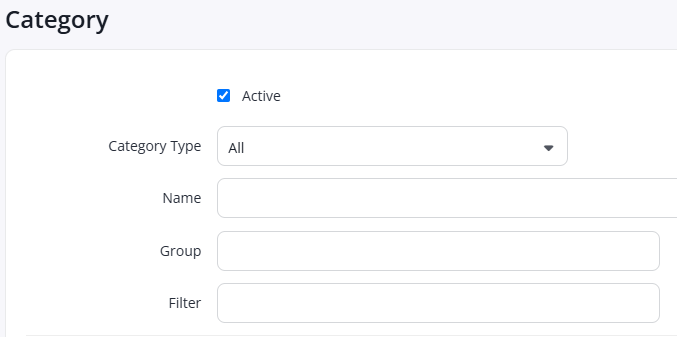
Select the Category Type. This determines which expense types the category is available for. For more information, see Category fields and settings below.
Enter a Name.
Optional: select a Group. Groups add subheadings to the category list on the expense form, making it easier for users to find the right category.
Optional: select a Filter. When a user is selecting a category, they can select a filter and only categories matching the filter will be returned. .
Enter a GL Code. This links the category to the corresponding nominal record in your accounting software.
Select a VAT code.
Select any additional settings as required. For a full description of all available options, see Category fields and settings below.
Click Save.
Video: Create a category
These videos were recorded in Capture Expense. Some screens and labels may look slightly different in Expenses, but the steps remain the same.
Editing a category
Go to Setup > Categories.
Click the Edit icon on the relevant category record. The category details appear.
Update the settings as required.
Click Save.
Video: Edit categories
These videos were recorded in Capture Expense. Some screens and labels may look slightly different in Expenses, but the steps remain the same.
Category fields and settings
The settings below are available when creating or editing a category. Only Name, GL Code, and VAT are mandatory.
Category Type
Determines which expense types the category is available for:
Type | Description |
|---|---|
All | Available for both cash expenses and business card expenses. |
Cash Expense | Available for cash expenses only. |
Business Card | Available for card expenses only. |
Business Refund | Used for refunding personal mileage where personal mileage calculation is enabled on a vehicle record. |
Basic settings
Setting | Description |
|---|---|
Active | Ensures the category appears in the system. Deselect to hide the category without deleting it. |
Allow multi currency | Allows the user to raise expenses in a currency other than the base currency. |
Do not reimburse (company vehicle) | Prevents the category's expense amounts from being passed to your accounting software. Used for business mileage categories where the claim is raised for tracking purposes only. |
PAYE Settlement Agreement (PSA) | Flags the category as covered by your PAYE Settlement Agreement with HMRC. |
Receipt will be compulsory | The user must attach a receipt before they can submit a claim under this category. |
Show warning if no receipt | Warns the user that a receipt is required when raising a claim under this category. |
Must add reason for missing receipt | The user must enter a reason if they submit a claim under this category without a receipt. |
Entry type and amounts
Setting | Description |
|---|---|
Configure Entry | Controls how the expense amount is entered. Options are: Variable Amount Only (no fixed cost); Fixed Amount Only (a set amount the user cannot change, e.g. a daily lunch allowance); With Quantity and Variable Rate (e.g. number of hotel nights at a nightly rate, or number of people at a meal); With Quantity and Fixed Rate (e.g. mileage at a fixed rate); Vehicle Mileage (for business or personal mileage not set up in Vehicles and Rates). |
Default Value | Default amount. Applies to Variable Amount Only. |
Default Quantity | Default quantity. Applies to Quantity and Variable Rate, and Quantity and Fixed Rate. |
Default Rate | Default rate. Applies to Quantity and Fixed Rate. |
Fixed Value | Fixed amount. Applies to Fixed Amount Only. |
Distance Calculator | Allows the user to enter waypoints and have the distance calculated automatically. Applies to mileage categories. |
Show Passenger | Adds a passenger allowance of £0.05 per mile per passenger to the claim. |
Spend controls
Setting | Description |
|---|---|
Set a spend limit | Enables a spending limit on this category. |
Spend Limit Amount | The maximum amount allowed per claim. |
Warning only | If selected, the user is warned when they exceed the spend limit but can still submit the claim. The approver is notified. If not selected, the user cannot submit a claim that exceeds the limit. |
Divide by | Applies the spend limit per unit rather than to the total claim amount. Select Quantity to divide by the quantity entered on the claim (for example, nights for a hotel or people at a meal), or Number Field to divide by the value in the custom number field. If the limit is £10 and the user enters a quantity of 2, they can claim up to £20. |
Note: Spend limits apply per claim by default. If you need to apply a limit across a time period, such as per week or per month, this can be configured using the period options available on the spend limit settings.
Claiming for more than one person
If one employee pays for an expense that covers several people, such as a team lunch, you can apply the spend limit per person rather than per claim. For example, to allow up to £25 per person:
Select Set a spend limit and enter the Spend limit amount, for example 25.00.
In Divide by, select Number Field.
Select Show number field and Field compulsory.
In Field label, enter a label such as "Number of guests".
When raising a claim, the user enters the number of people in this field and the spend limit is multiplied by it. For example, a claim for 2 people can be up to £50.
To record who attended, select Add attendees for entertainment. External attendees can't be selected, so to record their names:
Select Show Business Use Field.
Change the Business Use Label to something like "Names of external guests".
Add a Policy Notes message asking users to enter external guests' names in that field.
VAT and receipts
Setting | Description |
|---|---|
Show VAT Rates | Displays VAT rates to the user on the expense form. |
Allow user to change VAT | Allows the user to amend the VAT amount on their claim. |
VAT | The VAT rate applied to this category. If a receipt is attached, the selected VAT rate is used. If no receipt is attached, the claim defaults to the zero rate set up in VAT Records. |
Time and additional fields
Setting | Description |
|---|---|
Track Time | Allows users to record hours worked, such as overtime. |
Show Number Field | Adds a custom number field to the category. |
Field Label | The label for the custom number field. |
Field Default Value | A default value for the custom number field, if applicable. |
Field Compulsory | Makes the custom number field mandatory. |
Show supplier | Prompts the user to record the supplier name and a description on the claim. |
Add attendees for entertainment | Allows the user to record who else the expense covers, for example when one employee pays for a team or new starter lunch on behalf of colleagues. Only internal employees can be selected. To record external guests, see Claiming for more than one person. |
Show Business Use Field | Adds a free-text field for capturing additional information about the expense. |
Business Use Label | The label for the business use field. |
Business Use Compulsory | Makes the business use field mandatory. |
Description Label | A description of the category that appears in the export template, useful for reporting. |
Description Compulsory | Makes the description field mandatory. |
Policy Notes | A message that appears on the expense form when the user selects this category. Use this to communicate policy rules or guidance at the point of claim. |
Projects and tasks
Setting | Description |
|---|---|
Enable Costing (Project, Task) | Enables project and task selection on the expense form for this category. |
Project and Task Compulsory | Makes the project and task fields mandatory. |
Project and Task Read only | Locks the project and task fields. Use this when a default project is set on the category. |
Project | The default project assigned to this category. |
Task | The default task assigned to this category. |
CO2 calculation
Setting | Description |
|---|---|
Calculate CO2 | Calculates CO2 emissions for the expense. Select the appropriate type: Transport (taxi or bus mileage), Flight, Hotel, or Utility (electricity and fuel, requires the user to enter litres on the claim). |
Tags
Setting | Description |
|---|---|
Tags | Restricts the category to users with matching tags, or excludes it from users with specific tags. For example, you can make a category available only to users with a Sales or Development department tag, or hide it from users with those tags. If the tag fields are empty, the category is visible to all users. |