Who can do this:
HR Manager
Administrator
Deleting an employee
On occasion, you will want to delete a user from your account.
WARNING: Deleting users from the system will erase all the data associated with them. You CANNOT restore deleted employees so you may wish to export their data, should you need it at a later date.
The first step in deleting an employee is to archive their record.
Go to Organisation > Employees.
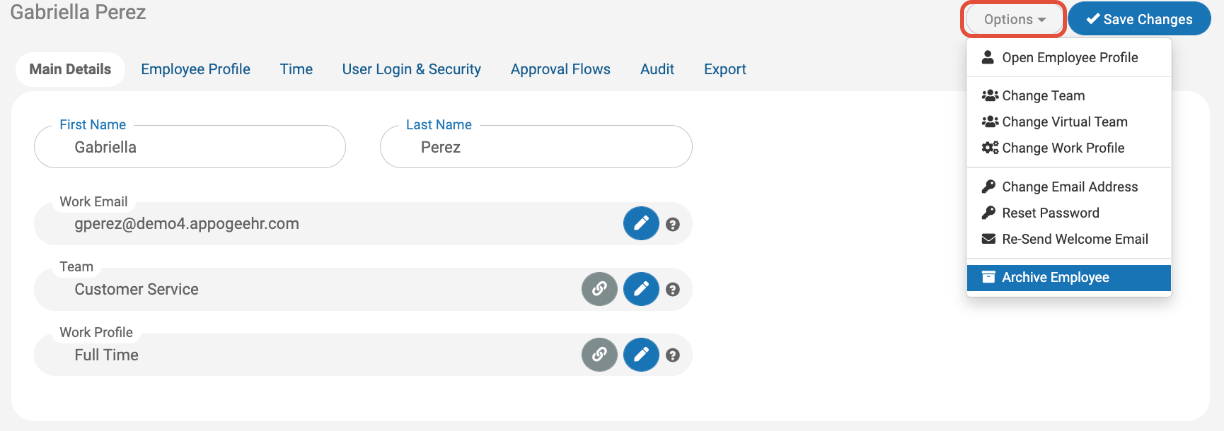
Select the employee and then click options in the top right corner.
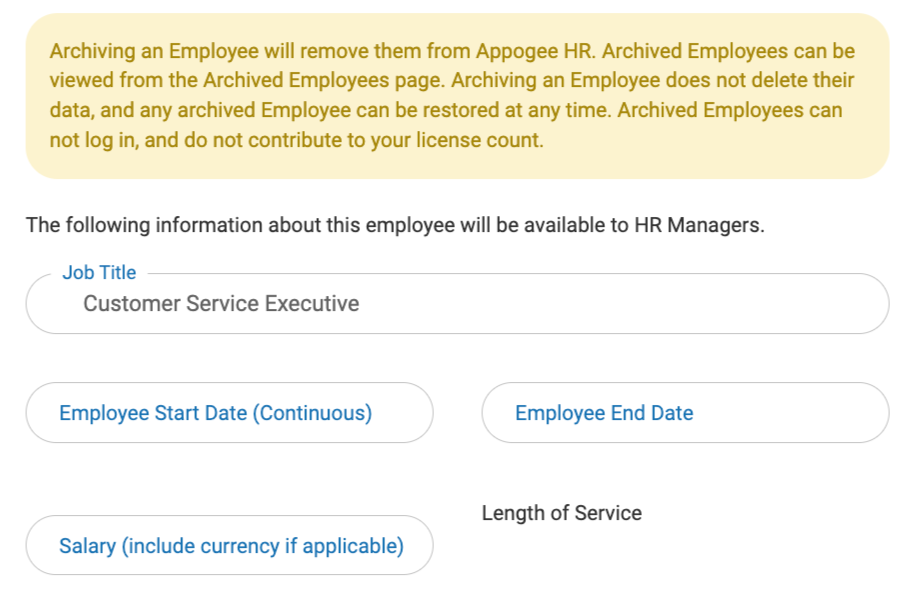
A dialog box will appear, check the information is correct, then click Archive Employee.
You should then be directed to the Archived Employees page, where that user will be visible.
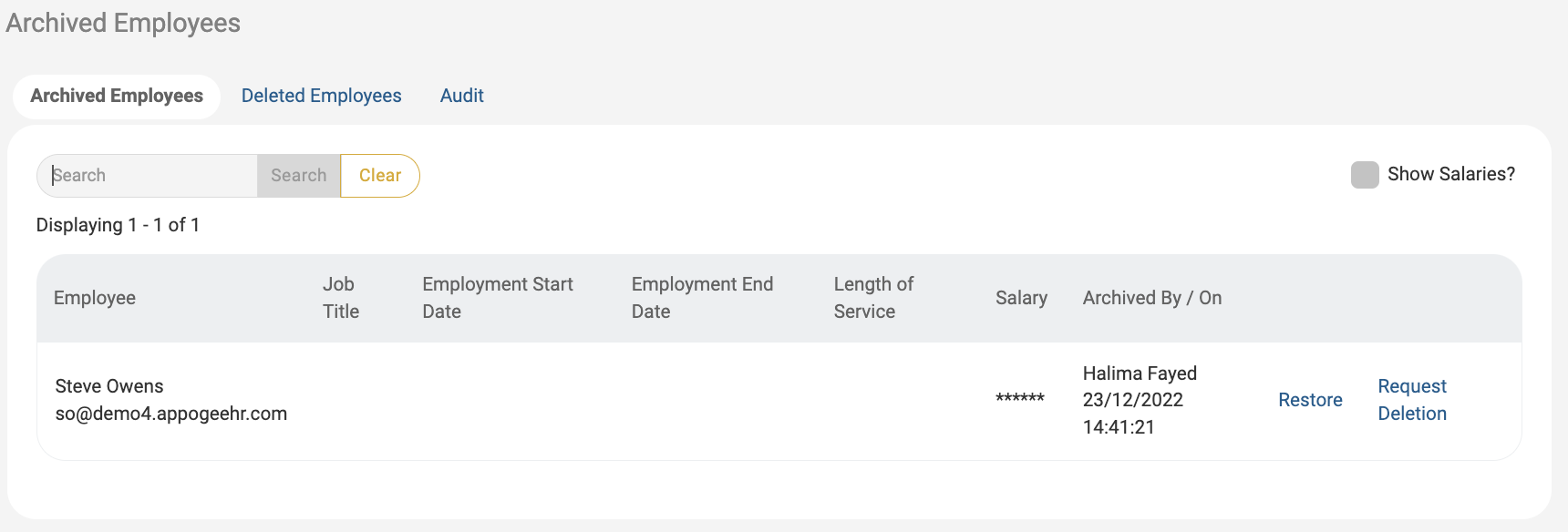
Click Request Deletion, a dialogue box will appear, check you are happy with the deletion and click Yes, mark this employee for deletion.
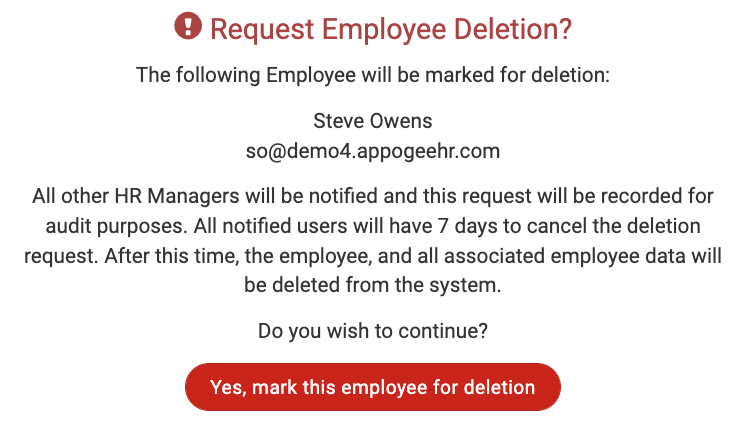
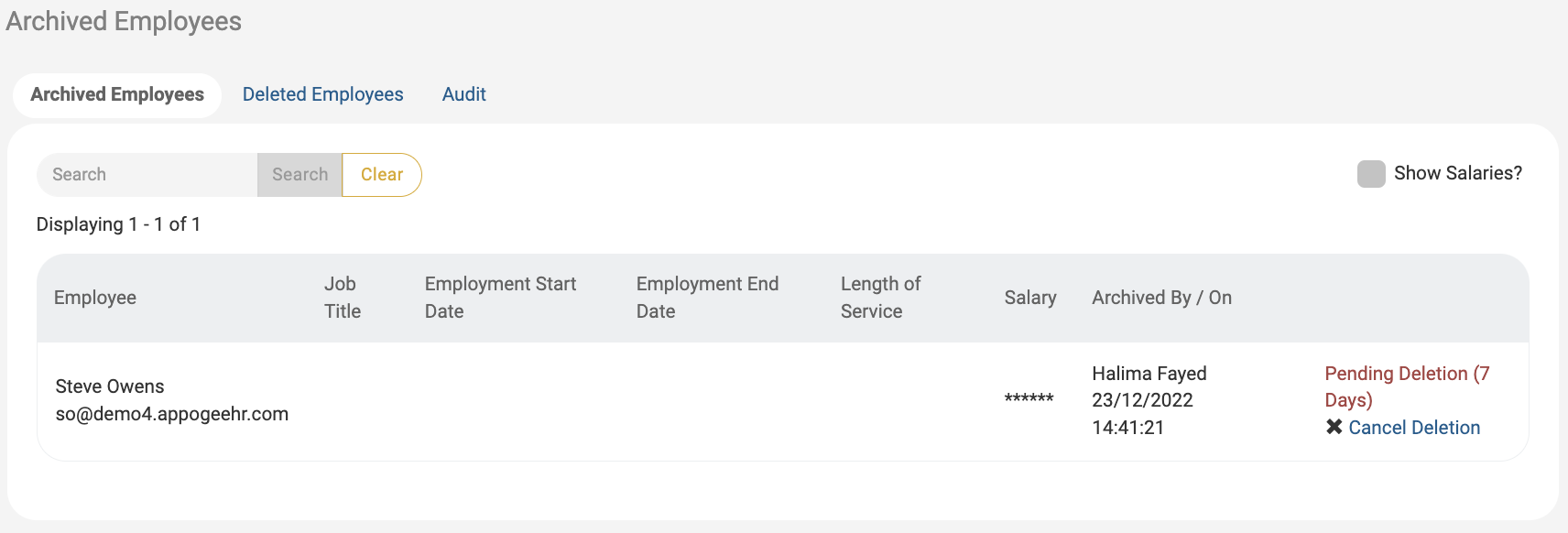
Once confirmed, the employee will enter a Pending Deletion state for 7 days. During this time, the deletion request can be cancelled by any user with the HR Manager or Admin roles. After 7 days, the employee and all related data will be deleted. A history of deleted employees can be found on the “Deleted Employees” tab. An audit of all user actions can be found on the Audit tab.