Available in:
HR Essentials
HR Advanced
Who can do this:
HR Manager
Administrator
Introduction
Greenhouse is an Applicant Tracking System (ATS) that aids recruitment and hiring processes.
You can integrate Greenhouse with Cintra People HR to benefit from the following:
Notifications when a candidate has been hired in Greenhouse
Import hired candidates into Cintra People HR to set them up as new employees
The integration will require you logging into both Cintra People HR and Greenhouse at the same time, if you have 2 screens, it is recommended you put both the screens side by side for ease of configuration.
To set up the Greenhouse Integration, go to System Config > Greenhouse.
Step 1 - About
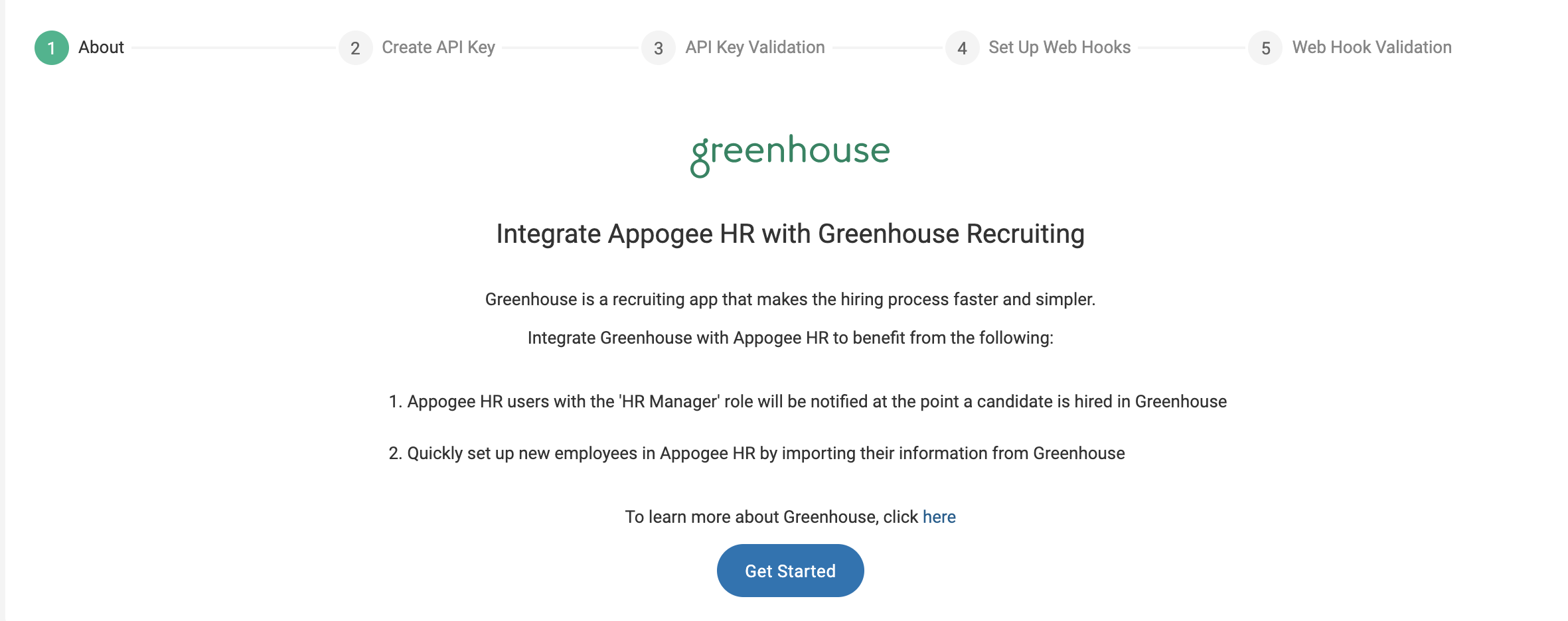
The first page will give you an overview of the Greenhouse integration - read through the information and click Get Started.
Step 2 - Create API Key
In order to connect the two systems, you will need to create an API Key in your Greenhouse account. To do this, follow the instructions on screen:
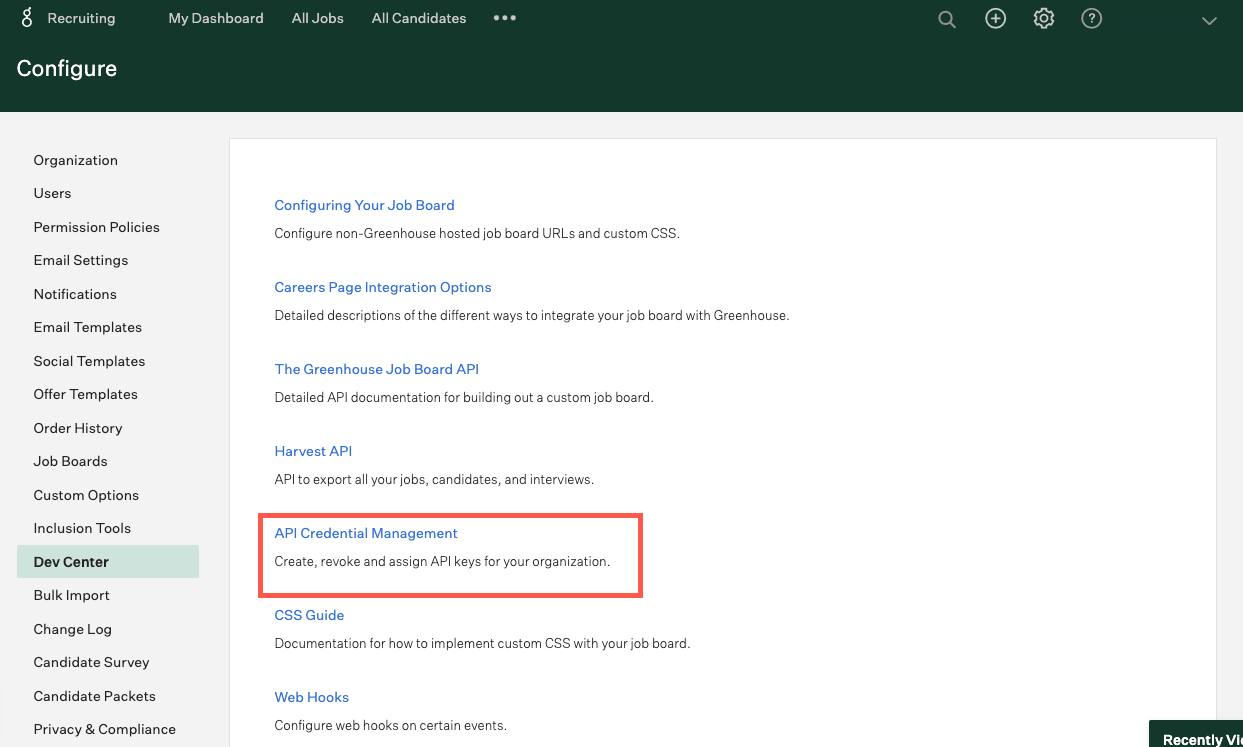
Go to your Greenhouse Account and click on the cog in the top right corner.
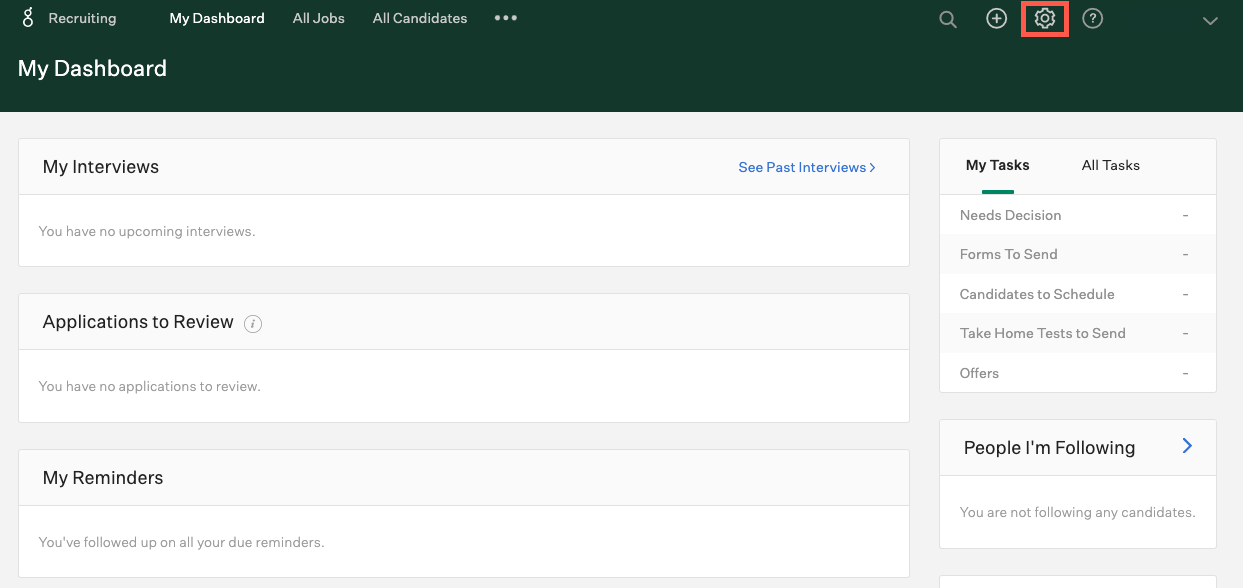
This will open your settings, from the left side menu, select Dev Center.
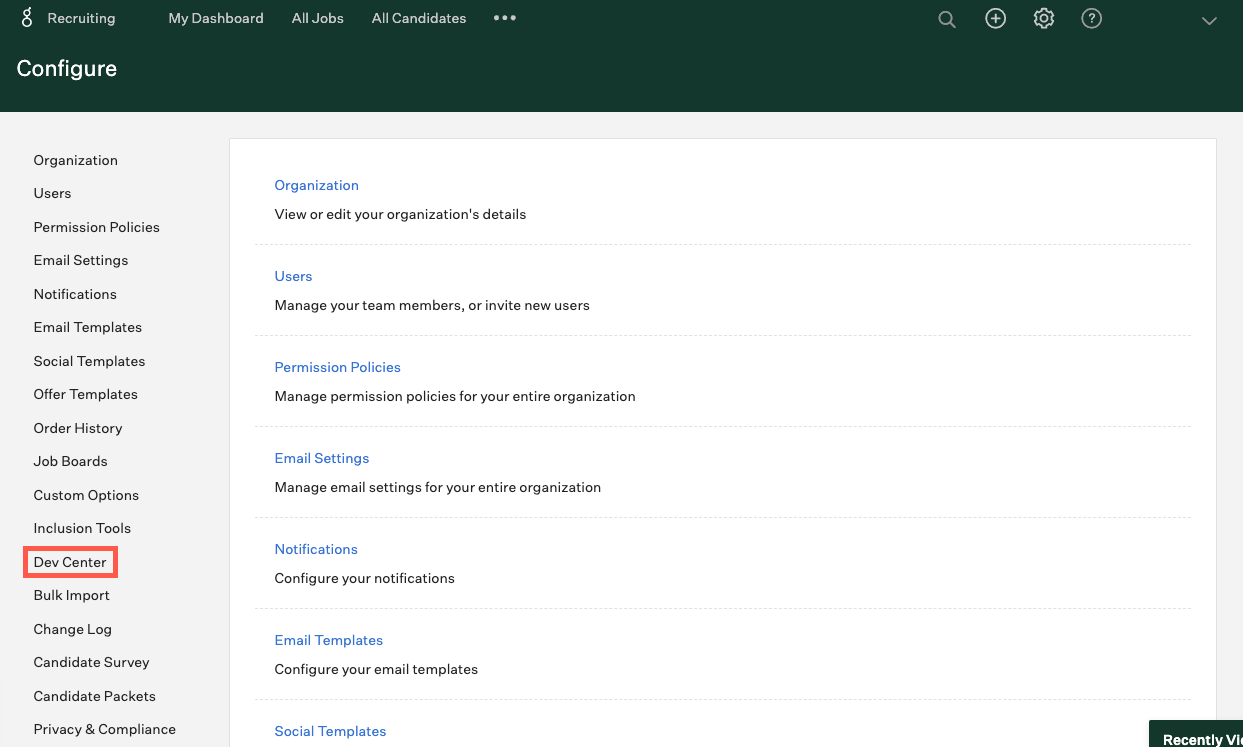
From here, select API Credential Management.
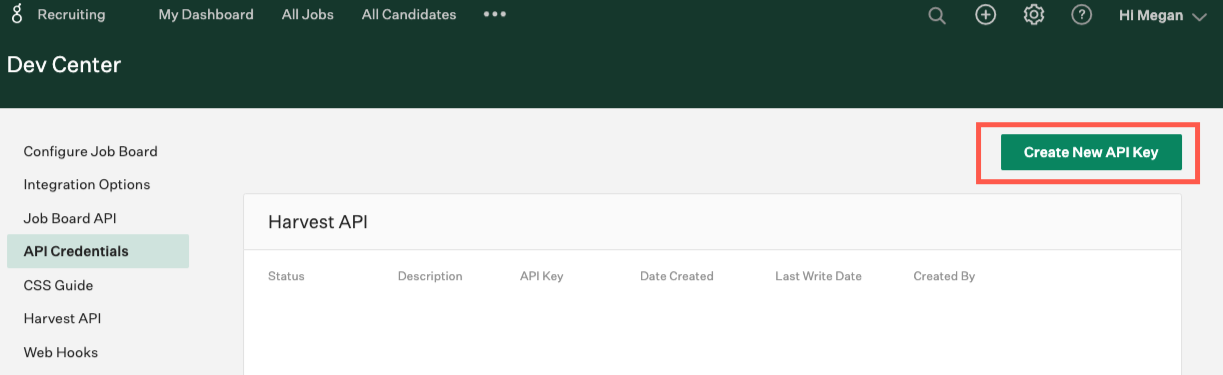
Click the Create New API Key button.
This will open a dialog box. Fill it with the following information:
Select Type: Harvest
Partner and Description are optional fields. If you fill out the Description field we recommend you use "Cintra People HR "
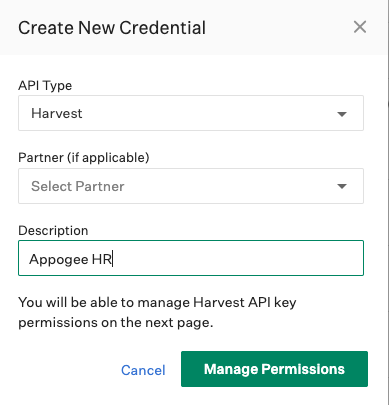
Click on Manage Permissions to continue.
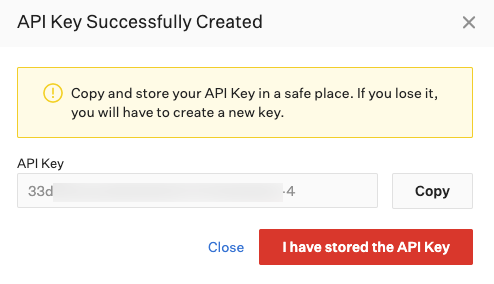
Greenhouse will generate an API Key for you, click to copy to your clipboard then click I have stored the API Key.
On the following page, select the following checkboxes in the Manage API Key Permissions Sections. You'll need to click the sections to expand them.
Candidates > Get: Retrieve Candidate
Offers > Get: Retrieve Offer
Offers > Get: List Offers
Jobs > Get: Retrieve Job
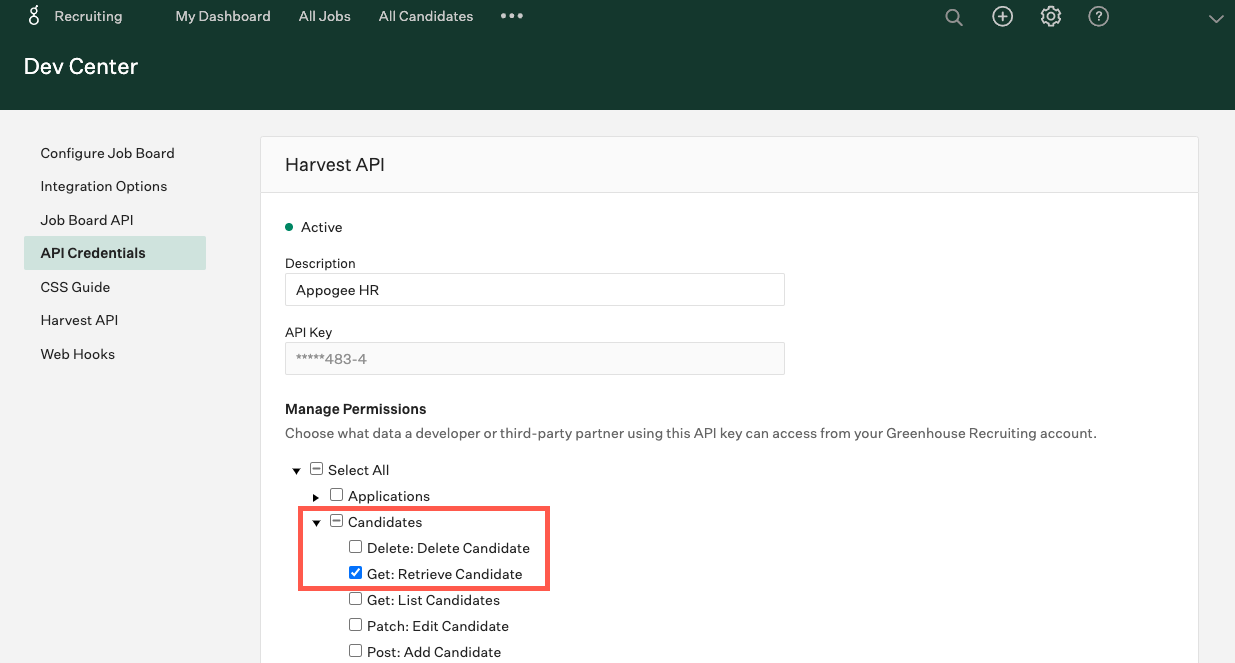
Click Save.
Back in Cintra People HR, paste the API Key in the box and click Validate API Key.
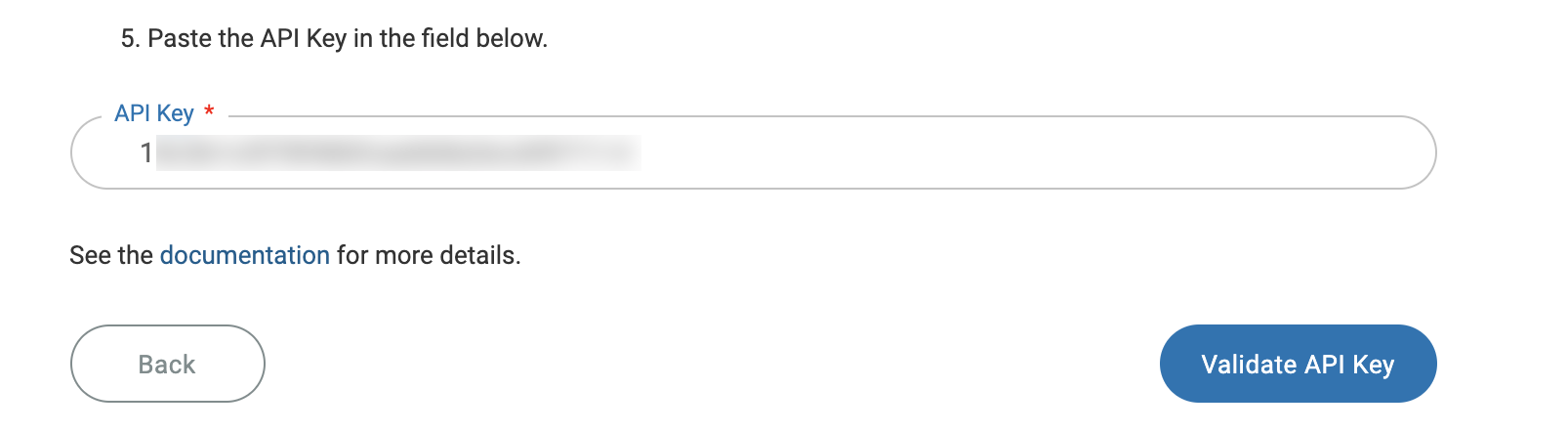
Step 3 - API Key Validation
Wait a few moments for the API Key to be validated.
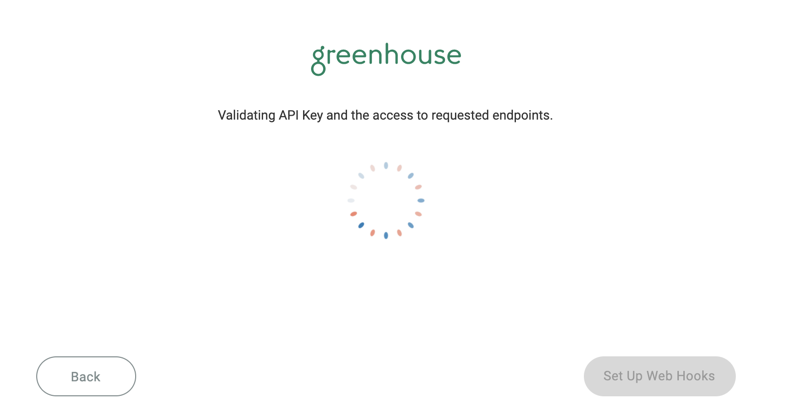
2. Once validated, click Set Up Web Hooks.
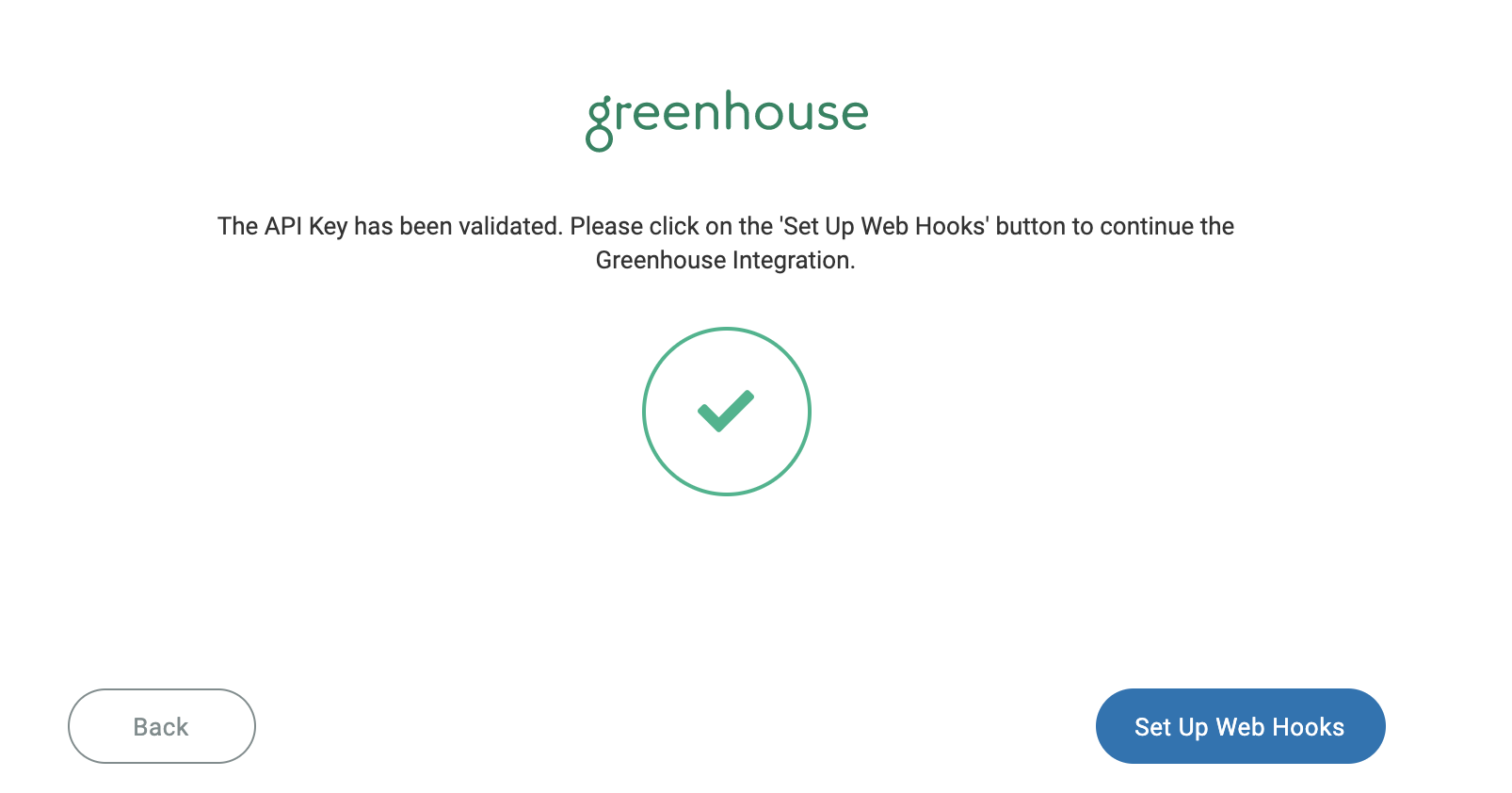
Step 4 - Set Up Web Hooks
Web Hooks allow your account in Cintra People HR to get notified when different events happen in your Greenhouse account. In order to import new candidates into Cintra People HR .
In order to import new candidates into Cintra People HR , a Web Hook notification is required when a candidate has been hired or unhired. Please follow the instructions below to set up the Web Hooks.
Go to your Greenhouse Account and click on the cog in the top right corner.
This will open your settings, from the left side menu, select Dev Center.
From here, select Web Hooks.
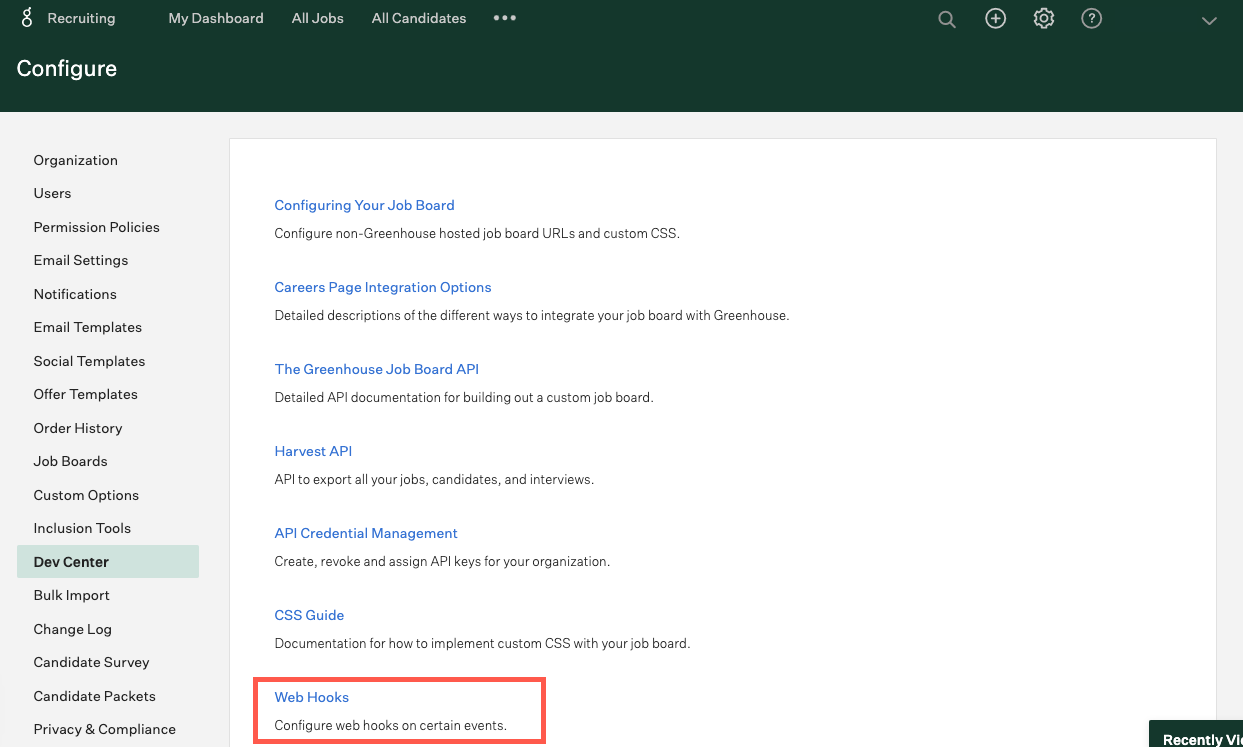
Then, click Web Hooks.
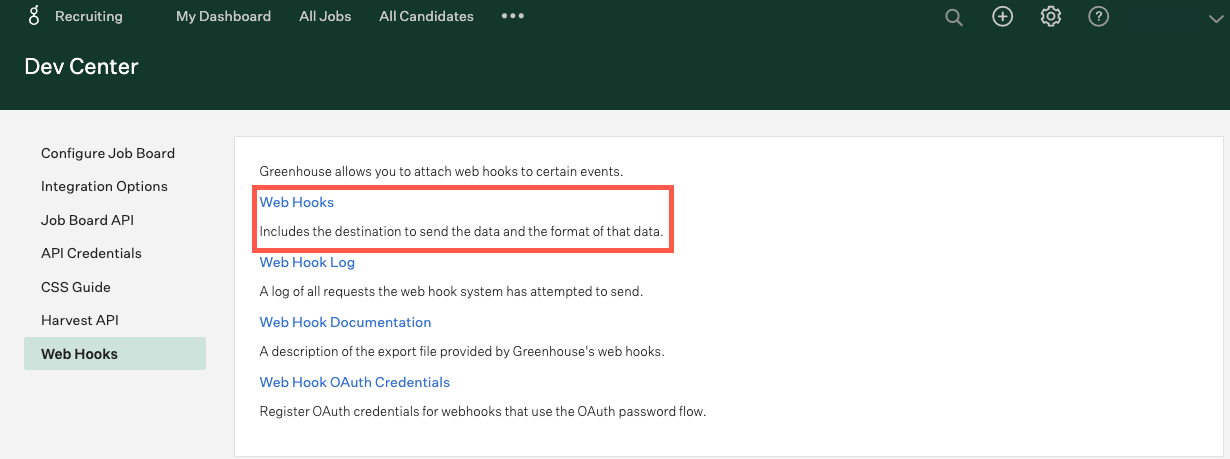
We are going to create 2 webhooks, 1 for Candidate has been hired and one for Candidate has been unhired.
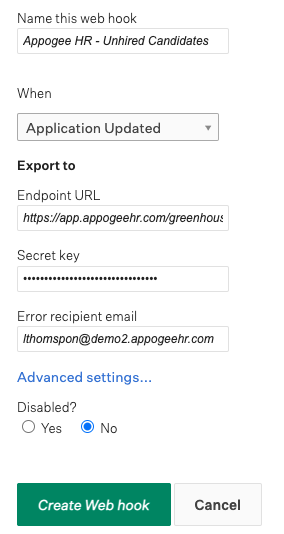
For the first Web Hook use a descriptive name such as 'Cintra People HR - Hired Candidates.
On the 'When' dropdown, select 'Candidate has been hired'.
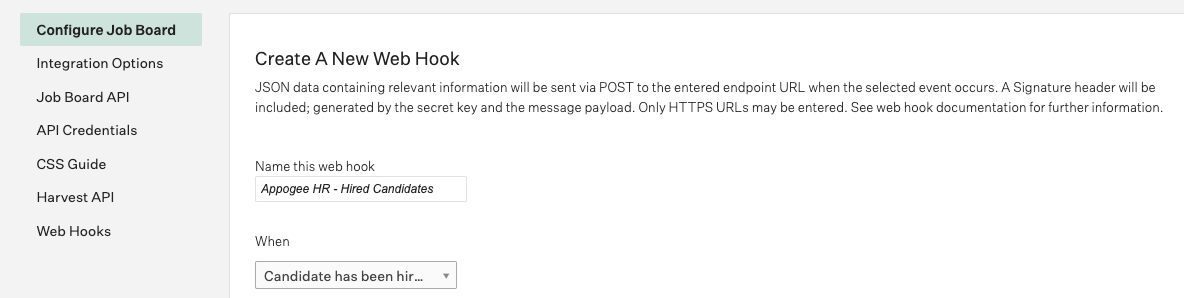
Use the button to the right of the Endpoint URL on Cintra People HR to copy it into the URL Endpoint box on Greenhouse.

Use the button to the right of the Secret Key on Cintra People HR to copy into the Secret Key box on Greenhouse.

Add an email address to send error messages to and choose 'No' as disabled option.
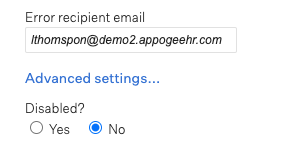
Click Create Web Hooks. This will refresh the page and you can repeat the above steps but change the name to Cintra People HR - Unhired Candidates and choosing 'Candidate has been unhired' from the 'When' dropdown.
You can use the same endpoint URL and Secret Key.
When you've done this, go back to Cintra People HR and click Validate Web Hooks.
Wait a moment for the Web Hooks to Validate.
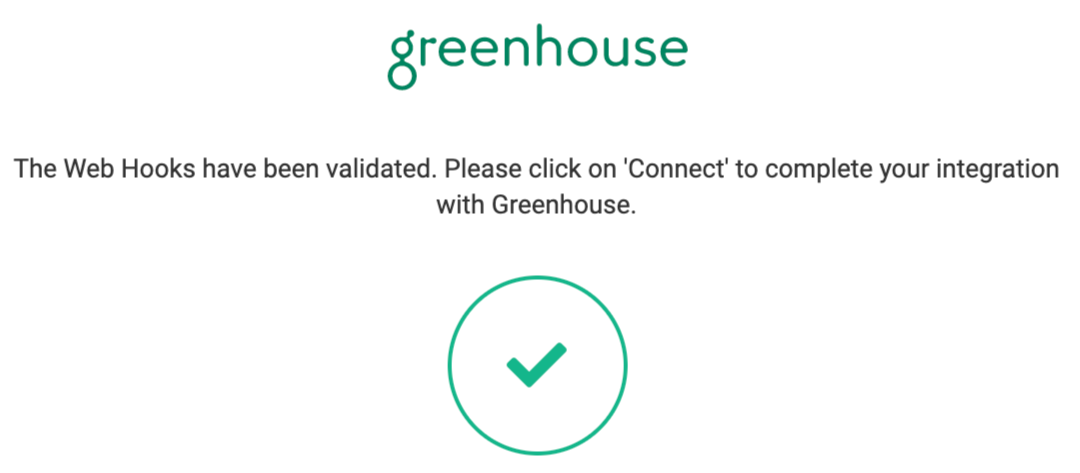
Step 5 - Web Hook Validation
Click Connect.
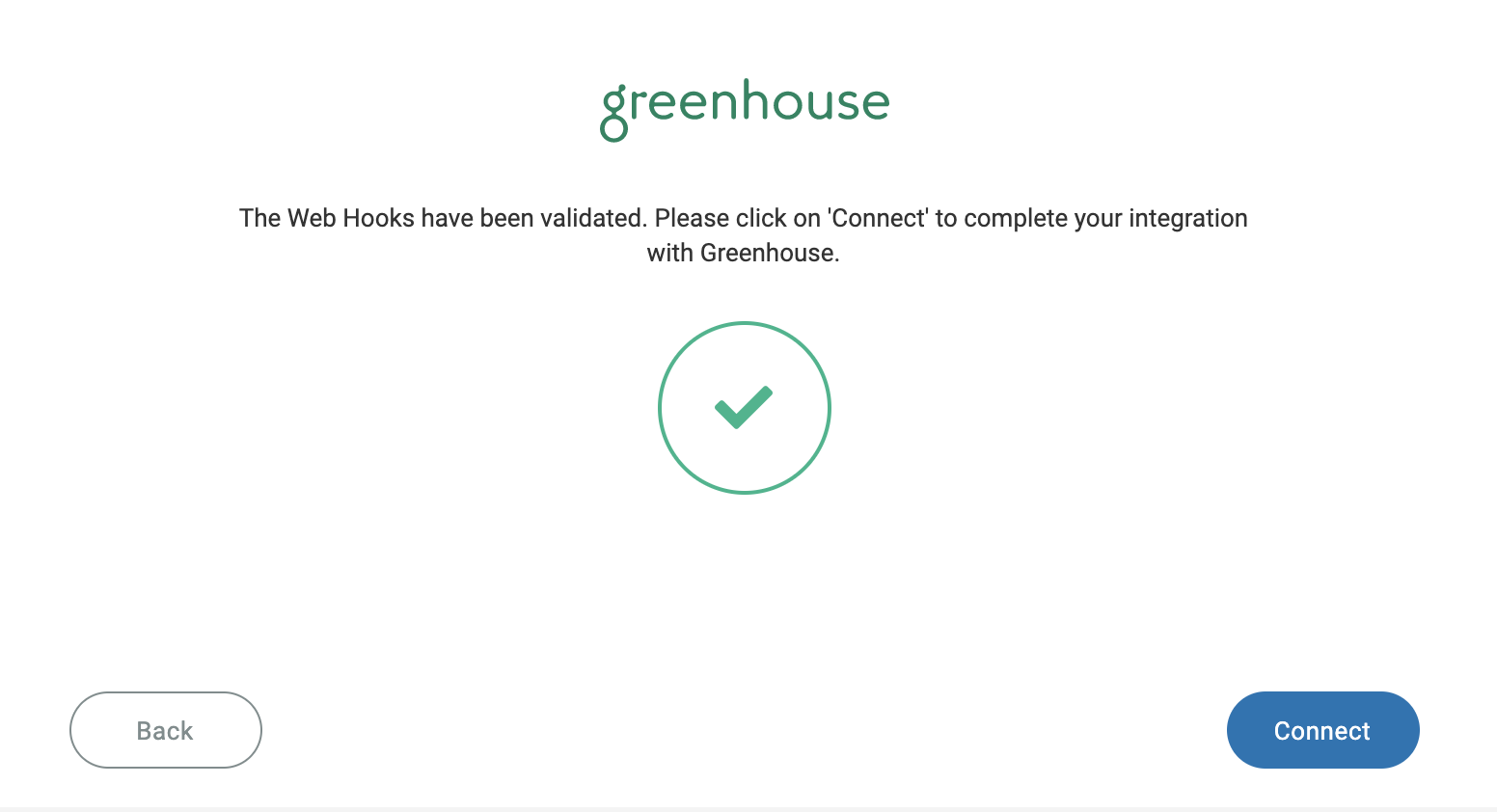
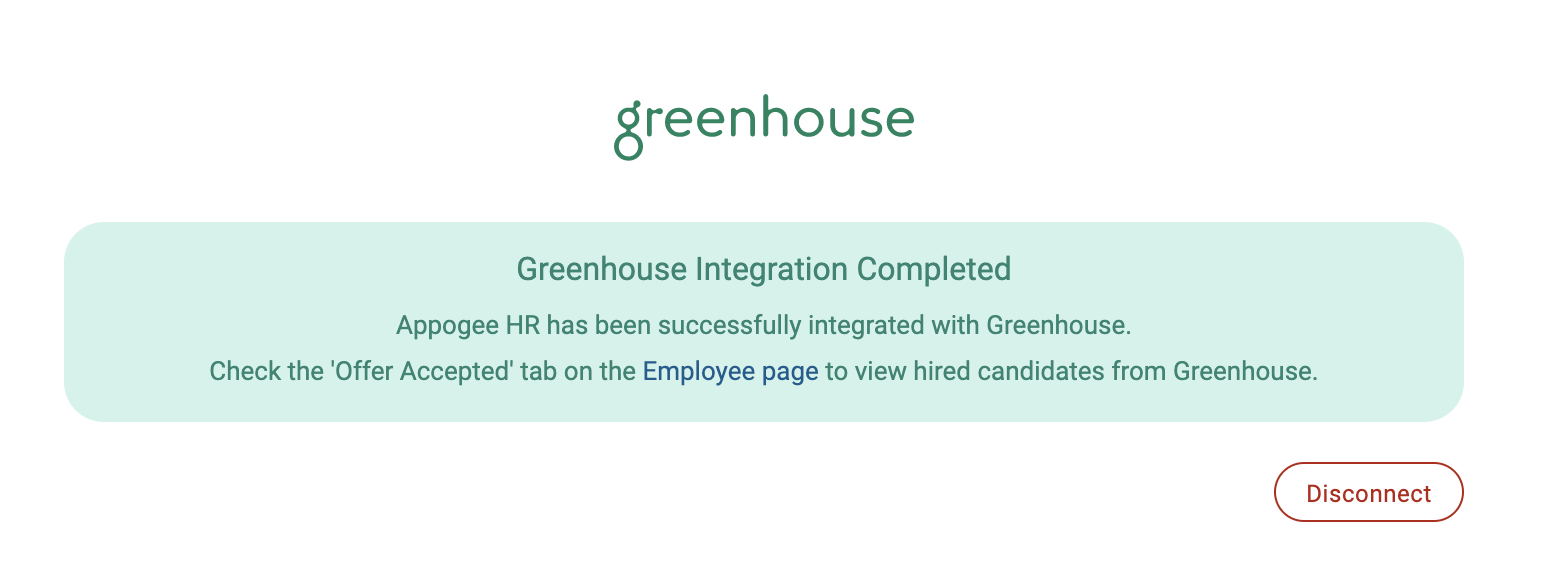
Your account will be successfully integrated.