Available in:
HR Essentials
HR Advanced
Who can do this:
HR Manager
Administrator
This feature is currently undergoing verification and is not yet generally available.
The Pinpoint integration lets recruiters send hired candidates from Pinpoint straight to Cintra People, ready for HR to set them up as new employees. To set it up, you generate an Integration Key in Cintra People, and then a Pinpoint administrator enters it in Pinpoint.
Before you start
To set up the integration, as well as an HR admin account, you also need a Pinpoint admin account to complete the Pinpoint part of the setup.
In the Pinpoint marketplace, you must first search for and add the app called Cintra People.
Generate an integration key in Cintra People
Go to System Config > System Integrations.
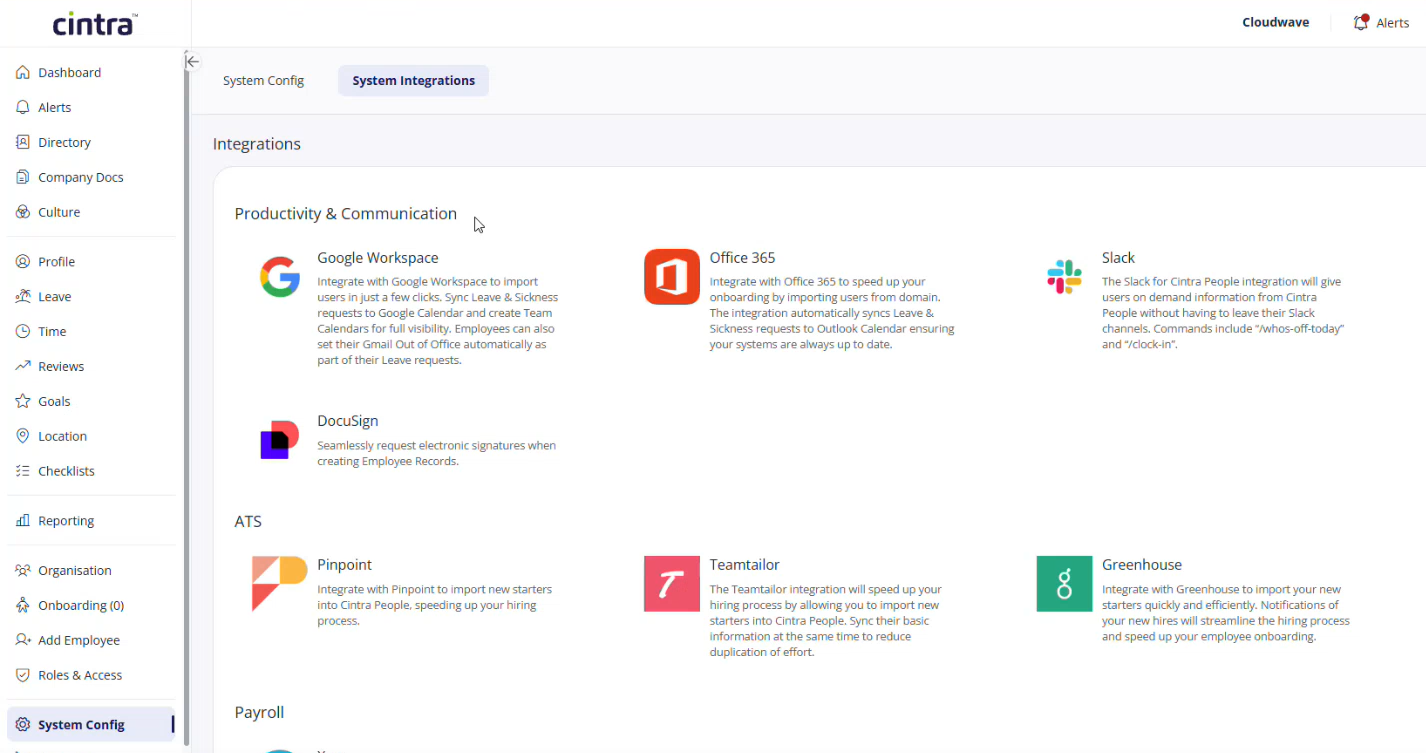
Under ATS, click Pinpoint.
Click Get Started.
Click the clipboard icon next to the Integration Key to copy it.
Before you can complete the setup, you must then perform some actions in Pinpoint.
Connect Cintra People in Pinpoint
In Pinpoint, go to Settings > Integrations.
On the Apps tab, search for Cintra People, and then click Add.
Cintra People now appears on the My Plugins tab with the status Enabled.
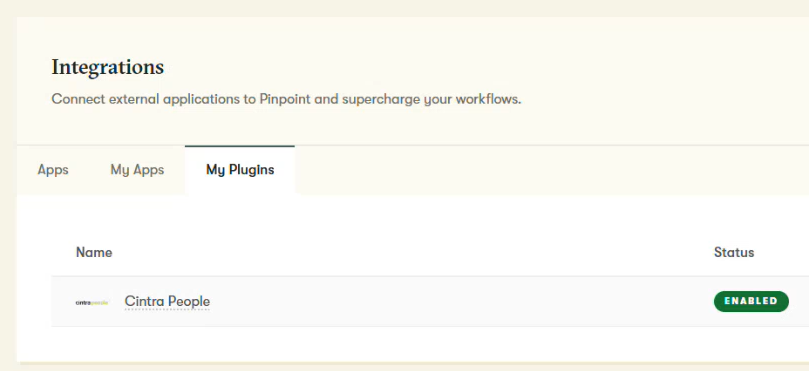
Once added, select the Cintra People app to open the Configure screen.
In the Cintra People API Key field, paste the Integration Key you copied from Cintra People.
Click Save.
Recruiters can now send candidates to Cintra People. For more information, see Adding new starters from Pinpoint.
Disconnect the integration
To stop candidates being sent from Pinpoint, go to System Config > System Integrations, click Pinpoint, and then click Disconnect. This will not affect any candidates already added to the Import from ATS tab in Cintra People.