The Pinpoint integration lets recruiters send hired candidates from Pinpoint straight to Cintra People. Each candidate appears on the Import from ATS tab of the Onboarding page, where HR adds any missing details and sets them up as a new employee. No employee record is created until HR completes this step.
The integration must be set up before recruiters can send candidates. For more information, see Setting up the Pinpoint integration.
This feature is currently undergoing verification and is not yet generally available.
Send a candidate to Cintra People
Recruiters send candidates from Pinpoint. They don't need to sign in to Cintra People.
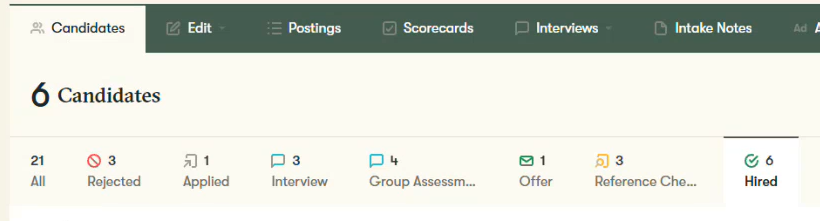
In Pinpoint, open the list of candidates and select Hired.
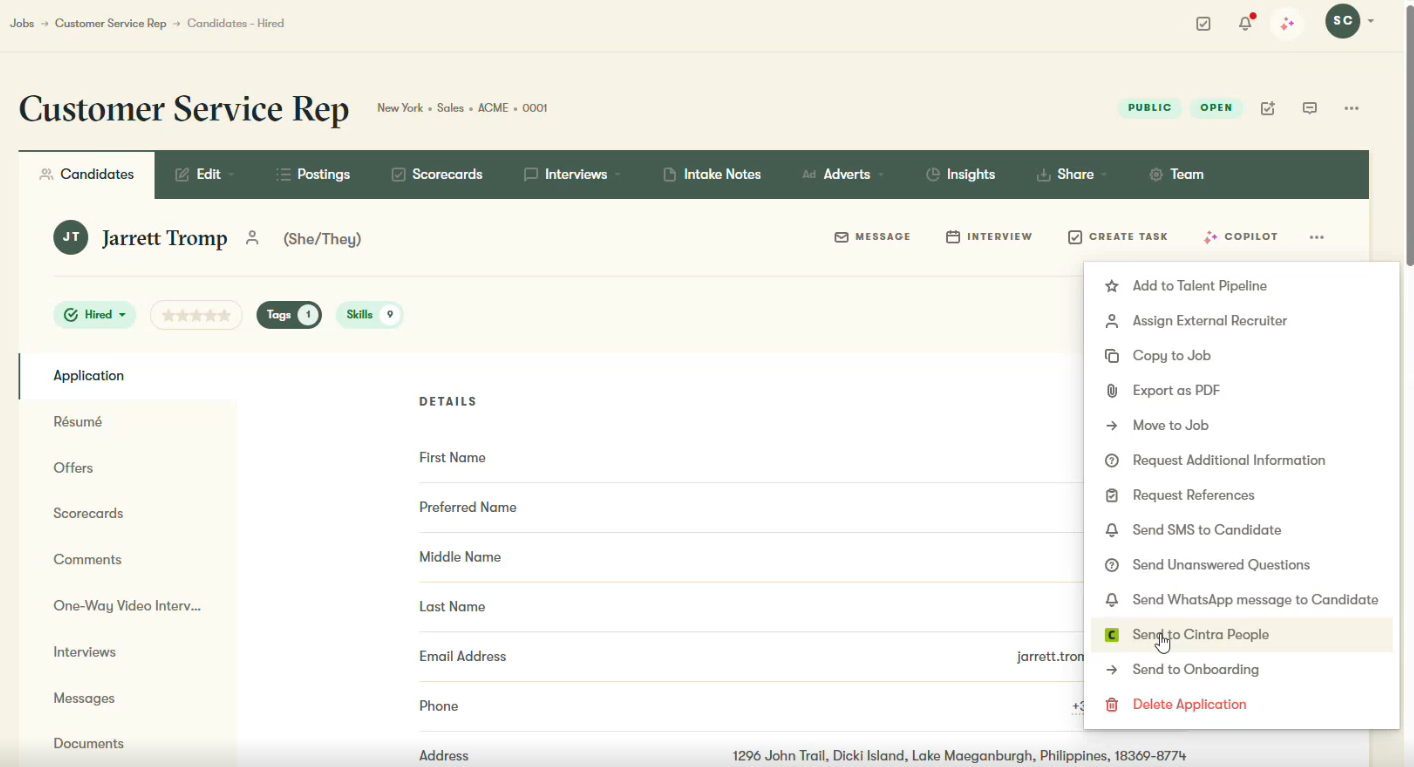
Click the more options icon (...), and then select Send to Cintra People.
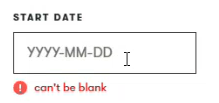
On the Send to Cintra People form, check the details brought across from Pinpoint and complete any blank required fields, including all those not marked as “optional”.
Click Submit.
If you leave a required field blank, an error appears under it and the candidate isn't sent.
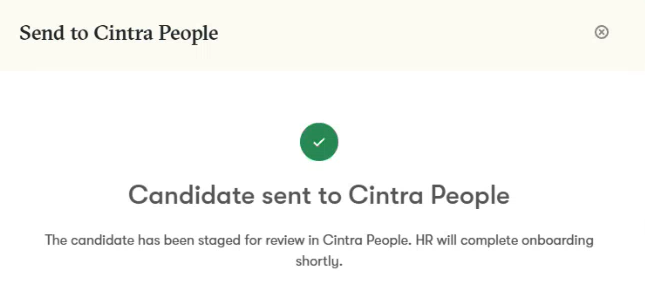
When the candidate has been sent, Pinpoint shows Candidate sent to Cintra People.
Each candidate can only be sent once. If you try to send them again, Pinpoint shows Candidate Already Exported with the date they were sent.
Set up the new starter in Cintra People
In Cintra People, go to Onboarding.
On the Joiners tab, click Import from ATS. If a candidate you've just sent isn't listed, click Refresh.
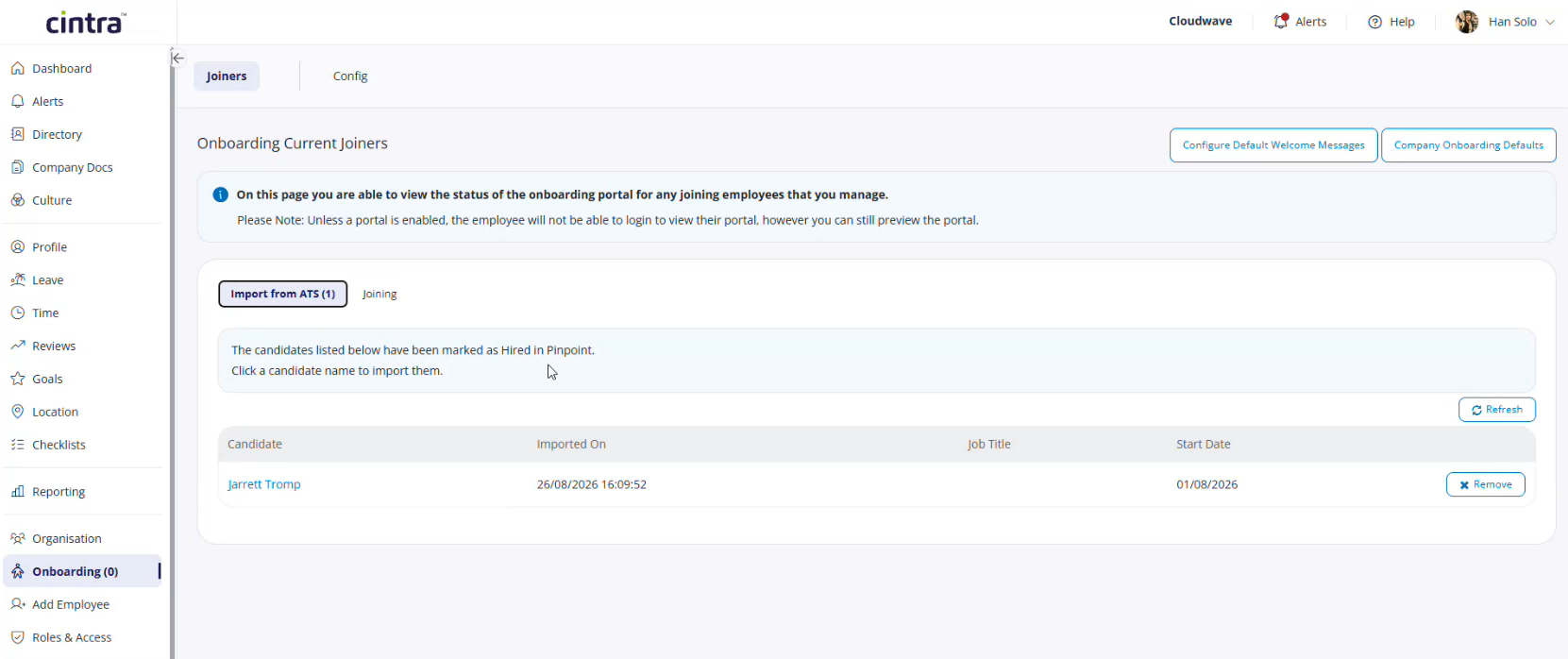
Select the candidate's name.
Check the details brought across from Pinpoint, and complete the remaining fields, such as team, leave profile and work pattern. For more information, see Add new employees individually.
Click Add Employee.
The candidate is added to Cintra People as an employee and will be removed from the Import from ATS list.
Frequently asked questions
What if a candidate declines their offer after being sent?
On the Import from ATS tab, click Remove next to their name. If the candidate changes their mind at a later date, they can be sent again.
Can we include our own Pinpoint fields?
The fields on the Send to Cintra People form are set by Cintra. If you need additional fields to be added, contact your Cintra representative.