The Statutory Deductions tab lets you view and manage all the information relating to how much is taken from an employee's pay each period, including tax, National Insurance, student loans, and court orders.
To access statutory deductions, open a payroll, edit the employee, then select the Statutory Deductions tab.

The Student loans tab shows an employee's student loan repayment orders, plus any override made for the current pay period.
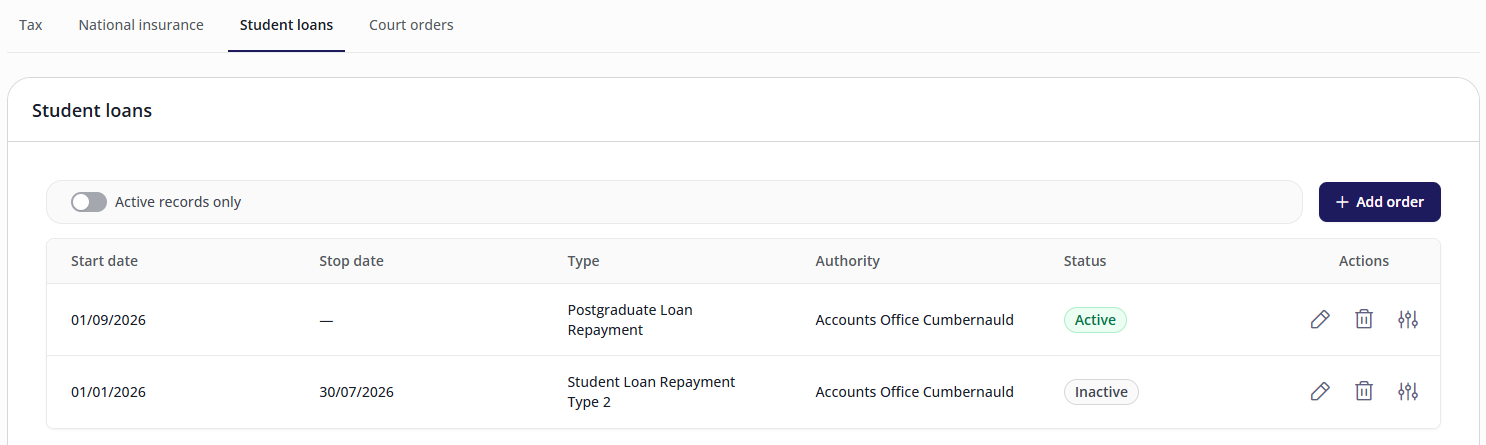
Student loan repayment orders
The list shows every repayment order an employee has, with its start date, stop date, type (Plan 1, Plan 2, Plan 4, or Postgraduate Loan Repayment), issuing authority, and whether it's active or inactive.
Switch on Active records only to see only current orders. Switch it off to see the full history, including orders that have stopped.
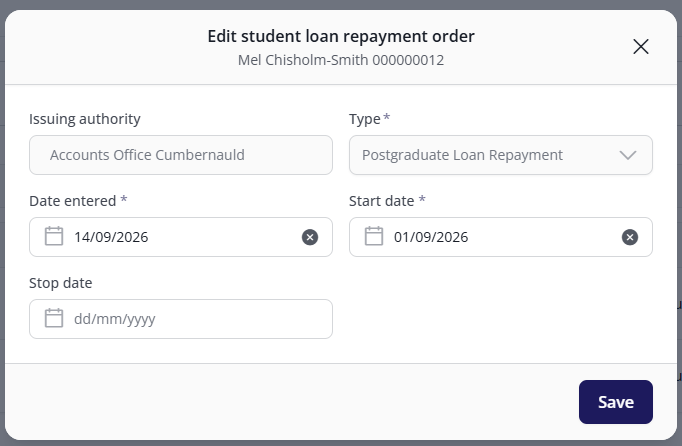
Adding a repayment order
Click Add order.
Select the plan type. Only plan types the employee doesn't already have an open order for are offered.
Enter the date the instruction was received (Date entered).
Enter the Start date, and optionally, a Stop date.
A student can only have one active student loan order and one active postgraduate loan repayment at a time. A warning will appear if repayment periods overlap.
Click Save.
The Issuing authority field is populated automatically and can't be edited.
Repayments start being deducted from the start date you enter, and pay in any open period is recalculated to reflect the new order.
Editing a repayment order
Click the edit icon on the order.
Update the Date entered, Start date, or Stop date as needed.
Click Save.
The plan Type is locked once an order exists and can't be changed. If the wrong type was set up, delete the order and add a new one with the correct type instead.
Deleting a repayment order
Click the delete icon on the order.
Confirm the deletion.
Deleting an order is permanent, and it also removes any period override belonging to that order.
Overriding a repayment amount
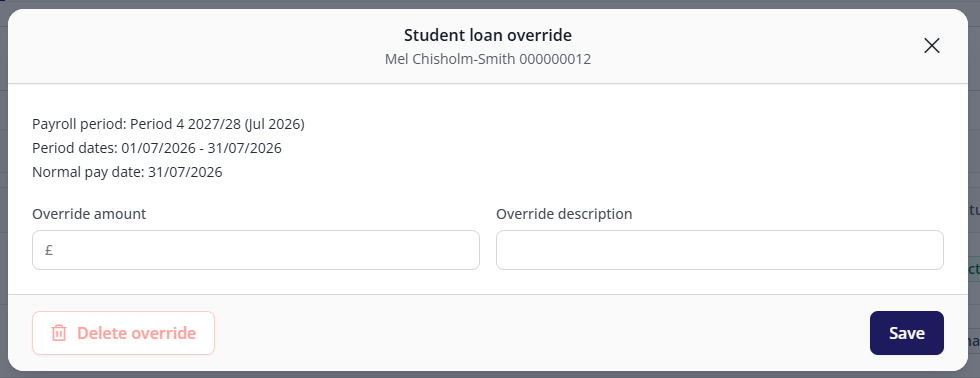
An override forces a specific repayment amount for the employee's current open pay period only, instead of letting the system calculate it.
Click the override icon
 beside the relevant order.
Check the payroll period details shown (payroll period, period dates, and normal pay date), to confirm you're overriding the right period.
Enter the Override amount.
Optionally, enter an Override description.
Click Save.
To remove an override, open it and click Delete override.
An override applies to the current open period only. Once the payroll moves past that period, the override no longer appears on screen. It isn't a way to correct a period that's already been paid. If this happens, contact your bureau or make the change in Cintra iQ.
FAQs
Why isn't a plan type available when I try to add an order?
An employee can only have one open order per plan type (student loan and postgraduate loan) at a time. If a plan type doesn't appear in the list, the employee already has an open order of that type.
Why can't I change the plan type on an existing order?
The type is locked once an order is created. To change it, delete the order and add a new one with the correct type.
Can I use an override to correct a period that's already been paid?
No. An override only applies to the current open pay period. It isn't a correction tool for closed periods.