What is time off in lieu?
Time off in Lieu (TOIL) or Compensatory Time Off (Comp Time) is used when an employee has worked more than their contracted hours and would like to make an allowance claim for those additional hours to be taken as time off
TOIL or Comp Time can be customised so it is labelled with the most appropriate terminology for your organisation's requirements.
Once a TOIL Allowance claim has been made it will go through an Approval process with either their line manager or someone else in charge of these claims. Once the request has been approved the user will see these hours either added to their Annual Leave balance or into a separate Allowance called TOIL (Both ways will be shown below). The employee can then make a Leave Request and choose the Leave Type as TOIL in order to use the hours that they have claimed.
TOIL in action
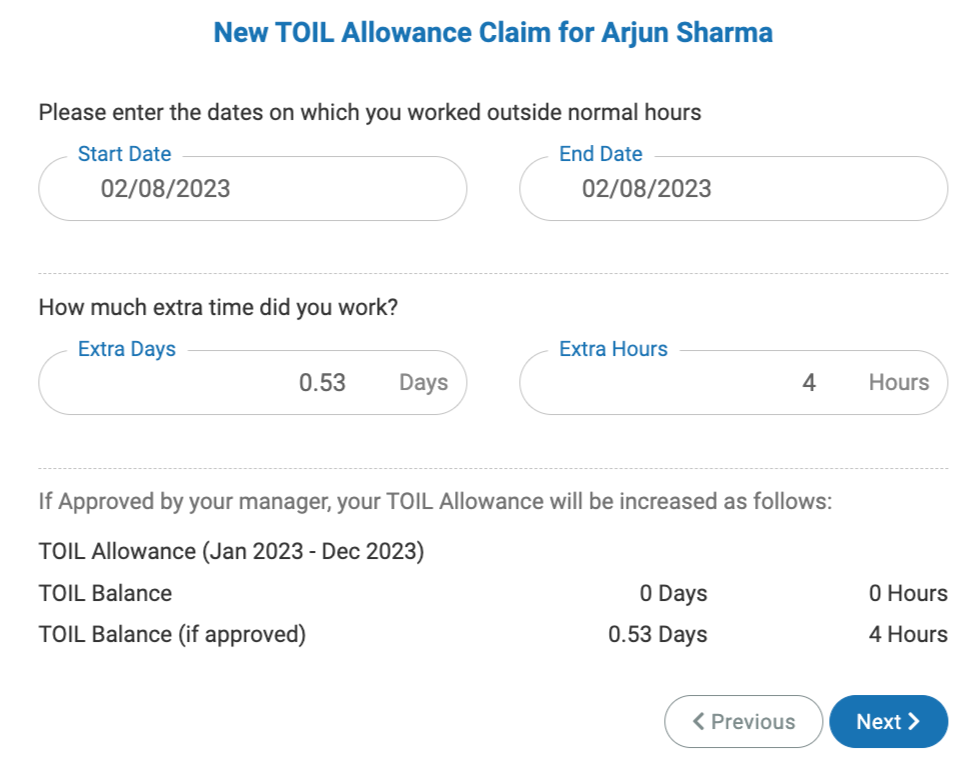
We will use the example of Arjun Sharma who worked an additional 4 hours on 2nd August 2023 in order to finish a project.
Submitting an Allowance Claim
In Year at a Glance, click New Request, then Claim TOIL allowance.
.png)
Select the TOIL Allowance Claim option and enter the additional dates worked on top of the normal working hours.
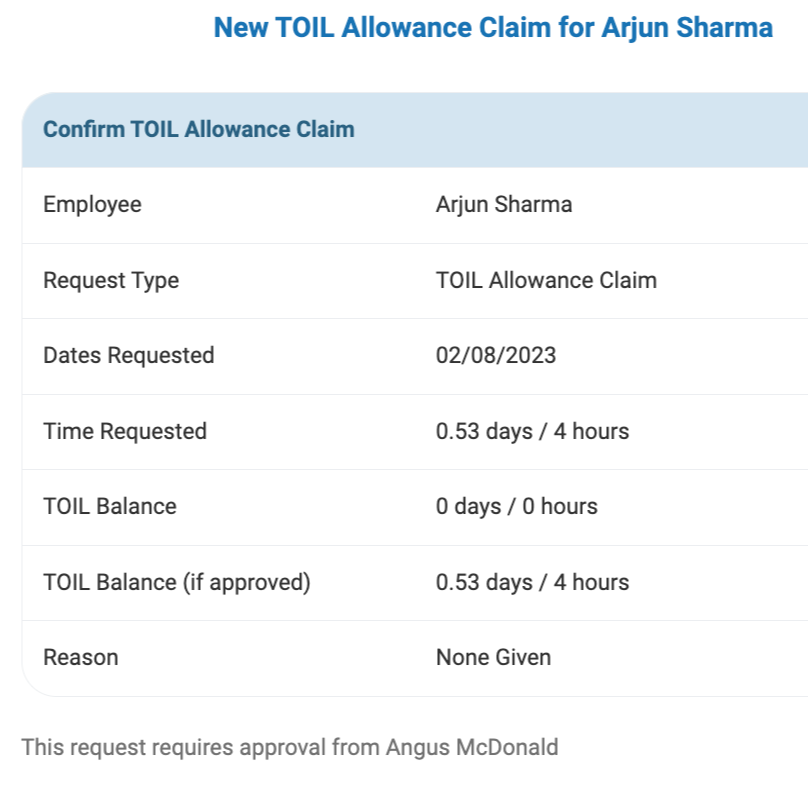
After this, provide your reasoning. You will then see a summary of the request and who the request will go to.
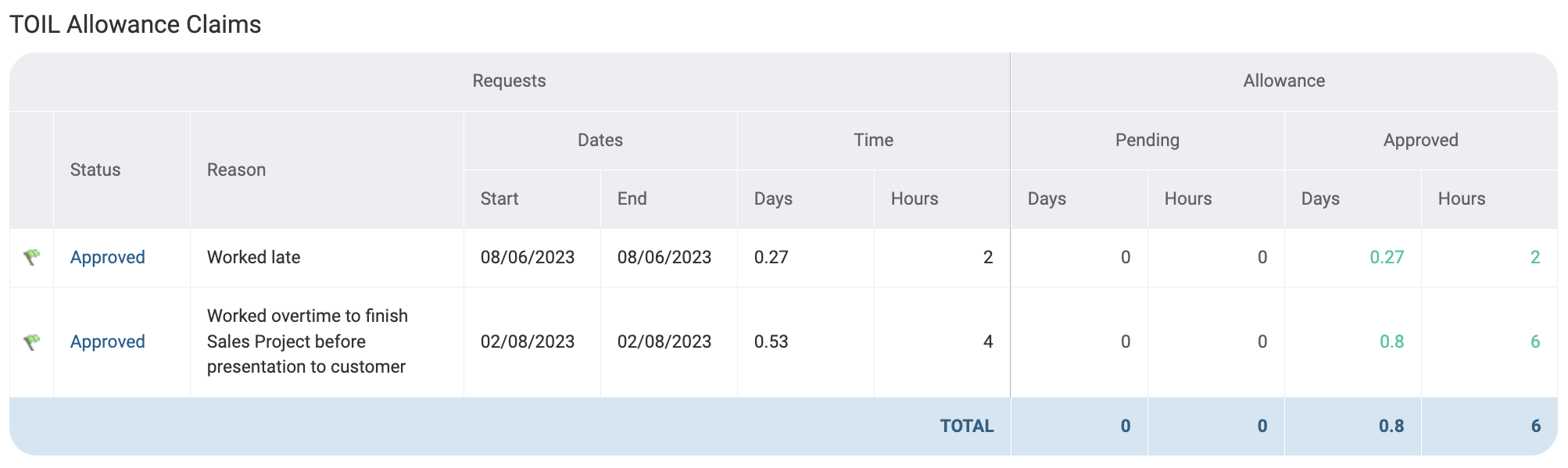
Once approved, you can view the approval by going to Requests > TOIL.
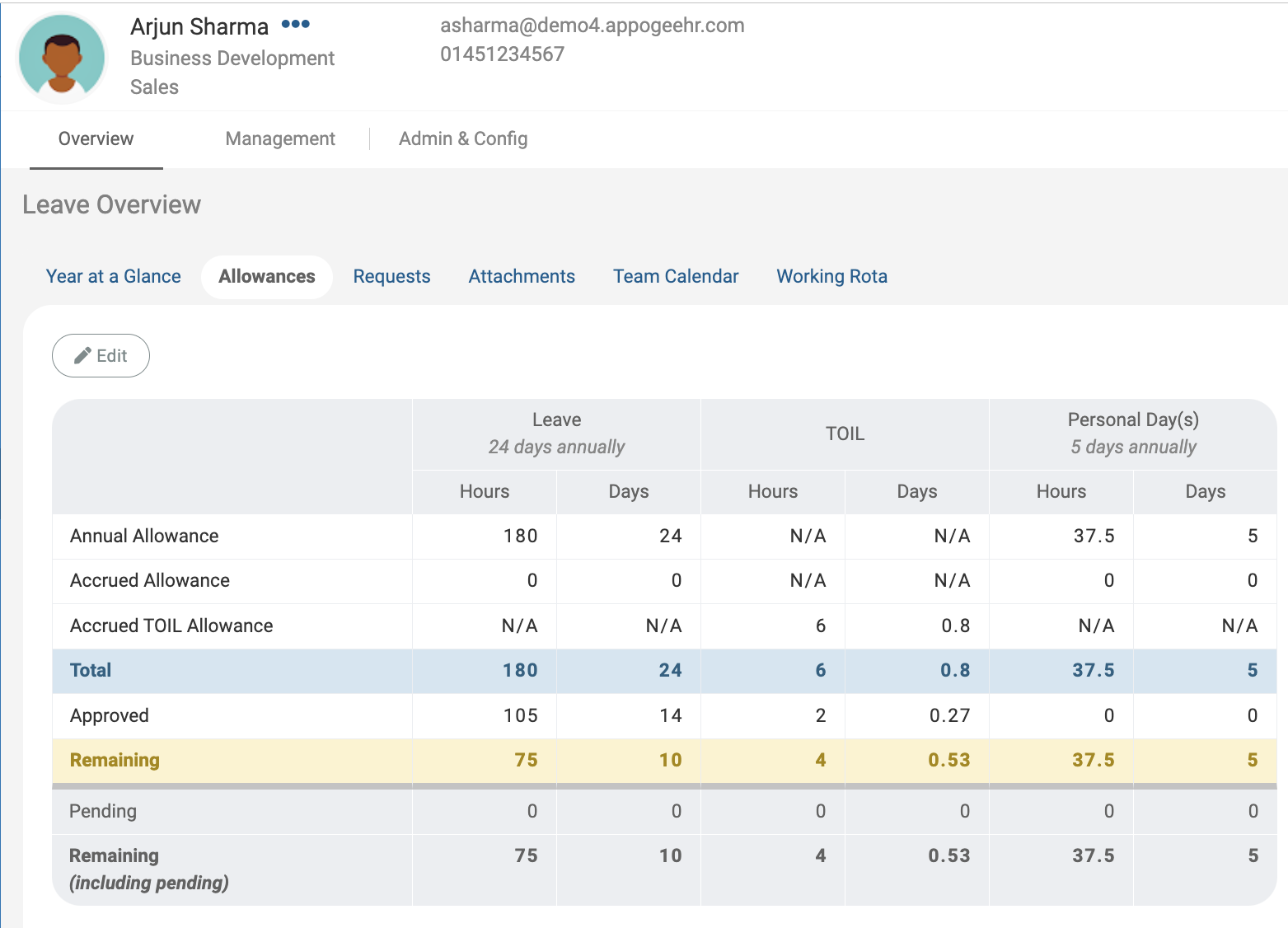
If TOIL is set up to be tracked in a separate allowance, you can see this on the Allowances tab in the TOIL column and Accrued TOIL Allowance row.
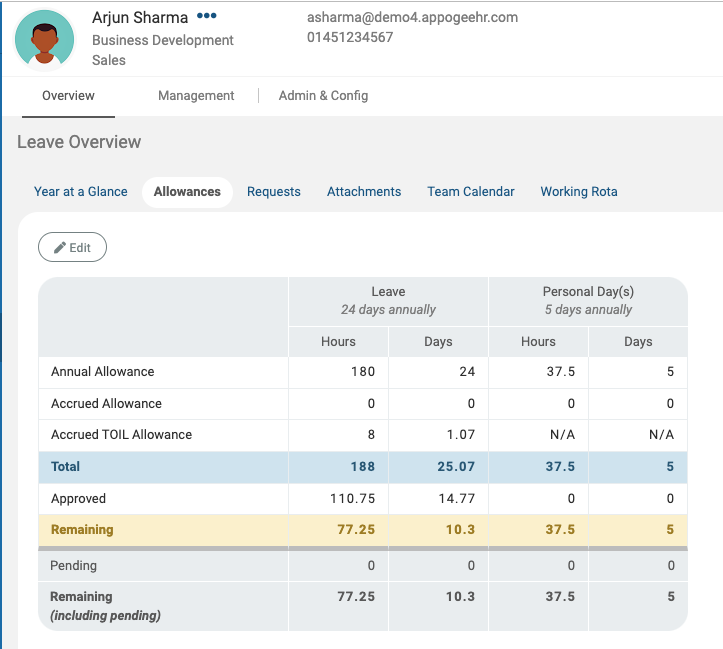
If TOIL is set up to be tracked within Annual Leave, it will show in the Leave column, Accrued TOIL Allowance row of the Allowances table.
Using TOIL Allowance
Now that you’ve received the time back, Let’s look at the process for using these additional hours.
Go to Year at a Glance and click New Request.
To use your claimed TOIL allowance, select Leave Request, and set the Leave Type as “TOIL”.
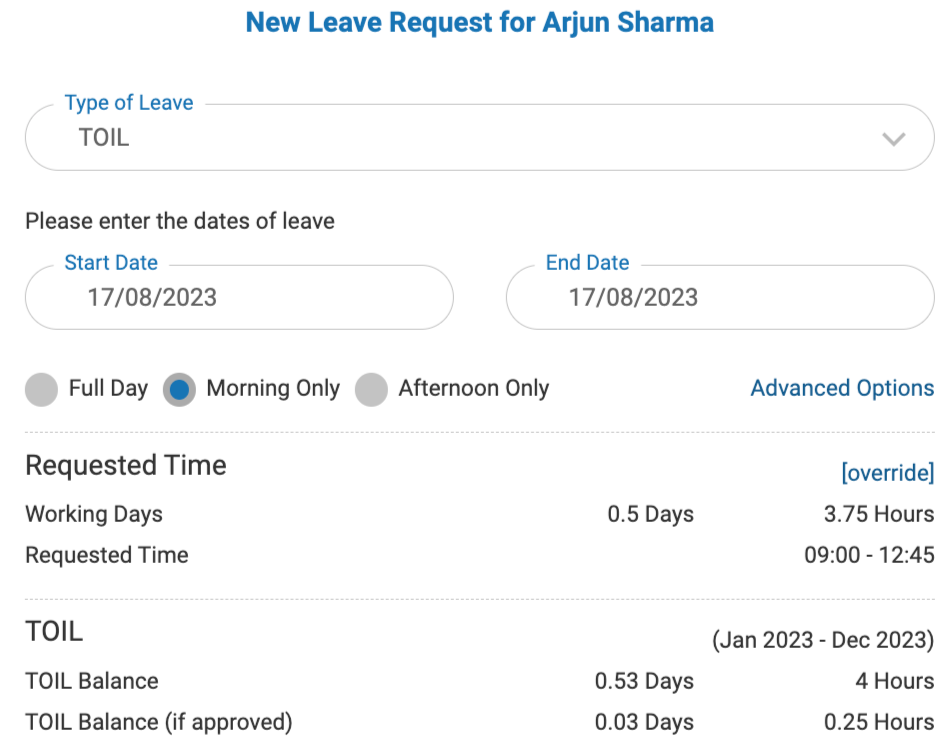
In this example, Arjun only has 4 hours of balance, he is choosing to have the “Morning Only” off which uses only 3.75 hours, leaving him with 0.25 hours remaining. He will then see a summary of the request before completing it.
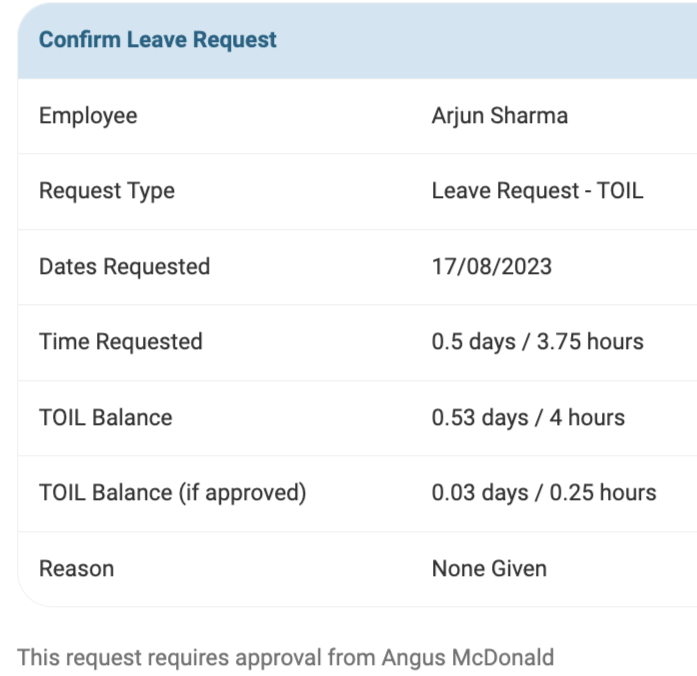
This will then be treated as any other Leave Request and go through the same Approval Process as normal.
Viewing your own TOIL
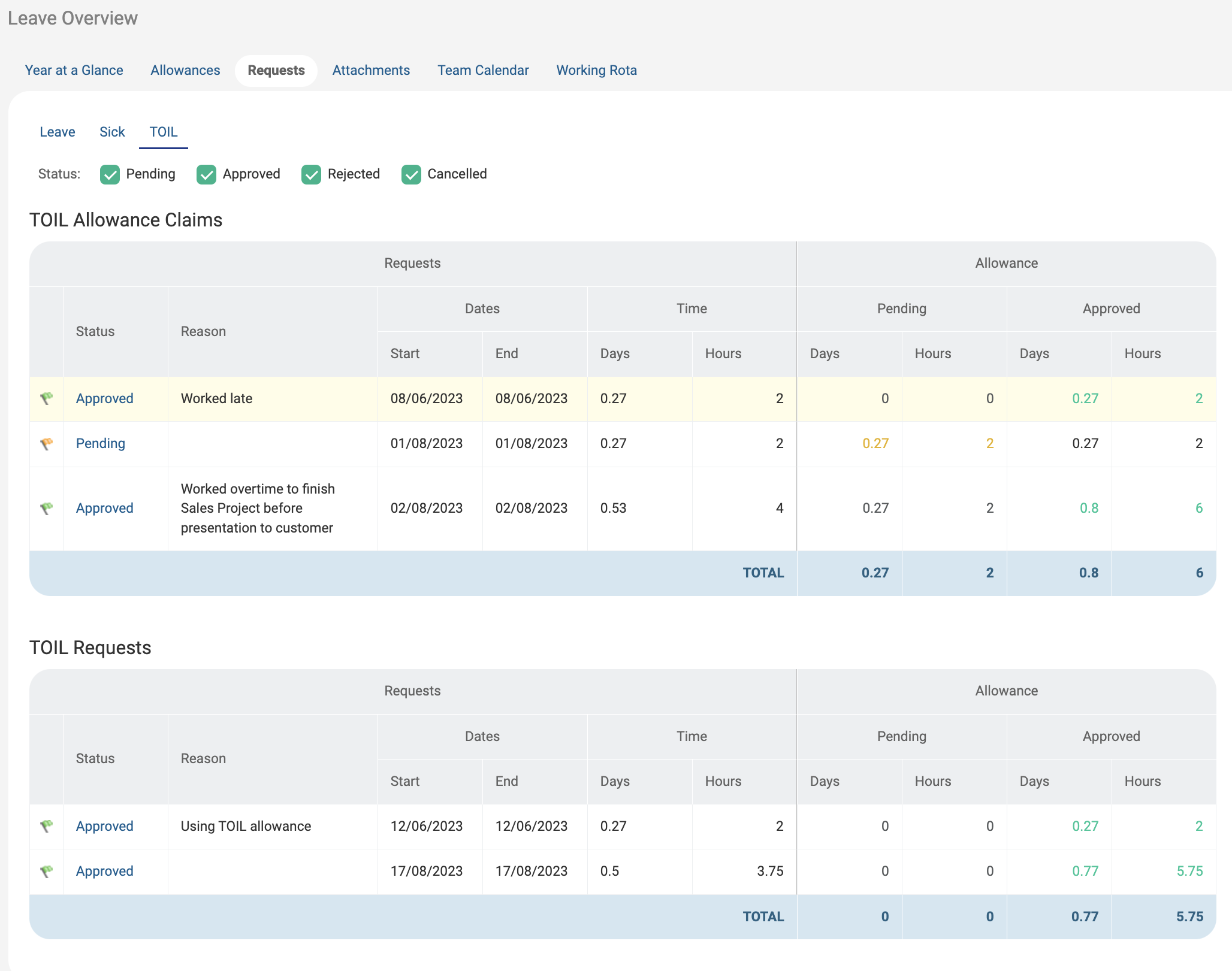
To view your own TOIL Allowance Claims and TOIL Requests, go to the Request page and then switch from Leave to TOIL.