Report sickness
Once you’ve logged in to Cintra People HR, click Leave in the side menu.
.png)
Either click a date in the calendar, or click New Request.
If you are a manager, you can choose whether to request leave on behalf of another employee.
Select your Type of Sickness. This list may vary in your organisation.
.png)
Enter/edit the first day of your absence. If you are no longer sick, enter the last day, otherwise uncheck the Do you know your last day of absence? box.
If you have selected a single day, you must choose whether you were ill for the full day, or the morning/afternoon only.
if you have chosen multiple days, you can choose whether the first and/or last day was a half day.
A summary of your sickness report will be shown below.
If the sickness report does not overlap with any other leave, you may then be asked to enter a reason for your leave request and/or upload a file, then click Next.
If you're integrated with Google Workspace, you may be able to configure your out of office here too. You can also add attachments to the request. This may be set as mandatory for your organisation.
The next screen will show a summary of your request (including who must approve it). Check this is accurate and click Submit Request.
Your calendar will be updated with the sickness absence date(s) in red.
Returning to work
If you did not specify the last day of your sickness, you will see the following message on your Leave Overview screen.
.png)
Once your sickness period has finished, click Return to work now, enter the last date of your sickness.
Depending on your organisation’s policies and the length of your sickness, the following message may appear:
.png)
If you need to submit a Return to Work form, the Sickness dialog box will show you this information in the yellow box. Once you click Submit Request, then click Open Return to Work Form.
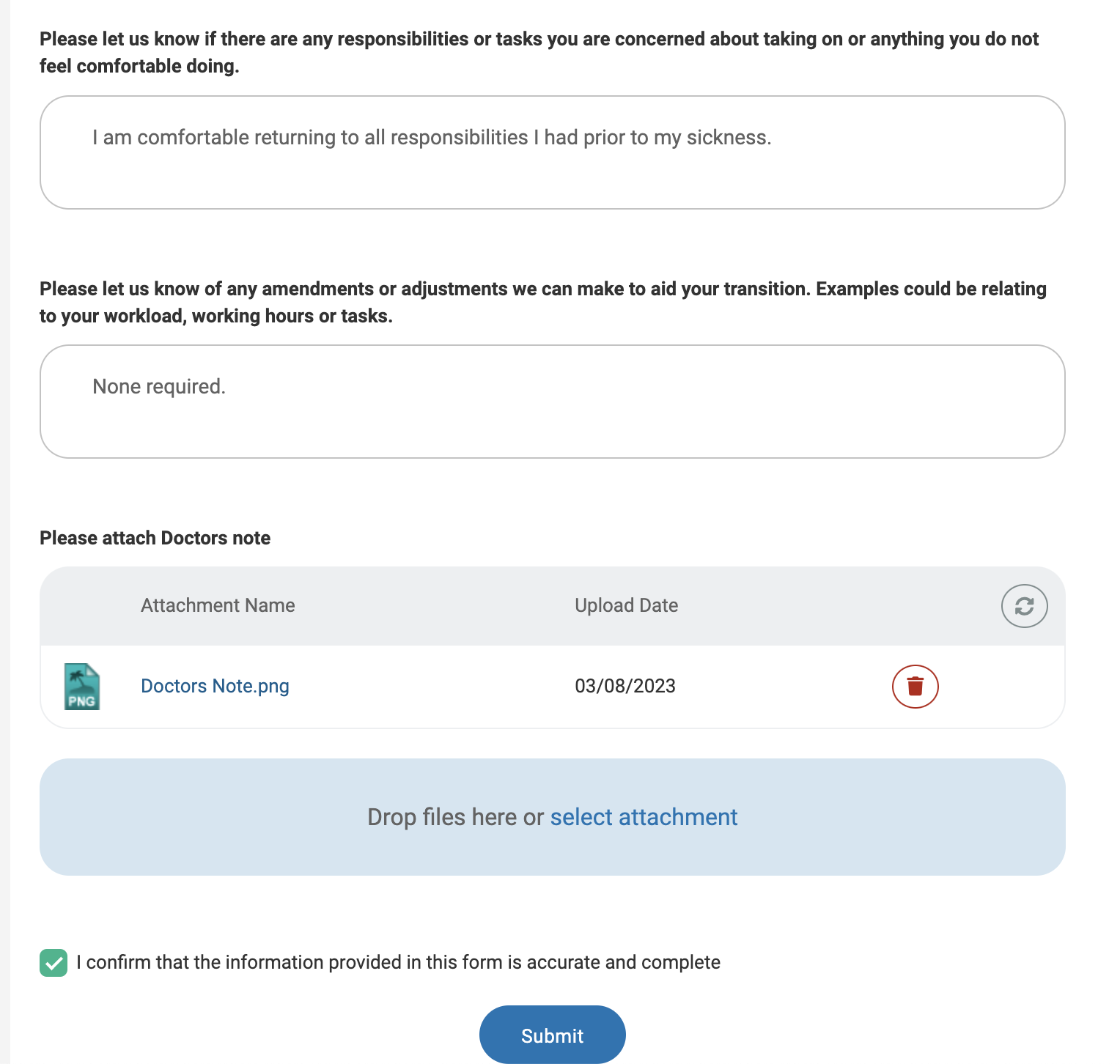
Enter your responses, upload any files (e.g. a doctor’s note), tick the box to acknowledge that the information is correct, then click Submit.
If your team has more than one manager, you will be prompted to select which one to submit the form to, then click Submit. The approver will then be notified about your return.