What is an amendment?
To understand what an amendment is, we must also consider corrections.
A correction is Cintra iQ automatically applying the right tax/NI treatment to a past change you've made (a new work pattern, a sickness event, a rate change). It's the system doing something correctly in response to a source change.
An amendment is what you do when that correction itself now needs undoing or changing, because the original entry was wrong, entered with the wrong dates, or needs removing entirely. It's the reversal mechanism for a correction you already made.
Create an amendment
Where you create an amendment will depend on where the correction was applied. See How do I know which values to amend? below.
Update post history
Navigate to the employee's Post History window.
Amend the Spine Point and/or Work Pattern at source.
Changing the Spine Point From Date back to 4th April 2025 instead of the current 4th April 2026 within Post History will remove the correction once you have recalculated the payslip.
Update payroll period input
This gives you the ability to manually change the entry without amending it at source.
For example, sometimes a back dated pro rata doesn't give you the value you would like. This often occurs in shortened months (such as February compared to October).
Go to the employee's Payroll Period Input and Corrections window.
Select the correct Payroll Period.
Open the relevant Payments and Rates record.
Re-enter the Input Amount.
Update payments and rates
Navigate to the Set Up Individual Allowances and Rates tab in the employee's Standing Allowances and Rates window and amend at source.
Employment Record > Forms > Payments/Rates
Close the Contribution record,
Create a new contribution record.
Recalculate the payslip.. This in turn will delete the correction.
Remove calendar event
Navigate to the employee's Calendar.
Employment Record > Forms > Calendar
Delete the event.
Re-calculate the payslip. This in turn will delete the correction.
Re-add the event in the Calendar if required.
Warning: Except for Calendar Events, you should not delete any lines of data within Cintra iQ as this could lead to corrections overlapping other corrections, which makes the problem very difficult to resolve. Or, a payment could have already been made, which also can make the problem more difficult. It is best practice to perform the following:
Never delete.
Check the Audit log.
Fix at source.
How do I know which values to amend?
If you can't remember where you have made the amendments, you can unpick the changes by referring to the Audit Report, seeing where the changes were made and re-instating them one-by-one. To do this:
Navigate to the Audit form.
Go to Cintra iQ: Tools > Auditing.
Select the desired File to audit to identify where the changes have occurred. The form adjusts accordingly.
Select the desired Payroll.
Select the desired Period.
Select the desired option from the drop-down list.
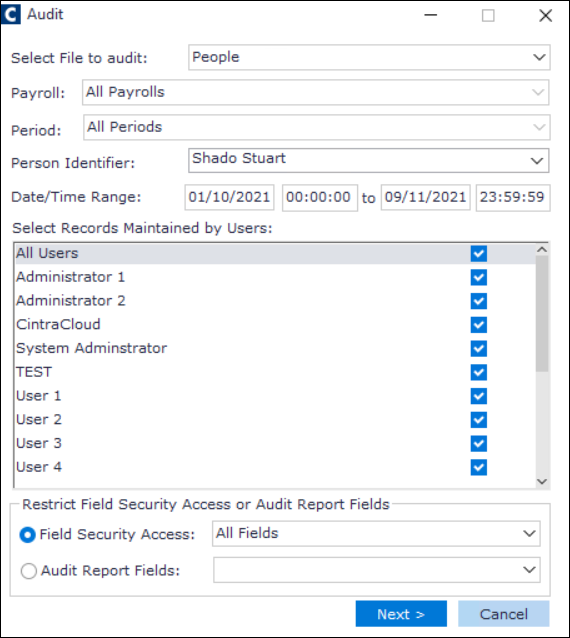
Enter the Date/Time Range of the correction(s).
Select the desired user from the Select Records Maintained by Users pane.
Click the Next button. The Auditing window appears.
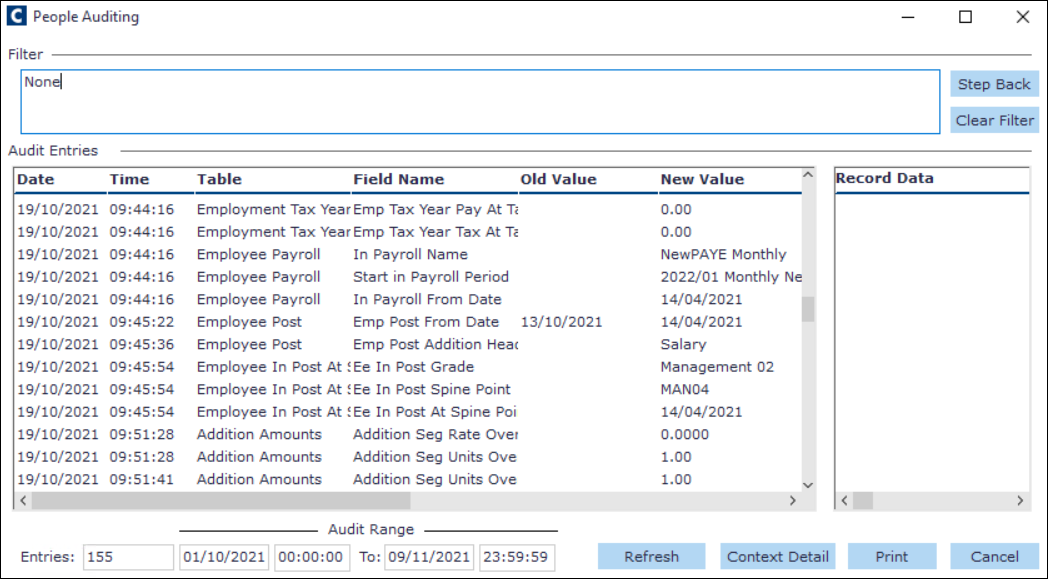
Scroll through to find the earliest change to a section and compare the Old Value with the New Value.
Tip: Look at the Date and Time stamp to locate the required change.
Keep a record so that you can make the changes in the necessary sections.
Remember to recalculate the employee's payslip once the old values have been re-instated.
Calculate and view the employee's payslip
Open the employee's Payslip Period Summary form.
Go to Cintra iQ: Employment record > Forms > Payslip
Click the Calculate button. The following occurs:
The payments are recalculated and display what has been corrected, on the Gross to Net Summary tab.
The tax, NI and pension contributions are adjusted accordingly to reflect the earnings in the pay period and display what has been corrected.
Note: Student loans are not affected during a correction.
Expand a payment/deduction to view the correction. Double-click it for more information.