An occupational parental pay (OPP) scheme holds your organisation's rules for paying employees on parental leave. You set up each scheme once, then apply it to employees' leave as needed.
For background on how schemes work, see Occupational parental pay (OPP). For details of each field, see OPP scheme fields.
Overview
Setting up a scheme involves the following stages:
Create the scheme and choose the payslip heading.
Choose the scheme options.
Add an effective date and one or more service bands.
Add payment bands for each service band.
Define what counts as full pay.
Before you start
Have the details of your OPP agreement to hand, including how many weeks are paid at each rate, whether statutory pay is added on top or offset, and whether rates vary by length of service.
Check the SAP/SMP/SPP/SBP/SHPP/SNCP Pay Up To Default setting in Employer Details. This sets whether payments are made in whole weeks (Last whole week prior to end of period) or part weeks (To end of period). This setting must be in place before you create any payment schedules.
Decide what the payment should be called on the payslip. You can create a new addition heading while creating the scheme, or use an existing one.
Create a scheme
Go to Payroll > Payroll Setup > Benefit Schemes > Occupational Parental Payments.
Click New.
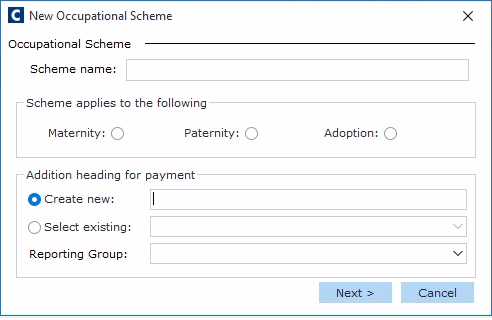
Enter a Scheme name.
In Scheme applies to the following, select Maternity, Paternity, or Adoption.
In Addition heading for payment, either create a new addition heading or select an existing one.
Select a suitable Reporting Group, e.g. basic pay or allowance.
Click OK. The Occupational Parental Pay Scheme window opens on the Scheme Details tab.
Select Apply Monthly Full Pay Adjustment and Apply Full Pay Cap to Payment Band if required. For what these options do, see Scheme options.
Set effective dates and service bands
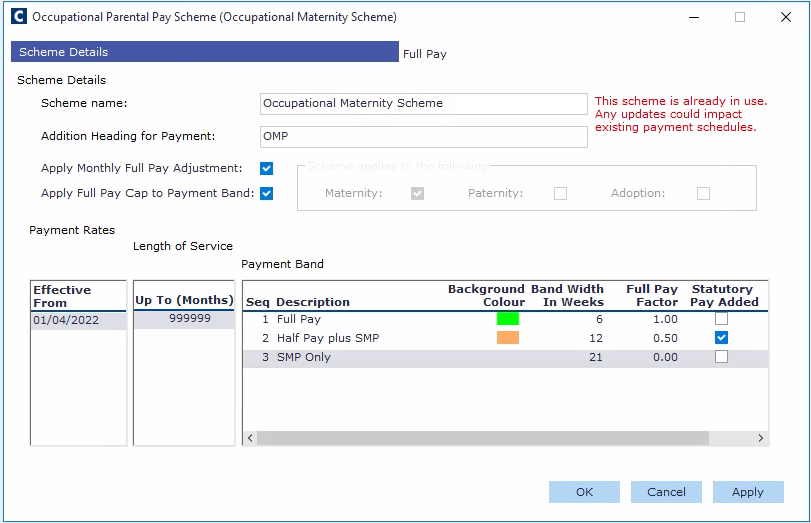
Each scheme has at least one effective date. Under each effective date, you add one or more service bands, and each service band has its own payment bands.
Right-click in the Payment Rates area of the Scheme Details tab, select New, then add an Effective From date.
Right-click in the Up To (Months) area and add a Length of Service band, in months.
Repeat step 2 for each service band in your agreement.
Tip: Set the final service band to a large number of months, such as 9999, so that every employee is covered.
Add payment bands
For an explanation of these fields, see Payment bands.
Select the service band you want to add payment bands to.
Right-click in the Payment Band pane and select New.
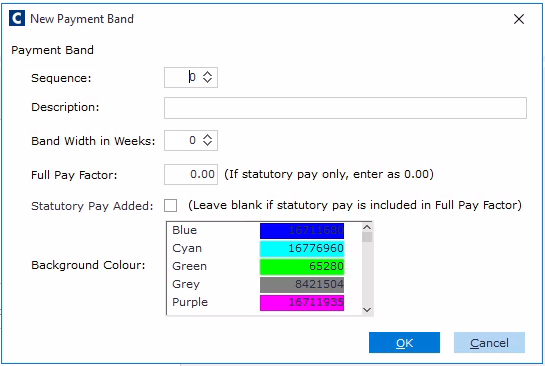
Select the Sequence.
Enter a Description, such as Full Pay or Half Pay.
Select the Band Width in Weeks.
Enter the Full Pay Factor. For statutory pay only, enter 0.00.
Select Statutory Pay Added to pay statutory pay on top of the occupational pay. Leave it cleared to offset statutory pay against the occupational pay.
Choose a Background Colour if you want to highlight the band on the payment schedule.
Click OK. The band is added to the selected service band.
Repeat for each payment band, then for each remaining service band.
Note: For an example of how a typical agreement is set up as payment bands, see Example: a typical maternity agreement.
Define full pay
Click the Full Pay tab.
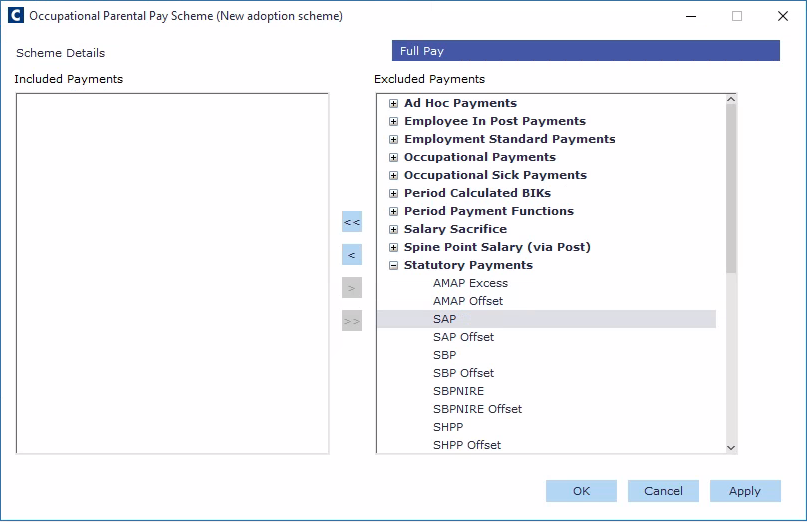
Select the addition headings that make up the employee's full pay, then click the < button to move them into the Included Payments section. These headings are also stopped while the payment schedule is in place.
Click OK to save the scheme.
Edit or delete a scheme
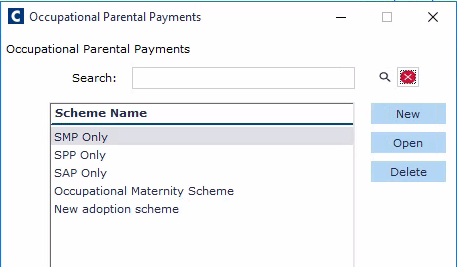
To edit a scheme, go to Payroll > Payroll Setup > Benefit Schemes > Occupational Parental Payments, select the scheme, then click Open. Make your changes, then click OK.
If your organisation's agreement changes, add a new Effective From date with the new payment bands, rather than editing the existing ones. This keeps a record of the previous rates.
To delete a scheme, select it and click Delete.
What next?
Once the scheme is set up, apply it to an employee's parental leave. See Paying OPP to an employee.