Corrections can appear on payslips for many different reasons. This guide will help you understand why corrections appear and how to trace the cause yourself, often without needing to wait for a response from Support.
Remember that Cintra iQ is a date-driven system. Most corrections can be explained, and if necessary, resolved, by looking at recent changes made to an employee’s pay.
At a glance…
Cintra iQ is date-driven. Correcting historic data reopens that pay period and pushes the difference to the current payslip.
There are many different correction types, such as payments/salary, sickness, post, pension and tax/NI.
Use the Correction Reports and Audit Log to trace the cause. Always correct data rather than deleting it.
In more detail…
1. Why do corrections appear in payslips?
Cintra iQ is a date-driven system. When a change is made to data that falls in a past pay period, the software doesn't just adjust the current payslip: it rolls back to the relevant pay period, reopens it, recalculates tax, NI, and pension as if the change had happened at the correct time, and then feeds the difference onto the current payslip as a correction.
You can see this reflected on Payroll Period Input. If a correction exists, you'll see figures appear against the earlier period.
Understanding this "date-driven" behaviour is the single most important concept for troubleshooting anything correction-related.
2. Examples of corrections
Any payment that goes through payroll can also appear as backdated correction. Here are some typical examples you may encounter:
Monthly payment: These can often occur when an employee’s salary or contract type changes.
Sickness: For example, when sickness absence is entered retrospectively, such as through Self-Service.
Post-related: These can occur when an existing post is edited instead of adding a new one.
Pension: Changes can affect pensionable pay. While pension and salary sacrifice values are adjusted, these changes don’t create a gross pay correction.
Tax code: Such as tax code or NI category changes.
Parental leave: For example, with backdated start dates for paternal leave or a change to average weekly earnings that calculate SPP.
Regardless of the correction type, the procedure for identifying, and if necessary, fixing it, is the same.
3. Spotting a correction on the payslip
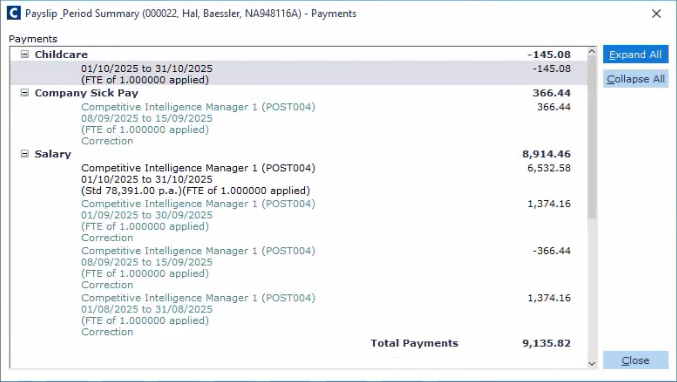
Corrections show in green with the word "correction" underneath the line.
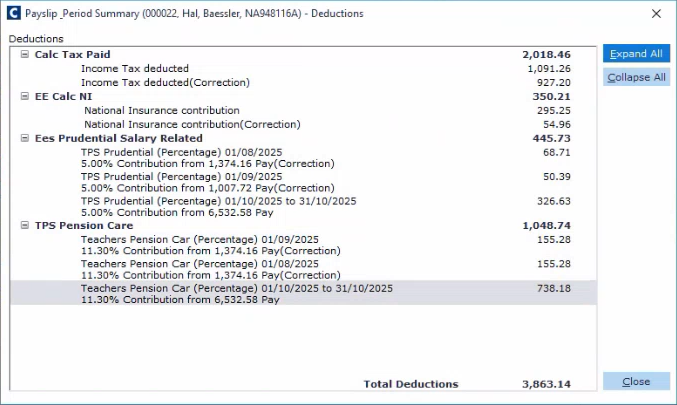
Tax/NI corrections are shown in the Deductions section of the payslip screen.
4. Troubleshooting approach
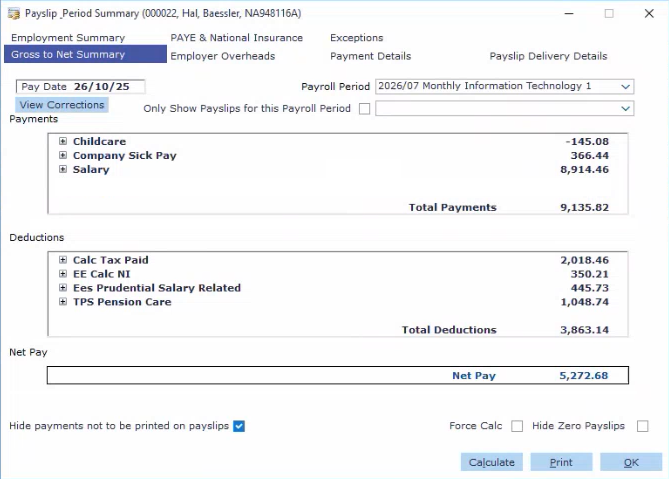
Expand the payslip and identify which section has correction lines (salary, SSP, company sick pay, pension, tax).
Run one of the correction reports:
To view all corrections made to an employee’s pay from their payslip, click View Corrections.
To view corrections made across all employees, run the Correction Report (Payroll → Payroll Tools → Payroll Reports → Correction Report). From here, you can focus on additions, deductions, and/or overheads, or specific areas within
Cross-reference with the Audit Log (Tools → Auditing), looking specifically for lines with an old value and a new value. These indicate something was edited rather than added.
Check the start date of the earliest correction. If it goes right back to the start of the previous tax year, it’s an indication that someone has edited an existing line instead of adding a new one.
If steps 1-4 don’t help you identify the change, contact support.
5. Fixing a correction
Once you've found the cause, the general rule is: correct the data, don't delete it, unless you're certain of the consequences.
If a sickness period shouldn't be there, delete it from the calendar. This is one of the few safe deletions.
Never delete a tax code that's come from HMRC, even if it looks wrong. Call HMRC to confirm/replace it.
If corrections get worse after your fix, stop and log a support ticket rather than continuing.
Remember! Corrections are how Cintra iQ keeps pay, tax, NI and pension accurate to the period they were actually earned in. Most troubleshooting uses the Correction Reports (what's been affected) and the Audit Log (what changed and when), as well as experience recognising the most common issues: sickness, post changes, and work pattern edits.
FAQs
Why did a correction appear that I wasn't expecting?
Usually because someone edited an existing line (e.g. a post or work pattern) instead of adding a new one, or backdated data (like sickness) was entered.
Is it ever safe to delete data to clear a correction?
Only in specific cases like removing a sickness period that shouldn't be there. As a golden rule, never delete a line unless you know exactly what will happen.
What if the correction involves a tax code from HMRC?
Never delete or amend it yourself. Contact HMRC and let them issue a corrected code.
Why are pension corrections harder to trace?
A: Because pension is a by-product of gross pay. If there's no correction on gross pay but there is one on pension/salary sacrifice, it usually points to a top-level pensionable pay change rather than an employee-level edit.