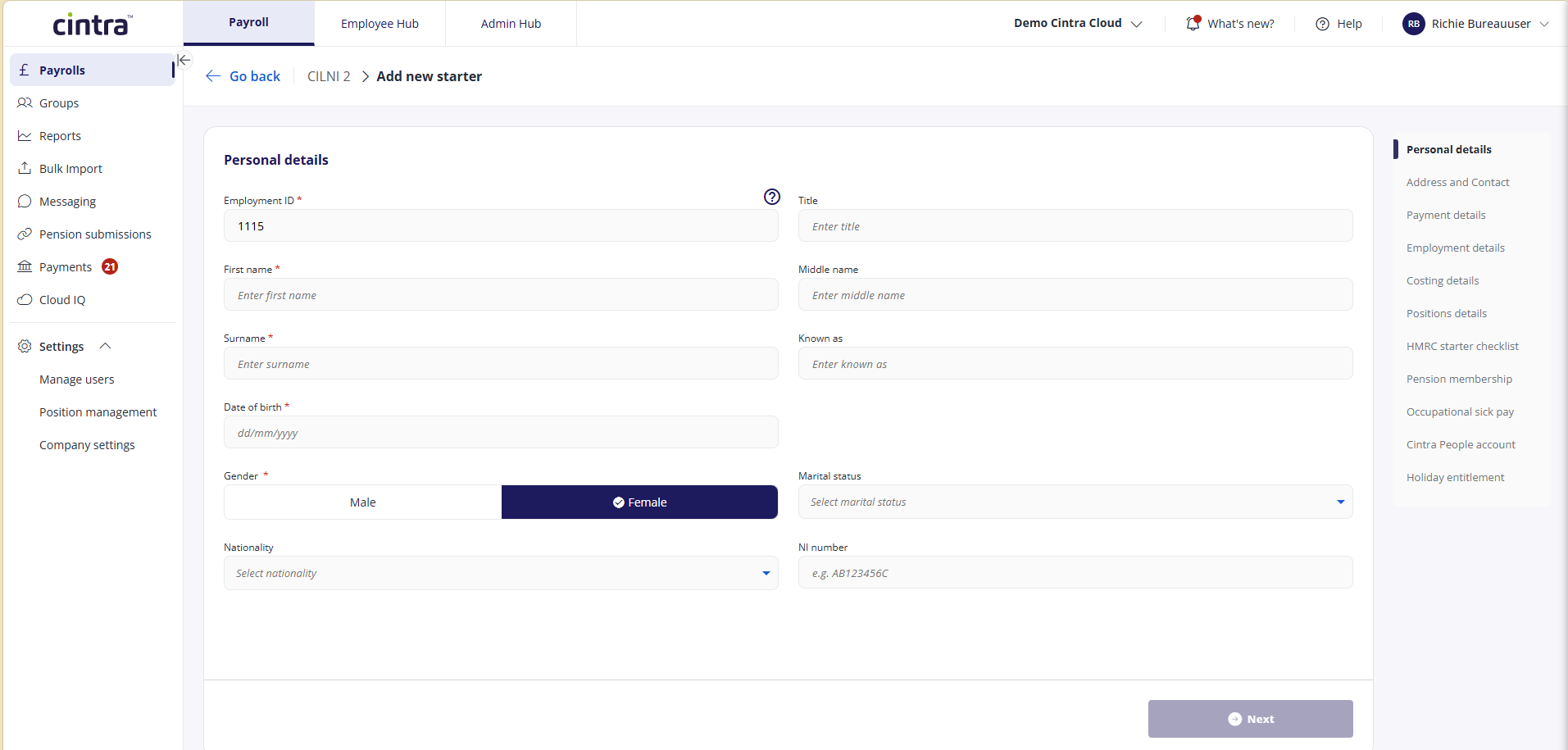
The new employee “wizard” takes you through the essential details step by step and creates the record once you have completed the required fields.
Each step corresponds to a tab on the employee record, so you can find a full explanation of every field in the relevant Employee details tab.
Some information, such as benefits, can only be entered when editing an existing employee, not when creating. The relevant articles in the Employee details tabs will explain the tabs where this applies.
Navigate to the payroll
Once you've logged in to Cintra People:
In the Payroll tab, select Payrolls in the side menu.
If you have access to multiple payrolls, select the payroll you wish to add the employee to.
Add a new employee
Within the employee list of the Payroll screen, click Add employee. The first step lets you add the user's personal details.
Some details, such as leaving date, are NOT available when creating an employee - only when editing them.
You can add an employee to multiple payrolls only if the payrolls have separate PAYE numbers.
You may find some fields missing from the import spreadsheet or the new employee set-up process. To access these missing fields, use Cintra iQ or speak to your Bureau administrator.
You will NOT be able to add an employee if the payroll is locked for processing.
Adding users to Expenses
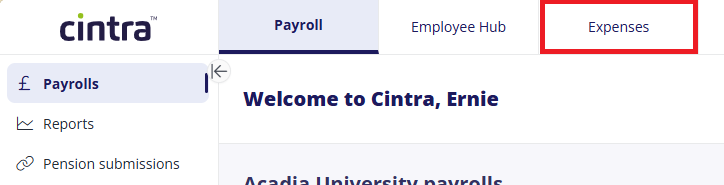
If your organisation uses Expenses, changes made when you add or edit an employee are synced to Expenses automatically every hour. You can also sync manually within the user list by going to the Expenses tab, then Setup > People > Actions > Sync Users.
The following details are sent to Expenses:
First name
Surname
Email address
Postcode
Line manager (if assigned)
To assign a line manager, the employee must have Employee Hub. See Manage Employee Hub user accounts. Alternatively, you can assign an employee’s line manager in Settings > People in the Expenses tab.
A line manager is not mandatory. If one isn't assigned, the other details still sync as normal.
Payments made in Expenses can also be added to users’ pay. See one-off payments and deductions.