To provide manager access to Cintra Groups, you must:
Ensure the manager has a Cintra People Payroll account.
Assign the manager to the group(s).
Create a user account
Create/edit the user in the user management section. See Manage Payroll user accounts
Select which Group role to assign to the user. You can hover over the ⓘ icon beside each role to view its permissions.
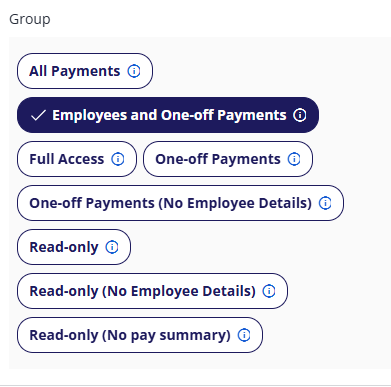
Note: A user cannot have both payroll AND groups permissions. If you want a user to have different roles for different payrolls/groups, you will need to create separate user accounts for them.
Click Save.
Assign managers to groups
From the Groups page, scroll down to the list of groups.
Click its name to open the group’s view.
At the top-right, select the cog icon:
 then Set Managers.
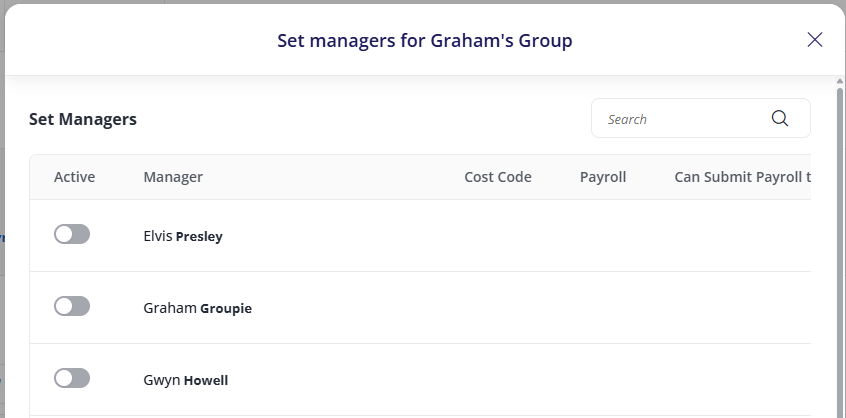
A list of all users assigned a Group role will appear. For each user you want to assign to the group, turn on their Active toggle, then set the following:
Cost code: You can restrict the manager to specific cost codes, or leave as the default All cost codes.
Payroll: You can restrict the manager to specific payrolls, or leave as the default All payrolls.
Can submit payroll to administrators: If you would like a manager to review the group before submitting to payroll, turn on this toggle. All cost codes must be available to turn this on. For more information see Setting a group submitter below.
Click Done.
Setting a group submitter
This provides the ability to review and confirm group input before notifying payroll that the input has been finalised. Additionally, the payroll team gains access to view the status of all groups where submitters have been established.
To assign a user as a group submitter, follow the Assign managers to groups instructions above.
When the user with the submitter role next signs in to Cintra People:
They will be able to press Submit to review group input before finalising it.
The group user will also be able to calculate any group input providing them with real-time indicative payroll costs.
Simultaneously, your payroll team will be able to view the Group status, indicating whether the group input has been submitted or remains pending.
See also: Group submission.
Assigning employees to groups
You will usually assign employees when setting up a group. However, you can also do this later. To do this:
From the Groups page, scroll down to the list of groups.
Click its name to open the group’s view.
At the top-right, select the cog icon:
then Set Employees.You can then add/remove employees in the same way as when creating a group.