There are two types of Cintra customers:
SaaS Customers: use Cintra iQ to process the payroll themselves and use Cintra People / Bureau to authorise the BACS payment.
Source Customers: use Cintra People for payroll processing and are supported by our Bureau for more complex payroll tasks.
This article explains how SaaS customers authorise payments in Cintra People.
Payment authorisation on Cintra People for SaaS customers
You will process all your payroll changes using Cintra People / Cintra iQ as normal.
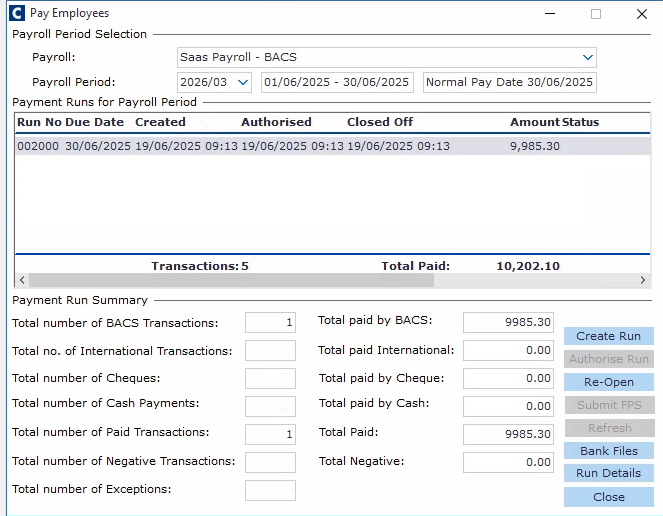
Once the payroll is ready, a payment run is created on Cintra iQ. Authorise and Close off your payment run.
Important: when creating a payment run on Cintra iQ ensure that the payment Due Date is the date the when employees or third party is due to receive a payment. The due date might need to be overridden from a default one when you process a supplementary payment.
See How to override the payment due date for salary payments? (opens Cintra iQ help in a new tab)
Warning: If you do not authorise a payment file in Cintra People, no payment will be made. It must be authorised before the payment deadline.
Within the Payroll Dashboard, you will see a Payment authorisation banner.

Click the Review Payment button.
You will be taken to the Payment Authorisations screen, where you can see all pending authorisations. You can also see authorisations for the past periods if you need to audit those.
Carefully review all details, including the pay date (date when payment will reach the designated employee or third-party account).
Click Authorise Payment.
In the payment authorisation window, confirm all details before you Authorise Bureau to process BACS.
Important: If you don't want the Bureau to process the BACS payment, for example if you want to do a one-off faster payment at your side; it is important not to authorise this payment on Cintra People. Instead contact the support team and they will be able to exclude this payment from the BACS.
After a payment is authorised in Cintra Cloud, a payment file will be generated and submitted by the Bureau.
Note: If you can't authorise a payment, your account might not have a permission to perform this task. Speak to your Cintra People administrator or see: User management.
See also: Payment authorisations and history