As a manager within Employee Hub, you are responsible for reviewing your employees' holiday requests and recording any sickness. You can also edit their email address.
Accessing your employees' holiday information
In Cintra People, if not already selected, click the Employee Hub tab in the top navigation menu.
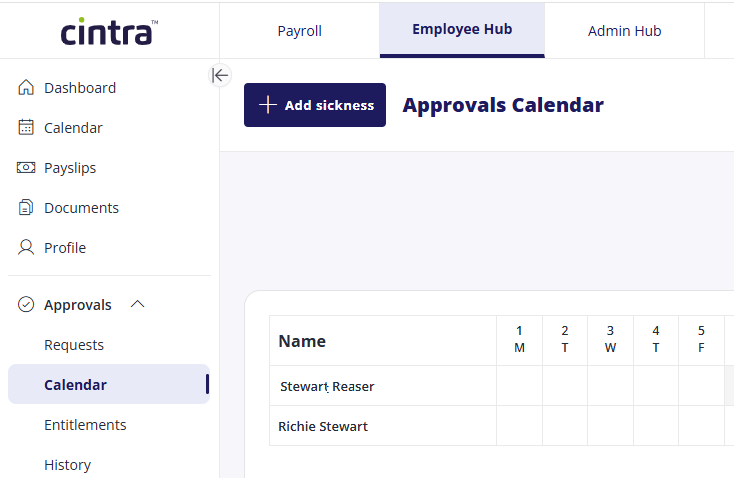
In the side menu, expand the Approvals section.
Reviewing a holiday/cancellation request
When your employee requests a holiday OR requests to cancel an approved holiday, Cintra People will notify you by email.
In the Approvals section of the side menu, click Requests. The number in red denotes the number of requests you need to review.
For each request, you can view the employee's name, dates requested, holiday duration, the type of booking (e.g. "annual leave"), and request type (either "booking" or "cancellation").
Click anywhere on the request to view your team's calendar for the period of the request.
To view any notes or delete the request without approving/declining it, click View.
Approving/declining the request
Click the Decline/Approve button.
If you are declining the request, enter a reason, then click Decline Request. The employee will be notified by email.
When approving a request, you may see an Approval failed message if the request conflicts with another holiday request from the same employee. You may have to decline one of the requests before you can approve the other. For more information, speak to your Payroll/HR department.
You will only be required to review and approve/reject a holiday cancellation request if it has already been approved. If it has not yet been approved, the employee will be able to delete it without your approval.
Recording employee sickness
To record time taken off work due to sickness:
In the Approvals section of the sidebar menu, click Requests or Calendar.
Click Add Sickness.
You must enter the following information:
Employee ID: The employee's name will be shown beside their ID
Sickness type:
Start Date / End Date: Click the calendar icons to indicate when the sickness period started/ended. If the employee missed a half-day at the start/end of their sickness, use the appropriate AM/PM toggle to indicate this.
Ensure that the Total duration matches the length of the employee's absence.
Note: Enter any additional information, then Save.
Viewing your employees' calendars
In the Approvals section of the sidebar menu, click Calendar.
A list of your employees and this month's calendar is displayed, and you can navigate back/forwards to show other months.
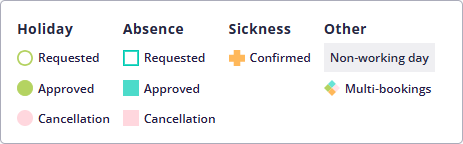
Within the calendar, click any icon to view more information about the absence (holiday, absence, sickness etc). You can also delete any absence if necessary.
Viewing holiday entitlements
In the Approvals section of the sidebar menu, click Entitlements.
For each of your employees, you can view:
How many days' holiday they are entitled to. These will either be available, approved, or pending.
Click any employee's calendar icon to view their holidays for the entire year. You can change the year from the drop-down list above the list of employees.