If you are an administrator and your organisation uses Employee Hub, this article explain how you can create, edit, and delete other users.
Access Employee Hub users
Select Settings > Manage users.
Select the Employee Hub users tab.
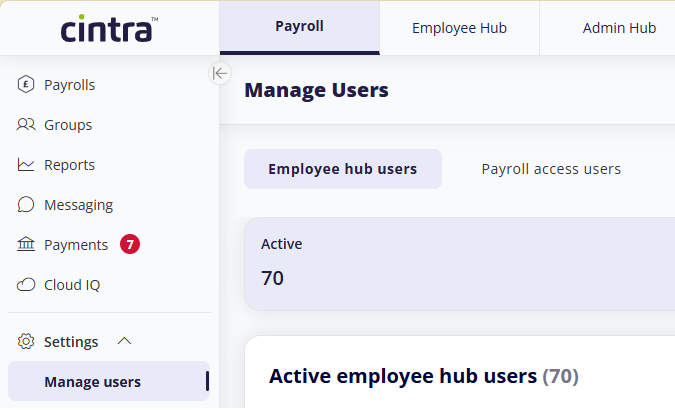
You will see three additional tiles. Click any tiles to view its list of users.
Active: All active employee hub users assigned to payrolls which you have permission to access.
Invited: All payroll employees that have not yet accepted their invite to join Employee Hub.
Leavers: All users who have left - or are scheduled to leave. Leavers will still be able to access their account for 13 months after their leave date.

Inviting employees to Employee Hub
Note: Any user you wish to add to Employee Hub must first be an employee on a payroll. For more information, see Add an employee.
When you create a payroll employee, you can are given the option to add the user to employee hub. This will automatically send the user an invite. Once the user has logged in, they will appear in the Active section of the Employee hub users tab.
If an employee doesn’t yet have an Employee Hub account
In the Employee hub tab, select the Invited tile.
Select Invite user. A list of employees without access will be displayed.
You can filter the list of employees by payroll and/or name.
Tick the box beside every employee you want to invite, then click Send invites.
Expired emails / Resending invitations
Invites to Employee Hub expire after one month. If an employee hasn’t yet logged in:
In the Employee hub tab, select the Invited tile.
Either click Re-send beside a specific user, or Re-send all.
Editing Employee Hub employees
From the list of employees (in either the Active, Invited, or Leavers tiles), employees with payroll access are shown with a 
Click any employee to view / change the following information:
Forename / Surname: If you wish to change these, you will need to do it in the employee’s payroll record. This is shown in the record.
Login email: You cannot change a login email for invited users. You will need to edit it against the payroll.
Delete invitation: (Invited users only).
Payroll users: (Active users only): If the user already has payroll access, you click No to withdraw it. If they don’t yet have access, you can click Yes, then choose their role(s). For more information, see Manage Payroll user accounts.
User roles for Cintra Groups are preceded by the word: Manager
Assigning holiday approvers
You can only assign other users from the same employer/organisation to act as a holiday approver.
To assign a holiday approver to an Employee Hub user:
Open the user’s Employee Hub record.
Against Approver, click Assign.
Search for the user and click Assign.
The Subordinates field lists all the users that have the selected Employee Hub user as their approver. From here, you can remove or re-assign them.
FAQs
What if an employee is unable to access Employee Hub?
If the user has forgotten their password, they can reset it.
If the user no longer has access to the mobile phone they use to authenticate, you can reset it.