You can create vehicle records with custom mileage rates if your organisation uses different rates from those approved by HMRC. Rates can be non-cumulative (a flat rate per mile) or cumulative (tiered thresholds based on total miles travelled in a tax year).
For cumulative rates, the UK tax year runs from 6 April. Thresholds are applied based on total miles travelled across all vehicles.
For an overview of vehicles and rates, see Introduction to trips, vehicles, and rates.
Creating a vehicle
Creating the vehicle record
Go to Setup > Vehicles.
.png)
Click + Vehicle.
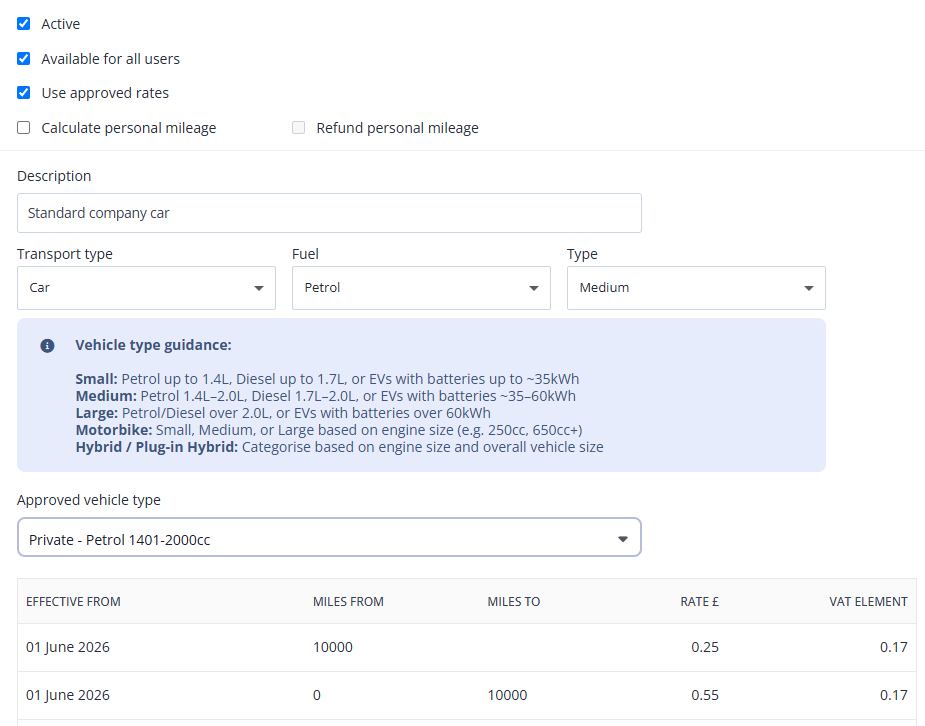
Select the relevant options and select an appropriate vehicle type. For more information, see Vehicles and rates fields reference.
Ensure Use Approved Rates remains unselected if you are applying custom rates.
Click Save.
Adding a rate to the vehicle
In the list of company vehicles, click + Rate on a vehicle record.
Only custom vehicles (i.e. added in your organisation) can have a custom rate assigned.
If the latest rate for this vehicle has already been set, a banner displays the current rate and its effective date.
.png)
See Vehicle and rates fields reference for more information on all the field found below.
Enter the Effective from date.
Enter the Rate per mile,
Enter the VAT element if applicable.
The Taxable Amount is calculated automatically.
To apply a cumulative rate, select Cumulative Mileage Rate. The Mileage from and Mileage to fields appear.
Enter the threshold start in Mileage from.
Enter the threshold limit in Mileage to, or leave blank for the final tier.
Thresholds are based on total miles travelled across all vehicles in the tax year (UK from 6 April).
Repeat for each additional threshold.
Click Save.
Important: You cannot mix non-cumulative and cumulative rates on the same vehicle. Delete the existing rate type before switching.
Editing a vehicle
Go to Setup > Vehicles.
Click the Edit icon on the relevant vehicle record.
Update the options as required. See Vehicle and rates fields reference for more information.
To add or update rates, follow the steps in Adding a rate to the vehicle above.
Note: To export or import rate data in bulk, see Exporting vehicle data and Importing
Videos
Videos: Create a vehicle record with HMRC / your own rates
These videos were recorded in Capture Expense. Some screens and labels may look slightly different in Expenses, but the steps remain the same.
Video: Edit vehicle records and rates
These videos were recorded in Capture Expense. Some screens and labels may look slightly different in Expenses, but the steps remain the same.