It is standard practice not to claim back expenses for the commute between a claimant's home and office. As an administrator, you can configure commute distance in several ways:
Enter a claimant's commute details on their behalf.
Prompt claimants to enter their own details when they first sign in.
Set the default commute type applied to all mileage claims.
Enter a claimant's commute details
Go to Setup > People and select the relevant claimant's record.
Click Edit. The claimant's User Account details appear.
Enter the claimant's home postcode in the Your home field.
Enter their work postcode in the Place of work field.
These fields can be used to calculate the commute distance when the user is making a claim. However, you can override this distance by entering the number of miles into the Commute Distance field.
Click Save.
The journey details appear in the claimant's user settings and are applied automatically when they create a Business Mileage expense.
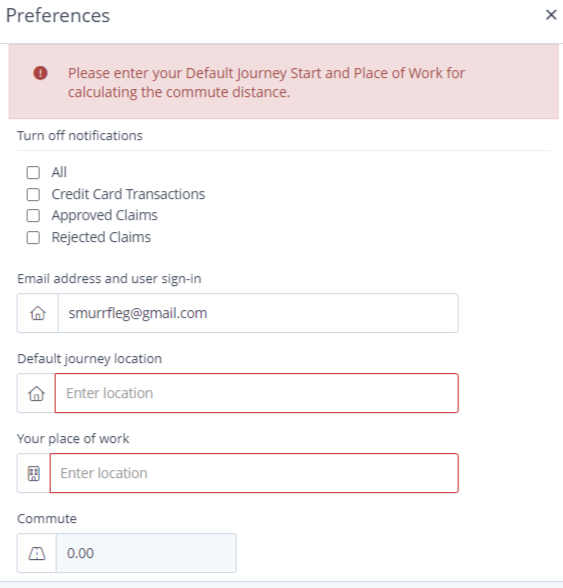
Note: Claimants can also add their own commute distance via User Settings > Preferences.
Enable the sign-in prompt
You can prompt claimants to enter their own commute details the first time they sign in. The prompt does not appear on subsequent sign-ins.
Go to Setup > Settings > Accounts. The Account details appear.
Select User must enter a commuter distance on sign in.
Click Save.
The next time each claimant signs in, they are prompted to enter their home and work postcodes in Preferences.
Set the default commute type
You can control the default commute type applied to all mileage claims. Claimants can override this on individual claims from the expense entry form.
Go to Setup > Settings > Accounts. The Account details appear.
Select the default commute type:
Option
Description
No commute
No commute distance is deducted.
Commute one way
One commute distance (x1) is deducted.
Commute two way
Two commute distances (x2) are deducted.
Click Save.
Note: The default setting is Commute one way.
Bulk import commute details
If you need to set up commute details for multiple claimants at once, you can bulk import from Setup > People. See Importing users.
Important: Once commute details have been saved, whether by you or the claimant, they cannot be updated by the claimant. They must contact you to make any changes.
See also: Deduct commutes from mileage.