Remember! You can only assign company cars when editing an employee, not when creating them.
Company cars and vans are managed as a benefit directly against an employee. To do this, go to Edit Employee > Benefits > Company vehicles. You can assign an existing fleet vehicle, add a brand new one using a DVLA registration lookup, or end and manage vehicles already assigned.
Benefit-in-Kind (BIK) tax is calculated automatically and feeds straight into payroll, so there's no separate step to work out the tax charge.
Before you start
Vehicle records are shared across the company, so a car or van already in the system can be assigned to more than one employee over time (or, for vans, to more than one employee at once).
Some terms used on screen are explained in full in Understanding the deduction and adjustment fields below: OpRA (salary sacrifice), capital contribution, making good payments, and van usage share.
Assigning an existing car to an employee
From the employee's Benefits > Company vehicles tab, click + Assign benefit.
Choose Company car.
Search by plate, make or model, or pick from the list of available fleet cars, then click Continue.
If your chosen vehicle isn’t there, see Assigning a new car or van below.
Set the start date for the assignment (and an end date, if known), then click Continue.
Add any deductions and adjustments that apply (see Understanding the deduction and adjustment fields below), then click Continue.
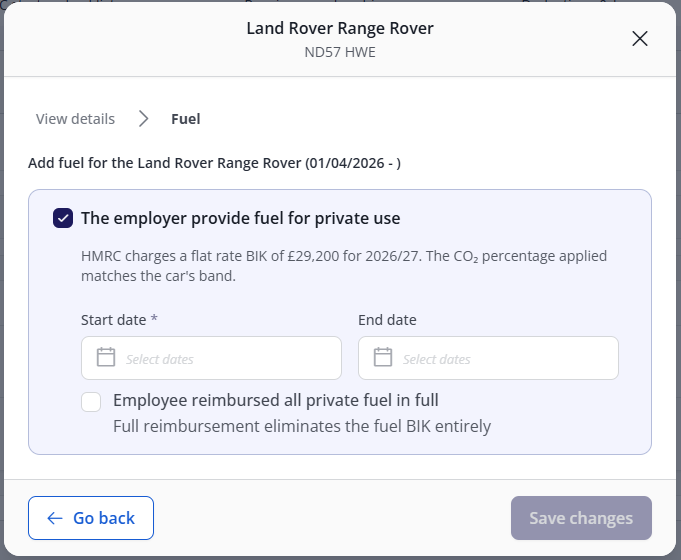
If the employer provides fuel for private use, confirm this and set the start date. If the employee reimburses all private fuel in full, tick this to remove the fuel BIK charge entirely, then click Continue.
Review the benefit summary, which shows the car's list price, the annual car benefit based on its CO₂ band, and the effect of any deductions on the amount charged per payroll period.
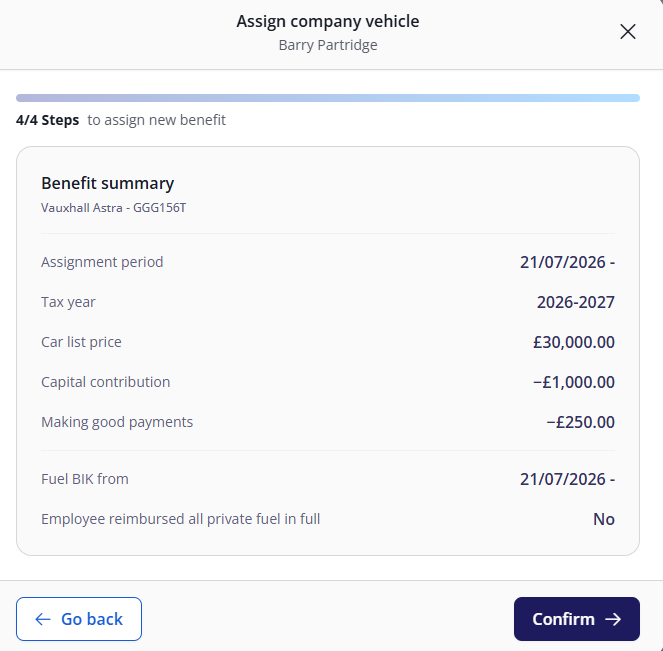
Click Confirm to assign the benefit.
Assigning an existing van to an employee
From the employee's Benefits > Company vehicles tab, click + Assign benefit.
Choose Company van.
Search by plate, make or model, or add a new van using the registration lookup, then click Continue.
If your chosen vehicle isn’t there, see Assigning a new car or van below.
Set the start date for the assignment, then click Continue.
Add any deductions and adjustments that apply. For vans, this is limited to Optional Remuneration Arrangement (Salary Sacrifice) and Van is shared for work purposes. See Understanding the deduction and adjustment fields below.
If the employer provides fuel for private use, confirm this and set the start date. If the employee reimburses all private fuel in full, tick this to remove the fuel BIK charge entirely, then click Continue.
Review the benefit summary, which shows the assignment period, tax year, the van BIK flat rate, the shared use percentage (if applicable), and fuel BIK details.
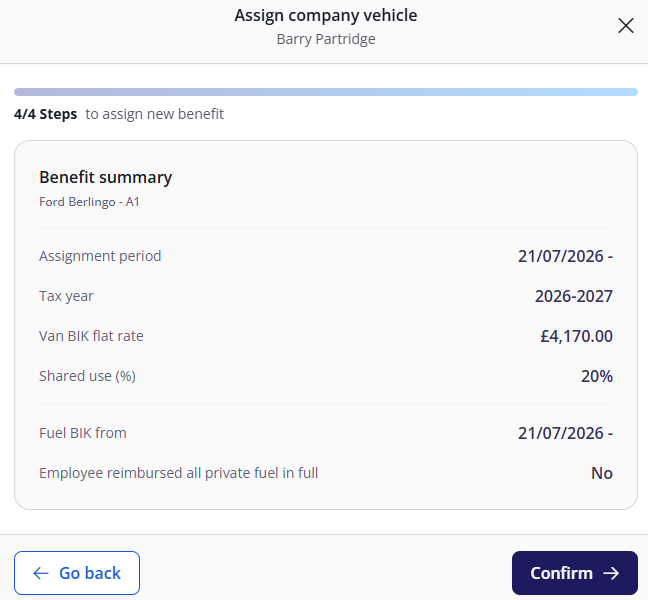
Click Confirm to assign the benefit.
Assigning a new car or van to an employee
Use this when the car or van isn't already in the fleet list.
From the employee's Benefits > Company vehicles tab, click + Assign benefit.
Choose Company car or Company van, then click + Add new car / van.
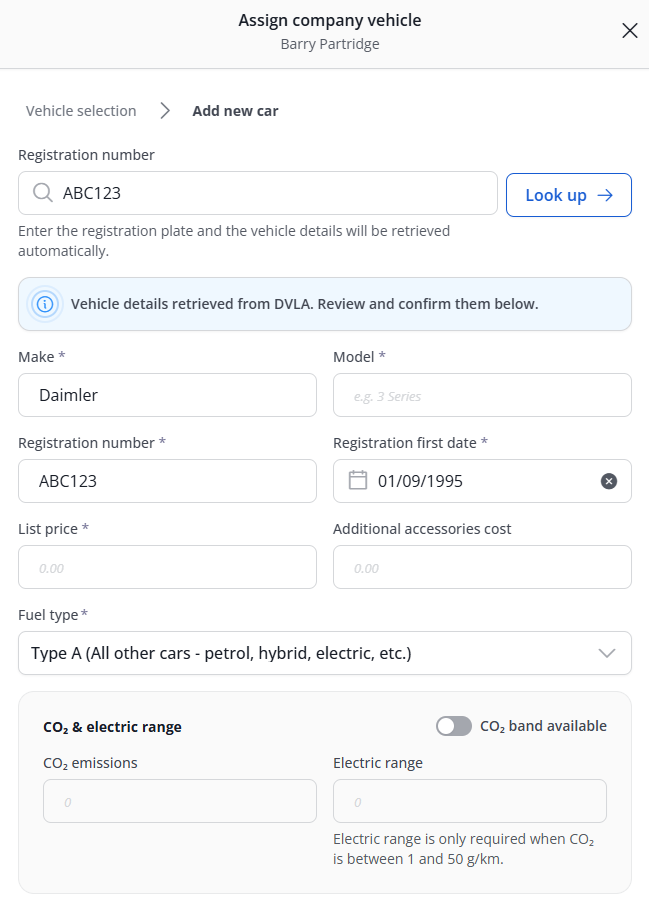
Enter the registration number and click Look up. Vehicle details are retrieved from the DVLA.
Check the make, model, registration date, list price, and fuel type that have been retrieved, adding anything not populated automatically.
You must enter a registration number in the valid format (maximum 7 characters).
If the vehicle is not on the DVLA database, you must enter the details manually.
Click Continue, then follow steps 4-8 for assigning a car or van above.
Managing an existing benefit
From the Company vehicles list, each vehicle has three actions:
Edit
 opens the benefit overview, where you can update the allocation period, days unavailable, and deductions and adjustments, or fuel. See assigning a car / van for for more information.
End
 sets an end date for the benefit. After this date, the benefit stops and no further payroll deductions are applied.
Delete
 will permanently remove the benefit. confirm the difference in effect between ending and deleting a benefit, particularly whether deleting removes historical or audit data, before documenting this action.
Recording days unavailable
The days on which a vehicle is unavailable are not set during initial assignment. Once the benefit exists, open it from the Edit icon and use Days unavailable to record a start and end date, along with a reason. You can add multiple periods of unavailability.
Managing a shared van allocation
A van can be assigned to more than one employee at the same time, each with their own usage share percentage. The remaining unallocated percentage is shown when you set a new employee's share, so you can see how much of the van's use is still available to assign.
Understanding the deduction and adjustment fields
These fields appear when assigning or editing a company car or van benefit, and each affects how the taxable benefit is calculated.
Common to cars and vans
Optional Remuneration Arrangement (OPRA) / salary sacrifice
Select this if the employee has given up salary or a cash allowance in exchange for the vehicle. Enter the annual cash amount foregone. This changes the tax basis of the benefit.
If fuel is also provided for private use, enter the amount foregone for fuel. (not required for electric vehicles).
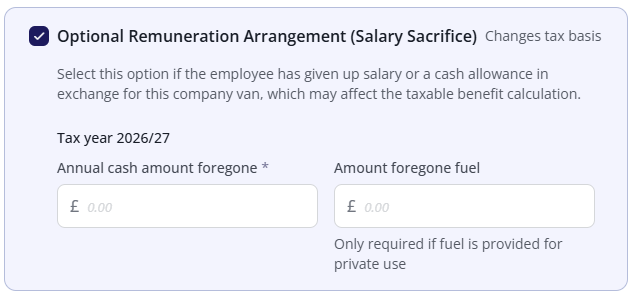
Under OPRA, HMRC normally taxes the employee on the higher of the cash amount foregone or the standard BIK charge. Cars with CO₂ emissions of 75g/km or less are exempt from this comparison, tax is based on the standard BIK charge only, and the product shows a note confirming this when it applies.
Fuel benefit
If the employer provides fuel for private use, HMRC applies a flat-rate BIK charge, adjusted by the car's CO₂ band. If the employee reimburses all private fuel in full, this removes the fuel BIK charge entirely.
This option is not presented for electric vehicles.
Days unavailable
Added after assignment from the benefit's edit view, with a start and end date plus a reason.
Cars only
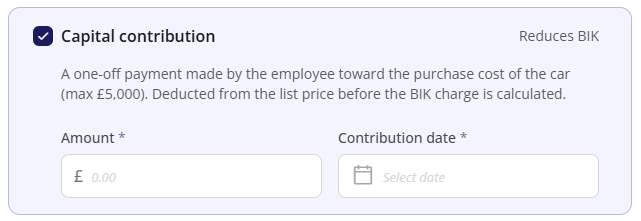
Capital contribution
A one-off payment made by the employee toward the purchase cost of the car, up to a maximum of £5,000. It's deducted from the car's list price before the BIK charge is calculated, which reduces the benefit.
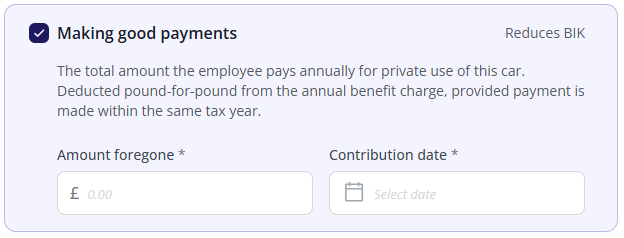
Making good payments
The total amount the employee pays annually for private use of the car. It's deducted pound-for-pound from the annual benefit charge, provided the payment is made within the same tax year. Like capital contribution, this reduces the benefit.
FAQs
How is the tax charge is spread across payroll periods?
The BIK tax charge isn't divided evenly across every period of the tax year in every case. How it's spread will depend on whether the vehicle is still assigned or has been ended.
Each tax year is calculated on its own. No balance carries over the 6 April boundary. If a vehicle is held across two tax years, each year has its own annual charge, divisor, and (potentially) HMRC rate.
While the benefit is active, the annual charge is split evenly across the periods remaining in the tax year from the start date.
When a benefit ends partway through the tax year, the whole remaining balance is charged in the period the end date falls in, not spread evenly across the periods that are left. This means the last period the benefit is charged in is usually larger than the periods before it.
Why does the benefit summary / preview look different from the payslip?
The benefit summary/preview shown when assigning or editing a benefit reflects the flat, active-period rate. It doesn't show the end-of-benefit balancing charge. This means:
For a vehicle that's still active, the preview should match what appears on the payslip.
For a vehicle that has been or will be ended partway through the tax year, the preview will show a lower figure than what actually lands on the payslip for that final period, because the preview doesn't reflect the balancing charge.
If an employee queries why a BIK charge on a payslip is higher than expected in the period a vehicle was ended, this is very likely the explanation, rather than an error.