Clock out settings lets you change the Auto Clock Out and Allow Override settings. To access clock out settings, go to Time > Config tab > General settings > Clock Out tab.
Remember! Click save after making any changes
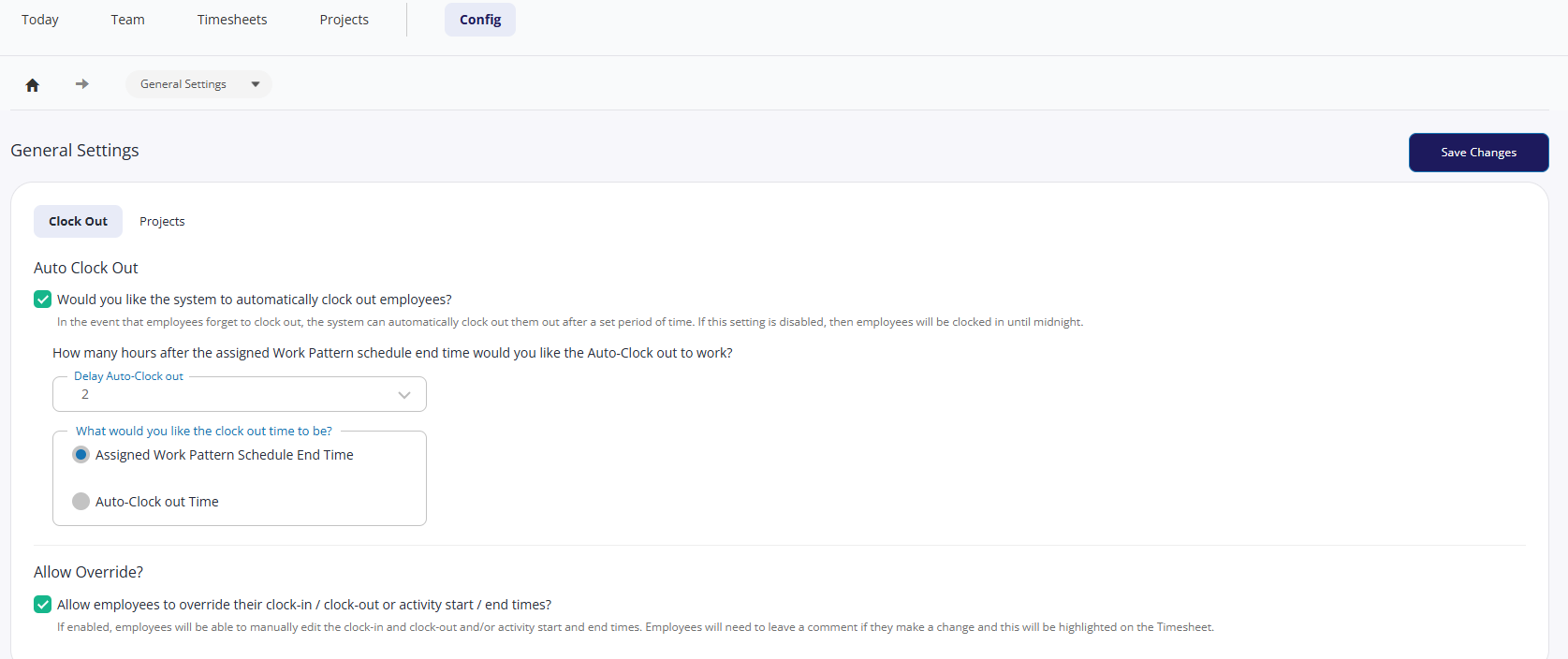
Auto clock out
If you want the system to automatically clock out your employees in the event they forget, you can tick the auto clock out option on, then specify after how many hours
If you do not switch this on, all employees will be clocked in until midnight.
If you turn on auto clock out, you must set a clock out time option
Assigned Work Pattern scheduled end time
Auto-clock out time
If you set the automation to happen 2 hours after the work pattern time of 5.30pm, this will clock out at 7.30pm. With this option enabled, the timesheet will show 5.30pm, with Auto Time selected, the timesheet will show 7.30pm.
Allow Override?
If you'd like employees to override their clock in and out times, and the activity start and end times, tick the box.
Clock in and out times that have been overridden will show in the timesheet with a red exclamation mark.