Who can do this:
HR Manager
Administrator
2FA for users
For information for users, see Enabling two-factor authentication.
Turning on 2FA
Log into Cintra People HR and click your account icon in the top right corner.
Select Preferences.
.png)
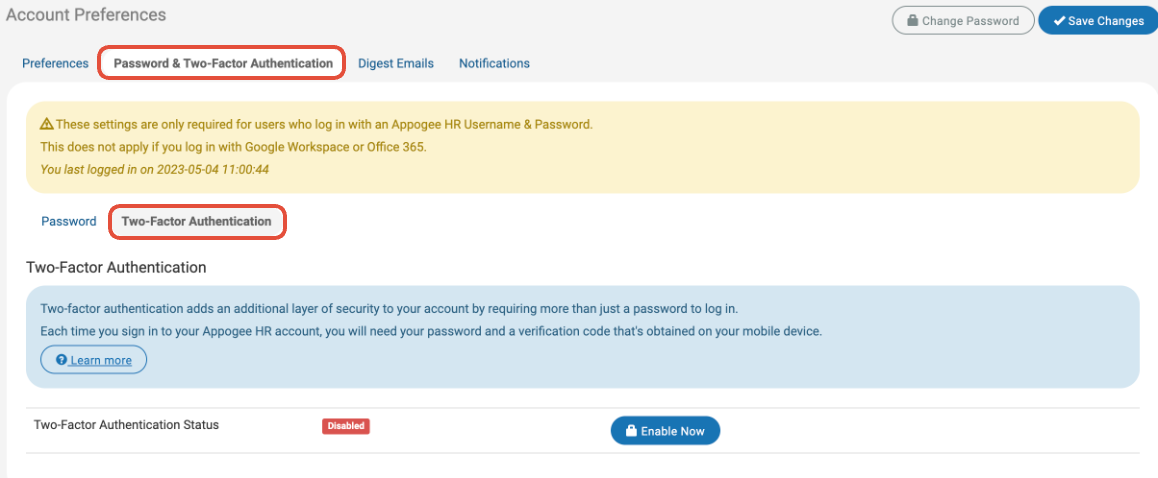
Click the Password & Two-Factor Authentication tab.
In the Two-Factor Authentication tab, click Enable Now.
The page will then load with a QR code. You'll need to have an Authentication app on a mobile device with which to scan the QR code.
Example authentication apps include Google Authenticator, Microsoft Authenticator or LastPass Authenticator.
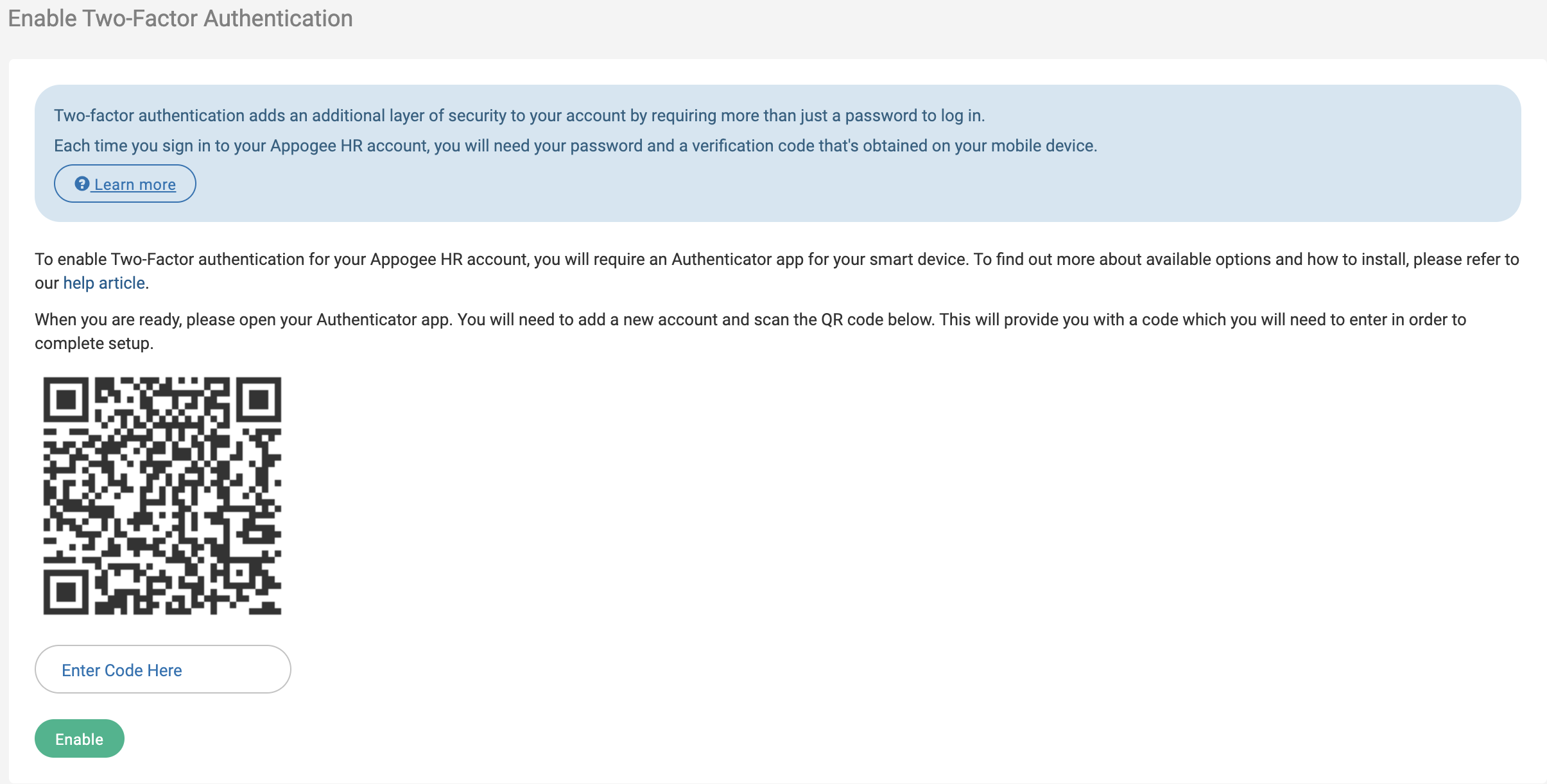
Scan the code on your mobile device, then enter the number into the box to enable 2FA.
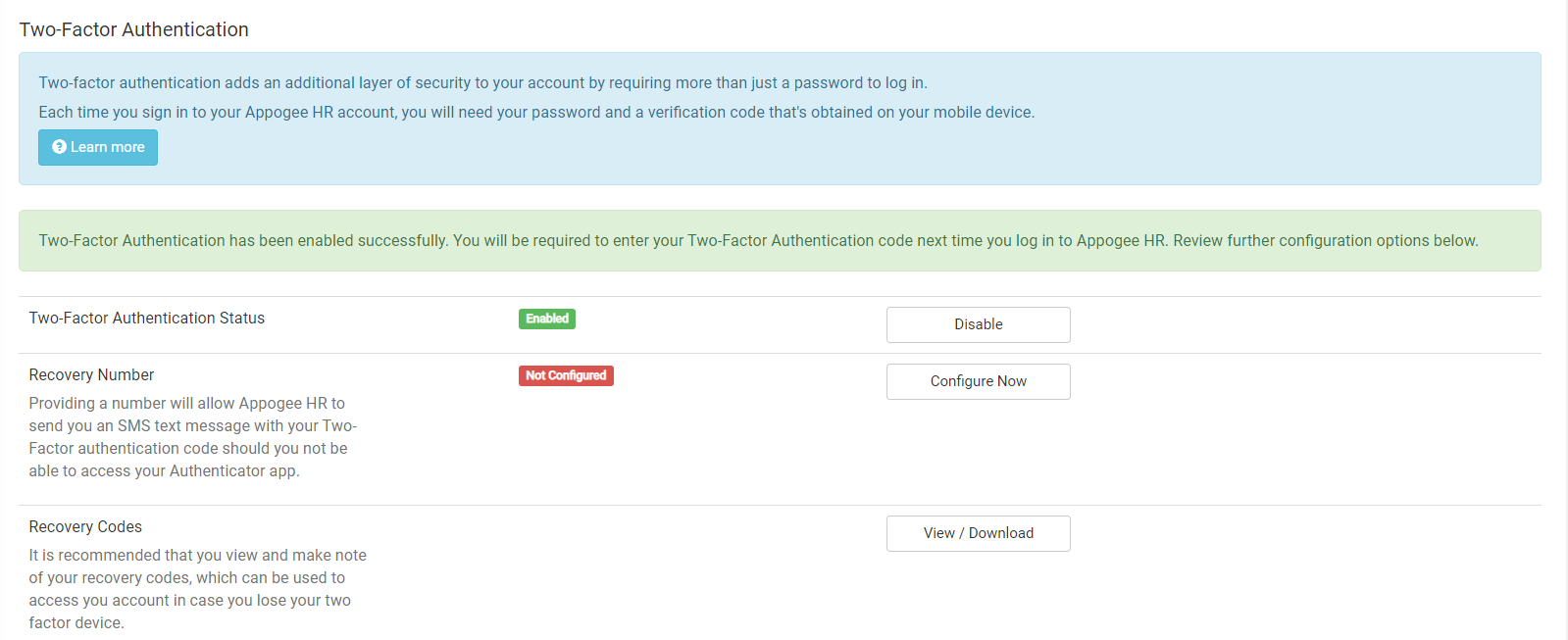
You can then optionally provide a mobile phone number which can be used to receive a code in case the app is unavailable and/or generate a set of backup codes to be used if neither the app nor the phone is available.
You are now set up and next time you need to log in you will have to enter the 2FA code found on your authentication app.
Administering 2FA
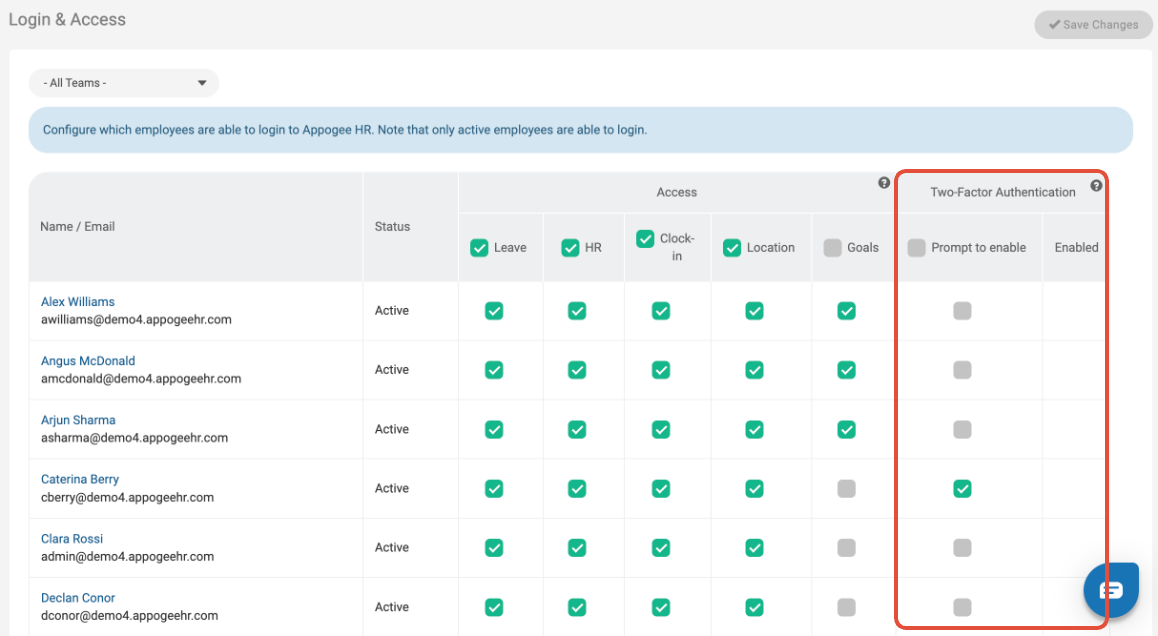
As an Admin or HR Manager, you are able to prompt all or selected users to enable 2FA at log in. To do this:
Go to Roles & Access > Access.
Either select employees individually, or select all. This will give them a prompt to set up 2FA the next time they log in, and all times after until they've set it up. You can see which users have enabled 2FA, and also disable it from here too.
If a user finds they are locked out of their account because they have lost access to their 2FA code generator and they have no backup mechanism you can disable it for them and prompt them to enable it again on their next login.