Important!
2FA is a mechanism for adding a secondary security layer when logging in with a username and password. Use of 2FA is highly recommended in particular for users with an HR or Admin role in the system.
If you are integrated with Google Workspace or Office 365, you can log in via SSO, which will honour the 2FA of your Google Workspace or Office365 accounts. If you log in via user name and password, you can enable 2FA within Cintra People HR.
Turning on 2FA
Log into Cintra People HR, click your account icon in the top right corner, then open Preferences.
.png)
From here, go to Password & Two-Factor Authentication, then click Enable Now.
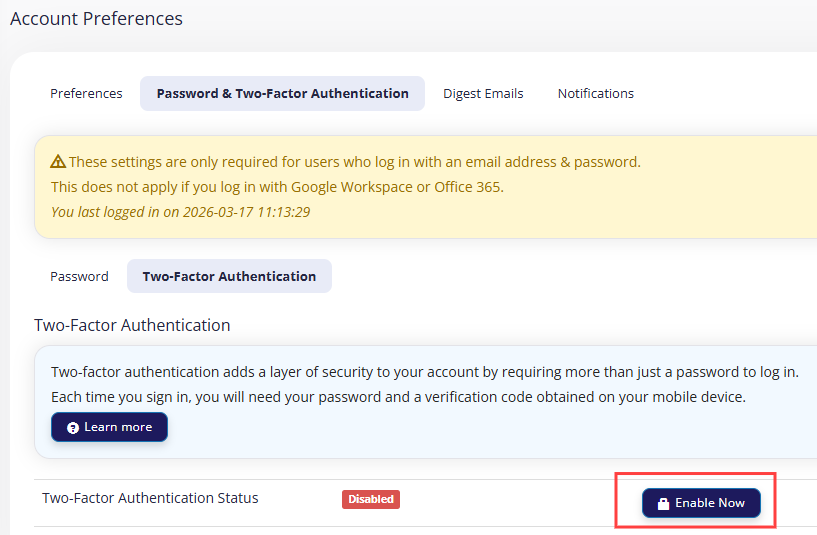
Click to expand Account Preferences
The page will then load with a QR code. You'll need to have an Authentication app on a mobile device with which to scan the QR code.
Example apps to use would be Google Authenticator, Microsoft Authenticator or LastPass Authenticator.
.png)
Scan the code on your mobile device, then enter the number into the box to enable 2FA.
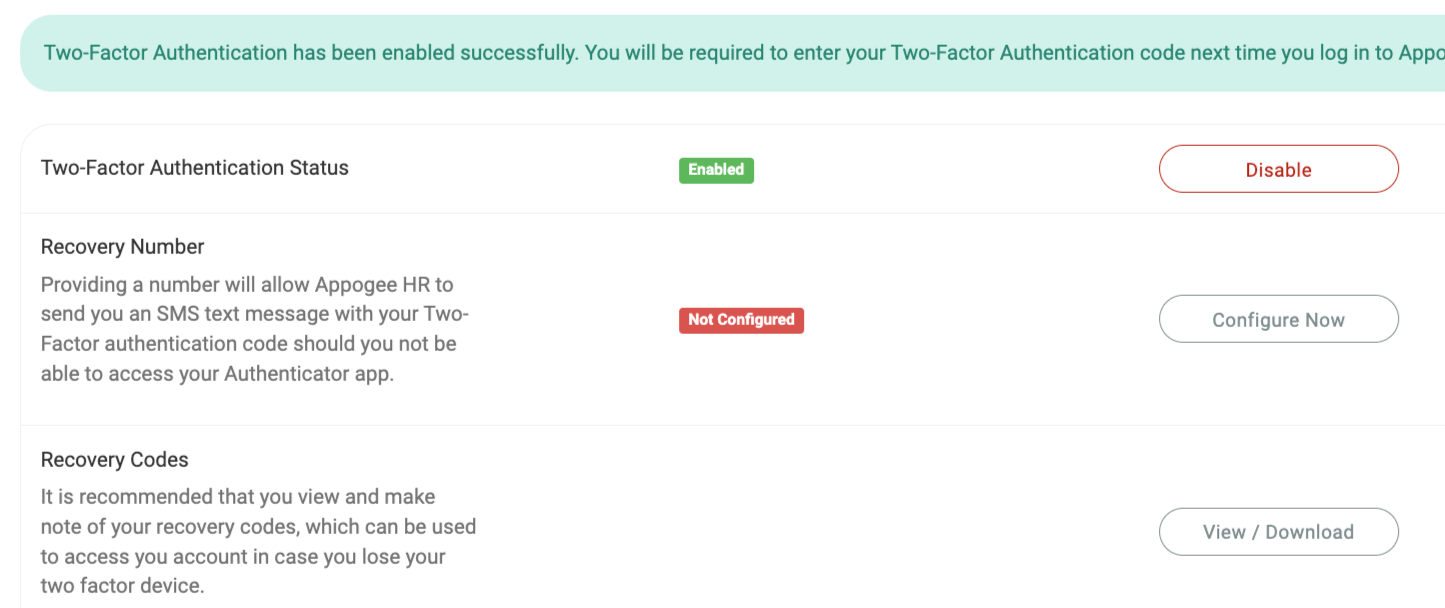
You can then optionally provide a mobile phone number which can be used to receive a code in case the app is unavailable and/or generate a set of backup codes to be used if neither the app nor the phone is available.
You are now set up and next time you need to log in you will have to enter the 2FA code found on your authentication app.