For more information on the different work pattern sections and fields, see Create work patterns.
This article covers what is different once a work pattern already exists.
Assigned patterns can't be edited or deleted
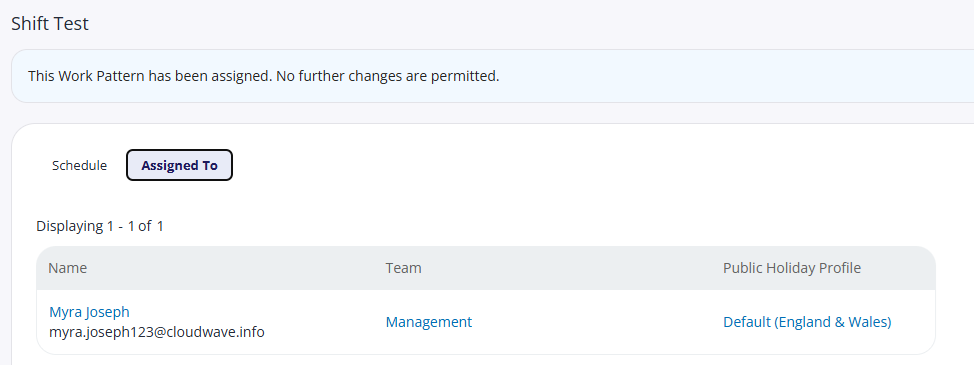
If a work pattern is assigned to an employee either now or in the future, then you won’t be able to edit it or delete it without first removing it from the employee. For more information, see Assign work patterns to employees.
You can always change the full name or short name of any leave profile.
You can view which employees assigned patterns have been assigned to by selecting the pattern, then Assigned To.
Edit a work pattern
Click a work pattern's name from the list to open it. Alongside Details, four tabs are available:
Pattern Type
Schedule
FTE
Audit
Pattern Type, Schedule, and FTE work the same as they do when creating a new pattern. Update whichever tab needs changing, then click Save Changes.
You can also change its name or short name by clicking Change Name at the right of the screen.
Audit
Shows a history of when the pattern was created and edited, and by whom. It doesn't show the schedule itself.
Parent and child patterns in the list
If a pattern was set up using Select from parent for its FTE calculation (see Create work patterns), it appears nested under its parent in the Work Patterns list, rather than as its own row. Click the collapse icon next to the parent's name to show or hide its children.

A child pattern doesn't have to share its parent's pattern type; the FTE link is about hours, not schedule structure.
Deleting a Work Pattern
You can only delete work patterns that have not yet been assigned.
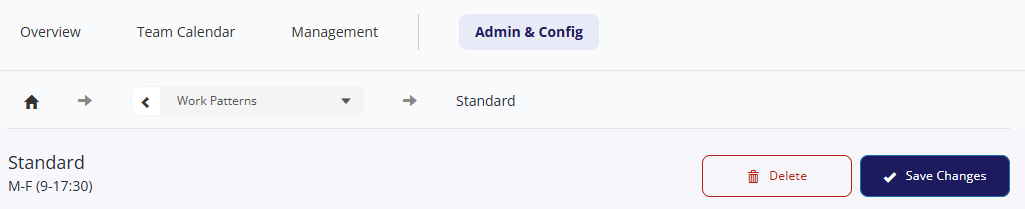
Open the unassigned work patter
Click Delete, then confirm.
Deleted patterns move to the Deleted filter (alongside Assigned and Unassigned at the top of the list) rather than disappearing, and can be brought back using Restore.