A work pattern defines when and how many hours an employee works each day. You must create a work pattern before assigning it to an employee
For more on what work patterns are and how they fit into leave and allowance calculations, see Guide: Work patterns.
For assigning a pattern once it's created, see Assign work patterns to employees.
Access work patterns
In the side menu, select Leave.
Click the Admin & Config tab.
Select Work Patterns.
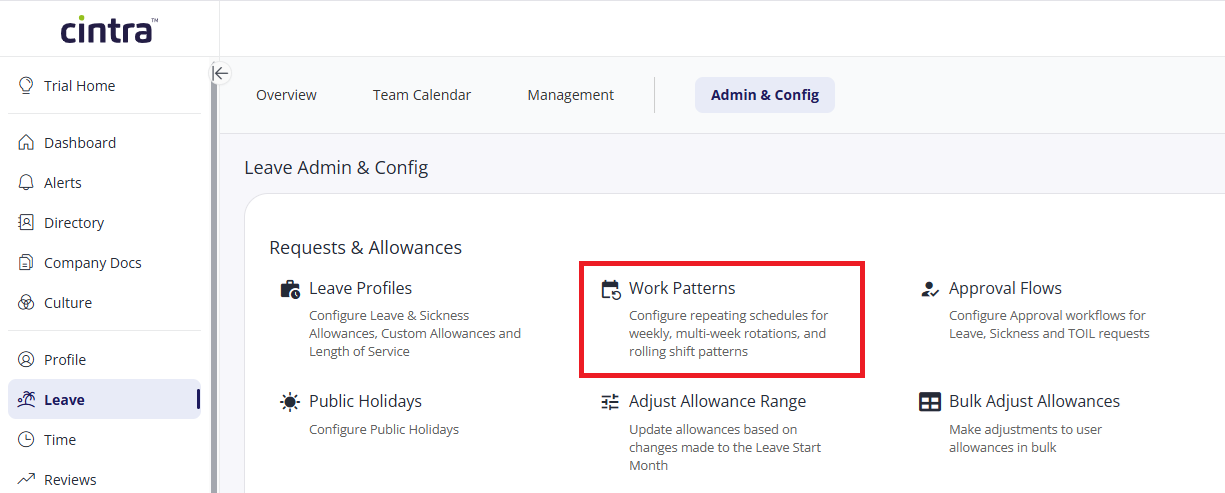
You can now create a new work pattern or edit an existing one.
Starting point: new or duplicate
When you click Create, choose one of two starting points.
Create New Work Pattern. Start from scratch and configure every step yourself.
Duplicate Existing. Copy the pattern type and schedule from an existing Work Pattern, then adjust as needed. This carries across the pattern type and full schedule, but not the FTE settings. In effect, you're editing a copy: everything up to and including the schedule is pre-filled, but you'll still complete the FTE step fresh.
If duplicating, select which existing work pattern you want to copy from the dropdown list.
Step 1: Pattern type
Choose one of four types. This determines what you see in Step 2: Schedule.
Single Week Pattern. A standard weekly schedule that repeats every week without variation. Suited to traditional Monday-to-Friday office schedules, part-time positions, or any consistent weekly routine that doesn't change.
Multi Week Pattern. Different schedules for alternating weeks in a repeating cycle, with as many weeks as needed. Suited to employees who work different hours each week in a predictable, repeating pattern.
Rolling Shift Pattern. Rotating shift cycles of any length, built by adding individual days rather than working to a calendar week. Each day in the cycle can be set independently as a full day, morning only, afternoon only, or a non-working day, so the same pattern can mix shift lengths as well as which days are worked.
Zero Hour Contract. No set working days or hours.
Example: a care worker's rotation might run: a full day (7am to 7pm), followed by a morning-only shift (7am to 1pm), followed by an afternoon-only shift (1pm to 7pm), then two non-working days, before the five-day cycle repeats from day one. Because the pattern is built day-by-day rather than calendar-week-by-calendar-week, that same five-day block can fall on different days of the week each time it repeats, for example starting on a Wednesday one cycle and a Monday the next.
Click Next once you've made your selection.
Step 2: Schedule
What you see here depends on the pattern type chosen in step 1.
Single week pattern
Tick which days of the week are working days, then set start and end times for the morning and afternoon for each day. Total hours per day and total hours for the week are calculated automatically.
Multi week pattern
Set the Week 1 Start Date: the Monday the first week of the cycle began. Then, for each week in the cycle, set the working days and morning/afternoon times in the same way as a single week pattern. Click Add Week to add further weeks to the cycle. Total and average hours are calculated per week and across the whole cycle.
Rolling shift pattern
Set the Day 1 Start Date: the specific date the first day of the cycle began. Then build the pattern day by day, rather than by calendar week, using Add Working Day and Add Non-Working Day. The pattern repeats continuously from Day 1 once it reaches its final day.
Zero hour contract
You need only enter the average hours in a working day. This is used to calculate leave entitlement. You can then jump to step 4.
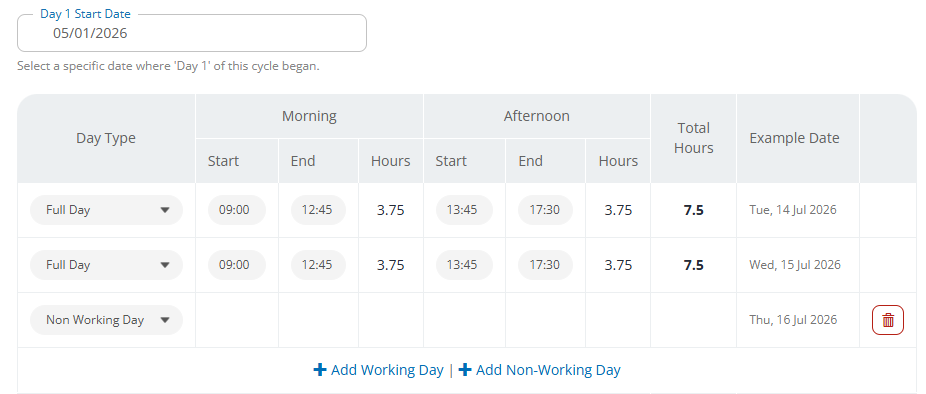
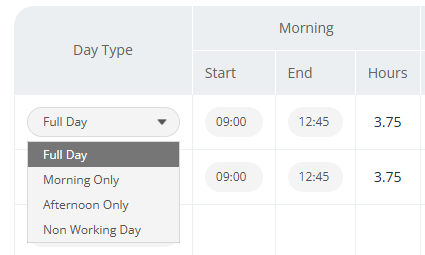
Day Type options (all pattern types)
Each working day can be set to one of four Day Types:
Full Day. Morning and afternoon times are both set.
Morning only. Only the morning start and end times are set.
Afternoon only. Only the afternoon start and end times are set.
Non Working Day. No hours are set for that day.
Click Next once the schedule is complete.
Step 3: FTE
The FTE Ratio is used to calculate salaries and allowances for part-time staff, based on their working hours in relation to the full-time equivalent.
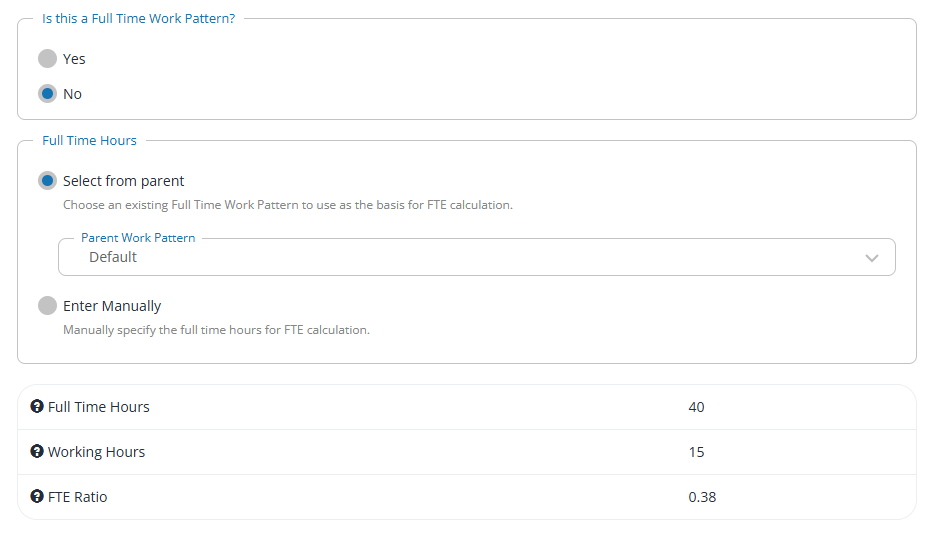
First, confirm whether this is a full-time work pattern.
Yes. Full time hours is set automatically to match working hours, giving an FTE Ratio of 1.0.
No. Choose how full time hours is determined:
Select from parent: Choose an existing full-time work pattern to use as the basis for the FTE calculation - the patterns available will vary, depending on whether you are creating a single/multi/rolling week pattern. Selecting a parent keeps the two patterns linked: if the parent pattern's hours are ever changed, this pattern's FTE Ratio recalculates automatically to match, in the same way a part-time work profile stays tied to its full-time equivalent. This is useful if the parent pattern's hours change and you want this pattern's ratio to stay accurate without manual updating it.
Enter Manually: Enter the number of full-time hours. This must be greater than the working hours calculated from the schedule.
Working Hours and FTE Ratio update automatically based on your selection. Click Next once complete.
Step 4: Name and create
The final step is labelled Create. Here, you must enter the following information:
Division: If your organisation uses divisions, select which division this work pattern should be available in. You can also select the top level (rmd) to make it available throughout your organisation.
Name: Enter a unique name or click Generate to create one based on the settings.
Short name (max 20 characters): This name is used in payroll. Again, click Generate to create one.
Once created, the pattern is available to assign to employees. See Assigning work patterns to employees.