A work pattern must be assigned to every employee, either when they're added as a new starter or from their employee profile at a later date. This article explains both methods, as well as how to change, edit, and remove historic, current, and future work pattern assignments.
New starters
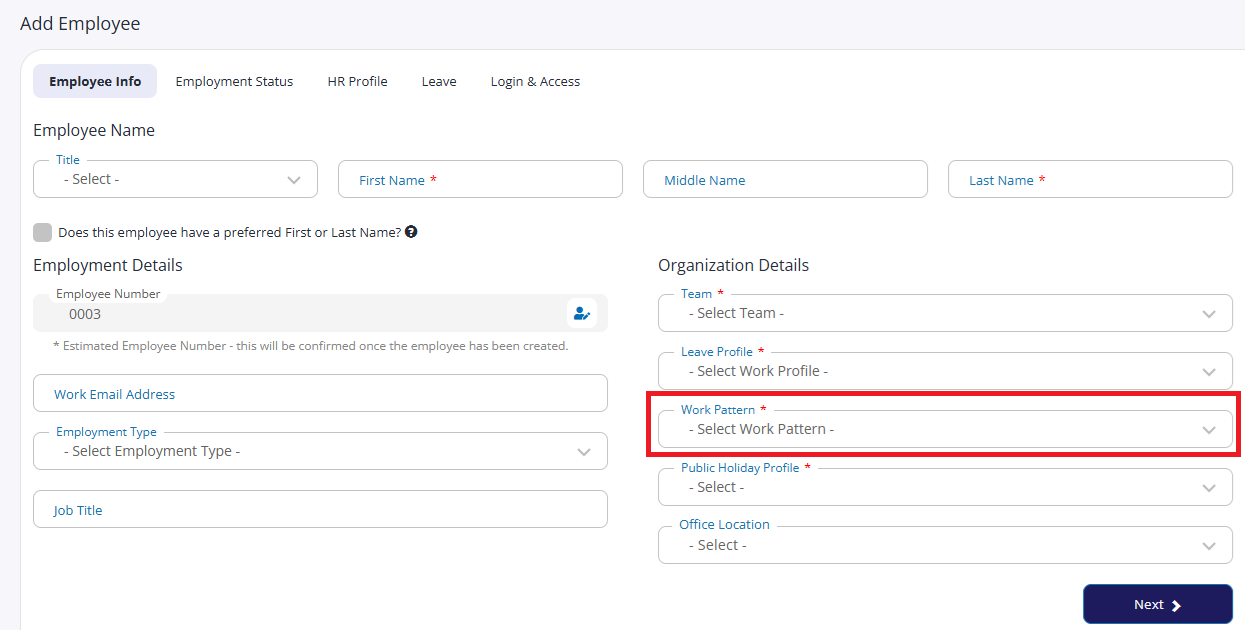
Work Pattern is a mandatory field when adding an employee. On the Employee Info tab, under Organization Details, choose a pattern from Work Pattern.
Existing employees
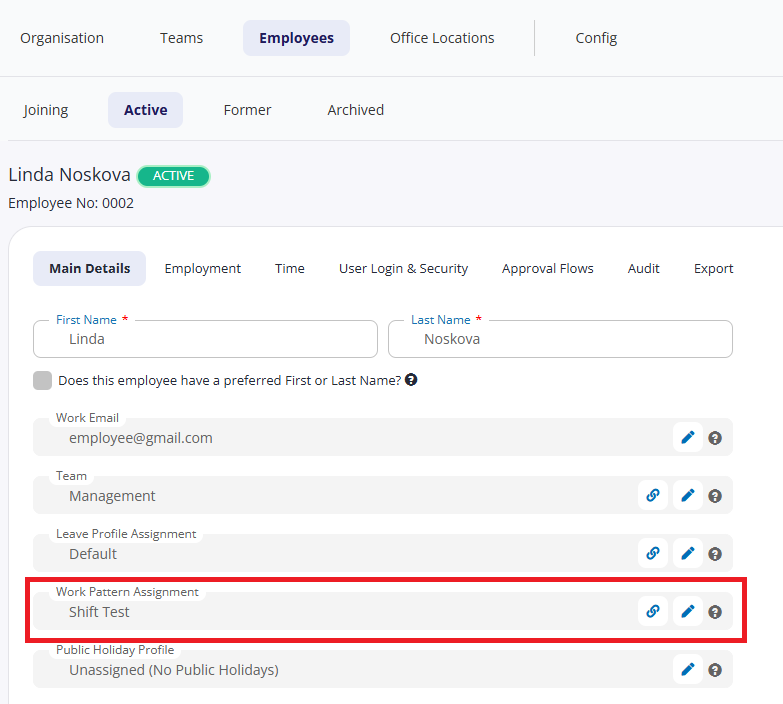
Open the employee's profile and in the Main Details tab, against the Work Pattern Assignment field, you can do the following:
Click
 to view the working pattern itself. This is read-only.
 Click
 to view / edit the working pattern dates.
This shows every pattern assigned to the employee, past and present, with four columns:
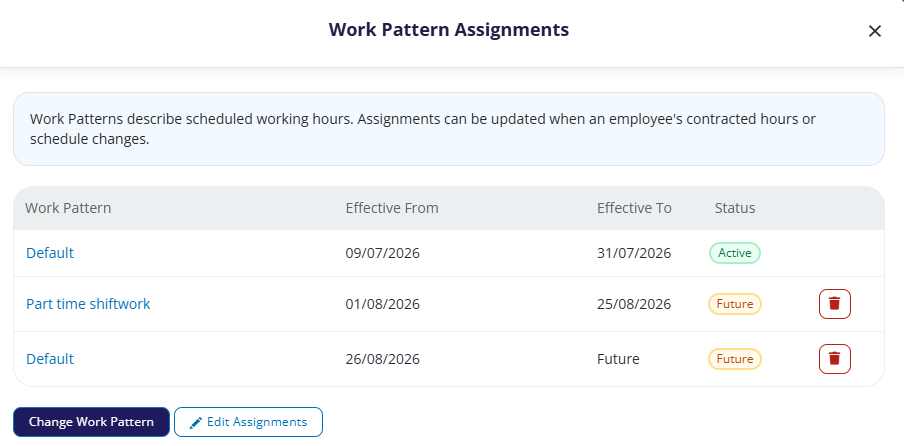
Work Pattern. The pattern assigned for that period.
Effective From. The date that assignment started.
Effective To. The date that assignment ended. For the current pattern, this always shows Future, since it hasn't ended yet.
Status. Calculated automatically from the dates: Historic, Active, or Future. This isn't something you set directly.
From here, you can either change the work pattern or edit the existing work pattern assignments.
Change work pattern
Adds a new assignment; it doesn't alter any existing ones. Click Change Work Pattern, choose the pattern from Work Pattern, and set Effective From: the date the new pattern should take effect. Click Commit.
The new assignment can't use the same pattern as the one immediately before it. This is rarely a real limitation in practice, since a work pattern only defines working hours, so there's normally no reason to end a pattern and immediately restart the same one.
Edit assignments
Edits assignments already on the list, including historical ones. Click Edit Assignments, make changes to the Work Pattern or dates on any row, then click Save Changes.
Deleting an assignment
Click the bin icon next to an assignment, then confirm. Cintra People automatically adjusts the earlier and later assignments to cover the resulting gap in the date range, so the employee is never left without a pattern for any period.
Confirming the assignment has applied
Once a work pattern is assigned, it feeds into the employee's calendar and leave calculations automatically. To check it's showing correctly for an employee, see Manage employee leave.