Approve / reject leave requests
Leave requests will appear in both your dashboard and the Leave section of Cintra People HR.
In the side menu, select Leave.
Click the Management tab.
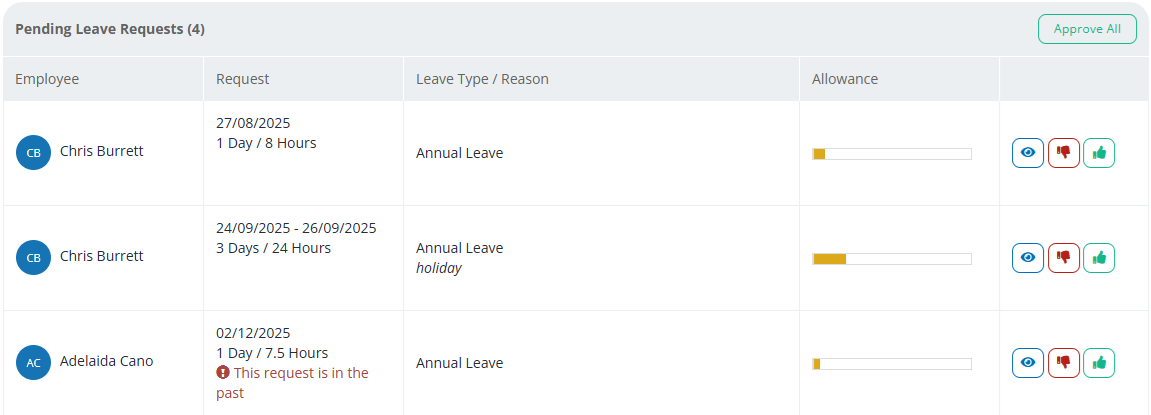
You can find all pending leave and sickness requests in the Approvals tab.
For each request, click the approve or reject icon, or click the view icon for more details. There is also an Approve all button to approve all leave / sickness / TOIL requests.
Note: If you request leave on behalf of another employee and you are their approver, it will be approved automatically.
Approve / reject changes
When an employee submits a change request, you'll receive an email and in app notification.
The notifications will highlight what changes the employee is requesting.
.png)
If you choose to approve the changes, the employee's request and allowance will be updated accordingly.
Controlling who can request leave or sickness
You can control who can request a Leave or Sickness absence on a team basis. The settings for Leave Requests and Sickness Reports are slightly different. For Leave, you can enable only the employee to submit their requests, or the employee and their manager. For Sickness reports, there are more options - employee only, employee and their manager, all members of their team, or all employees. This is to allow for those occasions where sickness absences are reported in a more ad hoc/pragmatic fashion than those with formal procedures to follow.
Leave Requests
Go to Organisation > Teams.
Select the team you wish to edit, click 'Leave, Approvals & Calendar' at the top and then under Request Options scroll down to Leave Requests. Ensure you Save Changes after making any amendments.
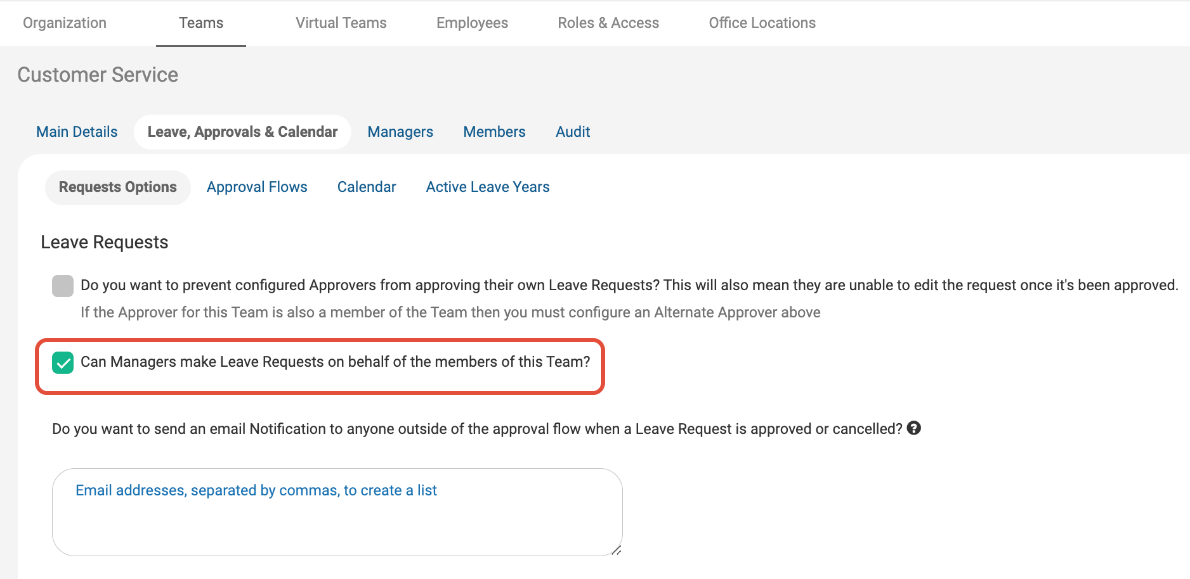
NOTE: If you are requesting Leave on behalf of an employee in a different team, the request settings will need to be configured on your team, rather than theirs. This is because the system checks the settings based on the person submitting the request, rather than who the request is for.
Sickness Reports
Go to Organisation > Teams.
Select the team you wish to edit, click 'Leave, Approvals & Calendar' at the top and then under Request Options scroll down to Sickness Requests. Select the option you would like from Who can request on behalf of members of this team? Ensure you Save Changes after making any amendments.
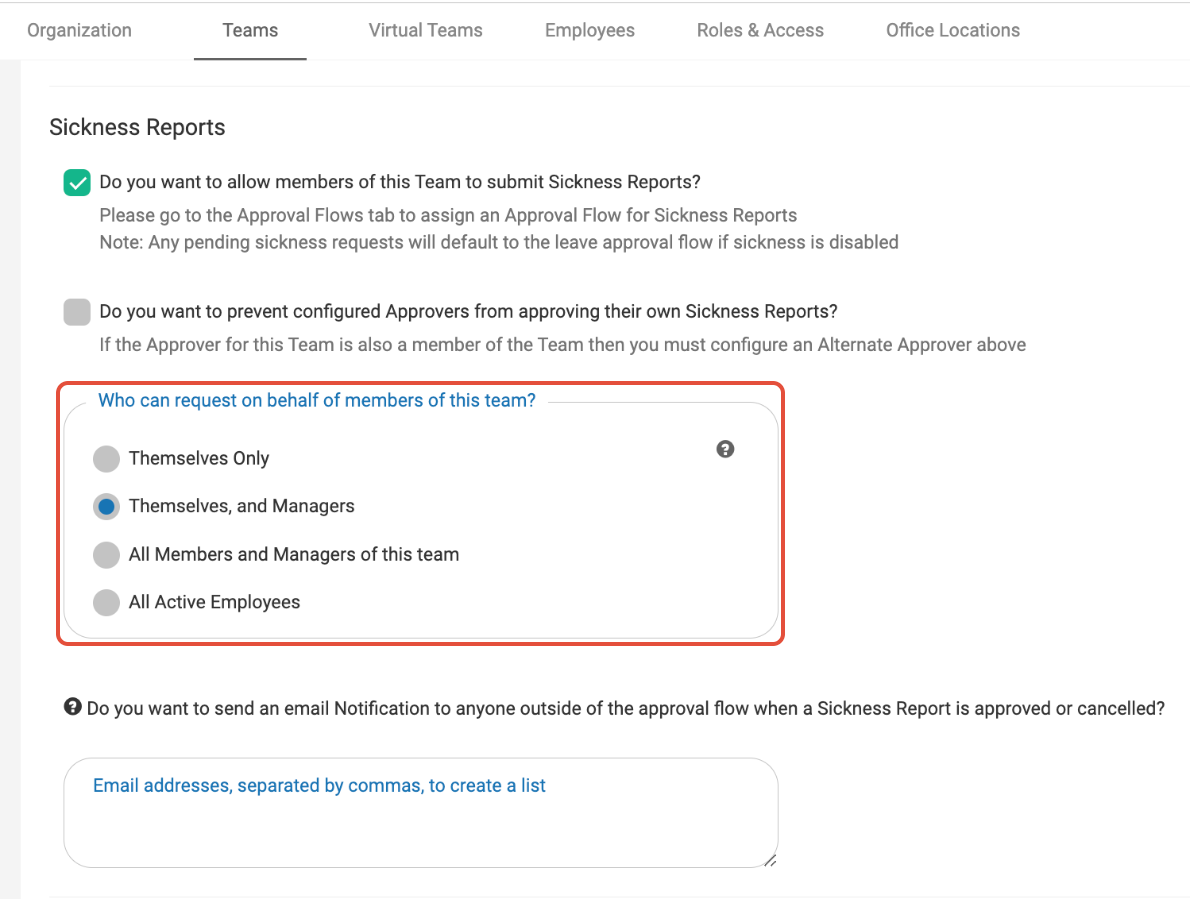
NOTE: If you are requesting Sick on behalf of an employee in a different team, the request settings will need to be configured on your team, rather than theirs. This is because the system checks the settings based on the person submitting the request, rather than who the request is for.
Note that, in addition to the above there is a Backfill option for creating absences without them following the workflow approval process.
Request History
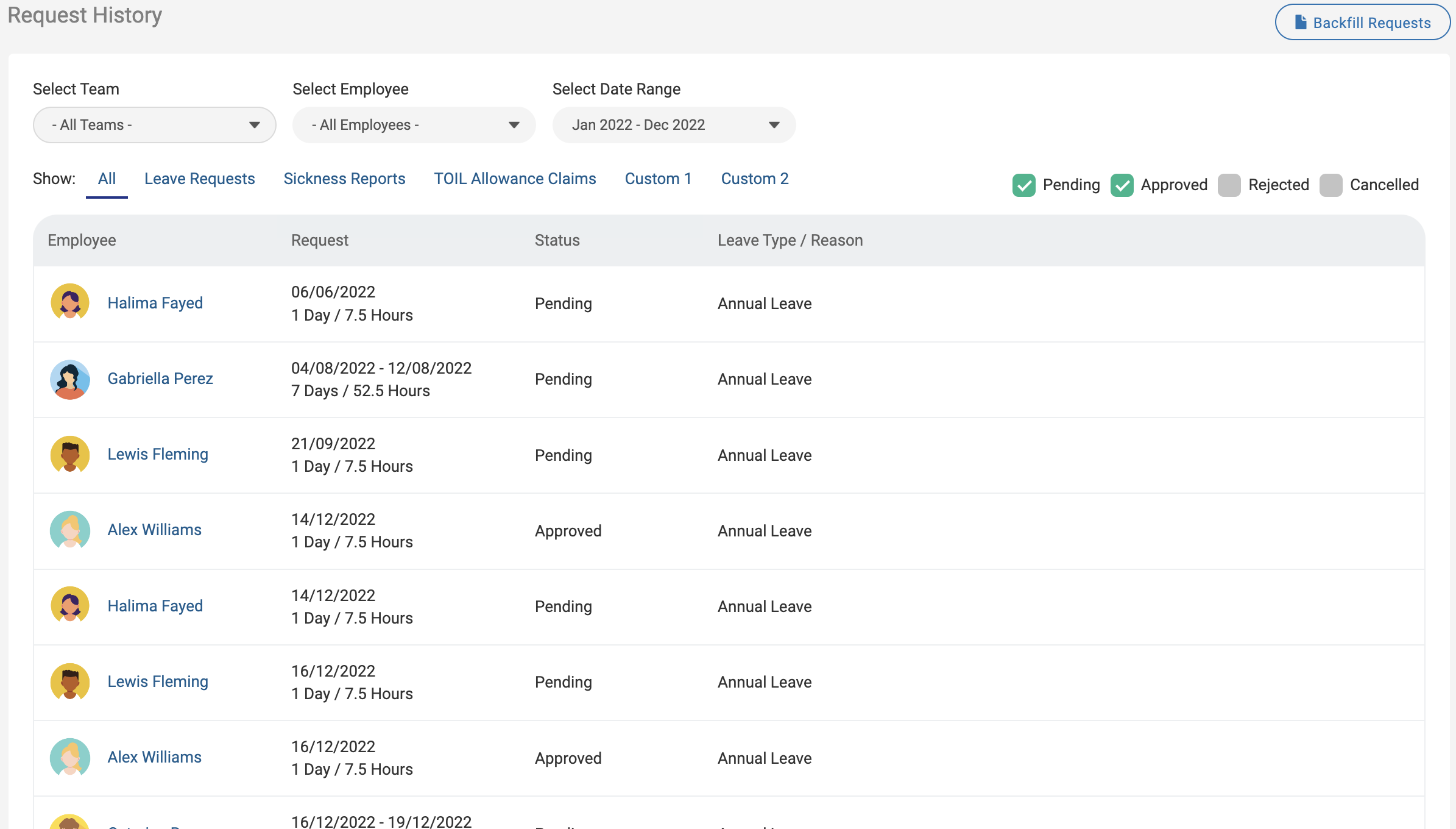
The Request History tab lets you view an overview of all your employee's previous requests. If you're an HR Manager, you'll be able to switch access between the teams. You are also able to look at historic leave requests by filtering on the date range.
You can also filter the status of the leave requests, and view backfill requests.
Team allowances
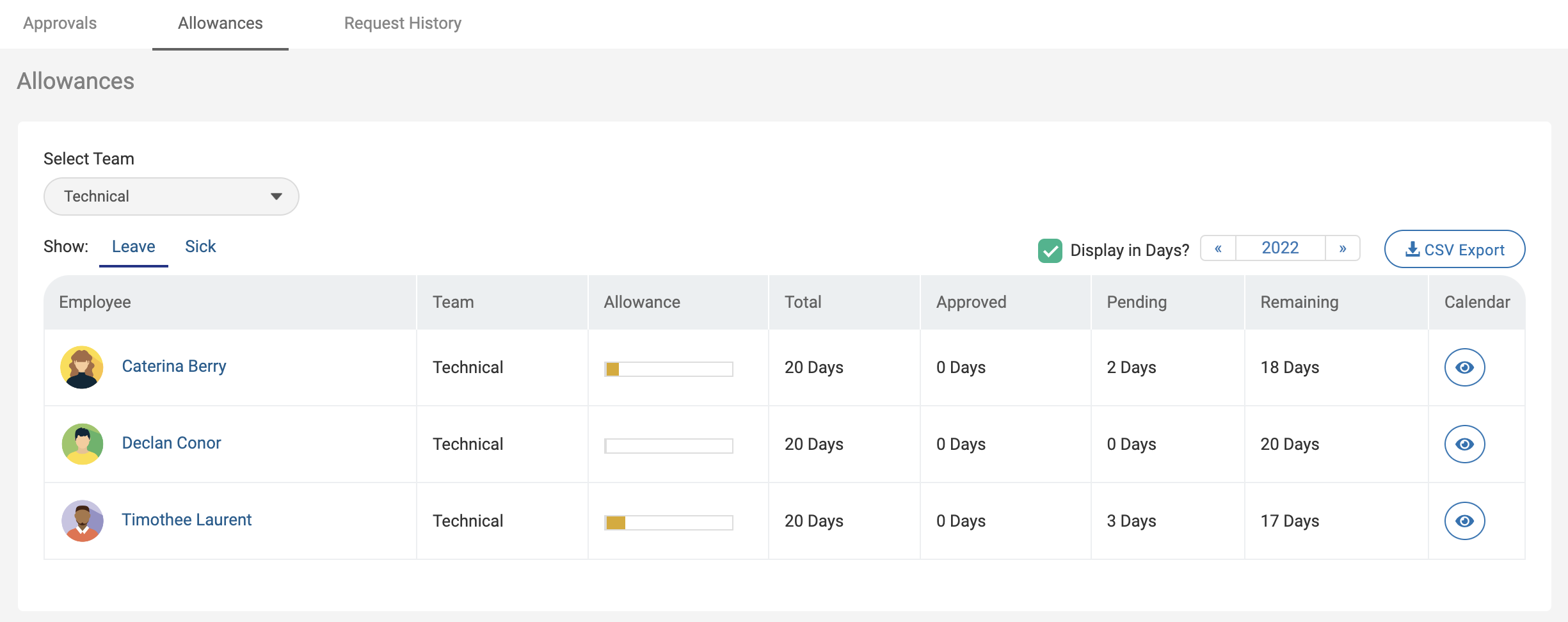
As the Team Manager you can view your employees' allowances to see their total, Taken, Pending and Remaining allowances as well as their sickness, an HR manager would be able to switch between the teams as well.
Team calendar
See an overview of your teams' leave by looking at the Team Calendar. You can filter on the month or team.
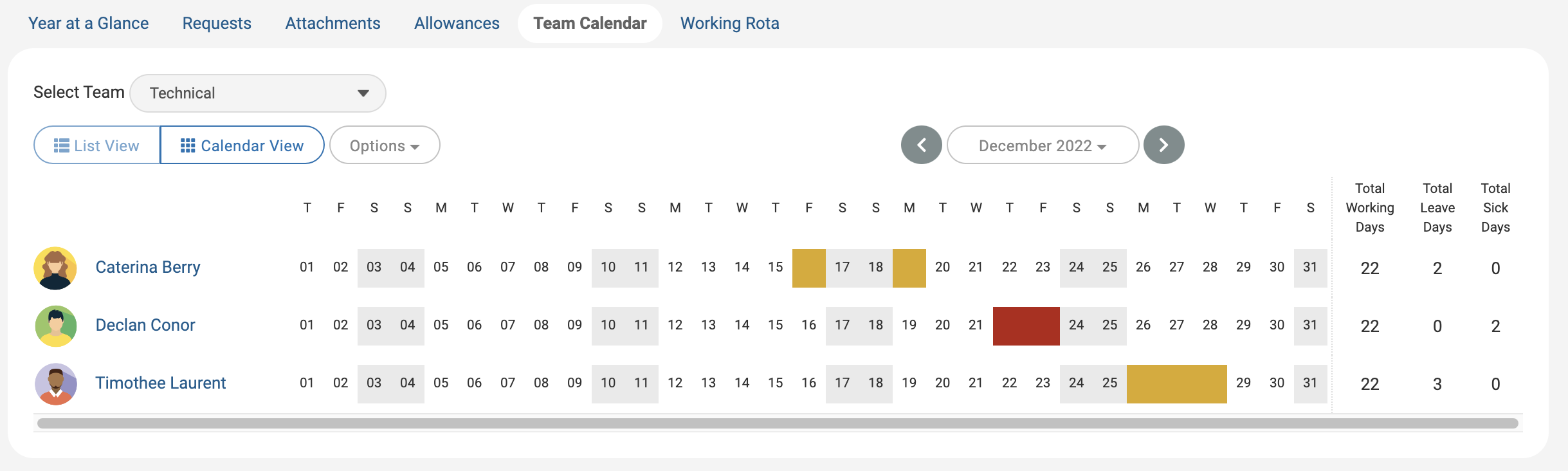
To configure who can see a team's calendar and what detail is shown, see Team calendar.
Work pattern
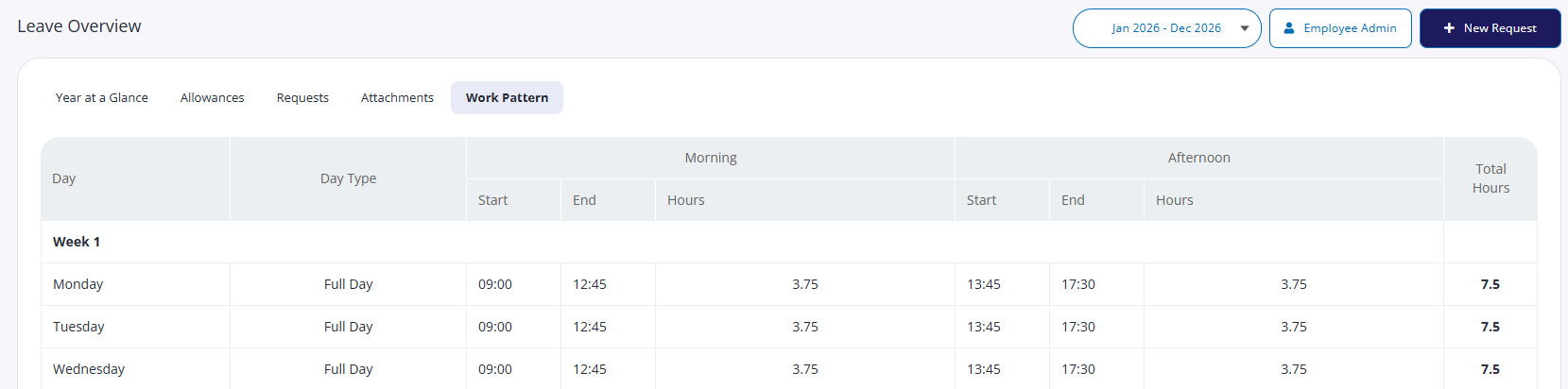
You can view each day's working hours for the selected user. For more information, see Guide: Work patterns.