Who can do this:
HR Manager
Administrator
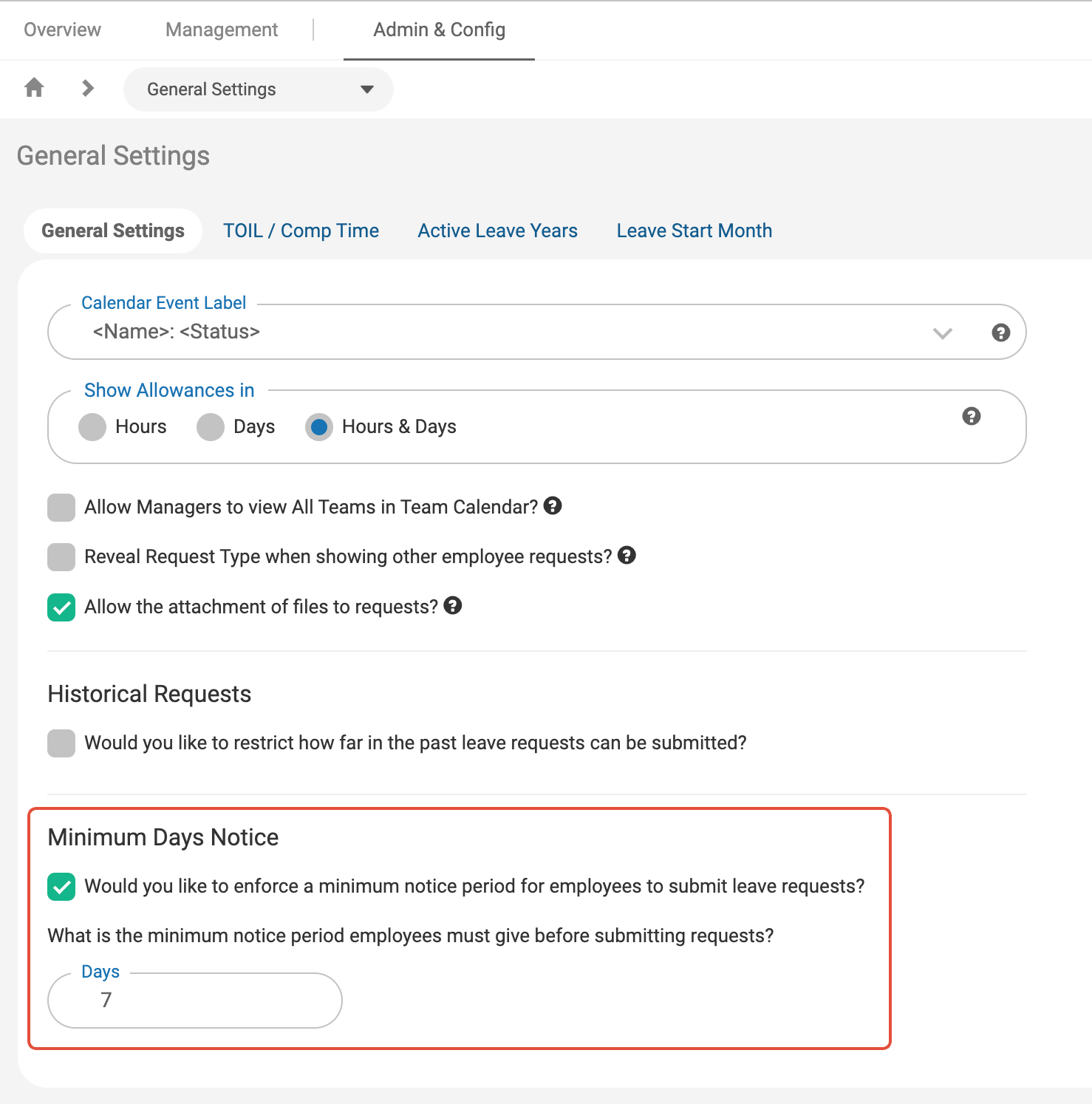
How do I set up a minimum notice for leave?
You may wish to prevent users from submitting leave or sickness requests without a notice period.
You can set this up by going to Leave > Admin & Config > General Settings > Minimum Days Notice.
How do I hide sickness from calendars?
You may decide that Sickness requests should not be visible to other employees in the internal Team Calendar or External Calendar Syncs.
Internal Team Calendar
To hide Sickness requests from the Team Calendar, go to Leave > Admin & Config > General Settings > Internal Calendar Settings.
Untick the option for "Reveal Request Type".
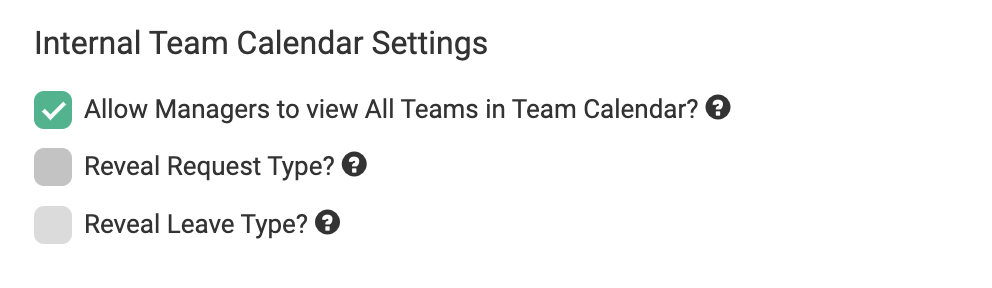
This will remove the "Leave" or "Sickness" descriptor and show all Requests in Green on the calendar, regardless of the type.
External Calendars
To change the name of external calendar events so that they don't show "Sickness" you have 2 options.
The name can be set on the General Settings, or it can be overridden per Leave or Sickness Type.
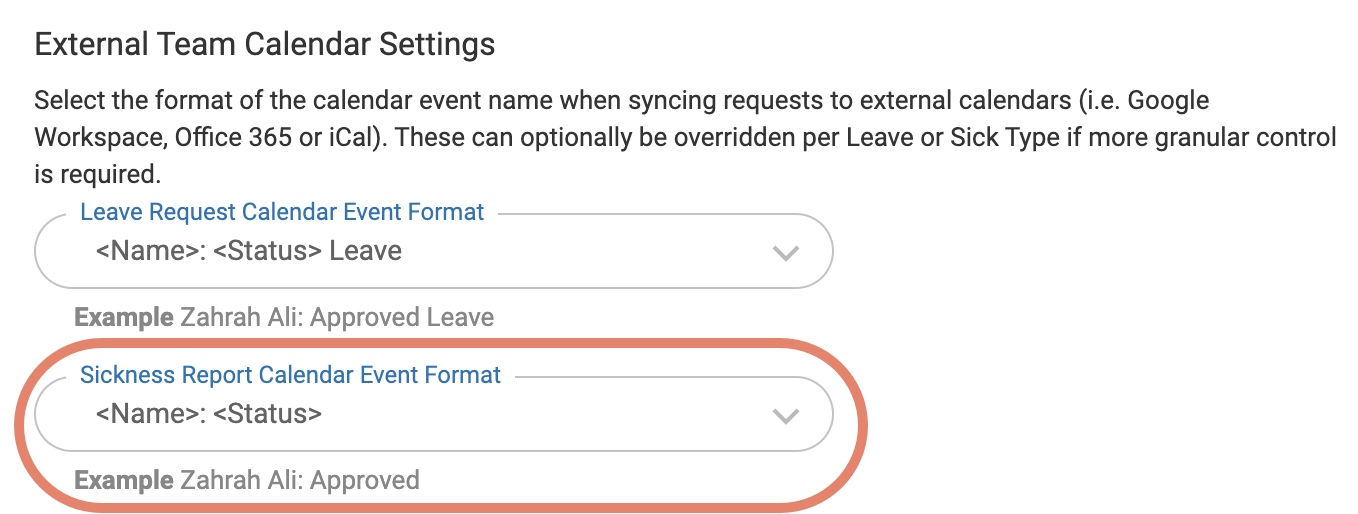
Go to Leave > Admin & Config > General Settings > External Team Calendar Settings.
Under "Sickness Report Calendar Event Format" choose an item from the dropdown that doesn't include the word "Sick".
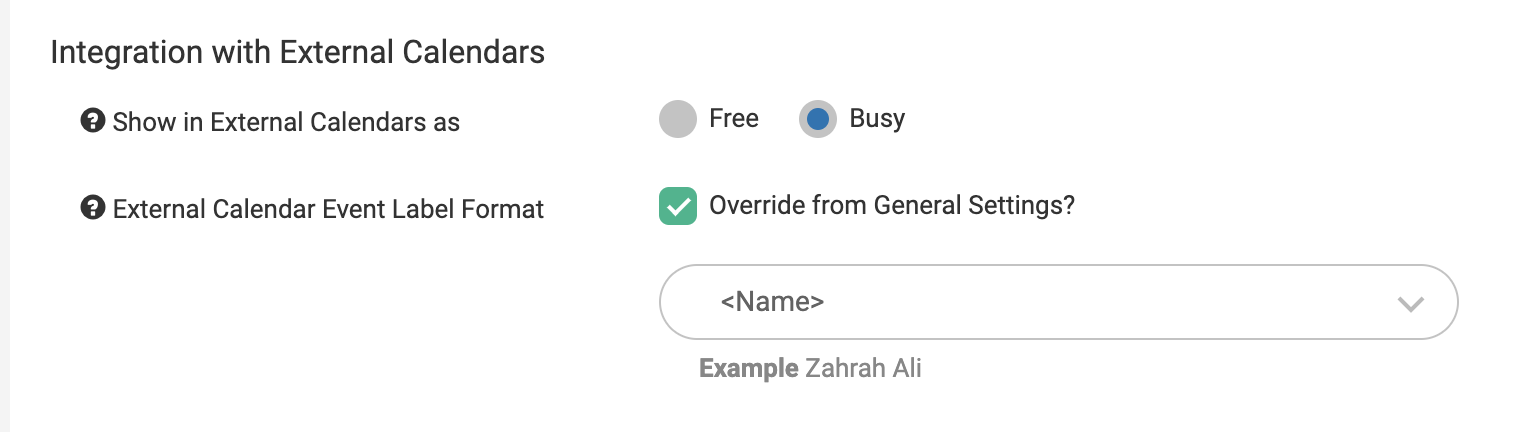
Optionally, if you want to override this per Sickness Type, you can do so from Leave > Admin & Config > Sickness Types > open a Sickness Type > Integration withExternal Calendars.
Here, you can Tick the option to Override and include / exclude the word "Sick".
Who can request leave or sickness?
You can control who can request a Leave or Sickness absence on a team basis. The settings for Leave Requests and Sickness Reports are slightly different. For Leave, you can enable only the employee to submit their requests, or the employee and their manager. For Sickness reports, there are more options - employee only, employee and their manager, all members of their team, or all employees. This is to allow for those occasions where sickness absences are reported in a more ad hoc/pragmatic fashion than those with formal procedures to follow.
Leave Requests
Go to Organisation > Teams.
Select the team you wish to edit, click 'Leave, Approvals & Calendar' at the top and then under Request Options scroll down to Leave Requests. Ensure you Save Changes after making any amendments.
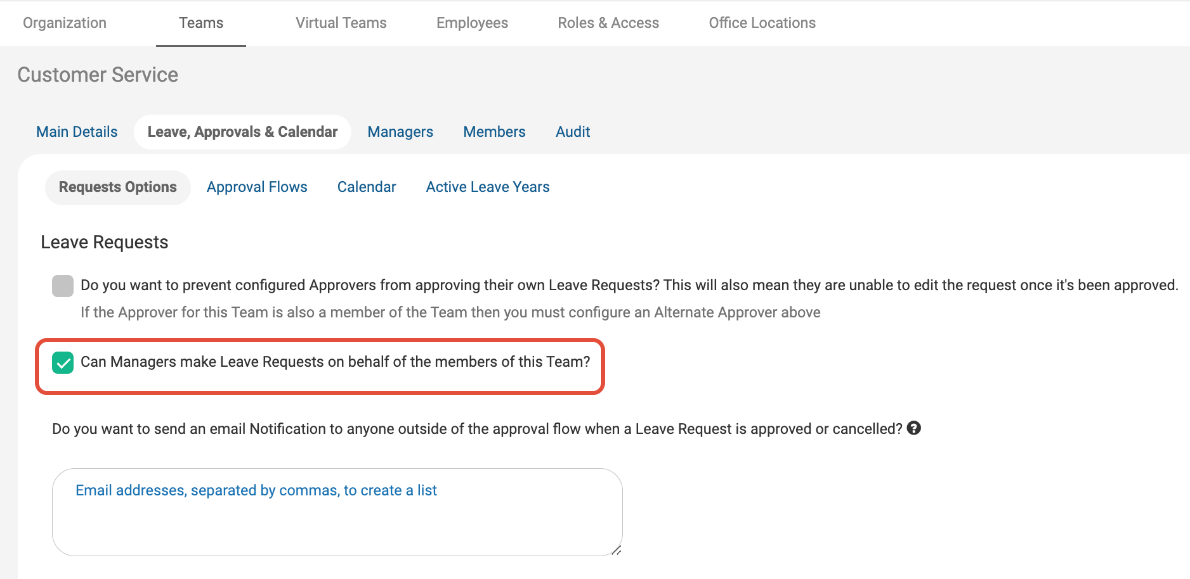
NOTE: If you are requesting Leave on behalf of an employee in a different team, the request settings will need to be configured on your team, rather than theirs. This is because the system checks the settings based on the person submitting the request, rather than who the request is for.
Sickness Reports
Go to Organisation > Teams.
Select the team you wish to edit, click 'Leave, Approvals & Calendar' at the top and then under Request Options scroll down to Sickness Requests. Select the option you would like from Who can request on behalf of members of this team? Ensure you Save Changes after making any amendments.
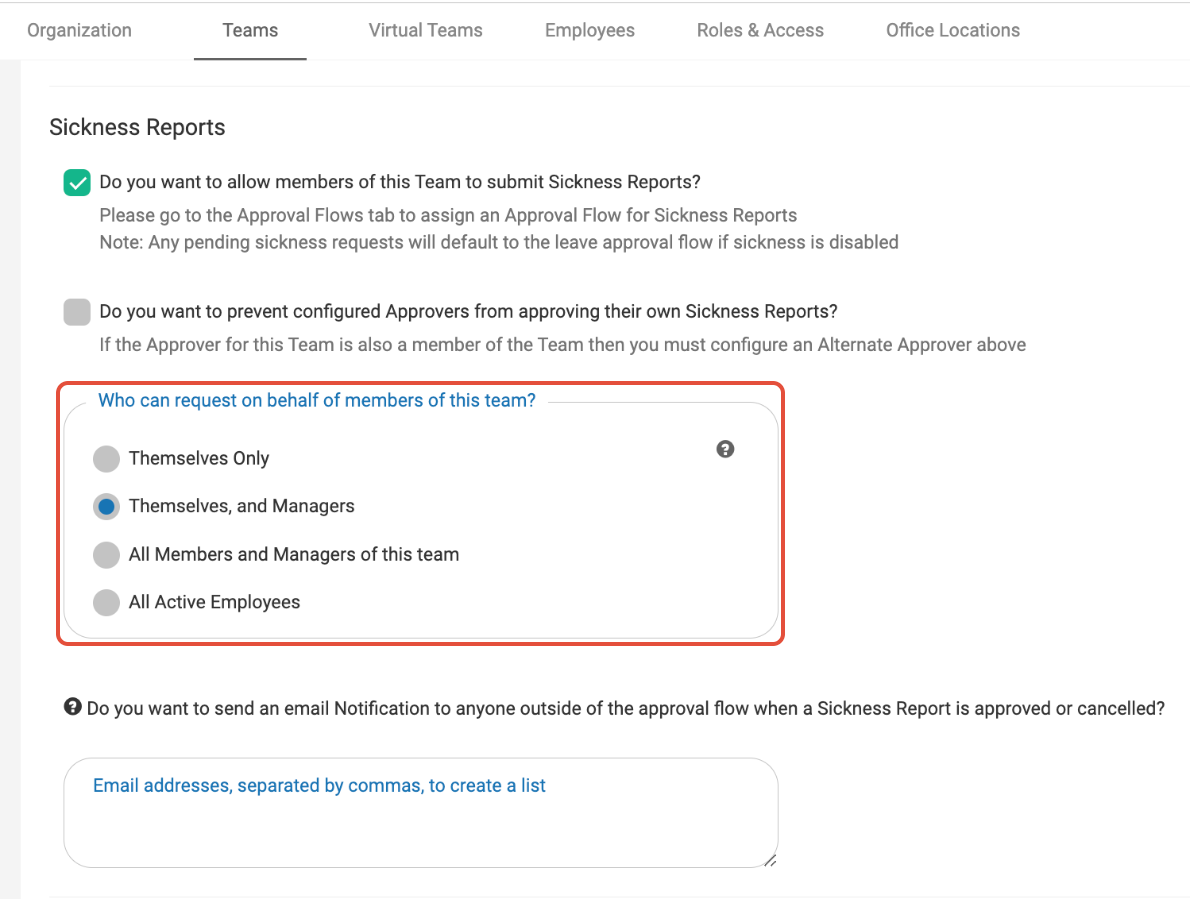
NOTE: If you are requesting Sick on behalf of an employee in a different team, the request settings will need to be configured on your team, rather than theirs. This is because the system checks the settings based on the person submitting the request, rather than who the request is for.
Note that, in addition to the above there is a Backfill option for creating absences without them following the workflow approval process.
How do I allow leave requests in hours?
The default request length is for full or half days, the settings can be amended by an HR Manager.
To do this:
In the side menu, click Leave.
In the Admin & Config tab, select Work Profiles.
Select the relevant Work Profile.
In the Leave Settings tab, click the Options tab.
In the Request Length Options section, select "No restrictions".
If you’re an employee, you can then request leave in hours.
Why is sickness still showing?
An employee's sickness request keeps reopening, even after overriding it.
When submitting the sickness report, the employee selected that they had not returned to work yet, this has created an open sickness request. An open sickness request will roll over each day, until the employee marks their return to work.
Fix 1:
Employee needs to 'return to work'
Employee logs in and goes to Leave
Clicks 'Return to work now'
Completes form
This is the recommended process as it informs the Employee's manager that their sickness report has been closed.
Fix 2:
HR Manager overrides the sickness report
Go to Leave and search for the employee
Click on the sickness report
Click Edit Request
Change the Status to Approved
Edit the end date of the request
Save Changes
Note: this will bypass the approval process and not notify the employee's manager
How do I add public holiday entitlements to an annual allowance instead of the calendar?
To remove the Public Holidays from appearing automatically on the Year at a Glance calendar so that the employee can book them out as needed:
Firstly, create a blank Public Holiday Profile by going to Leave > Admin & Config > Public Holidays > Create> Create Manually and name it something such as "No Public Holidays".
Aassign this to the Work Profile for the employees who you need this allocated against by going to Leave > Admin & Config > Work Profiles > Select Work Profile > Public Holidays.
Select the profile you just created and Save Changes. If the employees are with other employees who need to have a Public Holiday profile allocated, create a new Work Profile to allocate this to.
On the Work Profile, go to Leave Settings > Entitlements.
Click edit pencil next to the Leave row and add the Public Holiday entitlement to their leave allowance.
If you'd like the employee to use Public Holiday Leave Type when submitting their holidays to help you identify how many Public Holidays they have booked off, go to Leave > Admin & Config > Leave Types > Create and create a leave type called "Public Holiday".
Why can't a team manager edit leave data for an employee in their team?
Within the Team settings, you can allocate managers either the Reader role or an Editor role.
Team Managers with the Reader role will be able to read employee data, while those with the Editor role will be able to edit.
If your Team Manager is unable to edit a request, they need to be made an Editor.
To amend a Team Manager's role, go to Organisation > Teams > Select the relevant Team > Managers and change the role.
.png)
How can I display icons to show leave types?
Icons can be associated with Leave types from Leave > Admin & Config menu, selecting a specific leave type, selecting an appropriate calendar icon and Saving your changes. The selected icon can then be used to indicate the type of leave requested. However, as it may not always be desirable to reveal the type of leave on calendars a configuration setting must be enabled to allow this.
From the Leave > Admin & Config menu, select General Settings and under Leave enable the "Reveal Request type when showing other employee requests" check box and click Save.
.png)
Once configured, the icons will now display on the Year at a Glance for the user in question, as well as in the Team Calendar, Calendar view.
Approvals
Why is a team manager not receiving approval requests?
The Team Manager role doesn't automatically get sent the approval requests. The requests go to the defined approver on the Approval Flow.
Can I be notified of Leave Approval Requests but not be on the Approval Flow?
Yes, go to Organisation > Teams > Select the relevant Team > Leave, Approvals & Calendar > Requests Options > Leave Requests, and add your email address in the box that says "Do you want to send an email Notification to anyone outside of the approval flow when a Leave Request is approved or cancelled?"
Why is the alternate approver not receiving email notifications?
The alternate approver by default only receives in app notifications, not email notifications of leave approvals. If you'd like them to get email notifications, you can change their role to primary approver.
An approver has left the business and there are pending leave requests… how do I approve them?
As a HR Manager, you can approve pending leave requests by going to the request > edit request > select the status dropdown > change to Approved > save changes.
If there are pending change requests and the approver no longer works with the business, the employee will need to cancel the change request, the HR Manager can then edit the request after this.
Why are the approvals are going to the wrong person?
To check which approval flow is assigned to the Team/Employee, go to Organisation > Teams > select relevant Team > Leave, Approvals & Calendar > Approval Flows. If the wrong approval flow is assigned, you can change it there.
To change the approver on an existing approval flow, go to Leave > Admin & Config> Approval Flows > select approval flow and update the approver. Any updates will pull through to Teams that have this approval flow assigned.