How do I update an employee’s allowance?
I need to add [x] days to an employee's allowance
Go to Leave and use the dropdown to select the employee
Head to the allowances tab and click the edit button
Add the correct amount of days or hours to the Manual Adjust row
Save changes
I need to remove [x] days from an employee's allowance
Go to Leave and use the dropdown to select the employee
Head to the allowances tab and click the edit button
Put a "-" symbol in the Manual Adjust row, followed by the amount of days or hours
Save changes
I need to update multiple employees’ allowance
Go to Leave > Admin & Config
Click on Bulk Adjust Allowances
Download the template and fill in the new allowance in the New Leave Allowance column
Save the spreadsheet as a CSV
Upload spreadsheet
I need to increase or decrease every employees’ allowance
Go to Leave > Admin & Config
Click Leave Profiles.
Open a leave profile and go to the Entitlements tab.
Click the pencil icon and update the annual or accrued entitlement
Click Next and update Carry Over if necessary
Click Next and update Exceed Allowance if necessary
Click Confirm Changes then Save Changes
Repeat for all leave profiles.
How do I change an employee’s working hours?
Working hours are defined against the work pattern.
If there are other employees within the same work pattern as the employee you need to change, you'll need to create a new work pattern for them.
To do this go to Leave > Admin & Config > Work Patterns > Create.
Tip: You can use the duplicate work pattern tool and just change the working rota to keep the rest of the settings the same.
To change the working hours, go to the Work Pattern > Schedule tab.
Here you can change the working hours in a day or select the "Modify days individually?" button at the bottom of the working rota, to add in specific times.
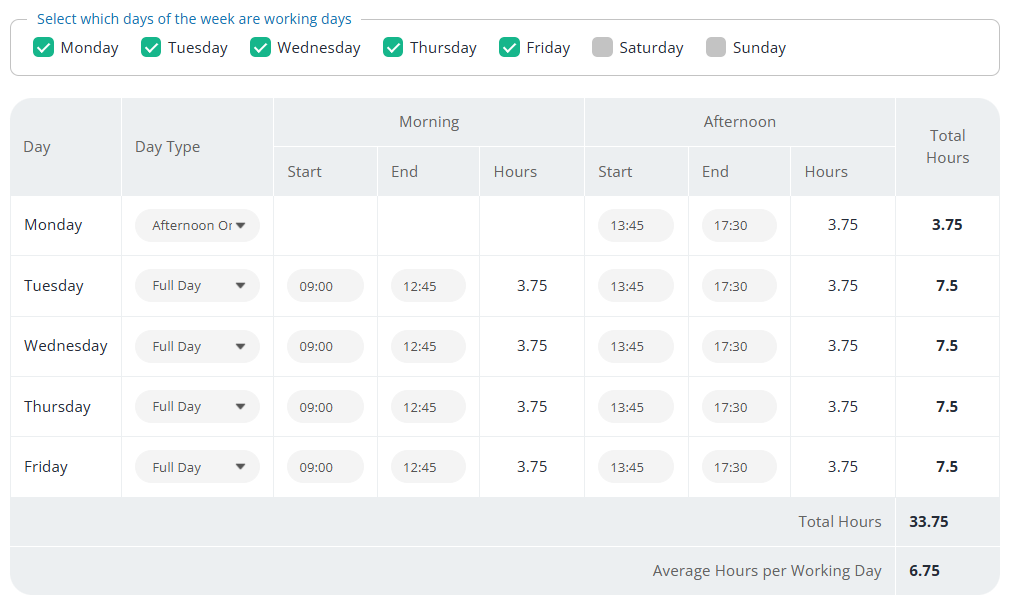
Once you've changed the working hours, you may need to go and update past leave requests to ensure they are calculating the correct deduction based on the new working hours.
How do I set up shift work patterns?
To set up a shift pattern for employees who work irregular days/hours, you can create a separate work pattern for them select which all days they may work.
For example, if an employee could sometimes work on Monday, Tuesday, Thursday but the next week work Thursday, Friday & Saturday, this would allow them to book any day of the week off.
Make sure that the hours in a day are correct so that any leave requests will deduct the correct amount of hours.
.png)
If you'd like to book out the non-working days on their Year at a Glance view, you can create a non-deducted Leave Type called "Non-working day". Ensure that this Leave Type allows for recurring requests.
You can then book out the non-working days on the calendar using this Leave Type so that their rota is reflected correctly.
.png)
Click to expand
How do I set up employees with different locations or start months?
Set up a new leave profile or work pattern
If the employee will have different leave entitlements, working hours and/or leave start month, you'll need to create both a leave profile and a work pattern for them to be allocated to.
To do this, go to Leave > Admin & Config > Leave Patterns or Work Patterns.
Set up a Public Holiday profile for their location
If the employee is in a different location to other members of staff, its likely that they will also require a different public holiday set up. To create a new public holiday profile, go to Leave > Admin & Config > Public Holidays > Create.
Why does my employee’s allowance look wrong?
The allowance doesn't add up correctly
If the leave requests or allowances are not adding up correctly, this is usually due to a change on the leave profile.
If an employee changes the number of hours they work in a day, it will impact the calculation of remaining days.
For example, if an employee used to work 7 hour days, a 3 day allowance would calculate as 21, however if the hours in a day changes to 8 hours, then the allowance in days reduces to 2.625.
When changes to an employee's working hours or pattern are made on the working rota, this does not update past leave requests.
To update the past leave requests so that they calculate correctly, go to Leave > Requests > click on the request > edit > reselect the dates > Save Changes.
This has now refreshed the request and the leave deduction will be based on the new working hours.
Repeat this step for all past leave requests.
The number of hours vs days looks wrong
If an employee works an inconsistent number of hours each day of the week, (e.g. 8 hours Monday, Wednesday & Friday and 4 hours Tuesday and Thursday), the conversion of hours to days will be based on the average day length.
This is done to cater for the 'remaining allowance' calculation. As we do not know whether the employee's future bookings will be on 8 hour days or 4 hour days, it uses an average.
The number of hours are correct and accurate and it is recommended that employees with inconsistent working patterns only reference the hours calculation.
Is the allowance deducted when a request is booked over a public holiday?
If a bank/public holiday is configured before a request is made, then the dates of the bank/public holiday will be treated as non-working days and Cintra People HR will not deduct them from the allowance.
If a bank/public holiday is configured after the request is made, it is not deducted from the request as the deduction for that request has already been made.
Other non-working days such as weekends are also ignored if they are configured in the work pattern.
Can I set a non-deductive leave type to a custom allowance?
No. Custom allowances cannot be assigned to a non-deductive leave types.
If you create a custom allowance and later change the leave type to non-deductive, when employees make a request of this type, an 'Invalid Input' error will be shown.
The system administrator should either:
Change this leave type to deductive and set an allowance entitlement. You can also wish to set entitlement to 0, but allow employee to exceed this amount
Remove this leave type as a custom allowance and let employee book this leave type as a normal non- deductive leave
Setting up leave for next year
Why can't my employees submit their Leave Request for next year?
If your employees are trying to submit Leave Requests for the next Leave Year but the system shows an error saying that they are not permitted to, this means that the Active Leave Years have not yet been ticked for the next year.
Go to Leave > Admin & Config > General Settings > Active Leave Years.
Tick the relevant year and save changes.
Why are there multiple of the same Leave Year showing on Year at a Glance?
If you're experiencing multiple of the same leave year appearing on the dropdown on the year at a glance, please contact support.