Who can do this:
HR Manager
Administrator
Important!
Work profiles have been renamed as leave profiles. The working rota functionality previously configured here has moved to the new work patterns feature; everything relating to leave, sickness, and entitlements remains unchanged and stays in leave profiles. See Guide: Work patterns for the new feature, or Guide: Leave profiles for what's changed.
Introduction
Employee leave allowance is determined by their leave profile.
Employee working rota is determined by their work pattern.
You may be required to change an employee's leave profile part-way through a leave year, this process is straightforward, however there may be some additional admin to ensure the employee's allowance and requests are correct.
The following article uses two scenarios in which you would need to change a leave profile and takes you through the instructions.
Employee allowance changes
An employee's contract changes which means their annual leave entitlement will change. This is different from Length of Service (additional leave allowance rewarded for time employed) as we have a feature specifically for this.
If you're changing the leave profile and want the new allowance backdated to the start of the year, the new leave allowance is now calculated automatically.
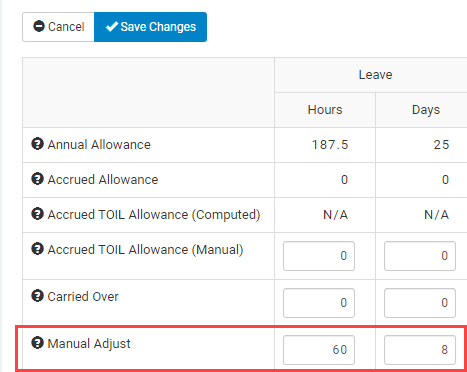
If this allowance change is a one-off (this year only), we do not recommend changing leave profiles but manually changing their allowance instead. This can be done by going to Allowances > search for employee > Edit > Manual Adjust.
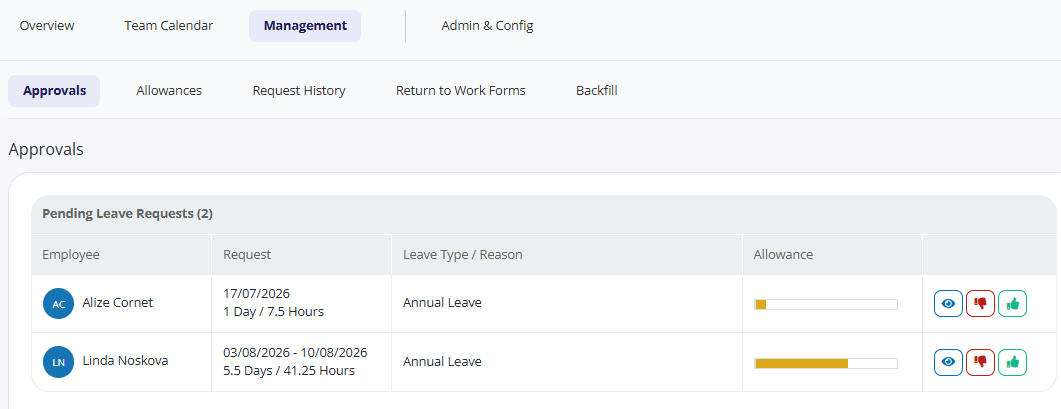
Approve/reject any pending requests the employee may have. To do this, go to Leave > Management > Approvals.
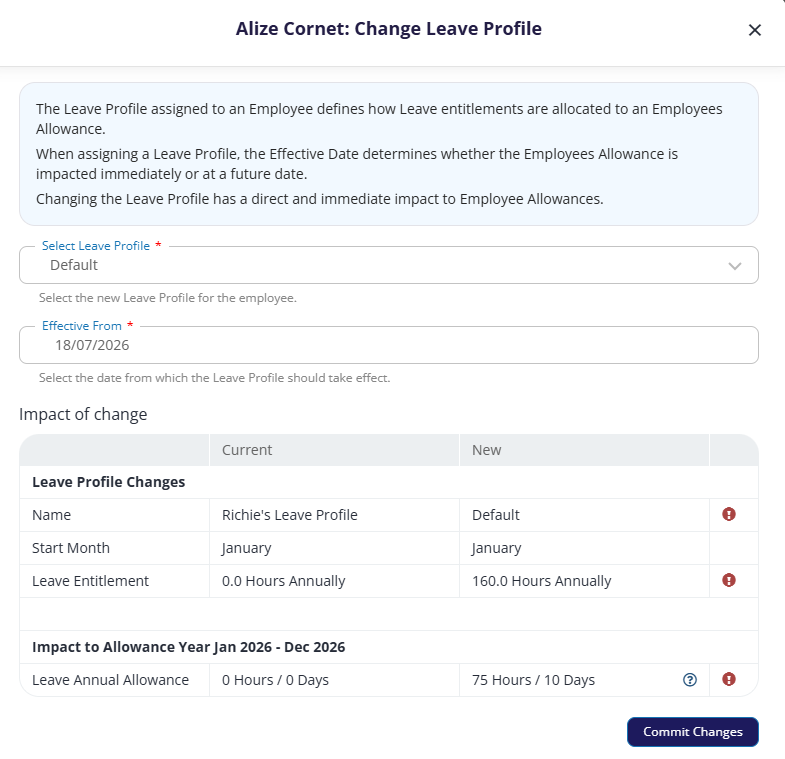
Change the leave profile by going to Organisation > Employees > select the employee > click the pencil icon beside Leave Profile Assignment
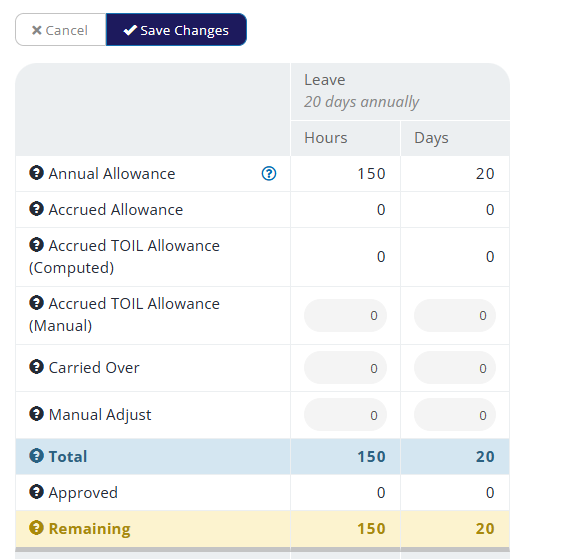
We now need to manually adjust the employee's allowance for the remainder of the year, in line with the allowance in the new leave profile.
Example: We will use a Leave Year of January - December and an employee with an annual entitlement of 20 days, increasing to 24 days. Their remaining allowance at the time of change is 10 days, and the are 4 months remaining in the Leave Year.
The calculation is as follows: (Annual Entitlement ÷ 12) x months remaining
(24 ÷ 12) x 4 = 8.
We now need to manually adjust the employee's profile by adding 8 days. Go to Leave > Allowances > select the employee > Edit > Manual Adjust.
They will have a new allowance of 28 days.
Employee working hours changes
An employee's contract changes which means their working hours will change.
Make a note of the dates of any future leave requests (after the contract change date) and cancel these. The system does not recalculate any requests if the days or hours change, so these will need to be resubmitted after the change to the working hours.
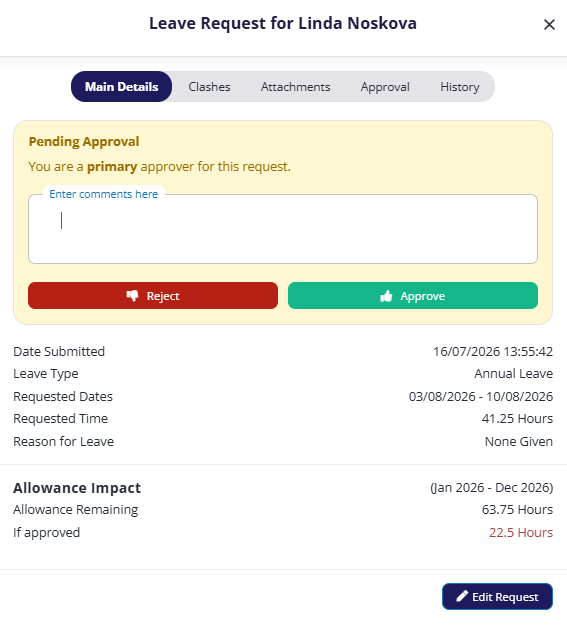
Change the leave profile by going to Organisation > Employees > select the employee
Click the pencil icon beside Leave Profile Assignment.
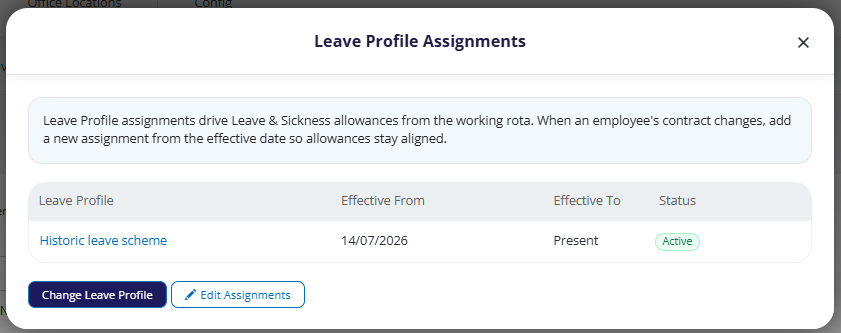
Click Change Leave Profile, and select a new leave profile and effective from date.
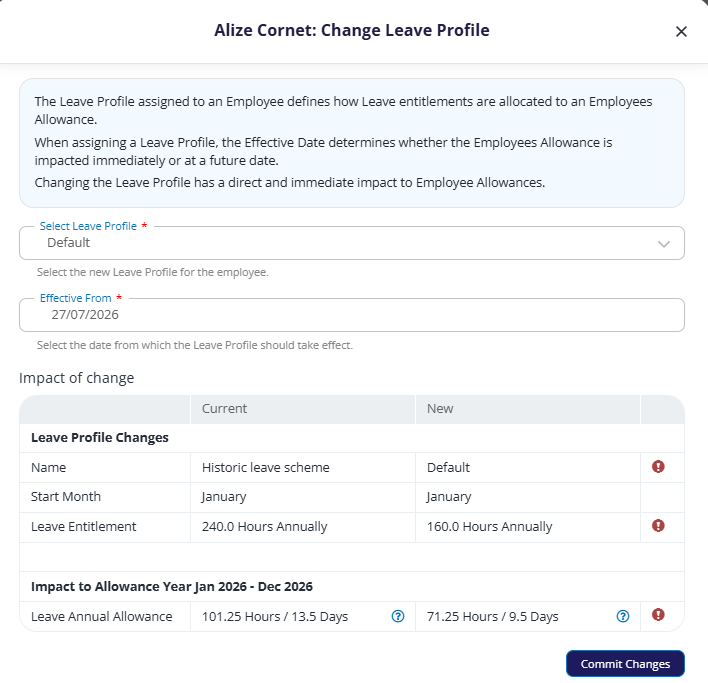
The system will then calculate the new leave allowance. Click Commit changes if you’re happy with them.
You can click the
 icon to view more information about the calculation.
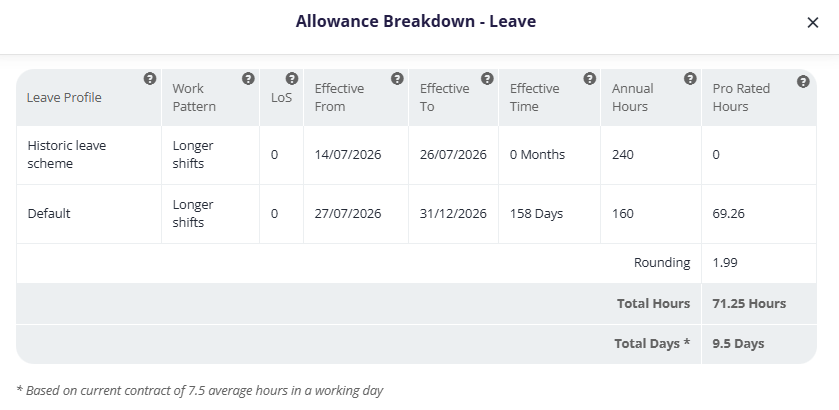
Example calculation
Example: We will use a Leave Year of January - December. An employee working 4 days a week with an annual entitlement of 20 days, increases to 5 working days and 24 days annual leave. Their remaining allowance at the time of change is 10 days, and there are 4 months remaining in the Leave Year.
We need to pro-rate the original entitlement, as the employee has only worked 8 months of the year. Then deduct the amount they have remaining.
(20 ÷ 12) x 8 = 13.3
Of which, the employee has used 10. So their new remaining amount is 3.3.
Then we add that to the new pro-rated amount below.
The calculation is as follows: (Annual Entitlement ÷ 12) x months remaining
(24 ÷ 12) x 4 = 8.
Remember that Cintra People will automatically adjust the employee’s profile. But if you need to do it manually, you can do the following:
Go to Leave > Allowances > select the employee > Edit > Manual Adjust.
Enter the new number of days/hours
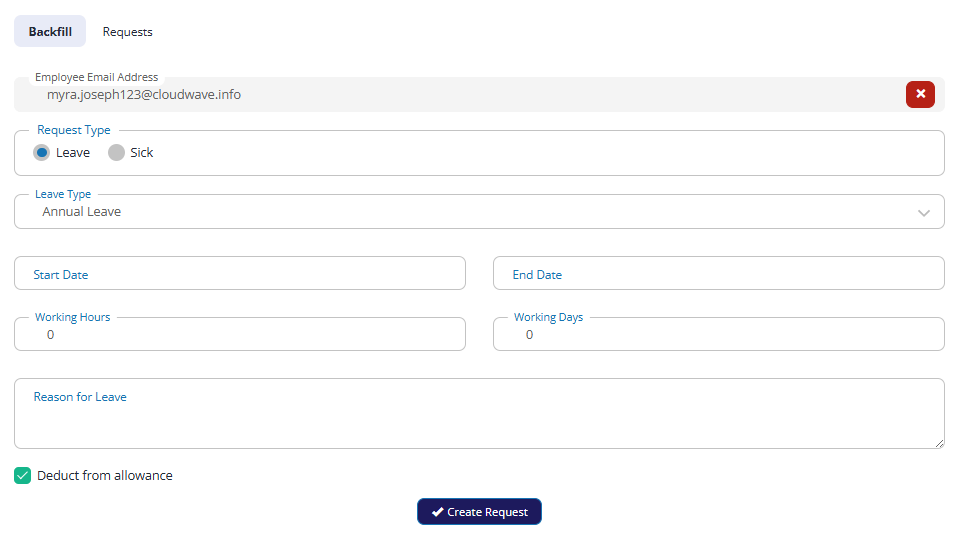
Backfill the cancelled requests. This will now deduct the correct amount of days as per the new working rota.