Who can do this:
HR Manager
Administrator
Important!
Work profiles have been renamed as leave profiles. The working rota functionality previously configured here has moved to the new work patterns feature; everything relating to leave, sickness, and entitlements remains unchanged and stays in leave profiles. See Guide: Work patterns for the new feature, or Guide: Leave profiles for what's changed.
What is a leave profile?
A leave profile is a configuration which determines the Leave & Sickness allocation and Leave & Sickness settings for a user or groups of users. It defines whether Leave is accrued or given annually and whether they are entitled to Carry Over and a Length of Service Entitlement.
Your employees may have different terms of employment, which means they are entitled to a different Leave Allowance. In Cintra People HR you can set up a leave profile and work pattern for each condition of employment in order to satisfy these differences. There are no limits to the amount of leave profiles you have and no limits to the number of employees in each leave profile.
Create a new leave profile
Go to Leave > Admin & Config > Leave Profiles. Click the Create Leave Profile button in the top right corner. Here you can also duplicate an existing leave profile.
Complete the Main Details of the leaver profile by assigning it to a division (if available), name, and any comments/notes.
Working Rota tab (deprecated)
Working rota has now been superseded by work patterns.
Entitlements tab
You can either create a new custom entitlement or edit an existing one.
On the Entitlements page you can choose whether your employees in this leave profile are entitled to a Leave Allowance, a Sickness Allowance and up to two Custom Allowances. You can also add carry over settings for TOIL in this section.
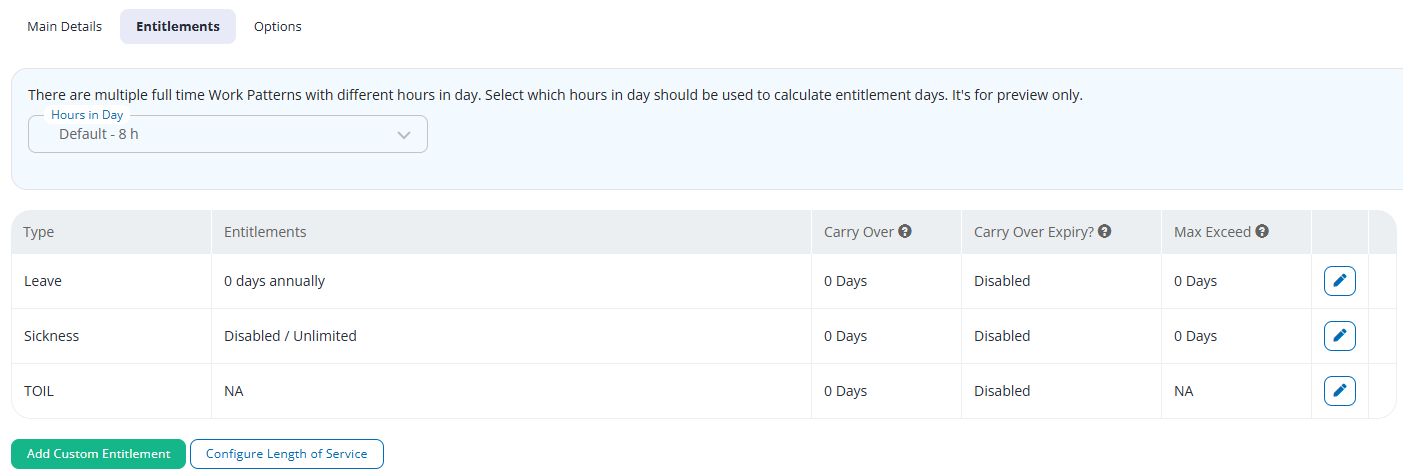
Within each of the entitlements in the table (e.g. Leave, Sickness, TOIL), you can set the following:
Edit leave allowance: Entitlement
Choose whether the allowance is Annual, Accrued or a combination of the two. Choose to add this number in hours or days, and the system will work out the hours in a day calculation using the employee’s work pattern.
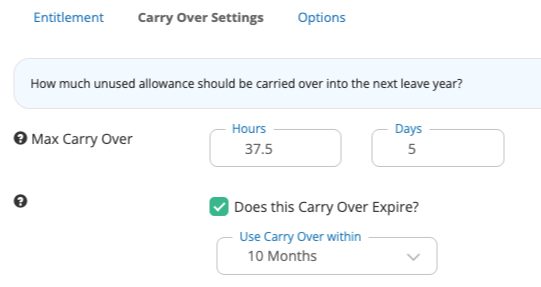
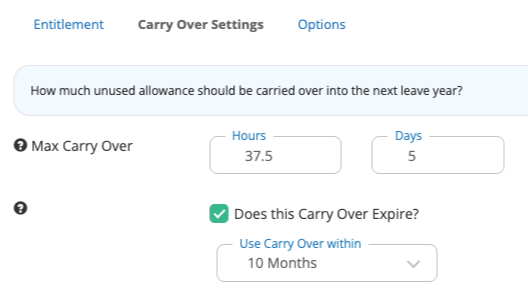
Edit leave allowance: Carry over Settings
Chose whether employees in this leave profile are able to carry over leftover allowance from one year into the next, and whether this has an expiry.
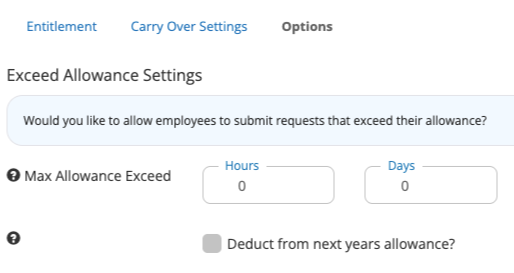
Edit leave allowance: Options
Choose whether employees in this leave profile are able to exceed their allowance if they do not have enough left, and whether this deducts from next year's allowance or not.
Configure Length of Service
Optionally add a Length of Service entitlement or award to employees within this leave profile. This will add a leave entitlement to your employees' allowances depending on the number of years they have been employed.
Select as many year bounds as you need, for example after 1 year, 3 years and 5 years of employment, employees are entitled to 22, 25 and 30 days.
The increment will be added to the entitlement on the table, so close the dialog and reopen the Entitlement.
See also Length of service.
Previewing different full-time work patterns against the entitlement
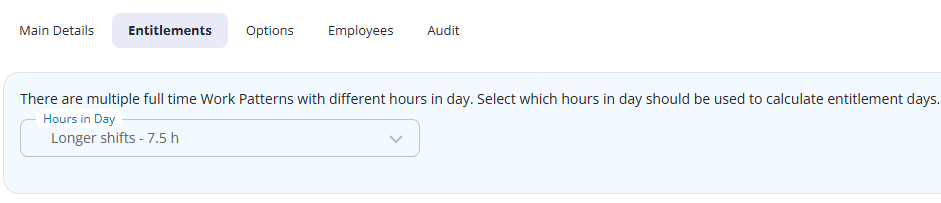
Once you have entered the entitlements, carry-over and max exceed days, you can select different work patterns to see how it affects the number of days you entered. For example, selecting a work pattern with a shorter working day would increase the number of days’ holiday entitlement. This is for illustrative purposes only (selecting different work patterns has no effect).
Options tab
Leave Start Month
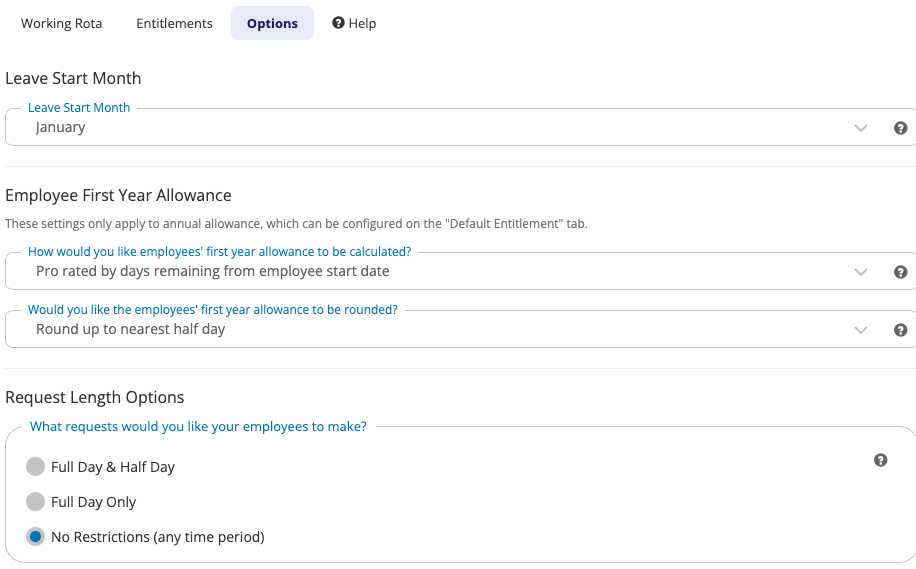
Select a Leave Start Month - this is used to define the Leave calendar year for users within this leave profile. The Start Month dropdown may be disabled if your settings are configured at a company level. To change this, go to System Config > General Settings > Leave.
Employee First Year Allowance
Choose how you'd like new starters' allowance to be calculated for users with an Annual Leave allowance. There are different pro-rata options for calculating the amount of leave a new employee will be entitled to in their first working year. If this is switched on, then you will be able to select rounding options, so that the allowance is a whole number.
Request Length Options
Choose what length requests your employees are able to make. Choose from Full & Half Day request, Full Day only requests or no restrictions, which would allow your employees to book 1 hour, for example.
Rounding Options
This determines how employee allowances are rounded up or down. See Rounding controls.
Edit leave profiles
You can edit your leave profile in the same way you would create one.
Go to Leave > Admin & Config > Leave Profiles
Open the leave profile you want to edit, click through the tabs and edit the fields that need to be changed.
There are two additional tabs when editing:
The Employees tab shows a list of employees who are assigned to this leave profile as well as their current allowance.
The Audit tab shows a list of all changes made to the leave profile.