Parental payments is where you view and manage an employee's statutory parental pay claims, along with any occupational (employer top-up) pay that goes with them. It covers:
Maternity pay (statutory maternity pay, or SMP)
Paternity pay (statutory paternity pay, or SPP)
Adoption pay (statutory adoption pay, or SAP)
This article covers what applies to all three. The articles above explain the fields and tasks for each type of pay.
Viewing parental payments
Note: If you are a “Source” customer (i.e. your payroll is managed by Cintra or other bureau), then everything within the Parental payments tab is read only
In Cintra People Payroll, open a payroll and select an employee.
Click the Parental payments tab.
There is a tab for each type of pay: Maternity pay, Paternity pay and Adoption pay. Each one lists the employee's claims, newest first.
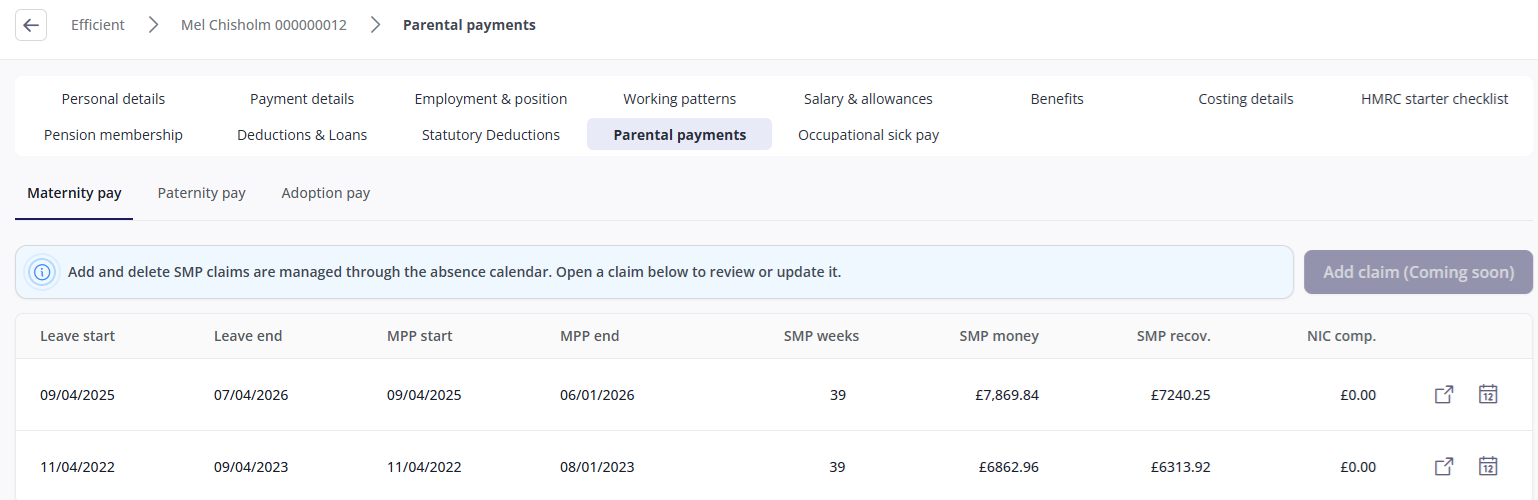
How claims are created
You can't add or delete claims directly in Parental payments. A claim is created automatically when the leave is recorded, and removed if the leave is deleted.
HR+Payroll customers only
When you add an employee's parental leave in Cintra People HR, the dates will appear in the Parental payments. You can then create the claim by editing it. This applies across all types of parental leave.
Payroll customers only
To add claims to the Parental payments tab, they must first be recorded as a calendar event in Cintra iQ.
The claim page
Click anywhere on the claim to open its claim page. The breadcrumb names the claim by its pay period, for example "SMP claim (03/03/2025 to 28/09/2025)", or "ongoing" if the claim has no end date yet.

Every claim page has three tabs:
Tab | What it shows |
|---|---|
Dates (for example, Maternity dates) | The leave dates, the dates evidence was received, and the birth or placement dates that decide whether statutory pay can be paid. Maternity and adoption claims also have a Keep-in-touch sub-tab. |
Pay schedule (for example, Maternity pay schedule) | The employer's occupational pay scheme and the week-by-week top-up payments. |
Statutory pay (for example, Statutory maternity pay (SMP)) | The statutory weeks and amounts, plus a settings tab to show exclusion reasons, average weekly earnings etc. |
If statutory pay can't be paid for a claim, or has stopped, an Excluded badge appears next to the breadcrumb, with a banner at the top of the page showing the reason.
Icons on the claim page
Most actions are icons in the top-right corner of each card. Hover over an icon to see its name.
Icon | Name | What it does |
|---|---|---|
| Edit | Opens the card's details for editing. (SaaS customers only) |
| View schedule calendar | Opens the payment schedule report, which you can save as a PDF. Greyed out if the claim has no occupational pay schedule. |
| Refresh schedule | Rebuilds the entire occupational pay schedule. |
| Calculate statutory pay | Recalculates the statutory pay weeks straight away. This appears on the statutory pay tab only. |


Refresh schedule rebuilds every week of the occupational pay schedule from the current settings, and clears any weekly payment overrides. You'll need to re-enter overrides afterwards. If you click it from the dates or statutory pay tab, the result only shows on the pay schedule tab.
Calculate statutory pay runs as soon as you click it, without asking you to confirm, and the summary figures may change. It doesn't affect occupational pay or overrides.
Who can edit claims
Anyone who can view employees can view parental pay claims, open the payment schedule, save it as a PDF and export the statutory weeks to Excel.
If edit controls are visible but greyed out, the payroll is being processed. You can edit again once processing finishes.
If there are no edit controls visible, either:
You are a Source customer (i.e. your payroll is managed by Cintra or another bureau).
You don’t have permission to edit employee data.
When figures update
Changing the dates, exclusion reason, average weekly earnings or payment scheme marks the employee for recalculation. The weeks and amounts are recalculated in the next payroll run, so some figures may be a run behind until then. Amounts calculated by payroll, such as weeks paid and amount recovered, show a dash until payroll has calculated them.
What's still done in Cintra iQ / by your bureau
Payment schemes: occupational parental pay schemes are Guide: Occupational parental pay (OPP).
Claims already in progress: if a claim was already in progress when you started using Cintra People Payroll, its opening balances (the weeks and amounts already paid) are entered in Cintra iQ.
Keep-in-touch days: KIT days are shown on maternity and adoption claims, but recorded in Cintra iQ.
Small Employers' Relief affects how much statutory pay is recoverable from HMRC. See Creating small employer relief schemes.
Cintra People Payroll and Cintra iQ use the same payroll data, so a change made in one appears in the other straight away.