This article explains each part of an employee's maternity pay claim: the leave dates, the employer's occupational (top-up) pay, and statutory maternity pay (SMP). For how claims are created, who can edit them and what the icons do, see Parental payments.
1. Maternity claims list
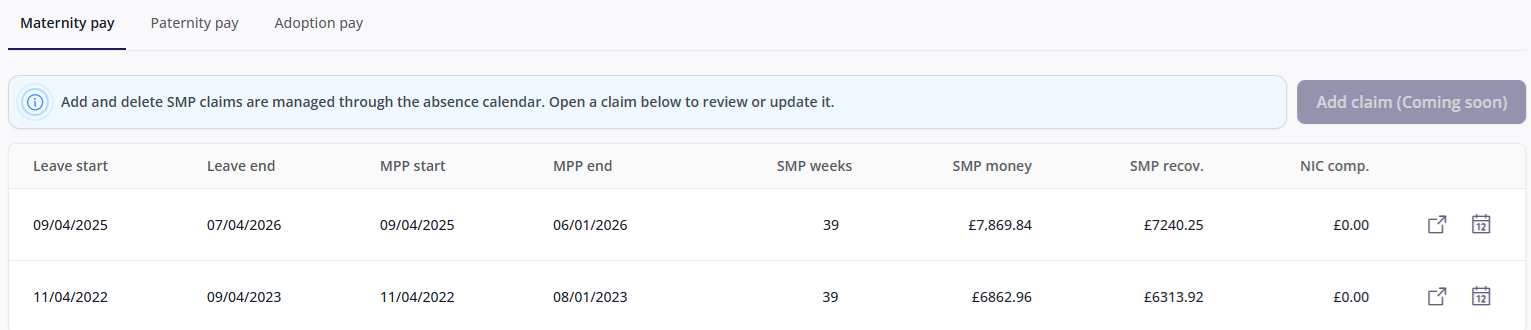
Open the employee's record and click Parental payments > Maternity pay. Each row is one claim, newest first. Figures that payroll calculates show a dash until payroll has run.
Column | Meaning |
|---|---|
MPP start / MPP end | The maternity pay period: the weeks SMP can be paid for, up to 39 weeks. |
SMP weeks / SMP money | The weeks and amount of SMP paid so far. |
SMP recov. | The amount of SMP you can reclaim from HMRC. |
NIC comp. | The extra 9% that employers who qualify for Small Employers' Relief can reclaim, as compensation for employer National Insurance. |
Click anywhere on the row to open the claim page. Click the calendar icon to view the payment schedule report (see 6. Payment schedule report).
2. Maternity leave dates
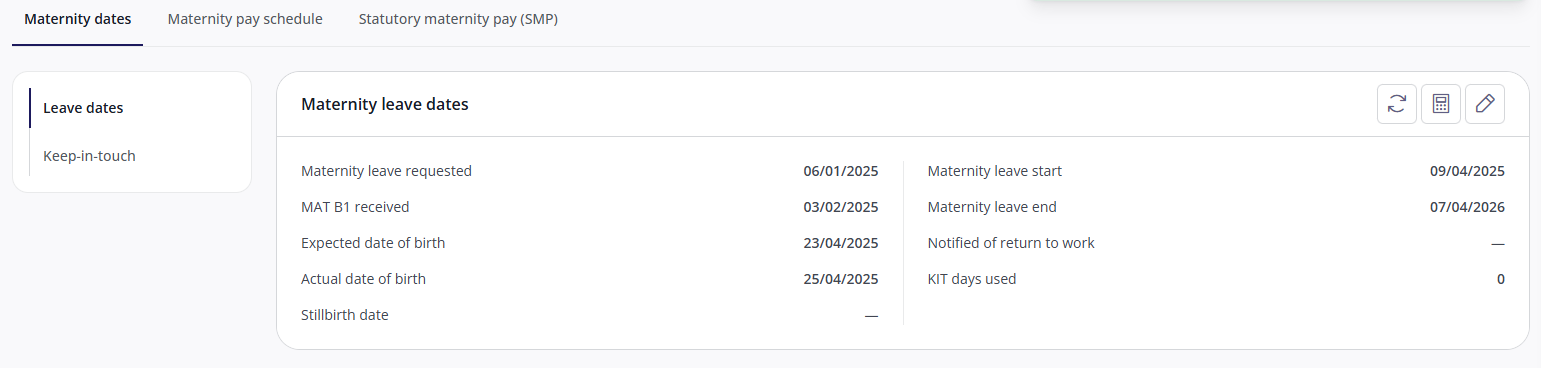
On the claim page, click Maternity dates > Leave dates. These dates decide whether SMP can be paid, and when.
Field | Meaning |
|---|---|
Maternity leave requested | The date the employee told you they wanted to take maternity leave. Employees must normally tell you by the end of the 15th week before the week the baby is due. |
MAT B1 received | The date you received the employee's MAT B1 maternity certificate, which is the medical evidence needed to pay SMP. If it's received late, a warning appears next to the date, for example "Should be before 13th week of MPP". HMRC allows evidence to be accepted up to 13 weeks after the pay period starts if there's a good reason for the delay. |
Expected date of birth | Taken from the MAT B1. It sets the week the baby is due, which is used to work out the earnings period (see 9. Relevant earnings). |
Actual date of birth | If the baby arrives before the leave was due to start, the leave starts on the day of the birth or the day after. |
Stillbirth date | Only for a stillbirth after 24 weeks of pregnancy. The employee is still entitled to SMP. |
Notified of return to work | The date the employee told you they're returning to work. This does not affect SMP payments. |
KIT days used | The number of keep-in-touch days recorded during the pay period (see 3. Keep-in-touch days). |
To change the dates, click the pencil icon. MAT B1 received, Expected date of birth, Maternity leave start and Maternity leave end must be completed. If you change the leave start or end, the maternity pay period moves with it.
If you see "Must be on, or the day after, the date the child was born", the leave start is more than a day after the actual birth or stillbirth date. Check the leave start against the birth date.
3. Keep-in-touch days
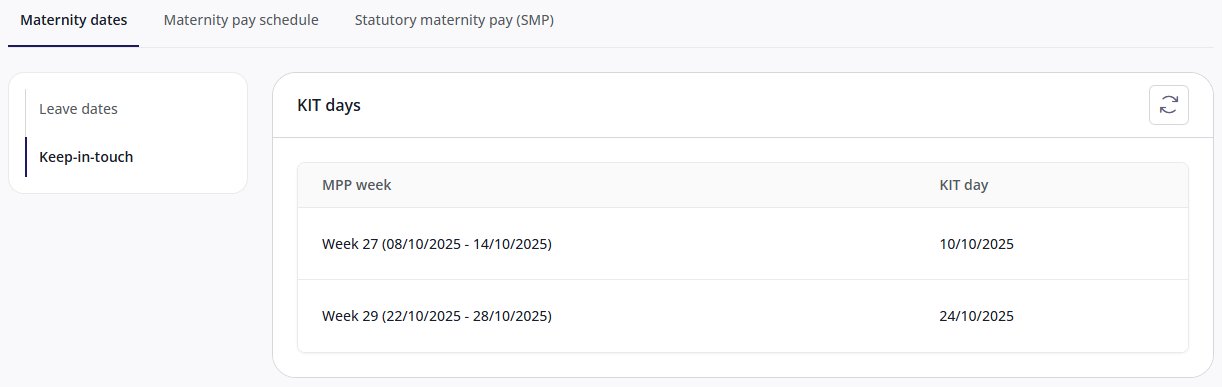
Click Maternity dates > Keep-in-touch to see any keep-in-touch (KIT) days recorded during the pay period, with the week of the pay period each one falls in. An employee can work up to 10 KIT days without losing SMP for those weeks.
You can only record KIT days in Cintra iQ.
4. Maternity pay schedule
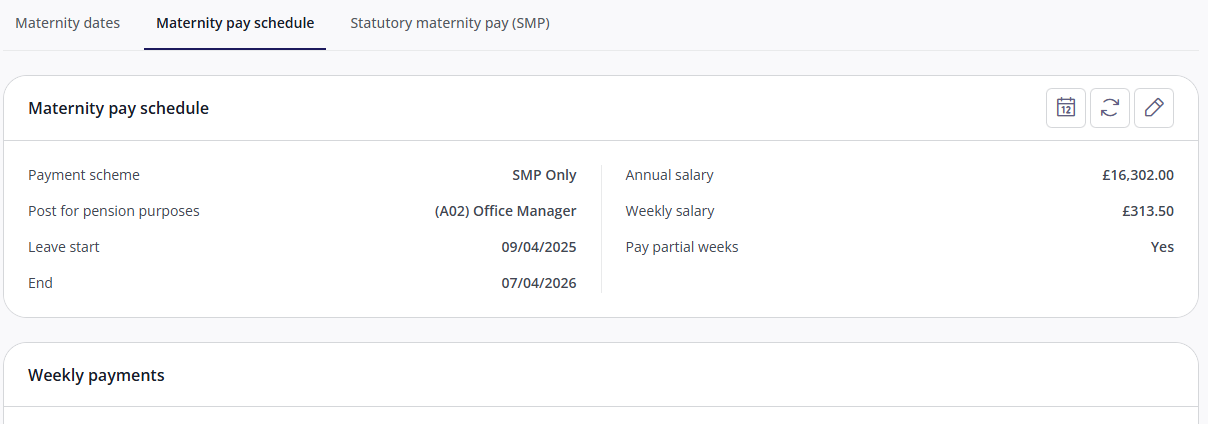
Click the Maternity pay schedule tab to see the employer's occupational maternity pay: any top-up the employer pays on top of SMP.
Field | Meaning |
|---|---|
Payment scheme | The employer's occupational maternity pay scheme, which sets how many weeks are paid at full pay, half pay and so on. Schemes are set up in Cintra iQ. “SMP Only” is a scheme that entitles the employee only to statutory maternity pay. |
Post for pension purposes | The employee's pensionable post. This field only appears if you run pensions in Cintra People Payroll. |
Annual salary / Weekly salary | The salary the occupational pay is worked out from. |
Pay partial weeks | Switch on to pay part weeks, typically so the employee is paid by calendar month. A part week is worked out by dividing the weekly rate by seven and multiplying by the number of calendar days, whatever the employee's working pattern. This matches how HMRC calculates SMP. If it's switched off, only whole weeks are paid, so a monthly-paid employee receives pay in a 4, 4, 5 week pattern. |
To change these settings, click the pencil icon and click Save. Saving doesn't update the weekly payments or salary figures. To apply the new settings, click Refresh schedule.
5. Weekly payments
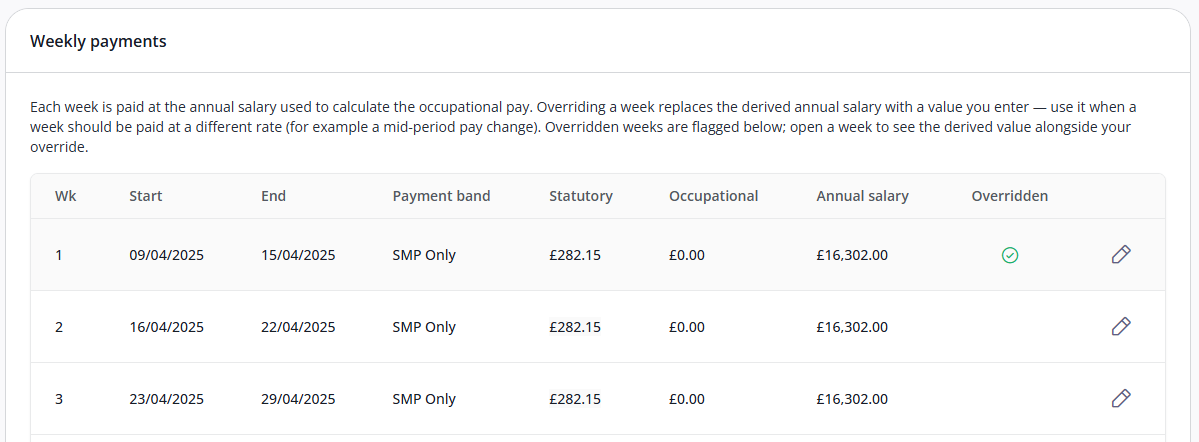
Below the maternity pay schedule, Weekly payments shows each week of the pay period, with its payment band (for example, full pay, half pay or SMP only), the statutory and occupational amounts, and the annual salary used. Overridden weeks are flagged in the Overridden column.
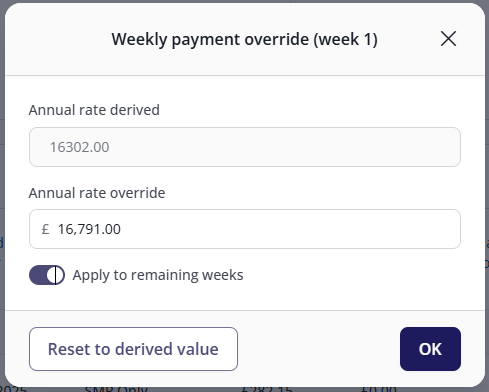
You can override a week when it should be paid at a different annual rate, for example after a pay change part-way through a period. Click the pencil icon on the week, enter the Annual rate override and click OK. To apply the same rate to every week after it, switch on Apply to remaining weeks. To remove an override, open the week and click Reset to derived value.
When you apply a rate to the remaining weeks, each week is saved separately. If some can't be saved, you're told which ones, and the rest keep the new rate.
Overrides are cleared if anyone clicks Refresh schedule.
6. Payment schedule report
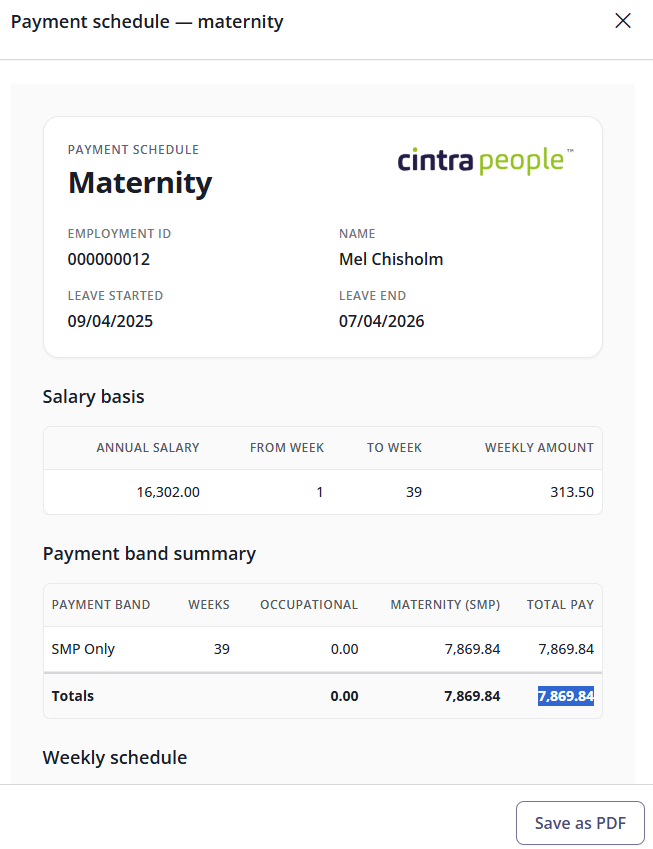
Click the calendar icon to open the payment schedule report. It shows the whole leave, week by week: the salary basis, a summary of each payment band, and the weekly schedule grouped by pay date, with subtotals and a grand total. Click Save as PDF to download it, for example to give the employee a record of what they'll be paid.
The calendar icon is greyed out if the claim has no occupational pay schedule.
7. SMP payments
Click Statutory maternity pay (SMP) > SMP payments. The SMP summary shows the pay period, average weekly earnings, and the weeks and amounts due, paid and recoverable. Other fields include:
Field | Meaning |
|---|---|
Pay SMP up to | The date SMP has been paid up to. Whether each pay period pays up to the end of the period or the last whole week before it is set at employer level. You can change this date for a period in 10. SMP payments per payroll period. |
SMP weeks excluded | Weeks where SMP isn't payable, for example after an exclusion stop date (see 8. Exclusion reasons). |
SMP recoverable / NIC compensation | The amounts you can reclaim from HMRC (see 1. Maternity claims list). |
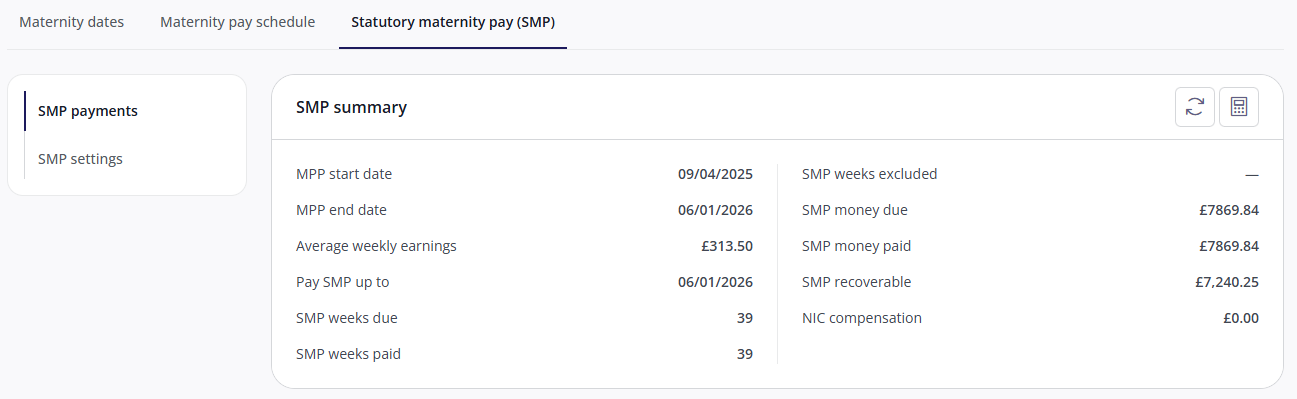
Below the summary, Weeks in maternity pay period (MPP) lists each week with its SMP amount. To recalculate the weeks straight away, click the calculator icon (Calculate statutory pay). It runs without asking you to confirm, and the summary figures may change.
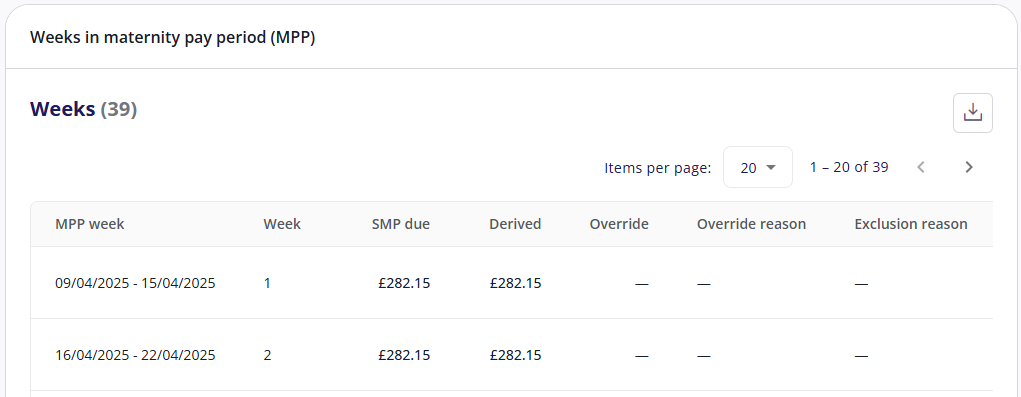
To override a week's SMP amount, click the pencil icon on the week, then enter the amount and a reason (up to 100 characters). To remove an override, reset the week to the derived amount.
To download the weeks to a spreadsheet, click the Export icon. 
8. Exclusion reasons
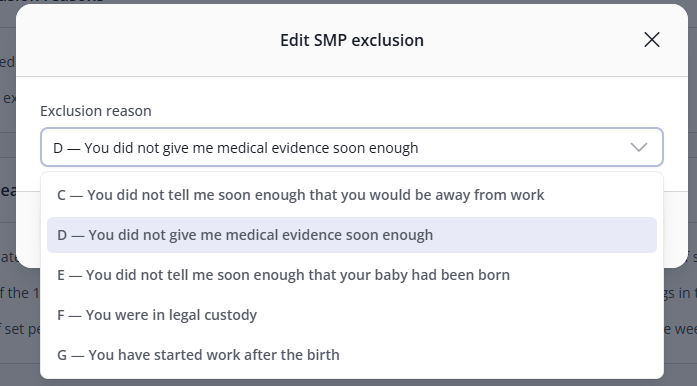
If SMP can't be paid for a claim, or has to stop part-way through, record the reason under SMP settings > SMP exclusion reasons. Click the pencil icon and select a reason from Exclusion reason. The reasons come from HMRC's SMP1 form, which is why they're worded as if you're talking to the employee.
Reason | Stop date needed? |
|---|---|
A: You were not employed by me for long enough | Set by the calculation. You can't select it. |
B: Your average weekly earnings were not high enough | Set by the calculation. You can't select it. |
C: You did not tell me soon enough that you would be away from work | No |
D: You did not give me medical evidence soon enough | No |
E: You did not tell me soon enough that your baby had been born | No |
F: You were in legal custody | Yes |
G: You have started work after the birth | Yes |
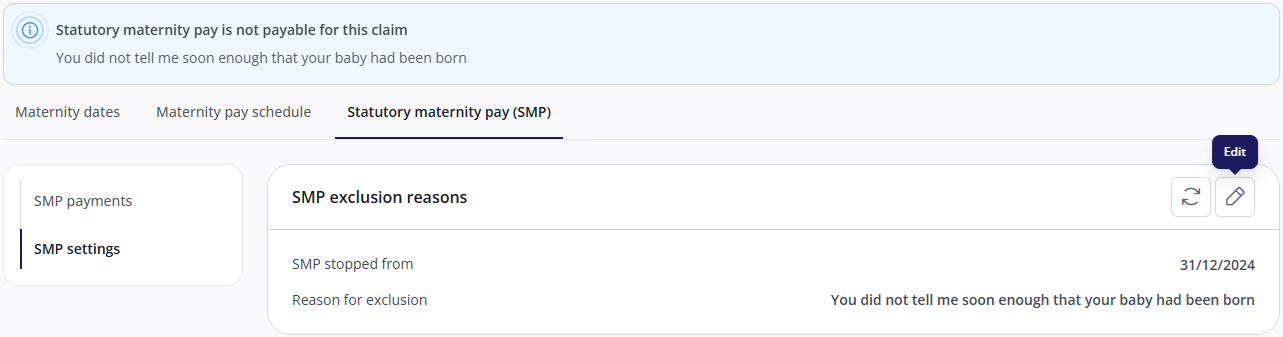
For reasons F and G, enter the date SMP stops in SMP stopped from. It must fall within the maternity leave period. If it doesn't, you'll see "Enter a date that falls within the maternity leave period", followed by the dates of the period.
Once saved, the claim page shows an Excluded badge and a banner saying SMP isn't payable, or when it stops. To remove an exclusion, click Clear exclusion, then Save.
9. Relevant earnings
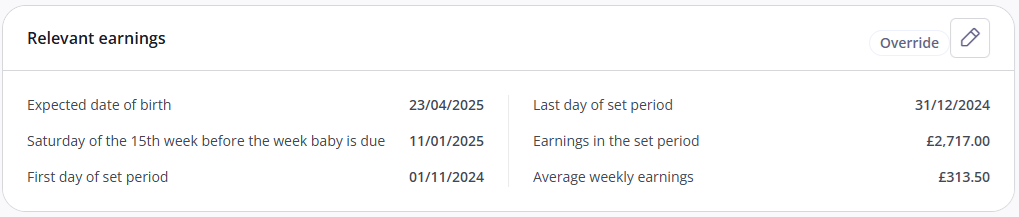
SMP is based on the employee's average weekly earnings over a set period before the baby is due. SMP settings > Relevant earnings shows how this was worked out.
Field | Meaning |
|---|---|
Saturday of the 15th week before the week baby is due | The cut-off HMRC uses for the earnings period. Earnings paid after this date don't count. |
First day of set period / Last day of set period | The pay period the earnings are taken from: normally the 8 weeks, or 2 monthly pay days, up to the last normal pay day on or before that Saturday. |
Earnings in the set period | The employee's earnings in the set period. |
Average weekly earnings | The earnings in the set period converted to a weekly figure. The employee must earn at least the Lower Earnings Limit to qualify for SMP. |
To override the average weekly earnings, click the pencil icon, enter the figure and click Save.
You would do this, for example, if the employee receives a pay rise between the start of the set period and the end of their maternity leave. Average weekly earnings must then be recalculated as if the rise had applied, which affects SMP for the first 6 weeks. If the employer's scheme pays full pay in those weeks, SMP goes up and occupational pay goes down by the same amount.
An overridden figure shows an Override label, and stays fixed when payroll is recalculated.
10. SMP payments per payroll period
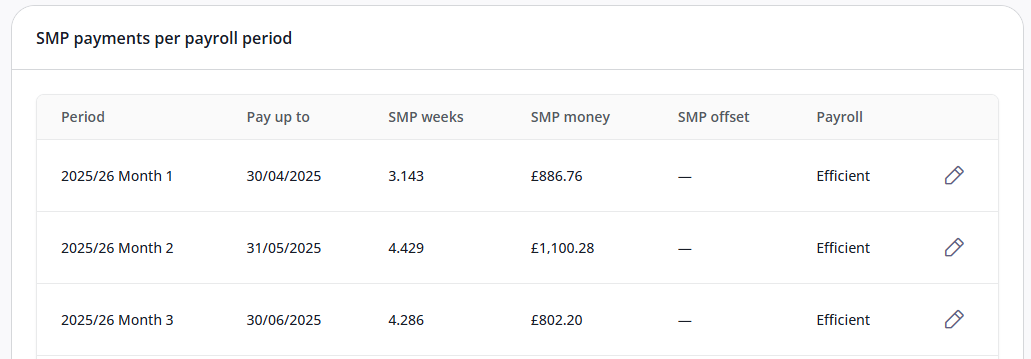
SMP settings > SMP payments per payroll period shows what each payroll period paid: the date SMP was paid up to, the weeks and amount of SMP, and the SMP offset (SMP can be offset against other gross pay at employer level)
To change the date a period has paid SMP up to, click the pencil icon on the row. For example, you might do this when an employee leaves during their maternity pay period. Change the pay-up-to date on the latest period to the date SMP should be paid up to, so the remaining SMP is included in their final pay. Do this before you make them a leaver.