Payroll reports published from Cintra iQ are static snapshots of your payroll at the time they’re published. While they are published in Cintra iQ, they can be accessed both there and in Cintra People.
Accessing published reports for multiple payrolls
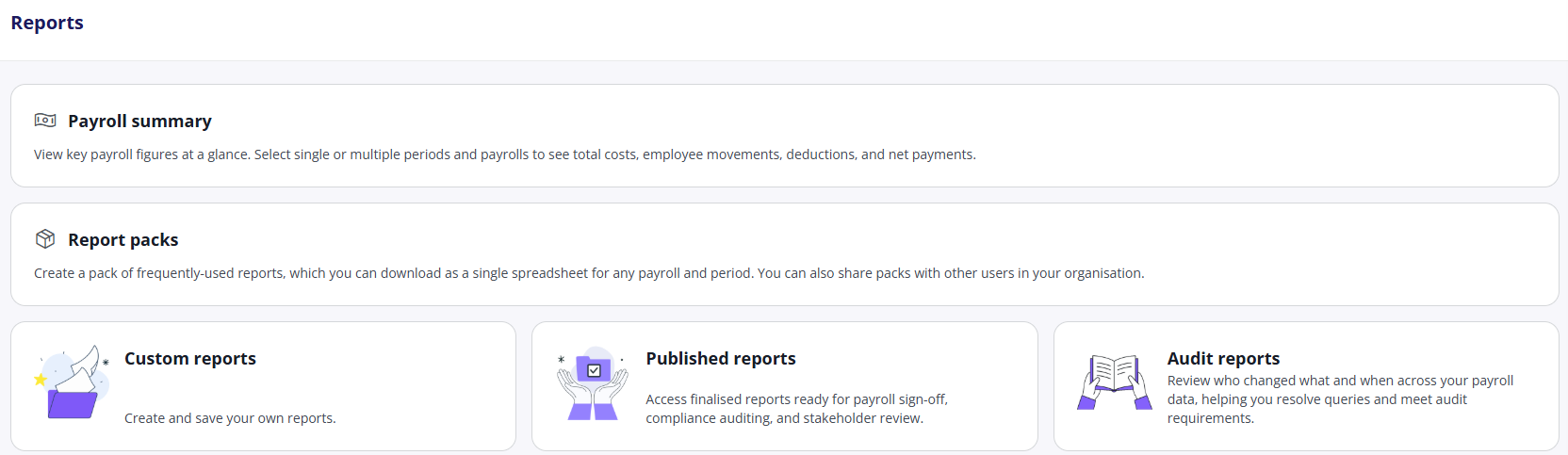
In the Payroll tab of Cintra People, click Reports in the side menu.
Click the Published Reports tile.
Accessing published reports for a specific payroll
In the Payroll tab of Cintra People, select a payroll.
Click the Published Reports tab.
Searching and downloading published reports
The Published Reports tab is split into two sections:
The Reports pack section lets you view and export all report packs that were created directly in Cintra People. For more information, see Report packs.
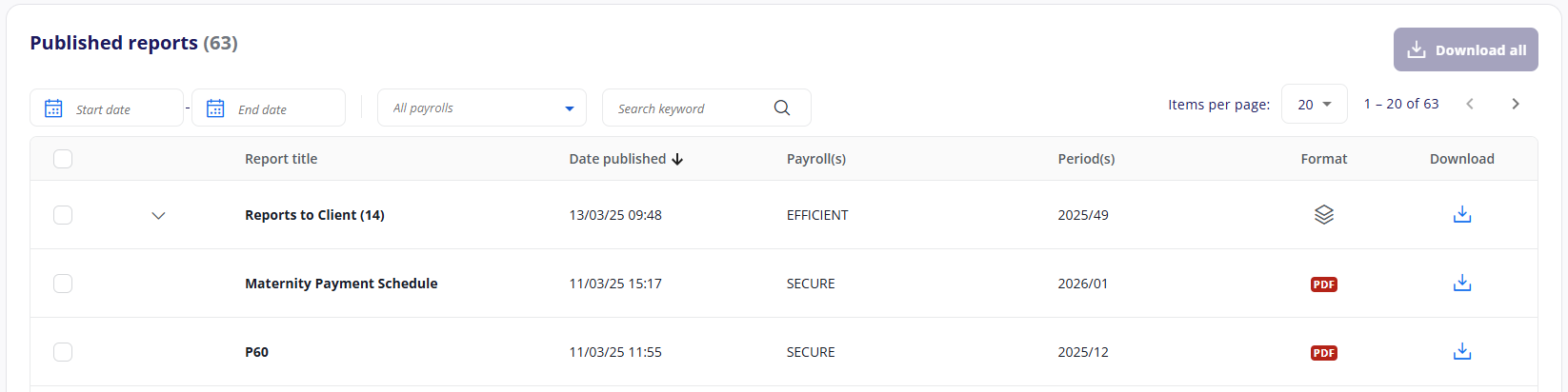
The Published reports section below lists all the reports published from Cintra iQ.
Published reports section
By default, every published report in Cintra iQ is listed. To find a specific report you can:
Click the calendar icon and enter a Start and/or End date. Only reports published within the date range will display.
Enter a Keyword to search for the report by name.
(Multiple Payrolls only). Select one or more payrolls from the drop-down.
Each report in the list will include:
File Format: such as PDF or XLS. Report packs are shown with this icon:

Click any report pack to view all its constituent reports.
Payroll(s): Multiple payrolls only.
For more information on reports in Cintra iQ, see Cintra iQ: Reporting.
Downloading reports
Any report you download will have the name of the payroll it relates to.
You can download reports one-by-one, or select multiple reports on a page to download at once.
To download a single report, click its
 icon. Downloading a report pack will create a single zipped folder containing all the individual reports.
To download multiple reports, click the checkbox for each report you require, or click the checkbox in the header to select ALL reports on the page, then click Download all. All the selected reports will be downloaded separately, each report pack will be downloaded as a zipped file.
Note: You can only download multiple reports from a single page However, you can increase the number of items (report) shown on each page.