The Statutory Deductions tab lets you view and manage all the information relating to how much is taken from an employee's pay each period, including tax, National Insurance, student loans, and court orders.
To access statutory deductions, open a payroll, edit the employee, then select the Statutory Deductions tab.

The Tax tab shows an employee's HMRC tax coding history and lets you record tax rebate suppressions.
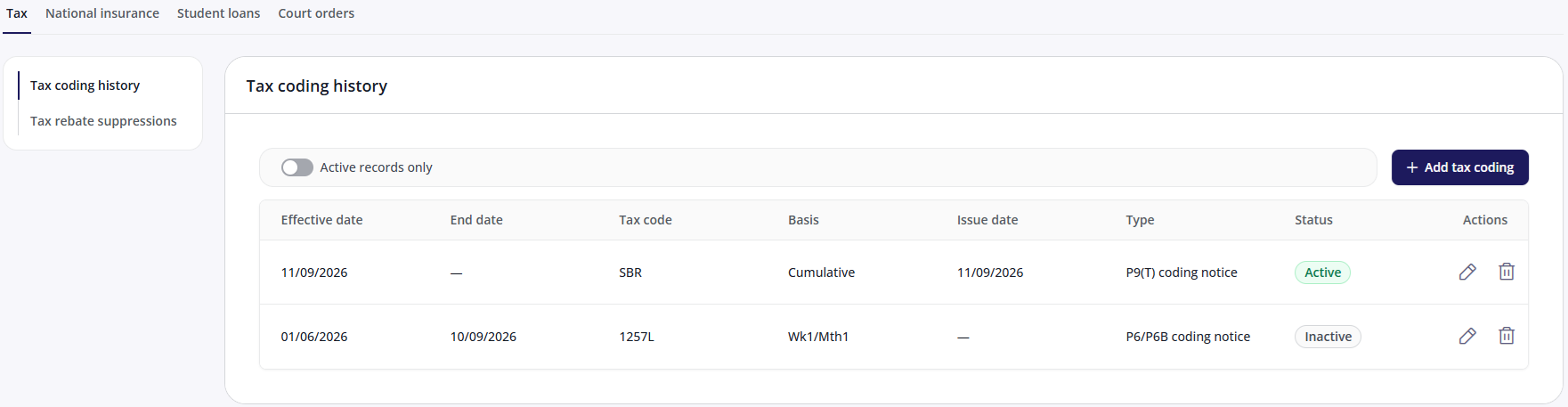
Tax coding history
Viewing tax coding history
The Tax coding history screen lists every tax code the employee has had, with the following columns:
Effective date
End date
Tax code
Basis (either cumulative or Wk1/Mth1)
Issue date
Type: See understanding notice types.
Status
Click Active records only to show just the current code and anything upcoming. Turn it off to see the full history, including finished records.
A tax code has no end date of its own — the end date shown is worked out from the next code in the sequence. This means adding, editing, or deleting one record can change the dates shown against the row next to it, and the whole list refreshes after any change, not just the row you touched.
Understanding notice types
HMRC issues three kinds of notice that change an employee's tax code:
P9(T): the annual coding notice, issued in bulk ahead of the new tax year. This gives an employee's code for the coming year and doesn't carry forward any pay or tax figures from before.
P6: an in-year change to one employee's code, issued whenever HMRC needs to update it outside the annual cycle.
P6B: also an in-year change, but issued when the previous taxable pay and tax paid need to be carried forward and included in the calculation, similar to the figures on a P45. This is used specifically for benefit-in-kind changes.
P6/P6B lets you specify previous pay and tax figures, whereas a P9(T) starts the new tax year fresh, so there's nothing to carry forward.
Adding a tax coding record
Click Add tax coding.
Select a Coding type: P6/P6B coding notice, P9(T) coding notice, or Manual coding.
Complete the fields for the selected type (see below).
Click Add.
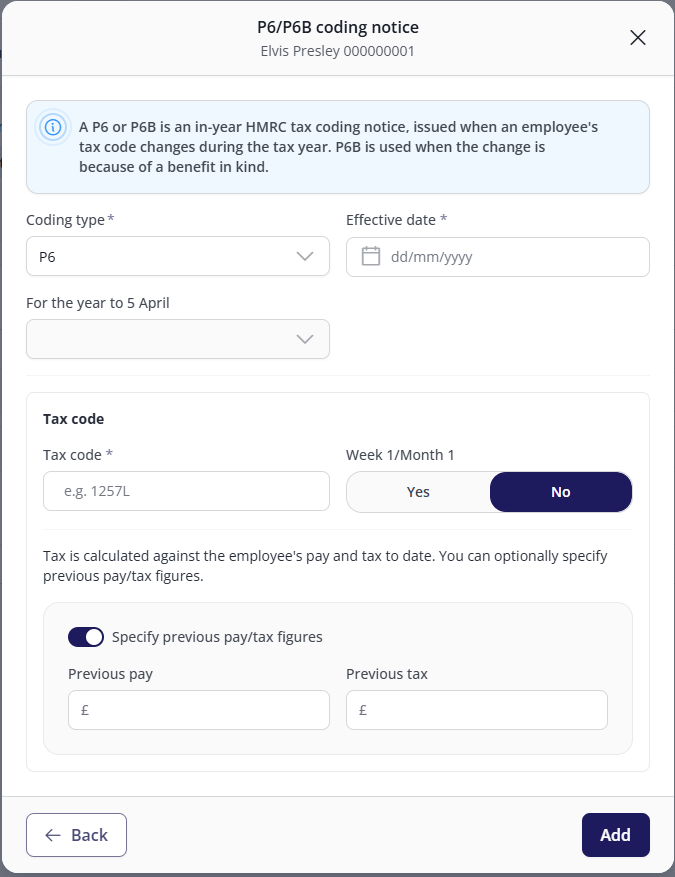
Tax code fields
Field | Description | P6/P6B | P9(T) | Manual |
|---|---|---|---|---|
Coding type | Whether the notice is a P6 or a P6B. | Required | — | — |
Issue date | The date HMRC issued the notice. | — | Required | Optional |
Effective date | The date the code takes effect. | Required | Required | Required |
For the year to 5 April | The tax year the code applies to. | Required | — | — |
Tax code | The code itself | Required | Required | Required |
Week 1/Month 1 | Also known as emergency basis. When set to Yes, tax is calculated on the current period's pay only, without reference to pay earlier in the year. | Required | Required | Required |
Previous pay/tax figures | The employee's pay and tax to date, carried forward from earlier in the year. Only shown when Week 1/Month 1 is set to No. | Optional | Starts a tax year, so nothing to bring forward. | Starts a tax year, so nothing to bring forward. |
Note: Some tax code formats are only valid from a specific date: Scottish "S" codes from 6 April 2016, Welsh "C" codes from 6 April 2019, and M or N suffixes from 6 April 2015. If you enter a code that doesn't match its effective date, you won't be able to save it.
Editing or deleting a tax coding record
Use the pencil icon against a record to edit it, or the bin icon to delete it. Deleting is permanent, the surrounding records' dates are recalculated automatically once the record is removed.
You can't delete a tax code that's already been reported to HMRC successfully, or is queued to be sent. In this case, add a new code to supersede it instead of trying to remove the old one.
If a code shown in the history came from a P45 Part 3, P46, P46 (Pension), or P46 (Expat) notice, it's read-only. These come from the new-starter process rather than this screen, so there's no Edit option against them.
Backdating a tax code
You can set an effective date that falls inside a pay period that's already been processed. You'll see a warning, but it's still allowed. If the employee has left and their P45 has already been printed, how far back you can backdate is limited, and the date you enter may be brought forward automatically. Corrections that reach back into a previous tax year are handled through HMRC's year-end process rather than the current submission.
Tax rebate suppressions
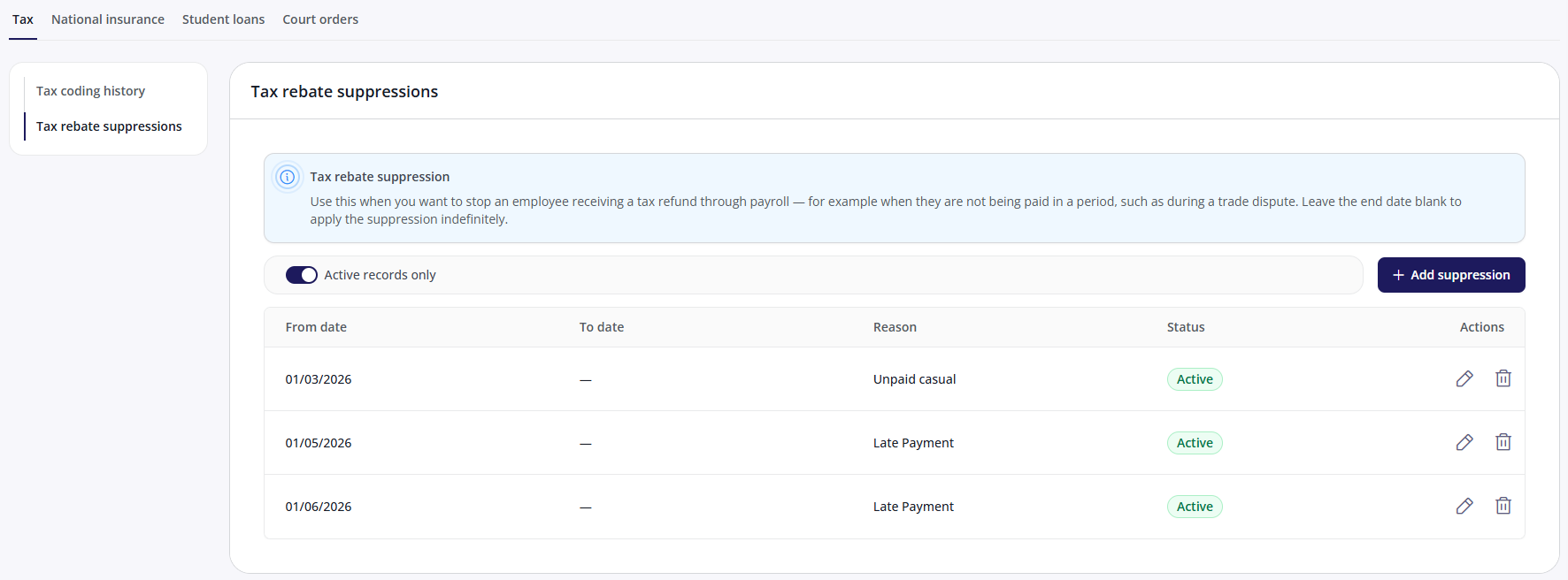
A tax rebate suppression to stop an employee receiving a tax refund through payroll, for example, when they're not being paid in a period, such as during a trade dispute.
Viewing tax rebate suppressions
The Tax rebate suppressions screen lists suppressions applied to the employee, with the following columns:
From date
To date
Reason
Status
Click Active records only to filter the list down to suppressions currently in effect.
Adding a tax rebate suppression
Click Add suppression.
Select a Reason.
Enter a Start date.
Optionally enter a Stop date. Leave this blank to apply the suppression indefinitely.
Click Add.
When you can't make changes
If you have permission to edit employee tax information, changes are temporarily blocked in three situations, each shown with its own message:
The payroll is currently being processed.
RTI is active for the payroll.
The employee's employment has ended.
A greyed-out button means one of these three temporary locks applies. A missing button means your account doesn't have edit access.
FAQs
What's the difference between a P9(T), a P6, and a P6B?
A P9(T) is the annual notice HMRC issues ahead of each new tax year. A P6 is an in-year change to one employee's code. A P6B is also in-year, but includes previous pay and tax figures to carry forward, which is why only P6/P6B gives you the option to enter previous pay and tax.
Why can’t I add tax rebate suppressions for some employees / payrolls?
If you are a Source customer (i.e. your payroll is managed by a bureau), then you can only view tax information, not change it.
Can I make manual adjustments to an employee's tax figures?
No. Currently, manual tax adjustments must be performed in Cintra iQ.
Why is the Edit button greyed out on one of the tax codes in the history?
Tax codes originating from a new-starter form (P45 Part 3, P46, P46 (Pension), or P46 (Expat)) are shown for reference but can't be edited from this screen, as they belong to the new-starter process rather than Statutory Deductions.
I deleted a tax code by mistake, can I undo it?
No, deletion is permanent. You'll need to re-add the code manually. If the code had already been reported to HMRC, you won't be able to delete it in the first place, you'll need to add a new code to supersede it instead.
Does changing something here affect what's shown in Cintra iQ?
Yes. Cintra People Payroll and Cintra iQ read and write the same underlying payroll data, so a change made here is immediately visible in the Tax & NI Details screen in Cintra iQ, and vice versa. There's no separate sync process.