Note: Custom roles are currently being rolled out to Cintra People HR. Therefore, it may not yet be available in your organisation.
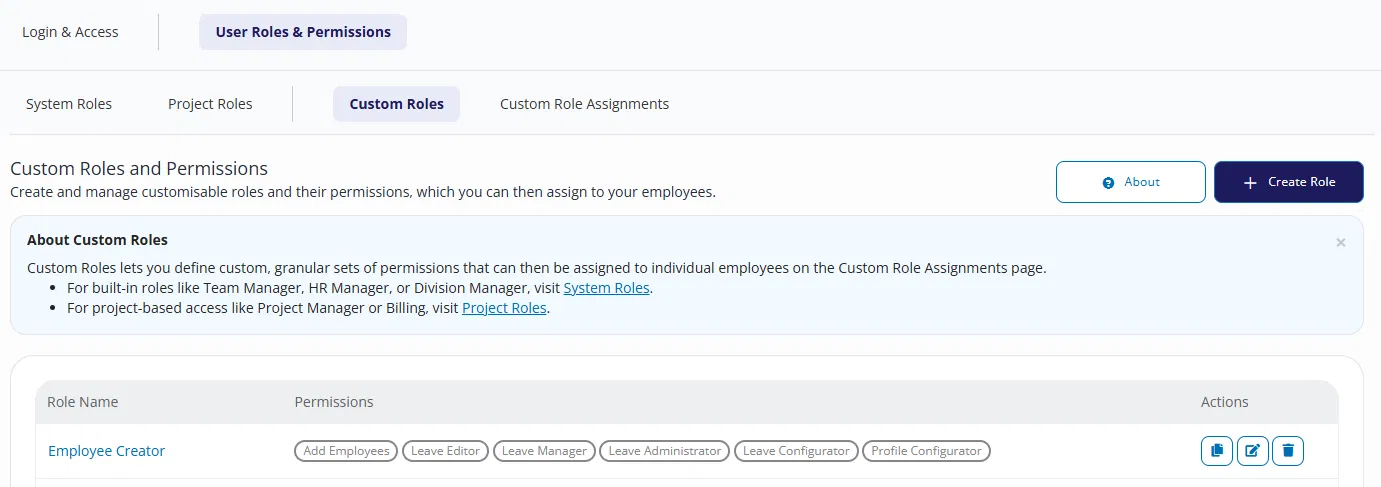
Custom Roles let you define custom, granular sets of permissions that can then be assigned to individual employees on the Custom Role Assignments page.
For built-in roles like Team Manager, HR Manager, or Division Manager, see System Roles.
For project-based access like Project Manager or Billing, see Project Roles.
Viewing existing roles
Existing custom roles are listed along with their assigned permissions. Each role can be edited, duplicated, or deleted from the Actions column.
Creating a custom role
Go to Roles & Access > User Roles & Permissions > Custom Roles.
Select Create Role.
Give the role a unique, descriptive name.
Configure the role's permissions. These are grouped into three feature areas: Leave, Employee Profiles, and Organisation.
Click Save changes when you’re finished.
Permissions
Leave
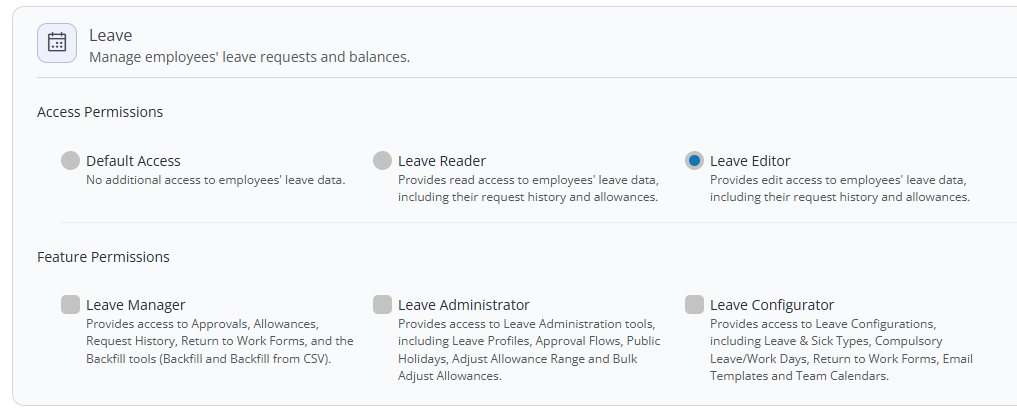
Access Permissions: You must choose a level of access, either default (no additional permissions), read, or edit.
Feature Permissions: Select any additional capabilities within that area (Leave Manager, Leave Administrator, Leave or Configurator). These are independent of the Access Permissions selection and are described on screen.
Employee Profiles
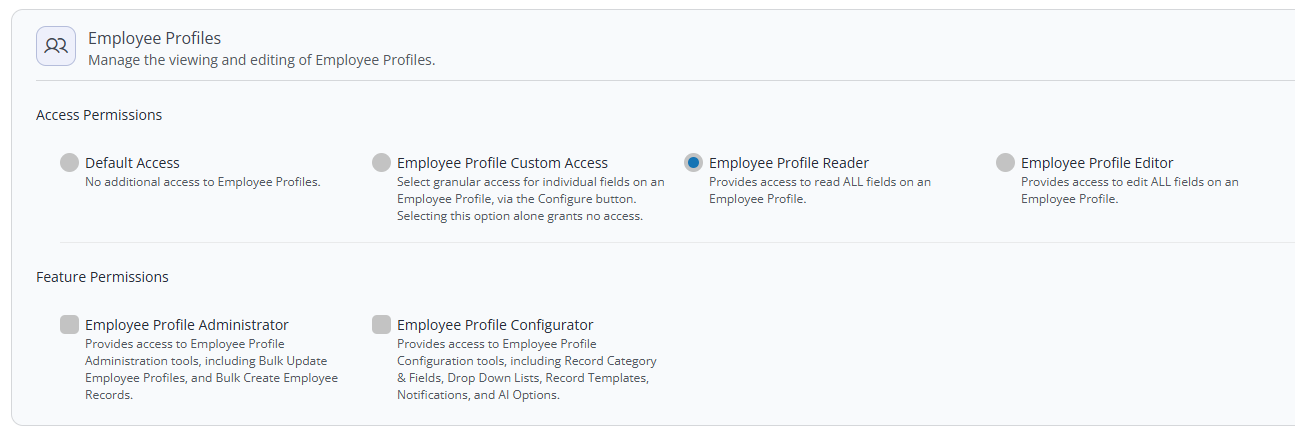
Access Permissions: You must choose a level of access, either default (no additional permissions), reader (ALL fields), writer (ALL fields), or custom access.
Feature Permissions: Select whether users with this role can access the employee profile admin and/or config tools.
Employee profile custom access
If you select the custom level of employee profile access above, you must set which fields the user can edit / read.
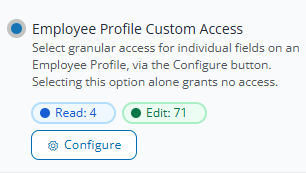
Click Configure to set granular, field-level access.
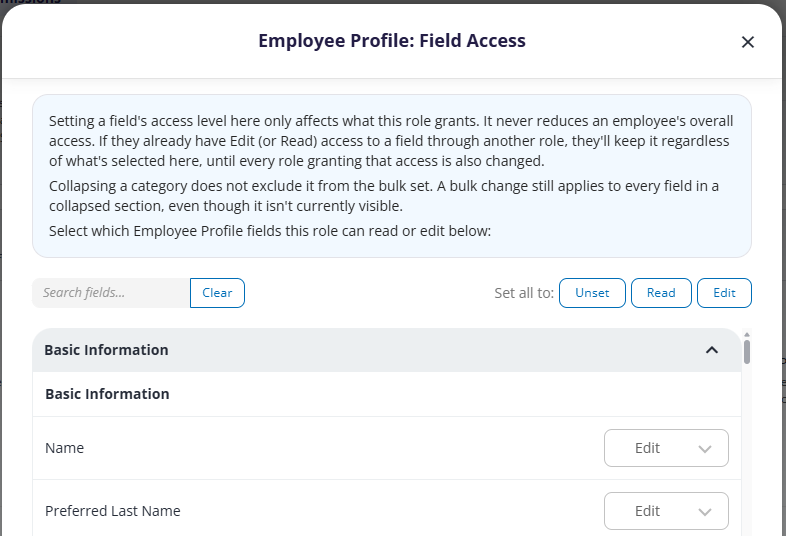
For each field, you can set its access to read, edit, or unset.
You can also set the access to ALL the fields in the list to unset / read / edit (regardless of which categories are collapsed),
There are a lot of fields, so they are sorted into categories: Basic info, Contracts, Bank details, Work details, Salary/Job history, Right to work, Benefits, Discipline, Performance profile, Competencies, Learning & Development, and Assets.
Use the search box to jump straight to the one you need rather than scrolling the full list. You can’t use the “Set all to” with a search query applied.
Select Save Changes when you’re finished.
Organisation
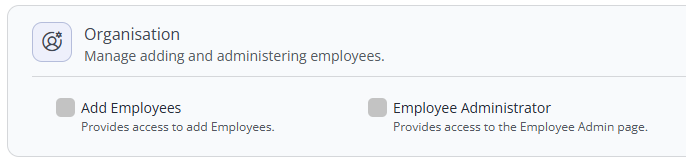
Select whether users with this role can add employees and/or access the employee admin page.
Editing a custom role
Select the edit icon to open the same permissions screen used to create the role. Use Change Name to rename it.
Duplicating a custom role
Select the copy icon to duplicate a role. Give the copy a new name and it will carry across the exact same permissions as the original, ready to adjust independently.
Deleting a custom role
Select the delete icon to remove a role. Deleting a role removes it, and the permissions it granted, from every employee it was assigned to. If any of those employees hold the same permissions through another role or another route, that other access is unaffected.