Once you have logged into Cintra iQ, you will be presented with the Cintra iQ home screen, from where you can access all the features and data within the system.
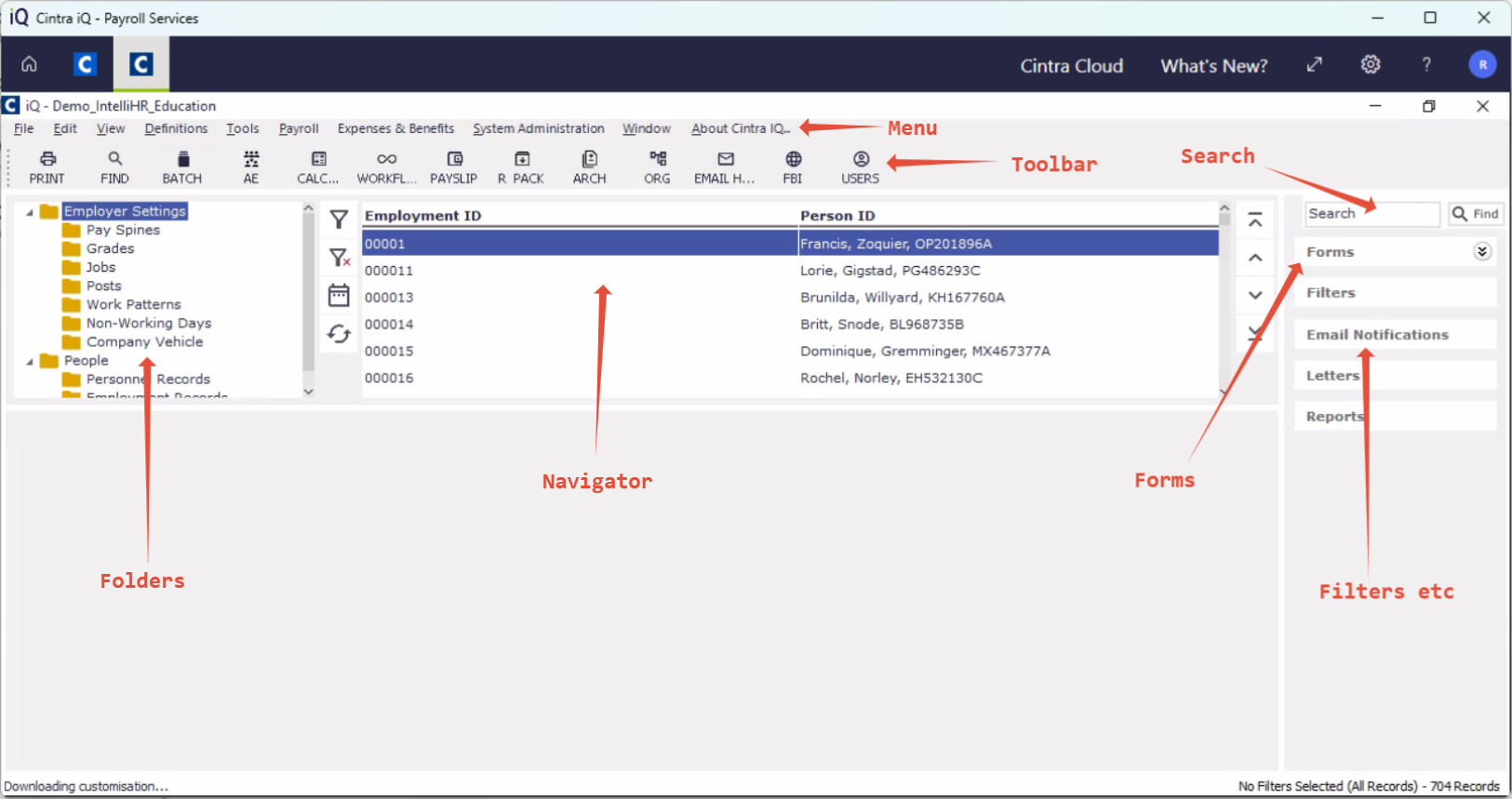
Menu and toolbar

The Cintra iQ menu at the top of the screen lets you access all the key areas of the system. To find out more, use the Cintra Help search or consult the list of guides.
The buttons below the menu will change, depending on what area of Cintra iQ you have selected:
New: If you have selected a folder (e.g. jobs or personnel records), then clicking NEW will launch a wizard (step-by-step guide) to help you create a new record. See Managing and organising records.
Open: If you have selected a record in the navigator, this button will open it, the same as double-clicking the record.
Save/Save All/Print/Delete: These buttons will only be available if you have opened a record/form and made changes.
Find: A text search for records within the navigator.
Cut/Copy/Paste: Applies only to active fields within forms you have opened.
Batch: Lets you input batches of data into iQ.
AE: See Automatic enrolment.
Calc(ulate): See Payroll calculations.
Workflow: See Payroll workflow.
Payslip: Open the payslip of the employee selected in the navigator.
R(eport) pack: See Report packs.
Arch(ive): See Report archive.
Org (Organisations) Chart: See Guide: Organisation charts and posts
Email H(istory): See Guide: Email notifications.
FBI: File by internet, which lets you send information to HMRC.
Users: See How do I manage users?
Folders
Selecting any folder will display all the contents of that folder in the Navigator. You can use Filters to control which records from that folder are displayed.
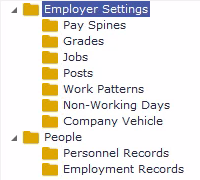
Folder | What is it? | More information |
|---|---|---|
Employer Settings | ||
Pay Spines | Stores and manages salary progression frameworks for grading employee pay, including automatic increments and historical pay records | |
Grades | Organises employee roles into salary bands and can link to pay spines for payment management | |
Jobs | Used for defining job titles and their associated attributes within the organisation | |
Posts | Represents individual positions or assignments, often tied to specific employees, allowing tracking of role history and changes | |
Work Patterns | Records standard or custom working schedules (days/hours) for employees, which are used for calculating pay, absence, and leave. | |
Non-Working Days | Used to track excluded dates such as bank holidays and closure days, ensuring correct calculation of leave and sickness. | |
Company Vehicle | Manages records related to company car allocations and benefits. | |
People | ||
Personnel Records | Collection of employee documents, communications, and key personal information. | |
Employment Records | Tracks employment lifecycle data such as contracts, start and end dates, and changes to employment status. |
Navigator
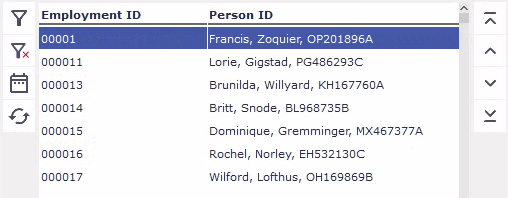
The Navigator area of the Cintra iQ home-screen displays lists of records, based on the folder selected. In addition:
You can add filters the list by clicking the icon. Click to remove any filters. See Guide: filters.
The icons below let you build a collection of records and refresh the list.
Note: If you can't some records that you expect to see, you may have a filter applied. This will be shown in the bottom-right of the screen.
Search

A text search for records within the navigator. This works the same as the Find button at the top of the screen.
Forms
The list of forms will change, depending on which folder you have selected. Select any record in the Navigator, then click a form to view its details.
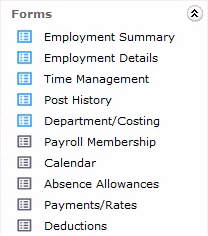
The blue icon indicates forms that can be customised. The grey icon indicates forms that can't be customised. For more information on customising forms, speak to your Cintra representative.
Filters / Email Notifications / Letters / Reports
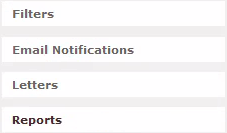
Filters: These let you identify and select common records. See Guide: filters.
Email Notifications: See Guide: Email notifications
Letters: Guide: Letters
Reports: See Guide: User-defined reports, which links to both Creating and running listing and payroll reports.