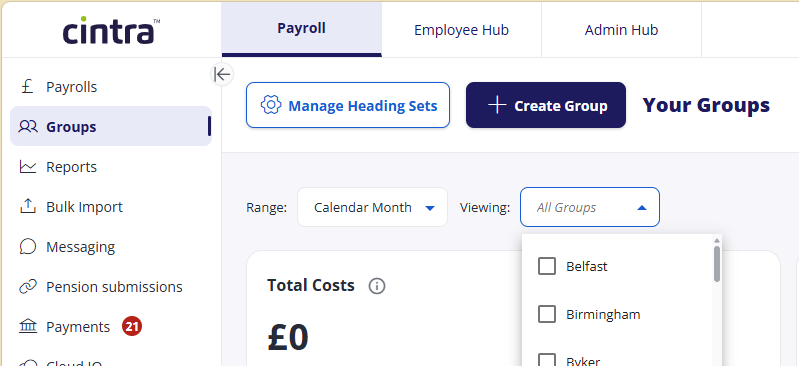
From the Groups page, click Create Group.
Enter a name and select one or more heading sets, then click Next.
The screen is split into two main sections: a blue section titled Available Employees and “Your Group” Employees.
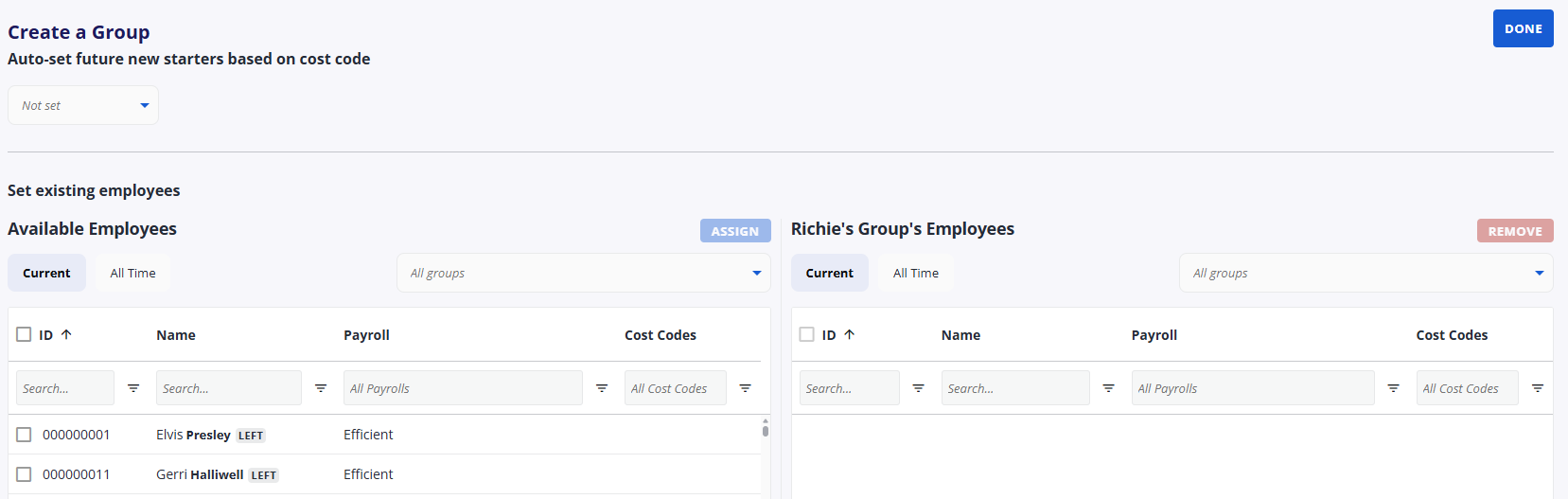
Auto-set future new starters based on cost code:
When cost code has been selected, upon clicking next, all employees allocated to that cost code will be added to your group.
Any new starters that are added to the payroll, if their cost code matches the “auto-set” value, they will automatically be added to the group.
Within Available Employees, check the box beside each user you want to add, then click Assign.
Click Done. Your new group will be displayed in a view similar to the Payroll screen.
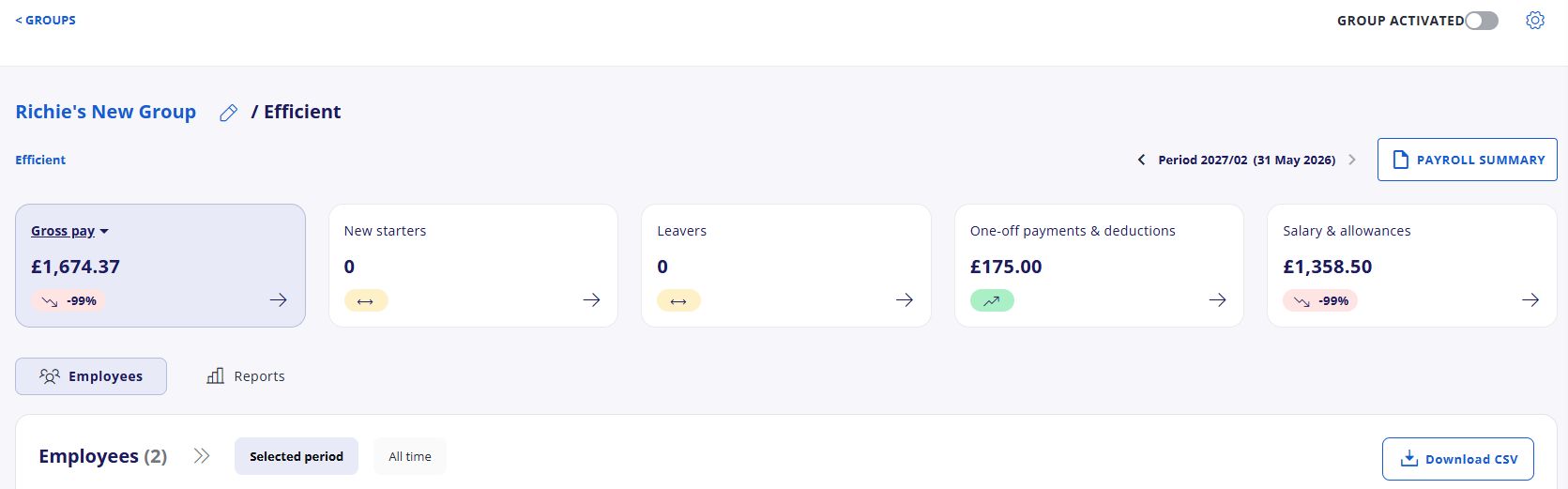
Click < GROUPS to return to the Groups screen, where you can select your new group from the Viewing list.