If you manage your own NEST pension submissions, this article will explain how you can now submit these directly through Cintra People, including enrolment, contributions, and payment authorisation.
1. Set up your credentials and assign payroll(s)
You can store your NEST credentials directly in Cintra People. You will only see Pension submissions if you have full access to at least one payroll.
If you are setting up the connection for the first time:
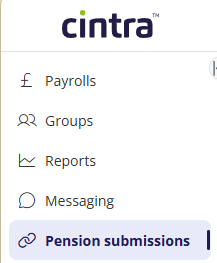
Go to Pension submissions.
In the banner, click the Connect button.
Enter your NEST username and password.
Enable NEST submission for the relevant payroll
If you are updating your credentials or adding further payrolls:
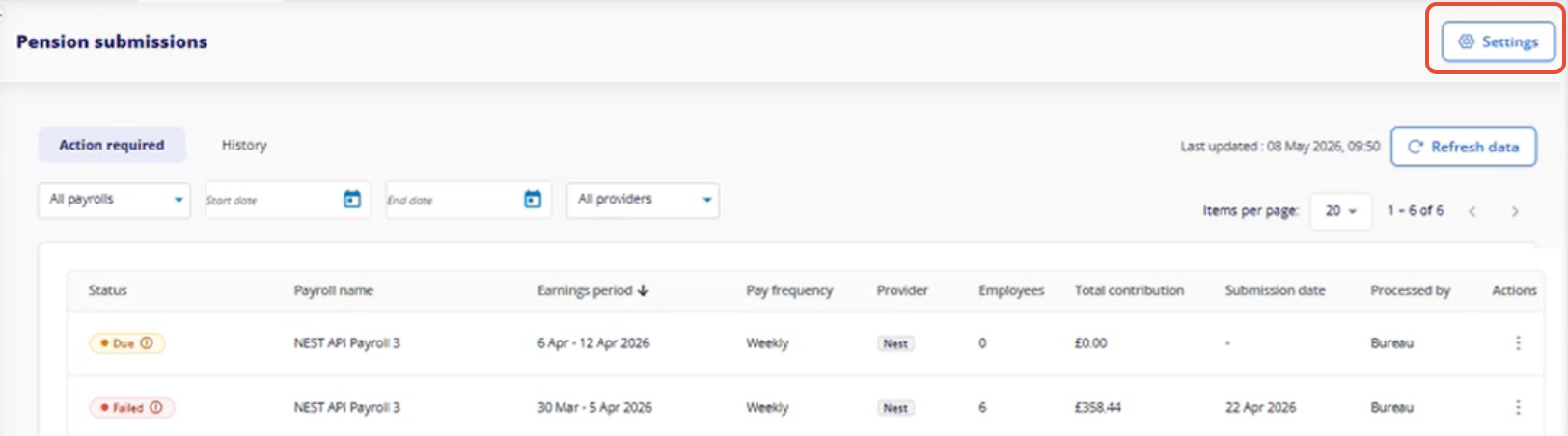
Go to: Payroll → Pension submissions → Settings → Connect to provider.
Select NEST.
Enter your NEST username and password.
Click Connect.
Navigate to the Manage Payrolls tab.
2. Setting submission data for each payroll
Complete the following for each payroll:
Field | What to do |
|---|---|
Enable submission | Turn on |
Start date | Enter the date submissions should begin from (earlier periods won’t appear) |
End date | Leave blank unless you're stopping submissions |
Managed by | Employer (this is the only supported option) |
If you want to hand over submissions to a bureau, contact the bureau administrator via messaging.
3. Submit pension data
Go to: Payroll → Pension submissions
NEST-enabled payrolls with a closed period that are ready to submit will show as Due.
Check Total contributions against your payroll report to confirm the figures balance.
Select Submit from the Actions menu
The status will change to Pending: Contributions can take up to 15 minutes and enrolments up to 45 minutes
Note: Cintra People submits enrolments, contributions, and authorises payment in NEST.
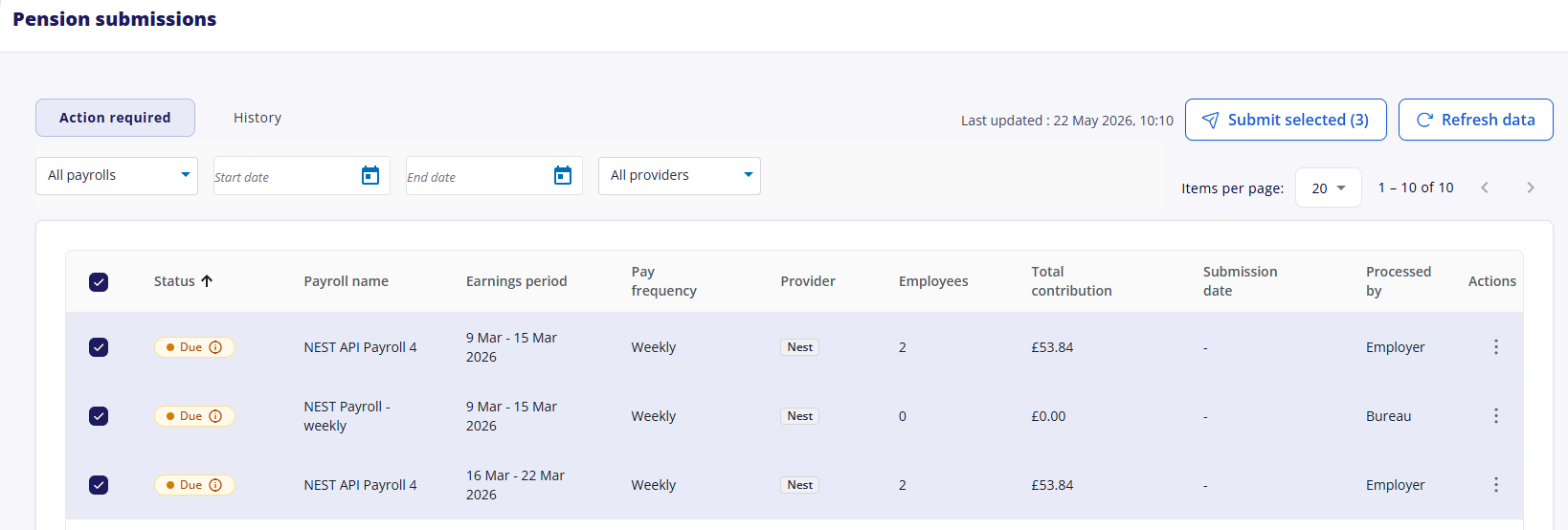
You can also submit multiple payrolls at once, if all the payrolls have a status of Due. To do this, tick all the boxes beside the payrolls, then at the top-right of the list, select Submit selected.
4. Submission statuses
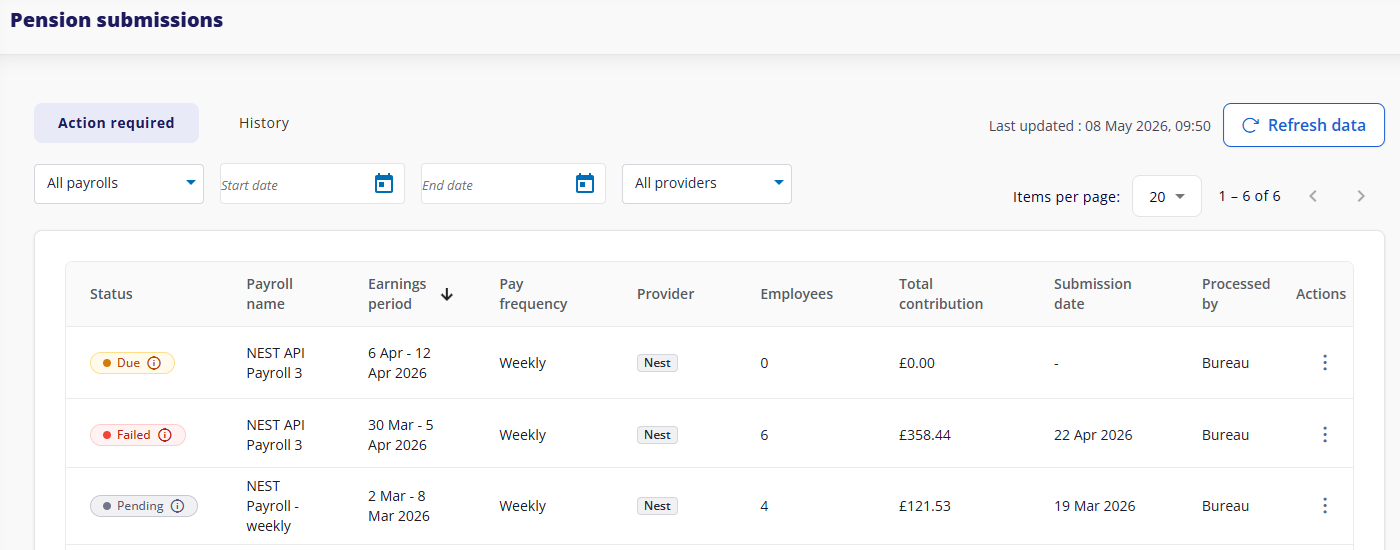
Tab | Status | Meaning | What you can do |
|---|---|---|---|
Action required | Due | Period closed and ready for submission |
|
Action required | Pending | Sent to NEST and awaiting a response | Check back after ~15 minutes (contributions) or ~45 minutes (enrolments).
|
Action required | Failed | Submission contains errors |
Fix issues in Cintra iQ, then resubmit.
|
History | Completed | Submission successful | No action needed.
|
If you encounter any problems
See the FAQs and troubleshooting guide.
Current limitations
Limitation | Detail |
|---|---|
Direct Debit only | Debit card and Direct Credit are not supported. Customers must use Direct Debit |
NEST only | People's Pension API integration is not yet available |
Monthly pay date only | Regardless of the periodicity of the payroll, the payment date for NEST can only be once a month |