When your NEST pension submissions are managed by the bureau, the full process is included: enrolment, contributions, and payment authorisation.
You have access to the Pension submissions dashboard, where you can monitor the status of submissions and check what data has been sent to NEST on your behalf.
Viewing the Pension submissions dashboard
Go to the Pension submissions menu. The dashboard shows all payrolls configured for NEST submission.
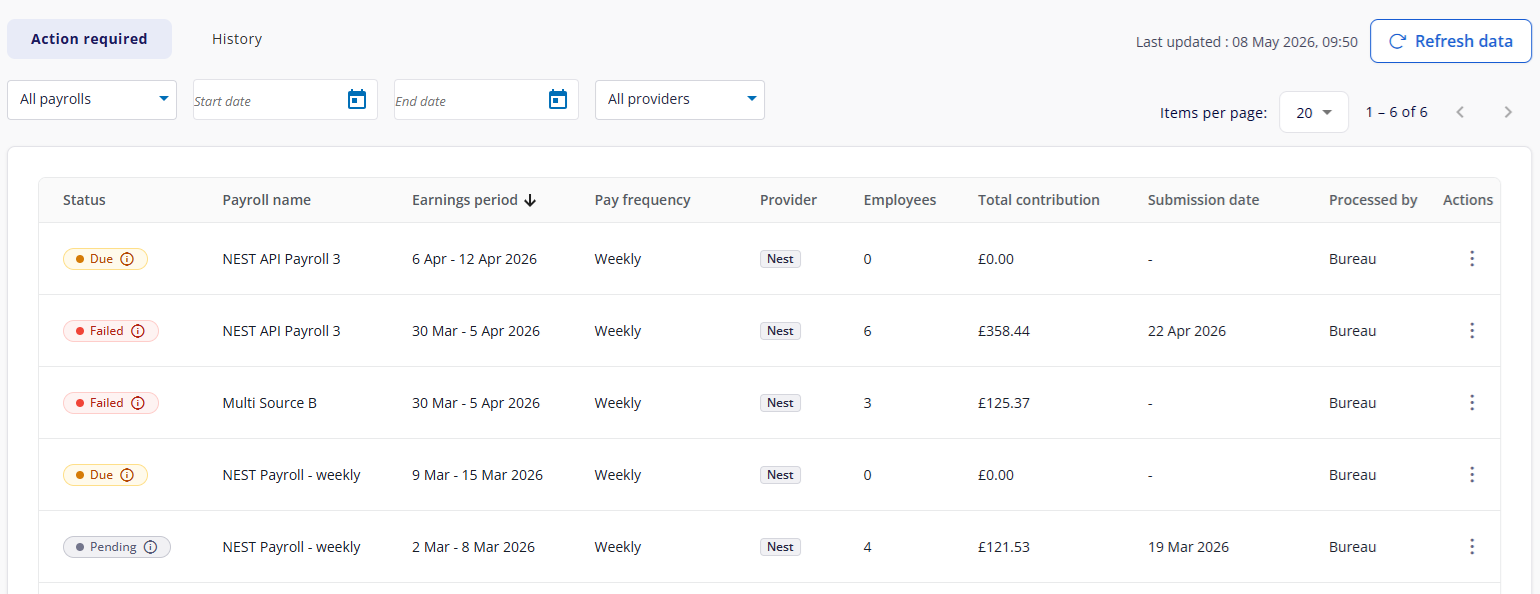
Each row displays:
Status: the current state of the submission (see below)
Payroll name: the payroll the submission relates to
Earnings period: the pay period covered
Pay frequency: how often the payroll runs
Employees: number of employees included
Total contribution: the total pension contribution amount
Submission date: when the submission was sent to NEST
Processed by: Bureau (the bureau submitted on your behalf)
Submission statuses
Status | Meaning |
|---|---|
Due (Action required tab) | The payroll period is closed and ready to submit. The bureau will action this. |
Pending (Action required tab) | Data has been sent to NEST and is awaiting a response. |
Failed (Action required tab) | Something went wrong with the submission. The bureau will investigate and resolve this. To see what went wrong, see NEST pension FAQs and troubleshooting. |
Completed (History tab) | The submission was successful. |
Checking submission data
To see what was included in a submission, select View data from the Actions menu. This opens the submission report, where you can check the enrolment (if applicable) and contribution data sent to NEST for that period.
Need help?
If you have questions about a submission or notice something that does not look right, contact your Bureau.
If you are a Bureau user who needs to add their NEST login details, see
If you later switch to managing your own submissions, see Employer managed NEST pension submissions.