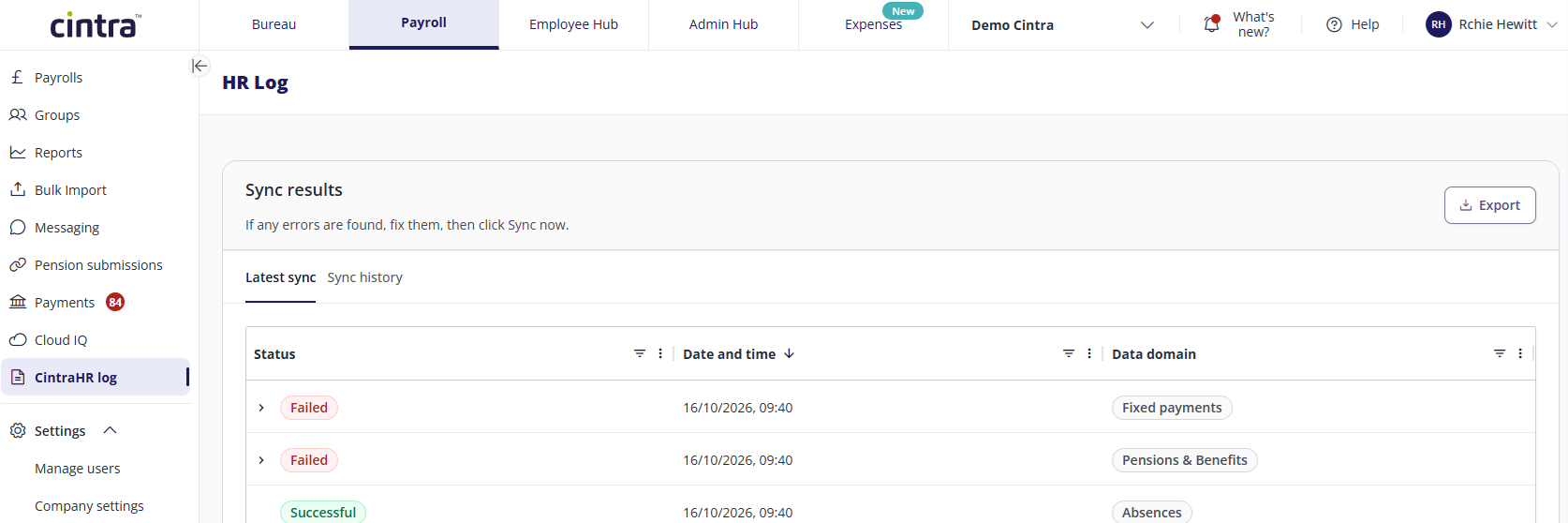
The CintraHR log shows the results of every sync and import from HiBob. Use it to run a sync, check for errors and look back at previous syncs.
To open it, go to the Payroll tab and select CintraHR log.
Running a sync
Click Sync now to bring in the latest employee details, fixed payments, pensions and absences from HiBob. The sync also runs automatically every night at 1am.
One-off payments and deductions aren't part of this sync. You import them from the payroll page, but their results still appear here. If an import has errors, a banner on the payroll page links you to the CintraHR log. See HiBob integration: Importing one-off payments and deductions.
Checking the latest sync
The Latest sync tab shows the results of the most recent sync, with one row for each type of data.
Column | Shows |
|---|---|
Status | Successful if everything synced, or Failed if there were errors. |
Date and time | When the sync ran. |
Data domain | The type of data, for example: Employee master, Pensions & Benefits, Fixed payments, Absence or One-off payments & deductions. |
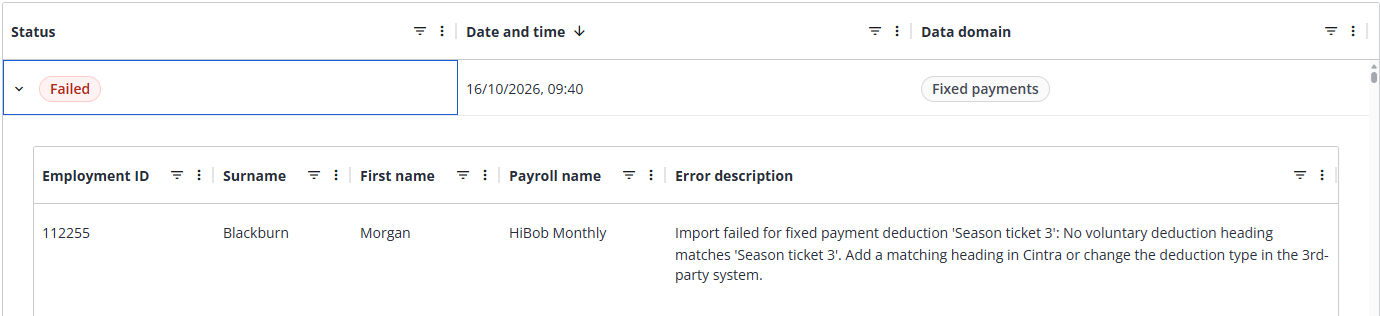
To see the errors for a failed row, click the arrow next to it. Each row displays a separate error, the name and employee ID of the affected employee, the payroll name and a description of the problem.
Fixing errors
Each error message tells you what's wrong and whether to fix it in HiBob or in payroll.
Correct the data in HiBob or payroll, as the error message says.
Click Sync now, or import the one-off payments again if the error came from an import.
Check that the error has cleared.
Errors clear automatically on the next sync once the data matches. An error with one type of data doesn't stop the rest from syncing. For example, a work pattern error only affects the employee's work pattern.
Every sync checks the data again, so an error keeps appearing until the data is fixed at source. For example, if a work pattern used in HiBob doesn't exist in payroll, the error appears on every sync until you create the pattern in payroll.
If an error is still there after a second sync and the data looks correct, contact Cintra. It's likely to be a set-up issue rather than a data issue.
Viewing previous syncs
The Sync history tab shows the results of earlier syncs. Use it to look back at errors if there's a query.
Exporting sync results
Click Export to download the sync results as a CSV file. If you are in the Sync History tab, clicking Export will download the entire sync history.
Checking the changes in payroll
Once the sync has finished without errors, you can see everything it's changed in the current period on the payroll's period changes view. See Viewing period changes.