Bureau users can mark a payment as "Paid by Employer" within the Payment status screen.
If the client decides to make their own payment, marking it as "Paid by Employer" will cause it to NOT be paid via the Cloud bank portal.
The "Paid by Employer" option is only available if the payment status is "New" or "Not authorised". It is not available if the payment has been downloaded, transmitted, or submitted on the Bank file portal.
To mark a payment as Paid by Employer:
Select the payment from the Payments list,
Select one of the following statuses:
Not authorised: The client has not authorised the payment via Cintra People
New: The client has authorised the payment, but it has not yet been submitted to BACS.
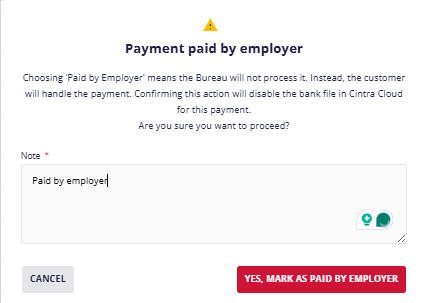
Enter a reason within the Payment paid by employer window.
Warning! Marking the payment as "Paid by Employer" means the Bureau will not process it, and the customer will handle the payment instead. Confirming this action will dismiss the bank file in Cintra.
Click Yes to acknowledge the warning and mark the payment as "Paid by Employer".
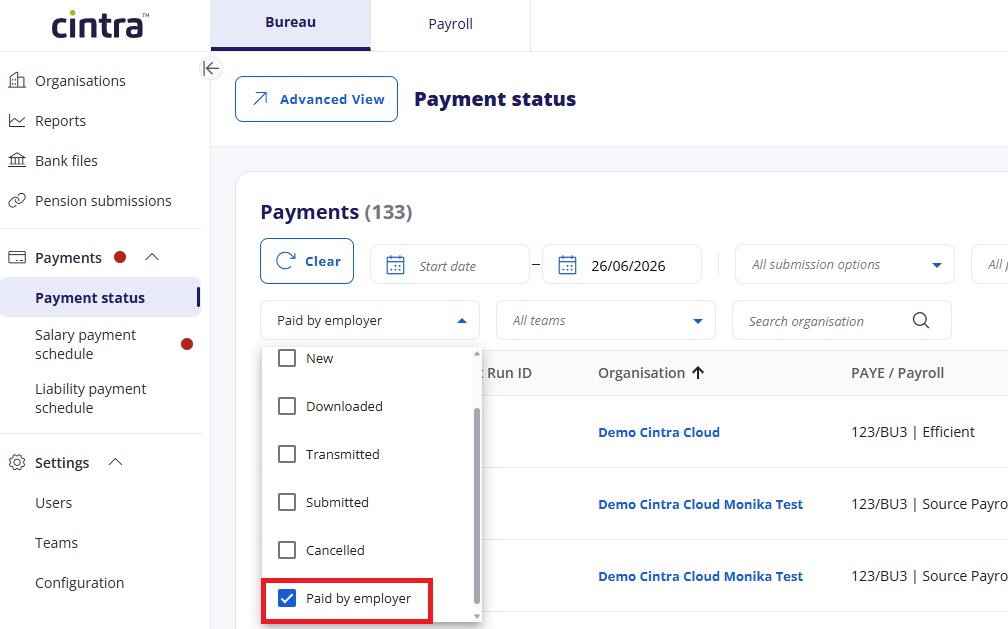
Viewing payments marked as "Paid by Employer"
From the Payment status list, you can filter the list by one or more statuses.
When should I mark a payment as “paid by employer”, and when should I cancel it?
To ensure you correctly manage your payment processes in Bureau, you should understand when to mark it as "Paid by Employer", and when to cancel it.
Paid by Employer: When a Bureau marks a payment as "Paid by Employer", it is excluded from payment via BACS on the Bank File portal.
Cancel: When a Bureau Manager cancels a payment, the payment run is deleted from Cintra iQ and a new run must be created. See Cancel a payment.