By canceling the payment, you are removing the payment run from Cintra iQ, which means a new payment run must be created after you have made your changes.
Only Bureau Managers can cancel the payment.
Payment cancellation before the file has been submitted
As a Bureau Manager, you can cancel a payment before it has been submitted to BACS.
Important: You can only cancel the payment if the RTI submission (FPS/EPS) has not been processed. If you need to cancel a payment after your RTI submission, please contact our support team.
In the Bureau tab, select Bank Files.
Locate the payment from the list, then click its Details icon
 .
.Within the Bank file window, click Cancel Payment.
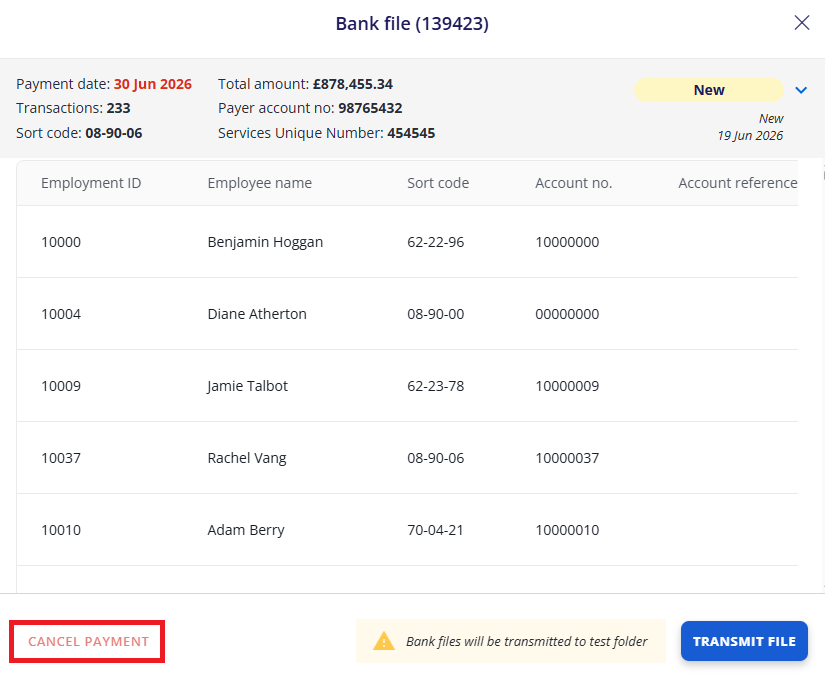
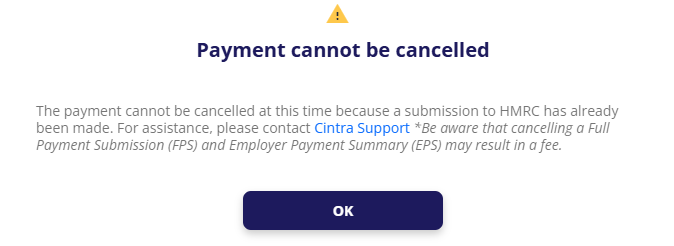
If the payment cannot be cancelled, you will see the following message:
Otherwise, the Cancel Payment window appears, where you must select a cancellation reason and can add any additional notes.
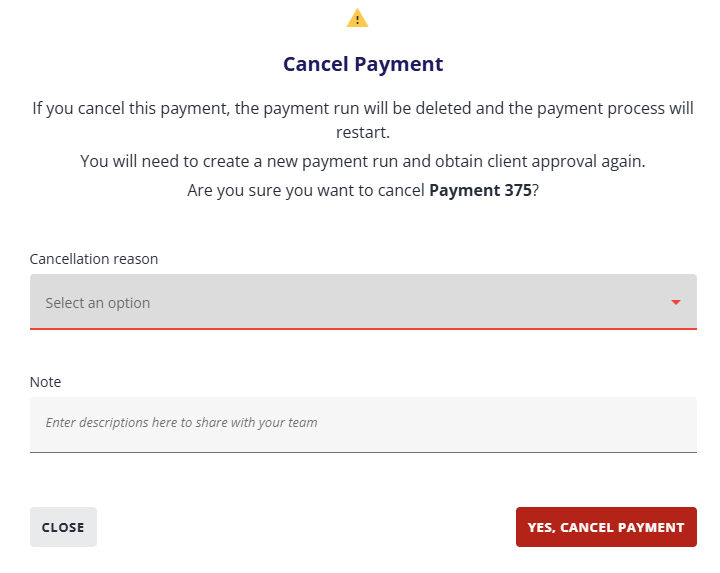
Click Yes to confirm cancellation.
Viewing cancelled files
In the Bank Files list, click the All tab.
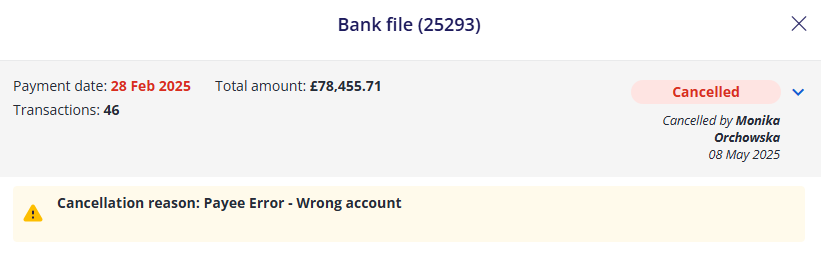
The Status of the file is shown in the left column. Open any bank file to view its details:
Here, you can view the cancellation reason and a full audit history for the file.
Cancelling batched files before submission
You can send multiple payment files by selecting the files you wish to send together and creating a batch. Only Bureau Managers can send single or multiple (batched) files.
If you need to cancel a payment that has been batched:
Open the details of the batch (the Type column indicates batches).
Click the Separate button.
Select a Reason and enter any additional notes.
Click Yes to confirm.
You can then cancel the required file.
Payment cancellation after submission
Important: Always make sure that the file has been extracted by the bank. Cancelling the file on the Cloud bank portal after it has been submitted, will not stop BACS Services from processing.
If your file has been submitted but you received a notification from the bank about a failed payment, or you contacted the bank to pull the BACS file, you can cancel it on Cintra People. This process will remove the payment run from Cintra iQ, so that a new payment run can be created.
To cancel a payment after it has been submitted::
In the Bureau tab, open Bank Files.
Locate the payment from the list, then click its Details icon
.Click Cancel payment.
You can also cancel a submitted payment if it was submitted within a batch.
Warning! You can only cancel the payment once submitted to BACS, up to and including the BACS due date (2 days before the paydate). Afterwards, it is the customer's responsibility to cancel the payment or retrieve the money directly from the payee.
When should I mark a payment as “paid by employer”, and when should I cancel it?
To ensure you correctly manage your payment processes in Bureau, you should understand when to mark it as "Paid by Employer", and when to cancel it.
Paid by Employer: When a Bureau marks a payment as "Paid by Employer", it is excluded from payment via BACS on the Bank File portal. See Mark payments as paid by employee.
Cancel: When a Bureau Manager cancels a payment, the payment run is deleted from Cintra iQ and a new run must be created.