When you sign in to Cintra People Payroll, the screen you land on depends on your role and how your organisation is set up. The layout of Cintra People will change, depending on whether you’re accessing it from a desktop, laptop, tablet or mobile device.
This article explains the main landing views, how to move between areas, and where to find your account settings.
Signing in as an employee
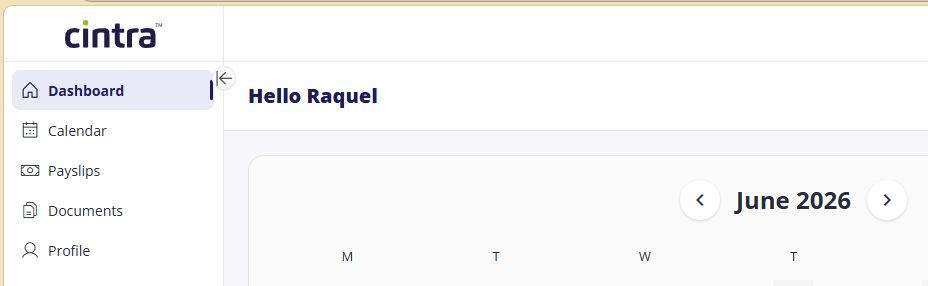
If you’re not responsible for any payroll management, you’ll be taken to the Employee Hub, where you can view your payslips and pay documents and book holidays. See Employee Hub for employees.
Signing in as a payroll admin
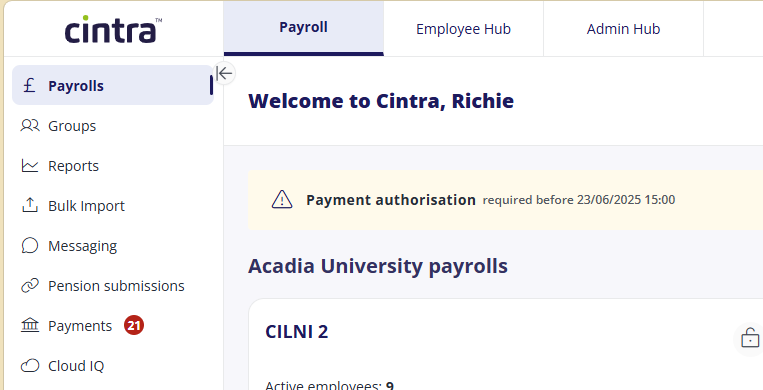
You start on the screen where you select a payroll (unless you only have access to a single payroll, in which case that will be displayed). The options down the left vary according to your permissions and your organisation's setup. See and Payroll screen overview.
Other areas accessible from the side menu include:
Payrolls: See Accessing payrolls.
Groups: Let you manage input of employee data across multiple locations. See Cintra Groups.
Reports: See Payroll reporting and dashboards.
Bulk import: Coming soon.
Messaging: Allows payroll stuff to communicate with Bureau. See Messaging.
Pension submissions: Let you submit data to NEST. See Employer managed NEST pension submissions
Cloud iQ: A link to Cintra iQ: https://payrollengine.cintra.co.uk/RDWeb/webclient/
Signing in as a Bureau manager
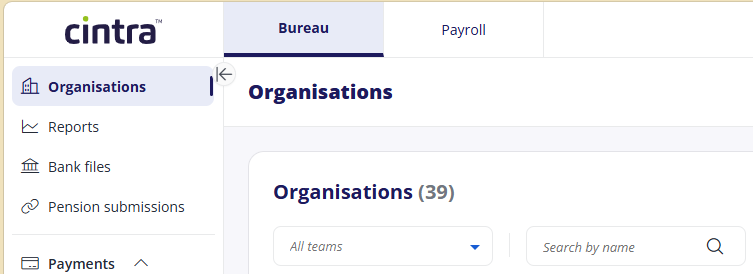
Bureau staff see a different view, organised around the organisations you manage rather than a single employer's payrolls. See Cintra Bureau.
Moving between areas
The tabs across the top let you switch between the areas you have access to, such as Payroll, Employee Hub or Bureau. If you only have access to one area, no tabs are shown.
Top area
At the top-right of the screen:
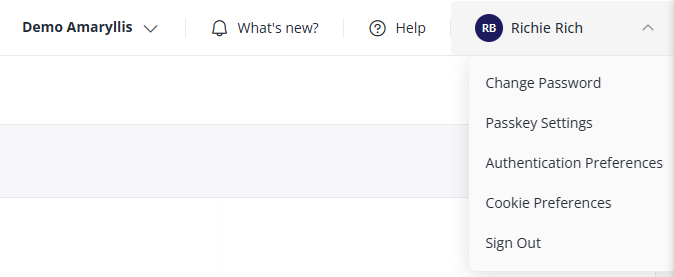
You can view the name of your organisation (in the screenshot above, this is Demo Amaryllis). If you have access to multiple organisations, this will be a menu for you to choose from.
What’s new? Lets you view more information about the most recent updates to Cintra People Payroll.
Help: Opens this help site.
Account menu: Click your name to display the following options:
Change Password: see Change your password.
Passkey Settings: set up or manage passkeys for quicker sign-in. See Setting up and using passkeys.
Authentication Preferences: choose between app or SMS authentication. See Setting up MFA.
Cookie Preferences: choose which categories of cookies to allow. Necessary cookies are always on; you can switch the others on or off, then select Reject All, Save My Preferences or Accept All.
Sign Out: it’s good practice to sign out when you’re finished using Cintra People