Who can do this:
Administrator
What are Leave & Sickness Types?
A Leave or Sickness Type is a configuration option which allows employees to choose what types of Leave or Sickness they are requesting or reporting. This may be useful if you want to record or report on types of Leave & Sickness your employees take, it can also aid with showing why employees are out of the office.
You can also set up allowances related to certain leave types (on top of their Leave allowance). In order to do this, you'll need to use a Leave Type and set it up as 'Deducted'. For more information, see here.
Configuring Leave and Sickness Types gives employees the ability to be more specific when booking time off or reporting sickness. The types can be configured to be deductive or non-deductive, so you can choose which Leave Types affect employee's overall Leave Allowance.
Configuring Leave & Sickness Types
The below outlines the process for configuring Leave Types, follow the same process for Sickness Types, but select Sickness Types from the Leave Configuration menu.
Go to Leave > Admin & Config > Leave Types or Sickness Types.
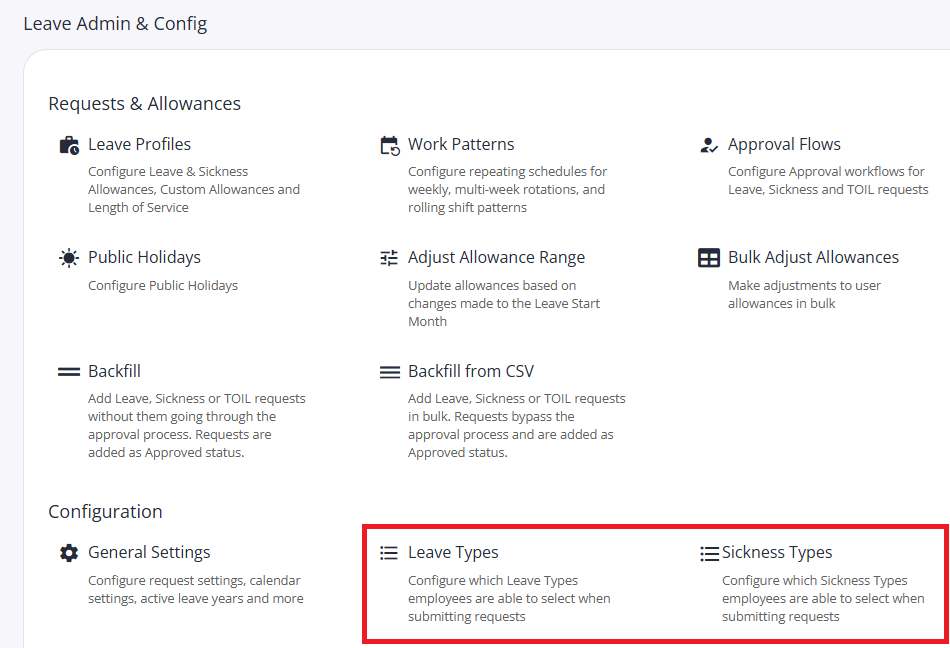
Cintra People HR comes with some default leave types which you can import by clicking Add Defaults. Alternatively, make your own by clicking the Create button.

You can edit the defaults or remove any that do not apply to you. If you'd like to delete any, select them using the tick boxes on the left then click Delete. Edit the defaults by clicking on the name.
Leave type details
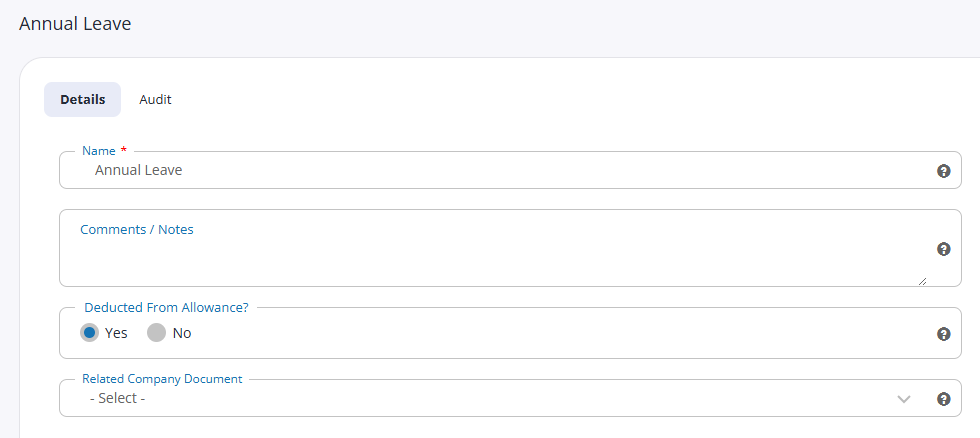
Every leave type contains the following:
Name (mandatory)
Comments / Notes (optional)
Deduct from allowance: Some types of leave, such as parental or study leave, may not be deduced from the employee’s allowance.
Related company document: You can select any stored document from the list, which will be displayed to users when this leave / sickness type is selected. For more information, see Documents.
Request Details
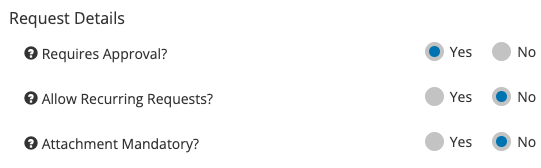
Requires Approval? Choose whether this type of Leave needs to go through the approval process.
Restrict to HR Managers? When selected, employees will not be able to select this leave type when requesting leave. HR managers must do it on their behalf. This is often used for maternal/paternal leave.
Allow Recurring Requests? Choose whether to enable recurring requests for this type. Not available for sickness leave types. See Recurring Requests.
Attachment Mandatory? Choose whether request attachments for this Leave Type are mandatory.
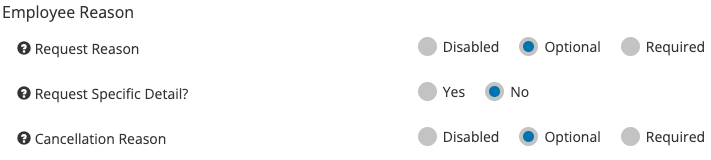
Employee Reason
Request reason: Choose whether you want employees to provide a reason for their request. If disabled the reason box will not show
Request specific detail? Choose whether you want the employee to provide specific details for their request
Cancellation reason: Choose whether you want employees to provide a reason when submitting a cancellation request
Approver Comments
Approve / reject comments: Choose whether you want approvers to provide comments for their approval / rejection. If disabled the comments box will not show

Integration with External Calendars
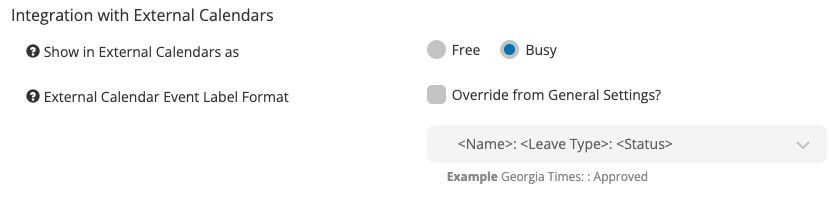
Show in Google/Microsoft 365 Calendar as: choose whether this Leave Type appears in calendars as Free or Busy
External Calendar Event Label Format: The General Settings will determine what the event is named when being synced with the calendar, optionally override this per Leave / Sickness Type
Integration with Time
Reduced Planned Hours on Timesheet? (Only available with Time module): Choose whether this Leave Type contributes to Timesheet planned hours or not
Integration with location
Auto sync with Employee Location (Only available with Location module): Choose whether this Leave Type appears on the Location planner
Include Leave Type name? Choose whether the type of Leave is included in the Location module
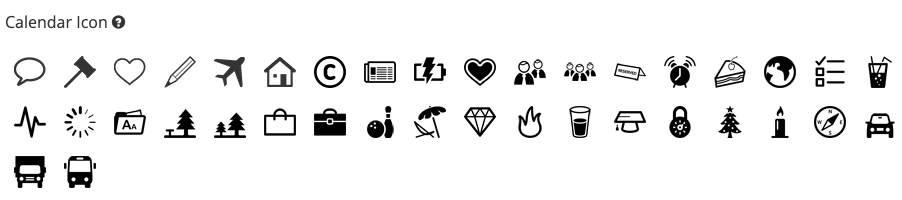
Calendar icon
You can choose a calendar icon to be shown on the Year at a Glance view when this Leave Type is requested.
When you are happy with the Leave Type configuration, click Save.
Additional Elements
Deducted or non-deducted leave types
You can choose whether your Leave Types are set to Deducted or Non-Deducted. If you set a Leave Type as Deducted, when a Leave Request is approved, the employee's Leave Allowance will be deducted the number of days the request spans. This is shown in the Year at a Glance Calendar in Green.
If you make a Leave Type Non-Deducted, the employee's Leave Allowance will not be affected. This is useful for tracking scenarios such as Working from Home, or Offsite Meetings, to highlight that the employee is away from work, but not on Leave. These requests show in the Year at a Glance Calendar in Light Green.
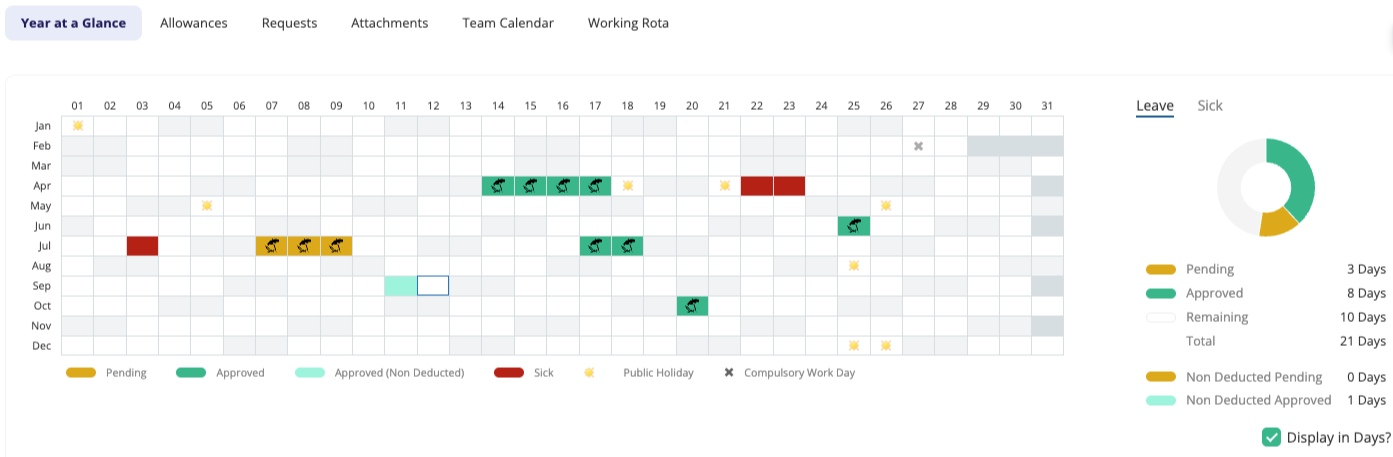
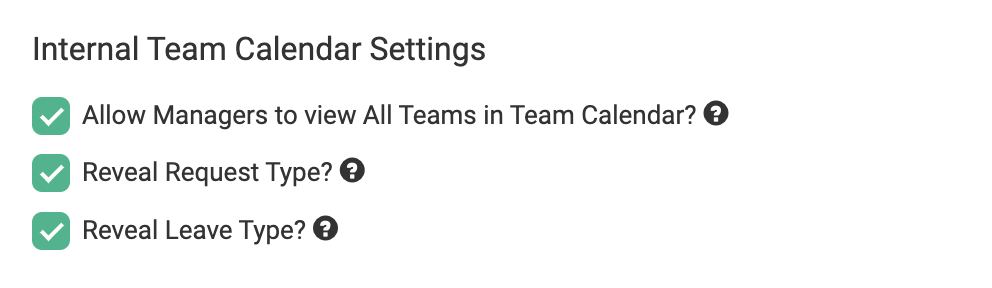
To fully take advantage of the different colours, and to reveal the types in the Team Calendar view, go to Leave > Admin & Config > General Settings > Internal Team Calendar Settings.
Here, there are 3 settings.
Allow Managers to view All Teams in Team Calendar?
If this is enabled, Managers will be able to view an option for All Teams
Reveal Request Type
If this is enabled, the Request Type of Leave or Sick will be shown in the Team Calendar. If disabled, all requests will show in Green, regardless of Type
Reveal Leave Type
If this is enabled, the Leave Type will be available to view in the Team Calendar. Sickness Types are never visible
Deleting leave & sickness types
You can delete Leave Types which are not associated with Custom Leave Types. If you need to delete a Leave Type, and it is a Custom Type, remove it from the work pattern first.
You can delete multiple Leave or Sickness Types from the main page by ticking the boxes on the left hand side and then the delete button in the top right corner.
You can also delete Leave or Sickness Types from within the type itself by clicking the delete button in the top right corner.