You can deactivate a user to prevent them from accessing Expenses - without having to delete their account. Deactivated (archived) users no longer appear in the People list, but you can still find and reactivate them.
You need Administrator permissions to deactivate, find, or reactivate users.
Finding a user
There's no search box on the People list, but you can filter it by name.
Go to Setup > People.
Click the filter icon next to Name.
In the dropdown, select Contains.
Enter part of the user's name, then click Filter.
Tip: Change the default Starts with option to Contains. Otherwise, you may need to enter the user's full name.
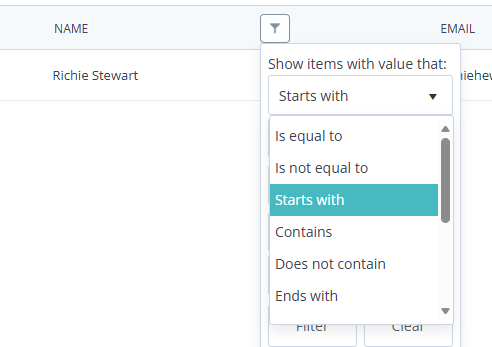
You can filter by Email in the same way. The name filter only searches active users. To find deactivated users, see Reactivating a user.
To show users with a particular role, click the filter icon next to Role, select Administrator, Finance, or Auditor, then click Filter.
Deactivating a user
Go to Setup > People.
Locate the user and click their name. An Options panel appears on the right.
Click Edit. The User Account window opens.
Clear the Active checkbox.
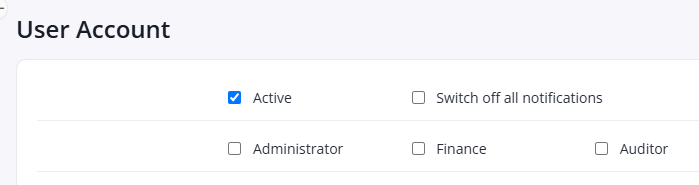
Click Save.
The user is removed from the main People list.
Reactivating a user
Deactivated users are hidden from the People list, so you need to filter for them first.
Go to Setup > People.
Click the filter icon next to Role.
Select Inactive, then click Filter. A list of all inactive users appears.
Click the user's name, then click Edit.
Select the Active checkbox, then click Save.
The user appears in the main People list again.