Find answers to common questions about managing employees and teams in Cintra People.
Creating teams of employees is only available in Cintra People HR.
Why can't I save my table?
Every table needs one mandatory field configured to prevent blank entries being entered that could skew the reported data. See Profile tables.
Can I restrict access for restricted roles to see specific employees?
No. The fields that you give access to will be viewable on all employee profiles for that role.
What happens when an employee moves from “joining” to “active” ?
When an employee start date occurs, their employee status will automatically change from Joining to Active. If a company email address has been set up, they will receive full access to Cintra People HR - rather than access to the Onboarding Portal which is available to customers. They will also receive any auto assigned checklists or company documents to which their team has been added as a monitor.
If a company email has not been set, all HR Managers and Admins will receive an email to remind them to set this up. Emails will be sent daily until a company email has been provided.
How do I end an employee’s employment?
To offboard a user from the system:
Go to Organisation and search for the employee.
Click Profile, then click Set End Date / Initiate Offboarding.
Fill in the details and then the offboarding process will start.
Complete the actions to successfully offboard the employee.
The employee’s status will be change to “former” the day after their last day.
How do I update an employee's name or email address?
Go to Organisation > Employees.
Find the employee and click on their name.
Edit their name / email address.
What if the name or email field is not editable?
The user is connected to either Microsoft 365 or Google Workspace.
Change the name in Microsoft or Google and then click Options > Sync with Microsoft / Google.
How do I export all data relating to an employee?
You may need to export data for a specific individual for archival or GDPR purposes. Users with the appropriate role can request an export from the Employee's record within the Organization menu. The export process is managed on the Export tab of the user record.
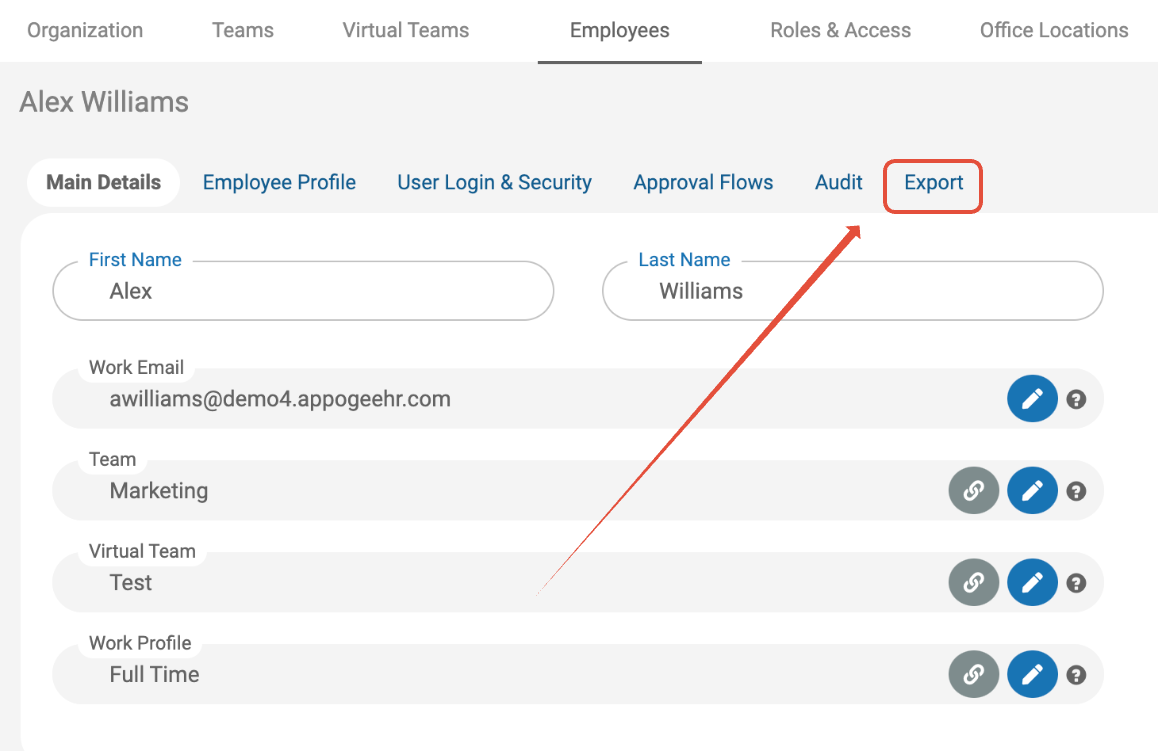
The process involves making a request for an export by clicking the New Export button. You will then see a confirmation dialog box letting you know that (because this will include sensitive data) all users with the HR role in your organization will be notified of this request. Clicking OK will commence the collation of the export. Depending on the quantity of information to be assembled this may some time, but smaller downloads should be ready in a matter of minutes.
Be aware that if you cancel a request once made, the record of the request will be shown with Cancelled after it. Also, the download will consist of a collection of files - records returned in the format they were uploaded in, and data collated into one or more JSON files. If this is not a file type you have seen before you can get the background to this file type here https://en.wikipedia.org/wiki/JSON
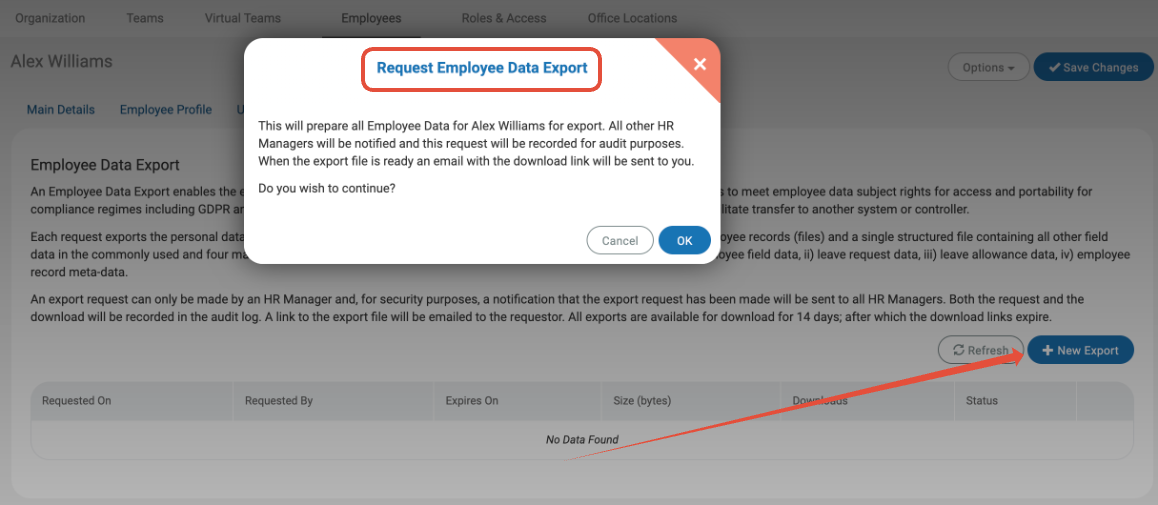
You will receive a confirmation email once the Download is ready with a link back to allow you to collect the file. The Export tab for the user will also include the Download link to the file, and so will be visible to all users with the HR role.
Download links expire after 14 days as the data content will become stale over time. Simply request a new export if you missed the download window from the original request.
.png)