Passkeys replace traditional passwords and offer a fast and secure way to log in without using your mobile phone.
What are passkeys?
Instead of typing a complex password when you login, you simply need to enter a passkey. This can be your fingerprint, face scan, or PIN. As long as you're using the same device, you can use your passkey each time you log in. However, you'll still need to use MFA if you log in from a new device.
Passkeys are unique to you and each website or app you visit, so they can't be copied or stolen.
Setting up passkeys
When you first log in to Cintra People or Employee Hub, you will need to set up your MFA. Once you've done this - and depending on your organisation's set up - you may be prompted to set up a passcode.
.png)
Adding a new passkey
When you click Add new passkey, you will be prompted to set up a passkey. The procedure will differ, depending on whether you are using a computer or mobile device, and whether you have use any password manager. However, this is a typical process for a Windows PC:
You may be asked where you want to store your passkey. This will usually be on the device you are using (in this case, a PC), but you can also choose an external device such as your phone.
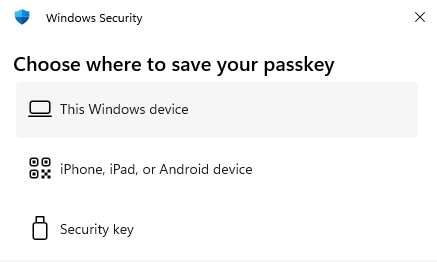
You may be asked to choose how you want to access your passkey, which will depend on what security tools you have installed. In the example on the right, I can either choose to scan my face or enter a PIN. If you have a laptop, you may also be able to choose to scan your finger print.
.png)
Once it's successful, a unique code will be shown and you can click Close. The next time you login, instead of using MFA, you will simply have to enter your passcode (e.g. a PIN or scan your face).
.png)
Changing your passkey settings
When you're logged in, click your username at the top-right of the screen.
Click Passkey settings.
The Passkey Settings screen will display a list of all passkeys you have already set up. If you use more than one device to access the system, you will need to set up passkeys for each device.
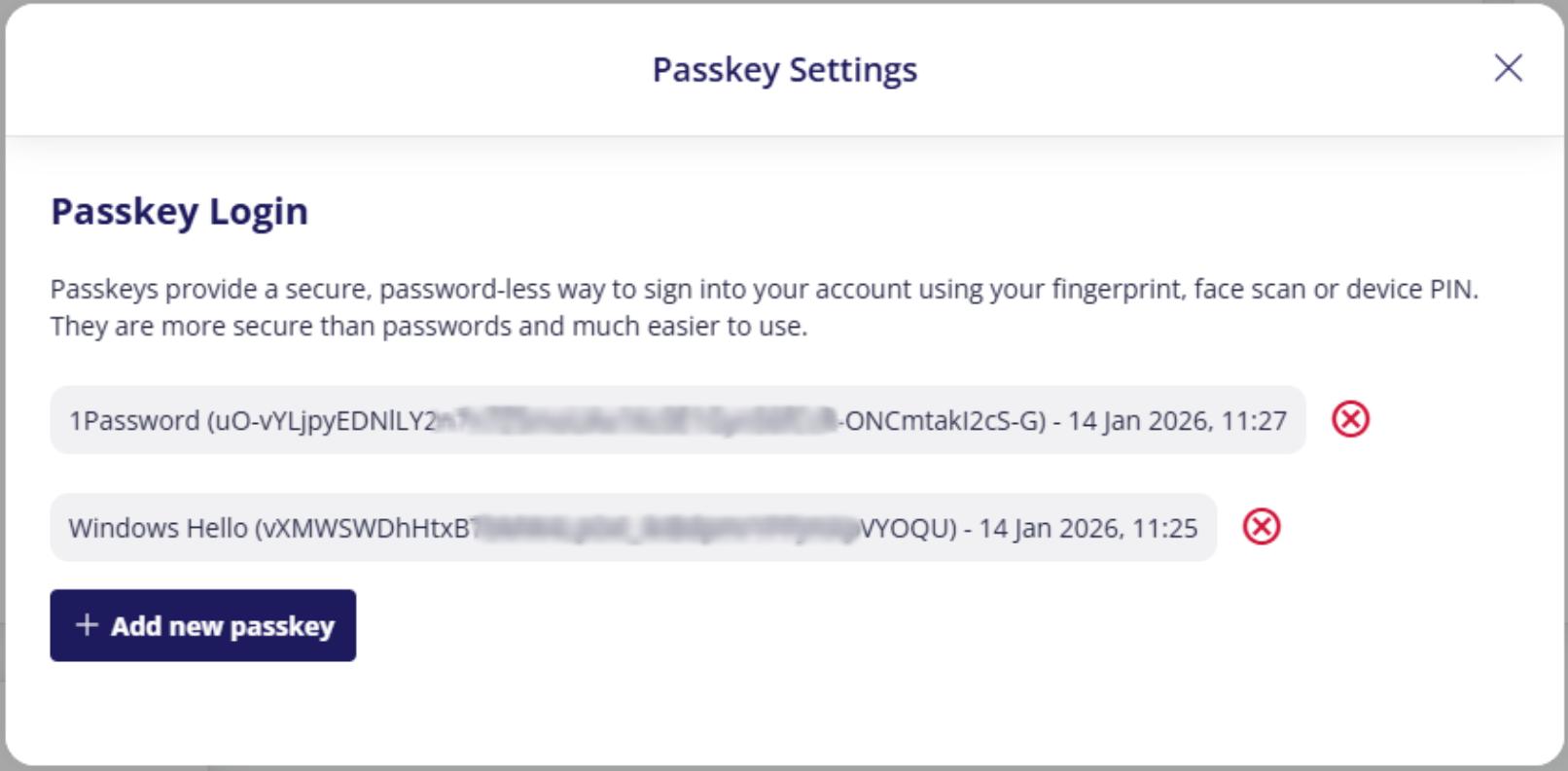
You can remove any passkey by clicking its remove icon: .png) . Doing this will require you to login using MFA again.
. Doing this will require you to login using MFA again.
Logging in using passkeys
The next time you login, you will need to enter your password as normal (either by typing it, or by storing it in your browser or password manager).
Depending on how you set up your passkey, you may be required to enter a PIN, put your face in front of the camera, or simply click OK.
.png)
FAQs
Can I have more than one passkey?
Yes! If you access Cintra People from more than one device (e.g. at work and on a mobile phone), you can set up a passkey for each device.
What is the difference between MFA and passkeys?
MFA (multi-factor authentication) uses more than one source to verify your identity (e.g. a password and a code sent to your phone) . ALL users must set this up before they can access Cintra People.
However, once this has been setup, you can speed up the second step of MFA (i.e. which requires you to use your phone) by entering a passkey instead.