Who can do this:
HR Manager
Administrator
A Team is a collection of employees consisting of members and 1 primary manager. In most cases a Team will have a Parent Team used to form your org chart.
Employees can see who else is in their Team and who their Manager is but they will not have access to other employee details unless they have the Team Manager or HR Manager role. Team Managers can access information about the members of the team they manage. They cannot setup or configure teams themselves as this is restricted to anyone with the HR Manager role.
Creating a Team
You can no longer set TOIL and sickness report settings when creating the team. You must first create / import the team, then edit it.
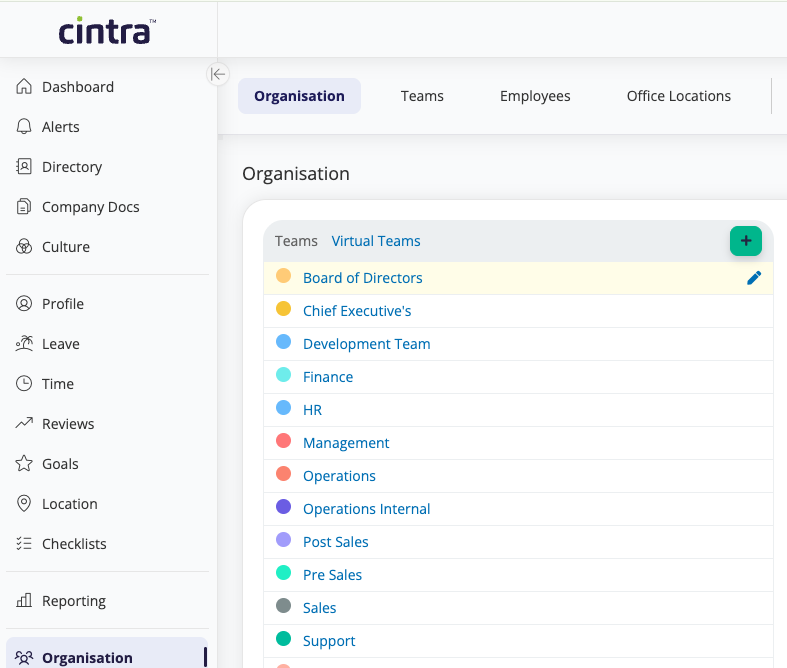
In the Organisation tab, either click the green + icon, or select the Teams tab, then click +Create Team.
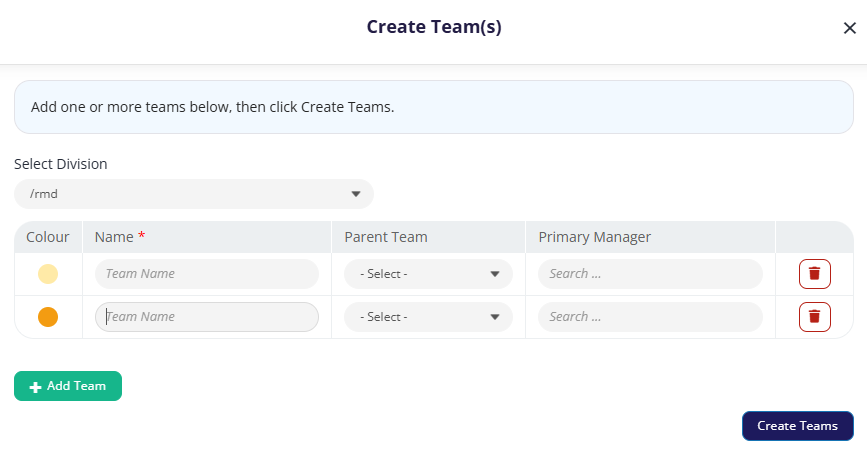
Enter the Team name, Parent Team (if any), and Primary Manager. You can also change the colour of the team.
You can add multiple teams on this page by clicking Add Team. You can add the parent and child teams at the same time.
When you are happy with the information, click Create Teams.
Importing teams
If you have a lot of teams to add to Cintra People HR, you can now import them. To do this:
Go to Organisation > Teams.
Click the Create button, then select Import from CSV.
Click Download Template. You can then add teams to the template using MS Excel or other similar software.
For each team you add, you must add the information below into a new row. You can leave all the fields except Name blank until later:

Name: Team name
Colour: Enter the hexadecimal value, e.g. aa3db =

Parent Team: Parent team name.
Primary Manager: The full name of the main manager.
If your organisation uses multiple divisions, select a division from the drop-down, or keep at the default parent division.
Once you’ve finished adding teams to the .csv file, select click to upload and add the file (or drag the file into the area shown).
The next page lets view and edit all the teams we added to the template, along with any errors that you must fix before creating the teams.
You can remove any teams by clicking its delete icon, or create new ones by clicking Add Team.
Click Create Teams to complete the team creation process.
Editing teams
You can edit Teams from Organisation or Teams.
From Organisation click the pencil icon next to the team you wish to edit.
From Organisation > Teams, click on the name of the team you wish to edit.
The Team edit page is split into multiple tabs. Work through the tabs consecutively or you can choose a tab to edit.
Main details
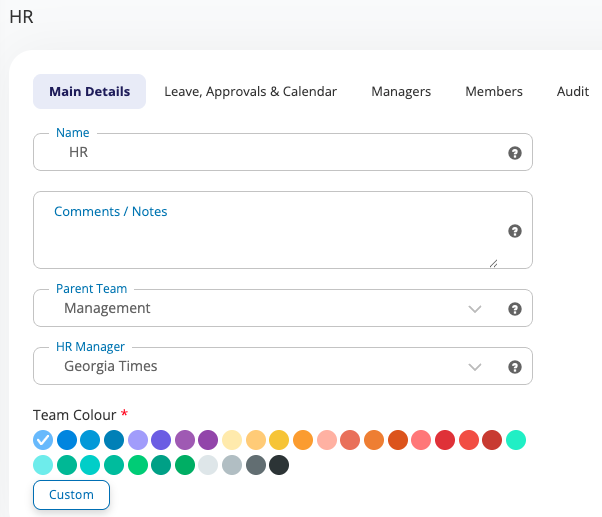
Edit the main details of the Team here:
Name
Comments/Notes: optionally share notes here with other users who have access to this page
Parent Team: this builds the org chart, if the team has no Parent Team, there is an option for (No Parent Team)
HR Manager: The HR Manager controls Notifications & Checklists for the members of this Team
Leave, Approvals & Calendar
This tab is split into further tabs for Requests Options, Approval Flows, Calendar and Active Leave Years.
Requests Options
Leave Requests
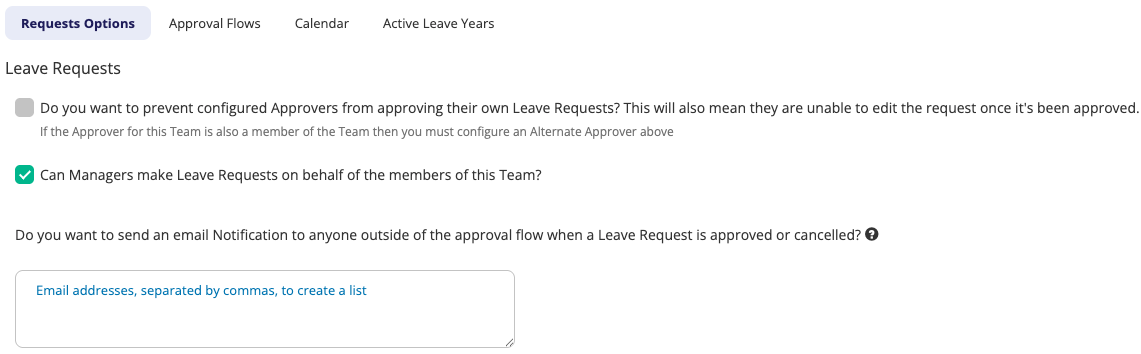
Here you'll be able to configure whether configured Approvers can approve their own Leave Requests, if Managers can make Leave Requests on behalf of Team Members and send Approval/Cancellation notifications to anyone outside of the Approval Flow.
Sickness Reports & TOIL (Comp Time) Allowance Claims
Sickness Reports
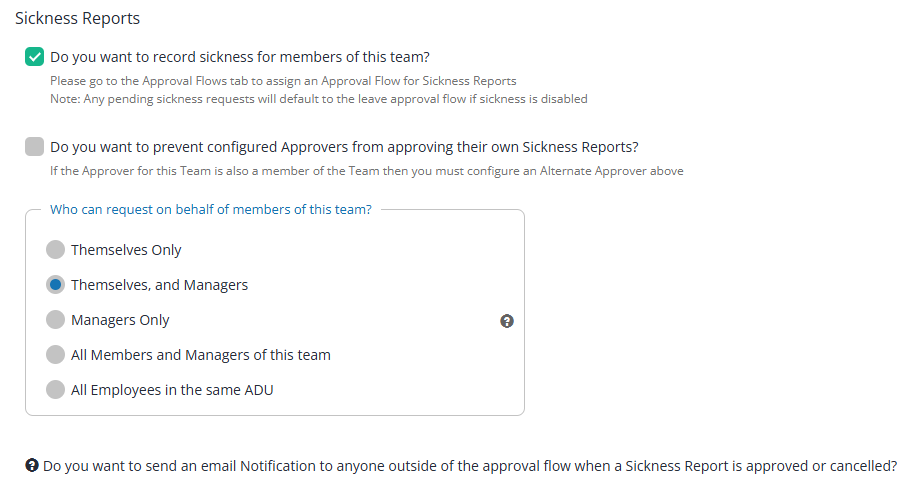
These settings control whether sickness can be recorded for members of the team, who can record it, and how reports are approved.
Setting | What it does |
|---|---|
Do you want to record sickness for members of this team? | Select this to allow sickness to be recorded for team members. You then need to assign an approval flow for sickness reports on the Approval Flows tab. If you switch this off later, any pending sickness reports move to the team's leave approval flow. |
Do you want to prevent configured Approvers from approving their own Sickness Reports? | Select this to stop approvers approving their own sickness reports. If the team's approver is also a member of the team, you must set an alternate approver. |
Who can request on behalf of members of this team? | Choose who can record sickness for team members. See the options below. |
Do you want to send an email Notification to anyone outside of the approval flow when a Sickness Report is approved or cancelled? | If you want to notify people who aren't part of the approval flow, such as a payroll contact, when a sickness report is approved or cancelled, enter their email address(es) below. |
For Who can request on behalf of members of this team?, the options are:
Option | Who can record sickness for a team member |
|---|---|
Themselves Only | Only the team member. |
Themselves, and Managers | The team member and the team's managers. |
Managers Only | Only the team's managers. Team members can't record their own sickness. |
All Members and Managers of this team | Anyone in the team, including the team's managers. |
All Employees in the same ADU | Any employee in the same ADU (divisional unit) as the team member. |
TOIL allowance claims
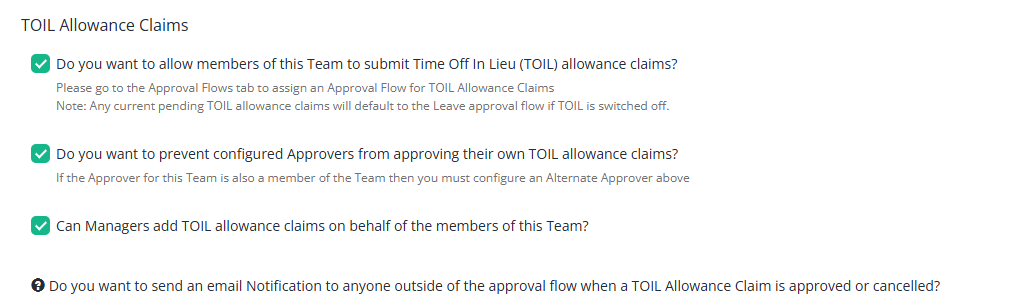
These settings control whether members of the team can claim time off in lieu (TOIL), and how their claims are handled. For more information, see Time off in lieu (compensatory time).
Setting | What it does |
|---|---|
Do you want to allow members of this Team to submit Time Off In Lieu (TOIL) allowance claims? | Select this to let team members submit TOIL allowance claims. You then need to assign an approval flow for TOIL claims on the Approval Flows tab. If you switch this off later, any pending TOIL claims move to the team's leave approval flow. |
Do you want to prevent configured Approvers from approving their own TOIL allowance claims? | Select this to stop approvers approving their own TOIL claims. If the team's approver is also a member of the team, you must set an alternate approver. |
Can Managers add TOIL allowance claims on behalf of the members of this Team? | Select this to let the team's managers submit TOIL claims for team members. |
Do you want to send an email Notification to anyone outside of the approval flow when a TOIL Allowance Claim is approved or cancelled? | If you want to notify people who aren't part of the approval flow, such as a payroll contact, when a claim is approved or cancelled, add their email address(es) to the section below. |
Approval Flows
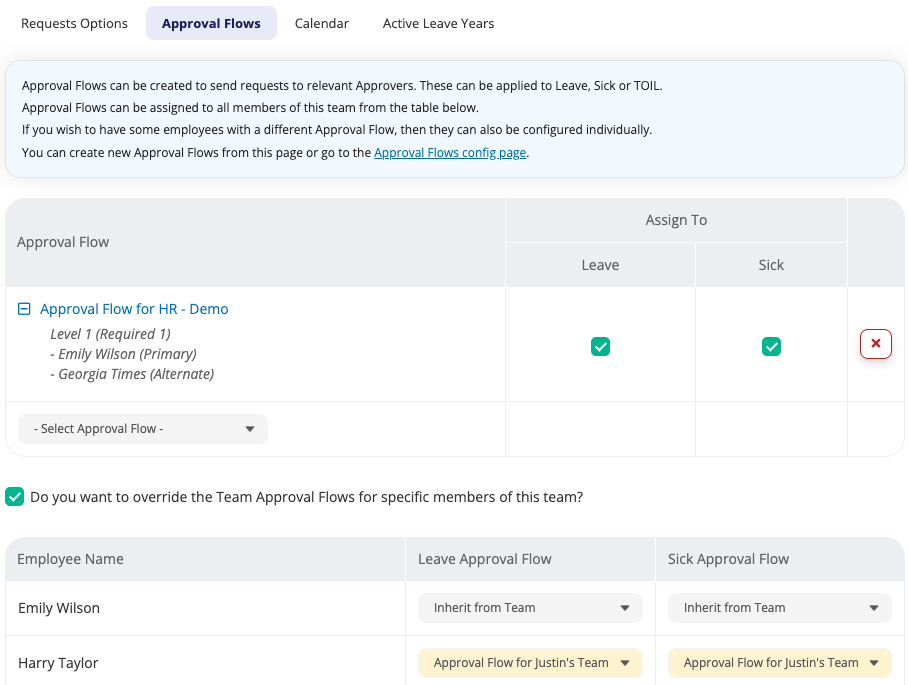
This page will allow you to configure the Approval Flows for this Team for Leave, Sick and TOIL (if enabled).
Click "Select Approval Flow" to select from a pre-configured Approval Flow. You can find out how to configure an Approval Flow here.
If you would like to override the Approval Flows for specific members of this team, you can do so by selecting the tick box at the bottom of the Approval Flow selection box.
Calendar
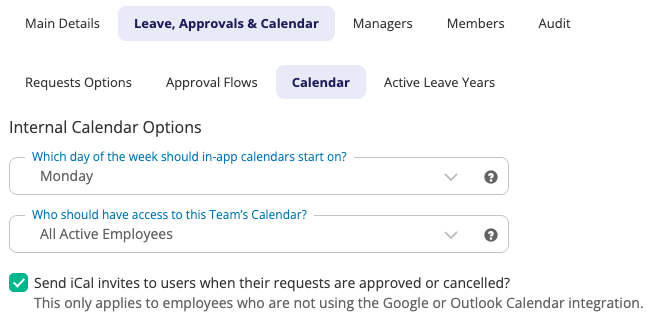
Choose which day in-app calendars should start on and who has access to these calendars. You can also allow iCal invites to be sent to users when their requests are approved or cancelled.
Active Leave Years
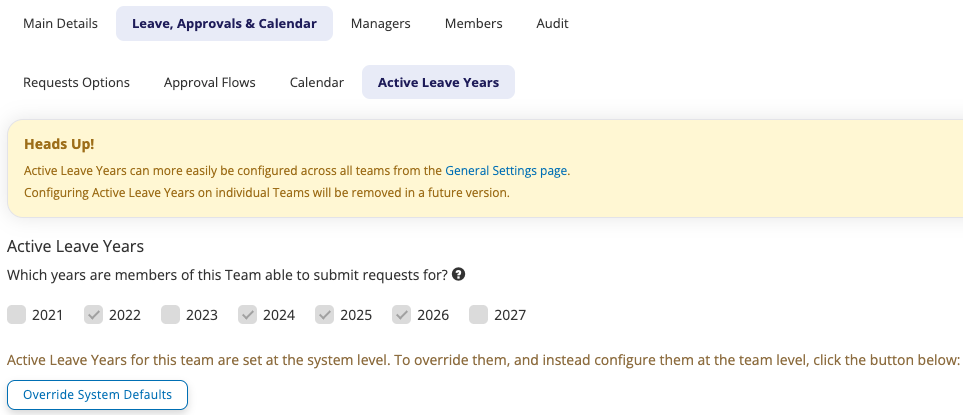
Configure which years members of the Team are able to submit requests for. This may be set using the System Defaults, more information can be found here: Active Leave Years.
Managers
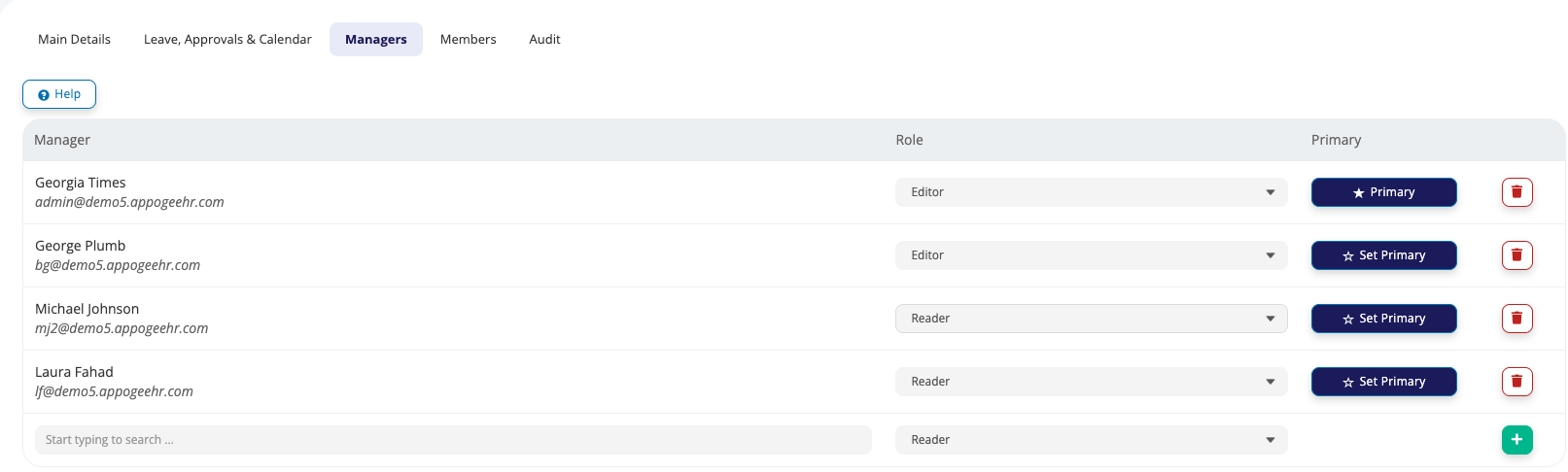
To allocate a Team Manager, enter their email address and select their name, choose their Role (reader or editor) and select whether or not they are the Primary Manager, then press the green + button to confirm the changes.
Each team can only have one Primary Manager, but can have multiple additional Managers. A Team Manager may be assigned a Reader or Editor role.
Managers with Editor roles can edit requests and allowances of users they manage, whereas managers with the Reader role have read-only access to the team profile.
All managers have access to the management section in the Leave module, and reporting for teams they manage. If you are on our HR packages, Managers will also have access to other modules for the teams that they manage (e.g. Employee Profiles, Locations, Clock-in/out, Goals).
Members
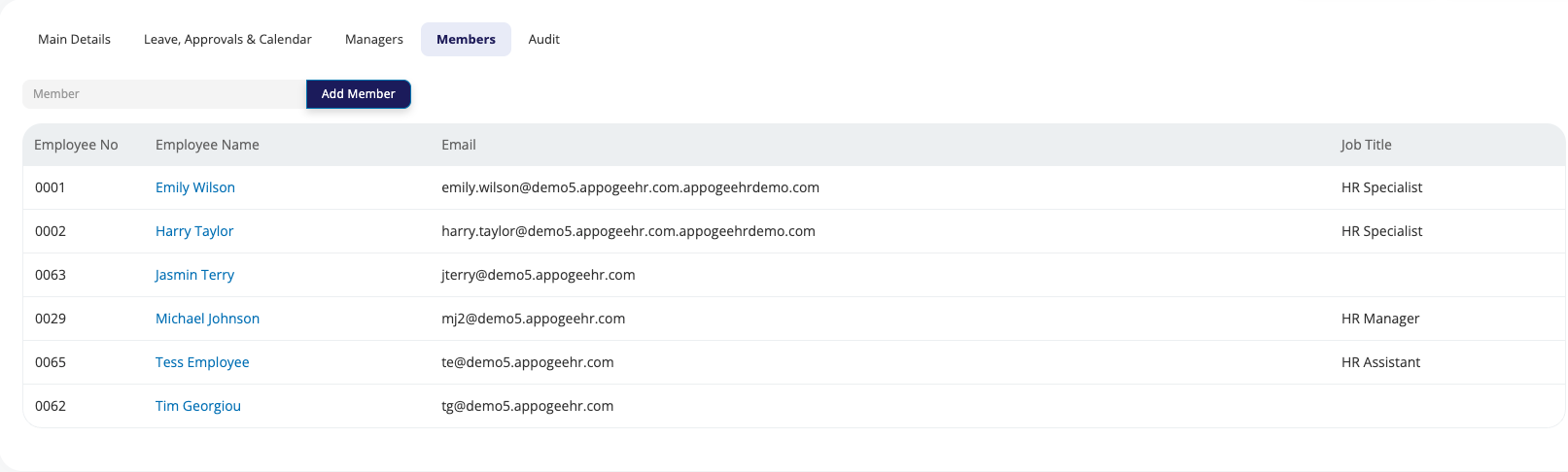
You can view employees who belong to the team from this tab. To add users to the team, you can search them via their email address or their name and click 'Add Member'.
Audit
A full list of transactions that have taken place on the team are listed here, including creations, updates, and deletions. This list is read-only and cannot be deleted.
Deleting a Team
If you wish to delete a team, you must ensure:
All members of the team have been removed, including former team members
All managers have been removed from the team
All approval flows have been removed from the Leave, Sickness & TOIL settings
That the team is not a parent team. Please check the Org Chart to see the hierarchical structure of the team.
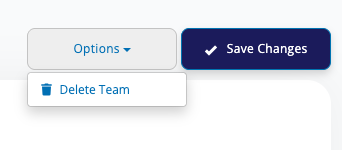
Once you have done this, you can click on Options > Delete Team.