This worked example follows a single employee through a retrospective pay rise, showing how Cintra iQ automatically corrects previous pay periods once a new position and rate of pay are backdated. It covers what the correction looks like on the payslip, how to trace the same figures using the corrections reports, and how a scratch payslip can confirm a correction is accurate.
Although the example below uses position-based salaries, the same principle applies to organisations that don’t pay employees in this way.
The employee’s standard payslip
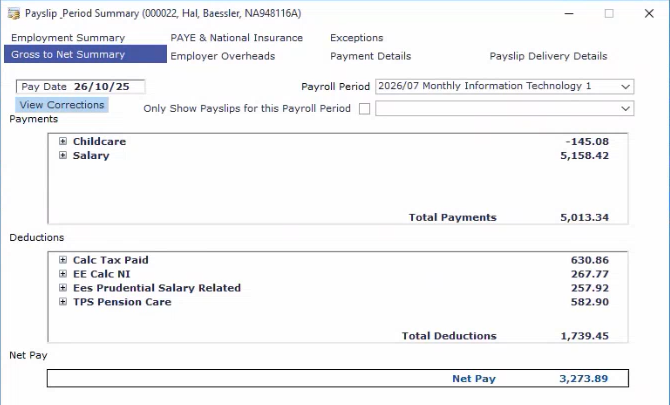
This is the employee’s payslip for the current month, showing his monthly salary for his position as “Competitive Intelligence Manager” for October 2025. See checking an employee’s payslip.
Retrospective pay rise
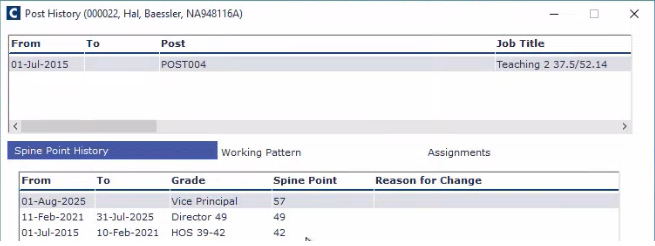
However, on the 1st August 2025, he started a new position with a higher rate of pay.
Recalculating the payslip
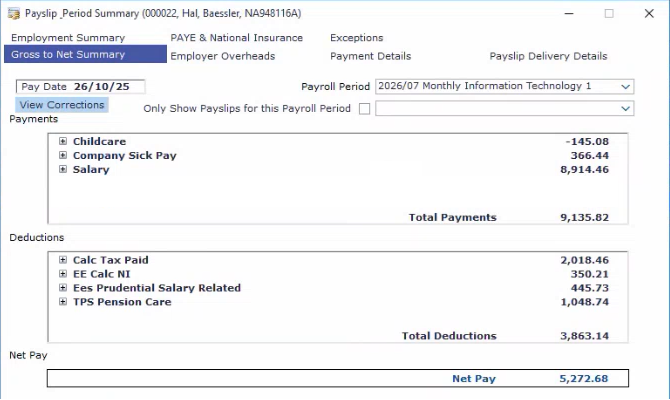
Therefore, when we open his current payslip and recalculate it, we notice a couple of things:
Payments
Their salary has increased.
Some company sick pay has been added which wasn’t there before.
We can double-click the payments section to view more information…
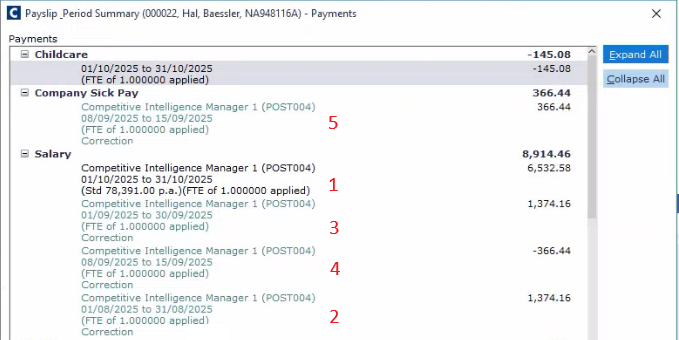
From here, we can see the following payments / corrections:
The employee’s new and increased salary for October.
The employee’s backdated pay for August, shown as a correction.
The employee’s backdated pay for September, shown as a correction.
The employee was off sick for a week during September. This correction removes the backdated pay they would have received for this week.
In line with company policy, the same amount of money deducted from the employee’s salary is replaced with sick pay.
These corrections are necessary to ensure that the user is paid the correct amount for previous pay periods, where it is no longer possible to correct the figures.
Deductions
If we look at the deduction’s section of the payslip, we can see some further corrections:
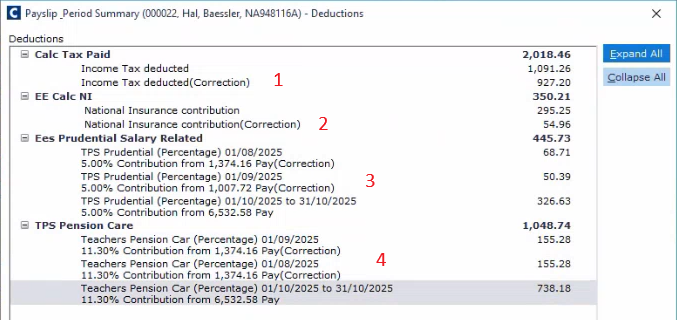
The employee has had to pay more tax on his backdated salary increase.
The employee has had to pay more NI on his backdated salary increase.
The employee pays 5% of their salary into a pension each month. Therefore, these corrections reflect the increased contributions. Note that September’s correction is slightly lower due to the week off sick.
The employer pays 11.3% of the employee’s salary into their pension. These corrections reflect the pension contribution since the pay increase.
Corrections reports
Employee corrections report
For a full history and information for a specific employee’s corrections, click View Corrections on their payslip.
This report displays all corrections ever made to the employee’s pay.
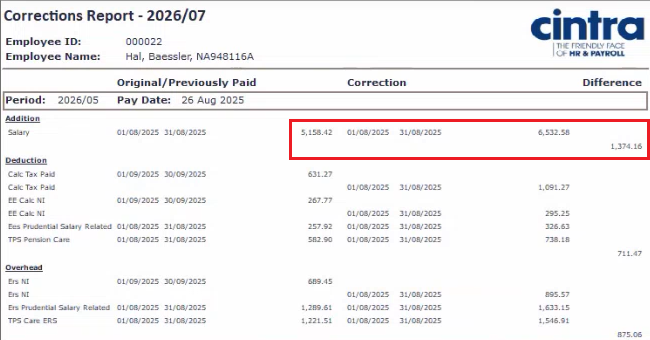
For example, we can see the employee’s original salary for August was £5,158.42 and the corrected salary was £6,532.58. Therefore, this is a difference of £1,374.16 that appeared as a correction for August in the employee’s payslip.

The same is also true for the user’s tax, NI, and pension contributions.
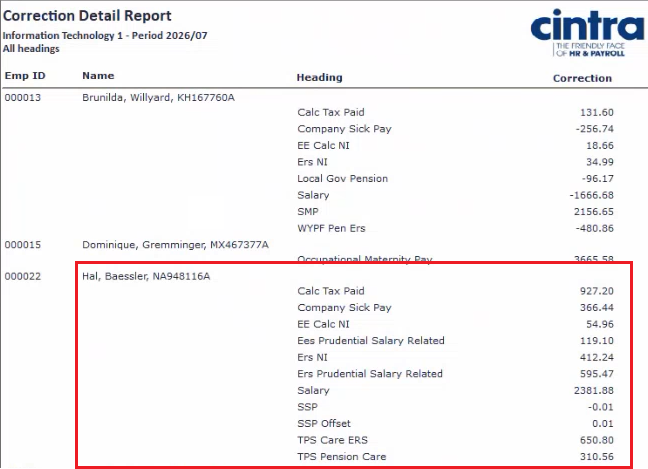
Payroll corrections report
To find out how to access and use the corrections report, see How do I produce a corrections report?
For our example, we’ve produced a detailed corrections report showing ALL corrections which have occurred on the payroll. This will display any corrections for every employee on the payroll.
Scratch payslips
Any changes applied to previous pay periods (and therefore corrections) can be viewed on scratch payslips, which can be produced for any employee in any pay period.
For example, here is how the employee’s payslip would have looked for the August pay period, if the pay increase had been applied at the time.
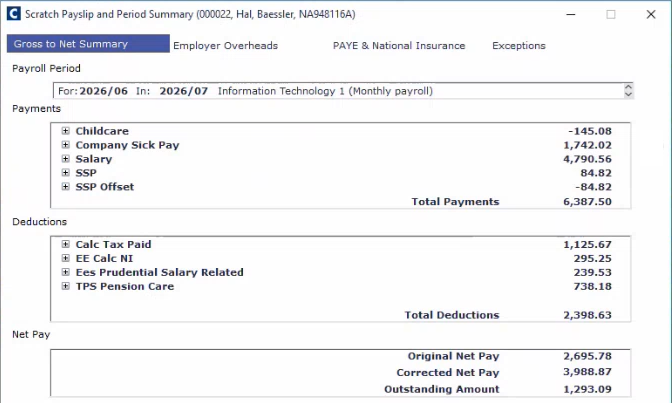
Any differences between the scratch payslip and the actual payslip is then applied as a correction in the current month’s payslip.
Troubleshooting problems
Up until now, the corrections were both expected and the right figures. However, corrections can often appear unexpectedly, or when they are expected, their values appear incorrect. When this occurs, you need to perform some troubleshooting.
Instead of ending the previous position and starting a new one, the payroll admin simply replaced the previous position with the new one and added the new start date, resulting in a large gap between the end of the last position and the start of the existing one.
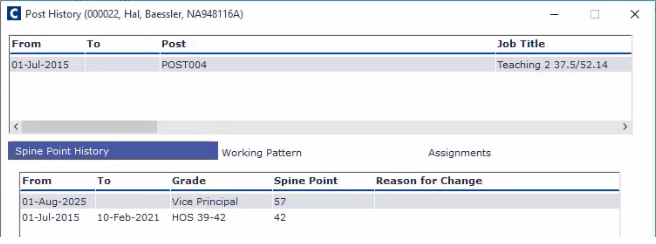
This would result in a massive correction on the payslip, as the system tries to correct the fact that the employee shouldn’t have received any salary for over four years!

In this scenario, we can view the audit log for that payroll + employee to view all the recent changes. Here we can see the change that likely caused the error.
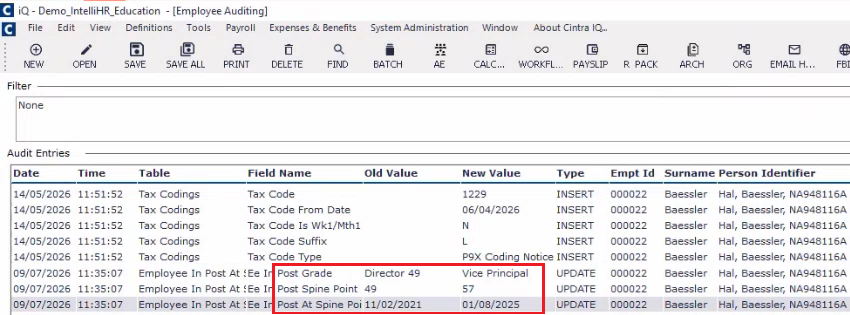
In this example, we would edit the employee to add ALL the correct positions with the correct dates, then recalculate the payslip.
This article explains why corrections can occur on payslips, and what you can do to investigate them. For more information, see our troubleshooting guide.