Who can do this:
HR Manager
Introduction
Employee leave allowances are linked to an allowance year, and one of the configuration options is to specify the start month for that allowance year.
If you change your Leave start month for any particular reason, you can use the Allowance Range tool to calculate the new allowance based on a different start month.
The system will determine whether the right option is to extend or to shrink the allowance period.
Example: If a Leave Start Month is January, employees allowance will run from January 1st until December 31st.
If you wish to change the Leave Start Month to April, the new current leave year would be shortened from Jan-March and a new leave year created for April-March.
This tool lets you update the employee allowance to show the new leave start month changes by shrinking/extending and then updating the employee allowance.
When is this tool used?
This tool is used when the leave start month for an employee changes. This can be from the following scenarios:
A consistent leave start month is changed under Leave > Admin & Config > General Settings
An employee is moved to a new leave profile with a different leave start month
An employee is restored from archived, regardless of which team they are restored to
This tool can also be accessed without automatic redirection by going to Leave > Admin & Config > Adjust Allowance Range
Using the tool
To access the Adjust Allowance Range tool, go to Leave > Admin & Config > Adjust Allowance Range.
Once inside the team, select the employee division (if applicable), team and work pattern (formerly work profile).
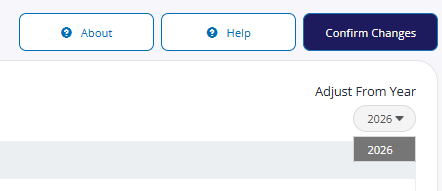
Select which year the employee's allowance should be adjusted from.
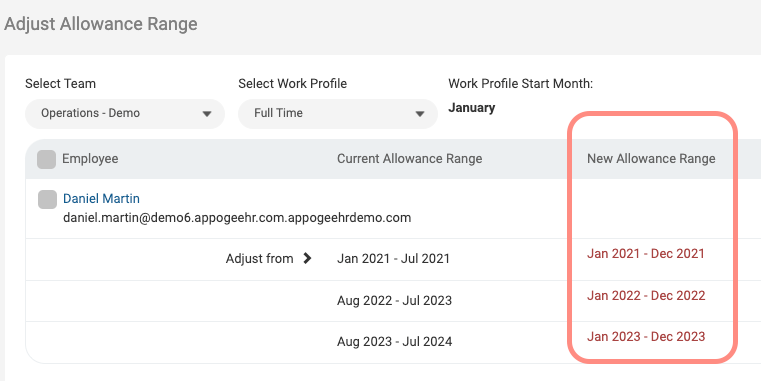
The employee in the screenshot example has a new leave start month of January and we will be extending their 2023 allowance to be January 2023 to Dec 2023
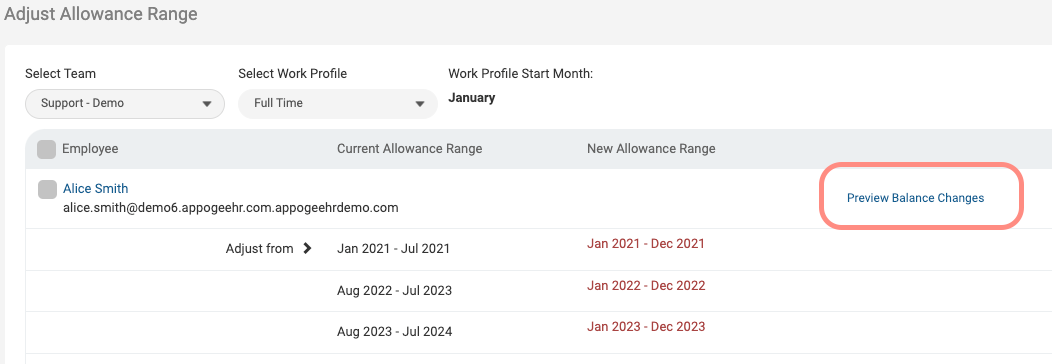
To preview the changes to the allowance, click Preview Balance Changes.
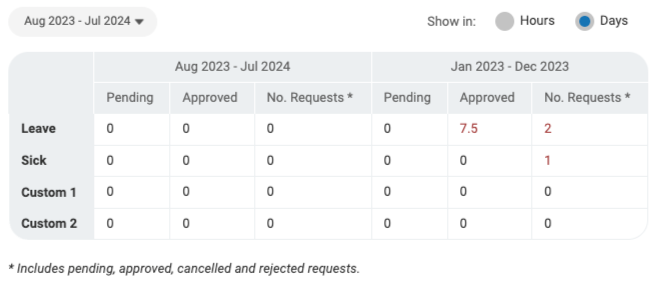
The preview will display all updates to the employee's requests, as some requests may now fall into a different calendar year.
The drop-down menu can be used to select the allowance year to review all changes to the requests for that year.
Once all changes are reviewed, click Confirm Changes.
If there are multiple employees to update, the checkbox to select the employee can be checked and then click the Confirm changes button to bulk update.
.png)
Once changes are confirmed, new leave allowances will be calculated automatically.